
Rocket.Chat Auto Away: Change the 5-Minute Timer or Turn It Off
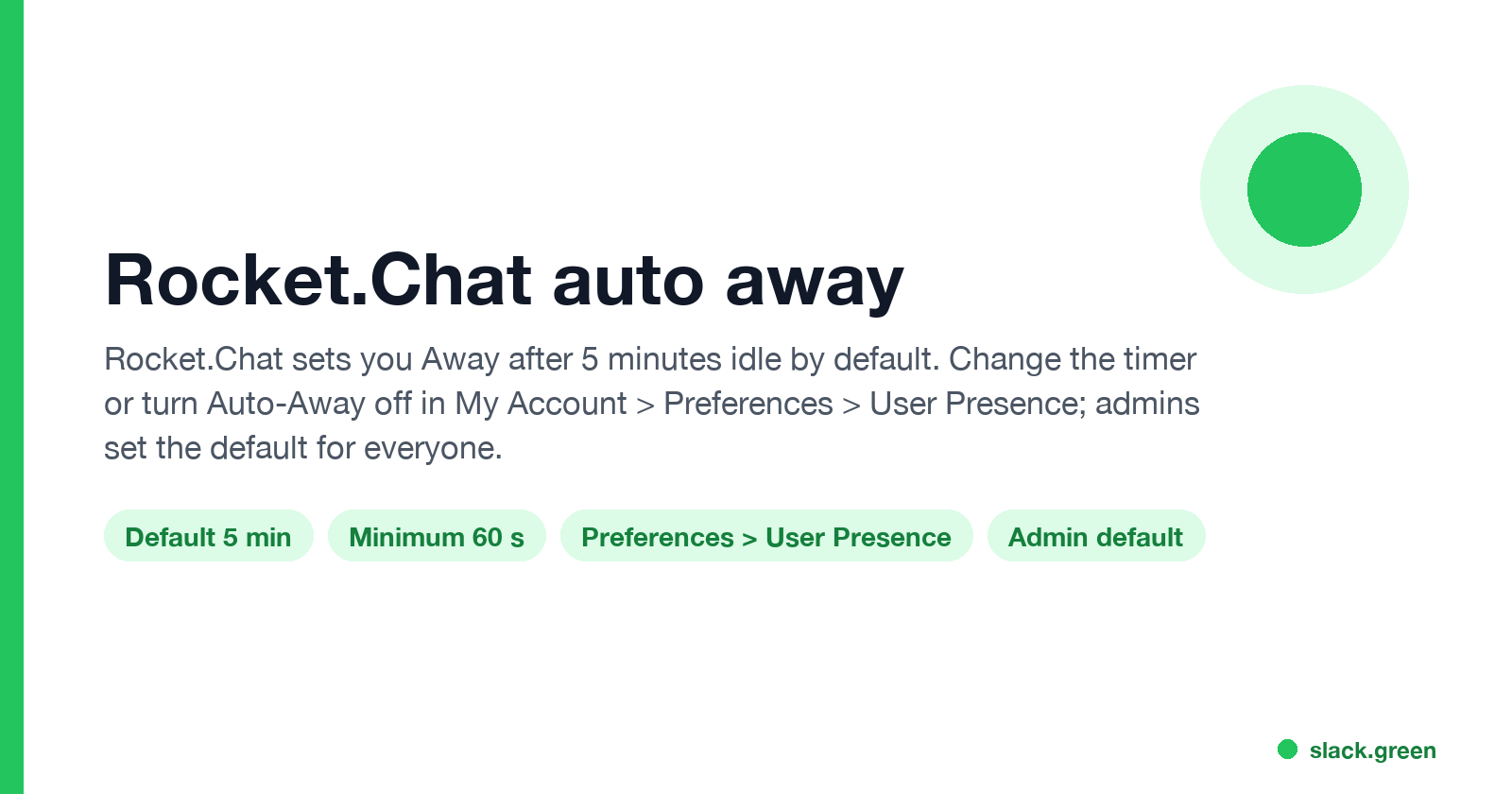
Rocket.Chat sets you Away after 5 minutes without activity by default. Turn Auto-Away off or change the Idle Time Limit in My Account > Preferences > User Presence; admins set the default for new users. What still sets you Away with it off, and how to set status from the API.
Rocket.Chat sets you to Away after 5 minutes without activity by default. To change it, click your avatar, open My Account > Preferences > User Presence, and either turn off Enable Auto-Away or raise the Idle Time Limit, which is in seconds (the minimum is 60). Workspace admins set the default for new users under Default User Preferences in the workspace settings. Locking your screen in the desktop app, or moving the mobile app to the background, still sets you Away with Auto-Away off.
These rules are from Rocket.Chat's own "User Presence and Status" and "Manage Your Account Settings" docs, which we read on 28 September.
Rocket.Chat status colors and what they mean
Rocket.Chat has four presence states plus Invisible:
| Dot | State | How you get it |
|---|---|---|
| Green | Online | Automatic while you are active, or set by hand |
| Yellow | Away | Automatic after the idle time, or set by hand |
| Red | Busy | Set by hand, during a voice call, or by an Outlook meeting in the desktop app |
| Grey | Offline | You are disconnected |
| Grey | Invisible | You pick Offline in the status menu but stay connected |
A status message is separate from the dot. It can be up to 120 characters, can include emoji, and can have an expiry time, after which your previous status comes back.
When Rocket.Chat sets you Away
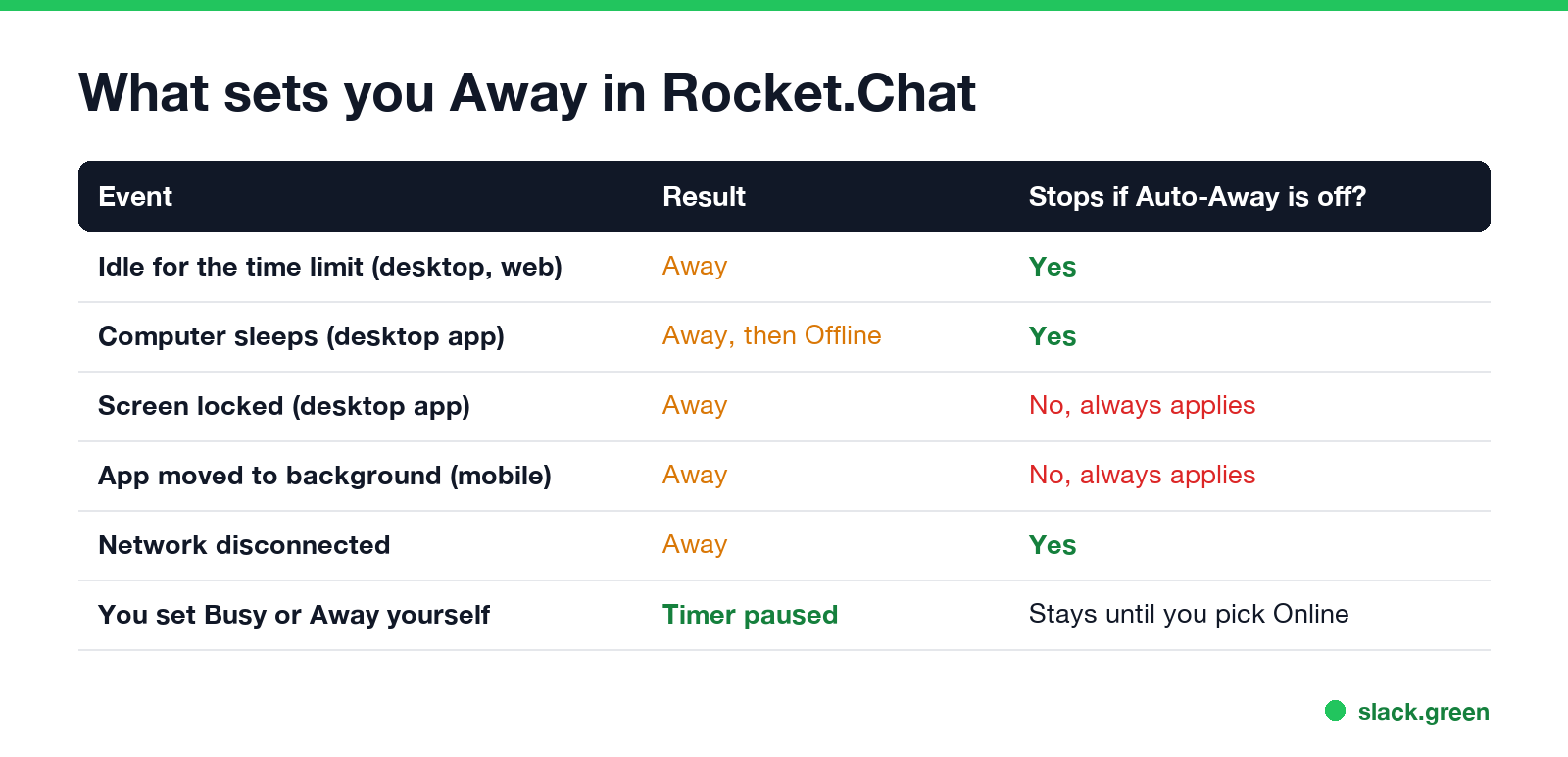
While your status is Online, Rocket.Chat manages it for you. These events change it:
- • Idle for the time limit (5 minutes by default): Away.
- • Computer sleeps (desktop app): Away, then Offline.
- • Screen locked (desktop app): Away.
- • App moved to the background (mobile): Away.
- • Network disconnected: Away.
- Click your avatar at the top left.
- Select My Account, then Preferences.
- Open the User Presence section.
- Turn off Enable Auto-Away, or leave it on and set Idle Time Limit in seconds: 900 is 15 minutes, 1800 is 30 minutes.
- If nothing changes, reload the page. Rocket.Chat's docs give this tip for the same setting.
- Open Administration (Manage in newer versions), then Workspace > Settings > Accounts.
- Open Default User Preferences.
- Set Enable Auto Away and Idle Time Limit, then save.
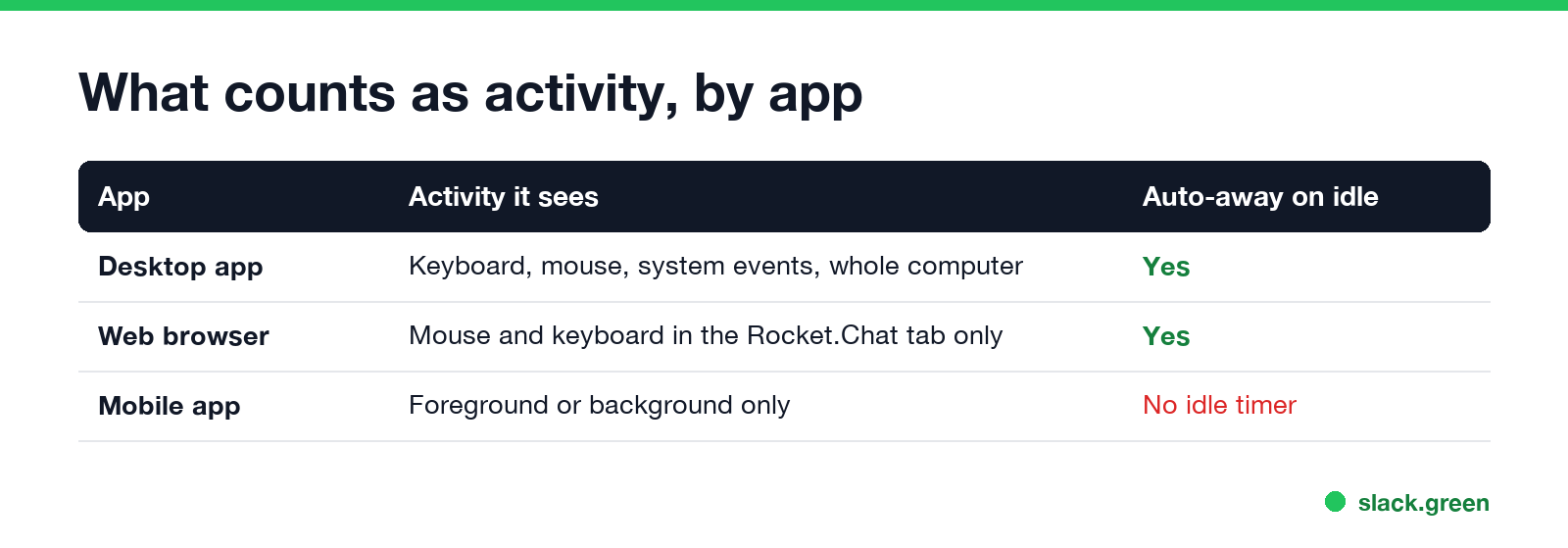
Rocket.Chat's docs call screen lock and the mobile background "explicit system events". They change your presence even with Auto-Away turned off. Idle is not Offline: when you go idle you stay connected, and only the dot changes. You go Offline only when the connection drops.
If you set Busy or Away yourself, auto-away stops until you pick Online again. That status also survives a logout and a new login.
How to turn off auto away in Rocket.Chat
There is a cost. Rocket.Chat pushes your mentions to your phone when you are idle on the web or desktop app. The account settings doc says that with auto-away off you get no push notifications unless your screen turns off. If you rely on phone alerts, raise the time limit instead of turning it off.
The same idea in Slack, where you cannot change the timer, is in how long does Slack stay active.
Change the idle time limit for everyone (admins)
Each user's setting starts from the workspace default. To change it as an admin:
The default applies to users who have not changed their own preference. A 2022 thread on the Rocket.Chat forum shows the default value as 300, which is the same 5 minutes. Admins also control whether people can pick Invisible (Allow Invisible status option) and whether they can write a custom status message (Allow Custom Status Message), both under Accounts. Custom statuses such as "On Vacation" live under Workspace > User Status; each one maps to one of the four dots.
Never appear "away" on Slack again
Cloud-based. No downloads. Works 24/7 even when your laptop is off.
Why you still show Away with auto away off
Set your Rocket.Chat status from a script
Rocket.Chat's REST API has users.setStatus and users.getStatus. You need your user ID and a personal access token (My Account > Personal Access Tokens). This request sets Busy with a message that expires at 17:00 UTC; expiresAt needs Rocket.Chat 8.6 or later:
curl -X POST "https://chat.example.com/api/v1/users.setStatus" \
  -H "X-User-Id: $RC_USER_ID" \
  -H "X-Auth-Token: $RC_TOKEN" \
  -H "Content-Type: application/json" \
  -d '{"status": "busy", "message": "Deep work", "expiresAt": "2026-10-01T17:00:00.000Z"}'

curl "https://chat.example.com/api/v1/users.getStatus" \
  -H "X-User-Id: $RC_USER_ID" \
  -H "X-Auth-Token: $RC_TOKEN"
status takes online, away, busy or offline. Offline and invisible only work if the admin allows Invisible. Setting online does not pin you Online: it hands your presence back to the automatic rules, so the idle timer runs again. To stay green, raise the Idle Time Limit.
For Slack's version of status scripts, see how to schedule Slack status. Status text ideas for any chat app are in our status ideas tool.
Rocket.Chat vs Mattermost, Slack and Teams away timers
| App | Default idle time | Can a user change it? |
|---|---|---|
| Rocket.Chat | 5 minutes | Yes, Preferences > User Presence (60 s minimum) |
| Mattermost | 5 minutes | Admins can; see Mattermost away status |
| Slack | About 10 minutes | No; see why Slack goes idle so quickly |
| Microsoft Teams | 5 minutes | No; see how long before Teams shows away |
Rocket.Chat is the only one of the four that gives each user a timer setting. In Slack the timer is fixed.
FAQ
How long does Rocket.Chat take to show Away?
5 minutes without activity by default. You can change it in My Account > Preferences > User Presence, down to 60 seconds.
How do I disable auto away in Rocket.Chat?
Avatar > My Account > Preferences > User Presence, then turn off Enable Auto-Away. Screen lock and the mobile app in the background still set Away.
How do I appear offline in Rocket.Chat?
Pick Offline in the status menu. That sets Invisible: you stay connected, can send messages, and look offline to others. Your admin can turn this option off.
Why does Rocket.Chat show me online when I'm not?
You may be signed in on another device, which wins over the idle one, or the presence service may be off in a Community workspace with more than 200 connections.
Can I keep Rocket.Chat always online?
Turn off Auto-Away, or set a long Idle Time Limit. Keep the desktop app from locking the screen, and keep the mobile app in the foreground.
Stop Jiggling Your Mouse.
Join hundreds of remote workers who never worry about their Slack status. Set it up once, stay green forever.
Related Articles
How to Use Slack Block Kit Builder: Templates, Preview, Payload
Slack's Block Kit Builder at app.slack.com/block-kit-builder lets you pick a template, add blocks, preview the message on Desktop or Mobile, and copy the JSON payload for a webhook or chat.postMessage. A walk through the current builder, a working deploy message, and the steps to send it.
Wireless Mouse With a Jiggler: How the Built-in Mode Works
A wireless mouse with a jiggler is a normal mouse with a jiggle mode in its firmware: hold the DPI button for about 3 seconds and the cursor moves on its own. Two models in the top results, how they compare with a USB dongle and a mechanical mover, and what they do for Teams and Slack.
Does Discord Notify When You Change Your Status?
Switching between Online, Idle and Do Not Disturb sends no notification. But friends on the Discord mobile app can get a push when you come online, set a new custom status, or start a game, and you cannot stop Discord from sending it. They can turn it off on their side; you can go Invisible.