
Slack Lunch Status: Set It, Automate It, and Lines to Copy
To set a Slack lunch status, click your profile picture, Update your status, pick an emoji such as the fork and knife, type "Lunch, back at 1:30", and set Remove status after to when you are back. How to schedule it, the ways to automate a daily lunch status, and what happens to your green dot.
To set a lunch status in Slack, click your profile picture, then Update your status (or press Cmd+Shift+Y / Ctrl+Shift+Y). Pick an emoji such as 🍴 or 🥪, type "Lunch, back at 1:30", open Remove status after... and choose 1 hour or Choose date and time, then click Save. The status clears itself when lunch is over. Slack has no built-in daily repeat for a custom status, so for an automatic lunch status every day you need a scheduled status each time, a calendar event, or a workflow or API call.
While you eat, your dot goes grey 10 minutes after your last input in Slack; the status explains why. If you would rather your dot follow your working hours, lunch included or not, Slack Green keeps presence on the schedule you set, from the cloud.
Slack lunch statuses to copy
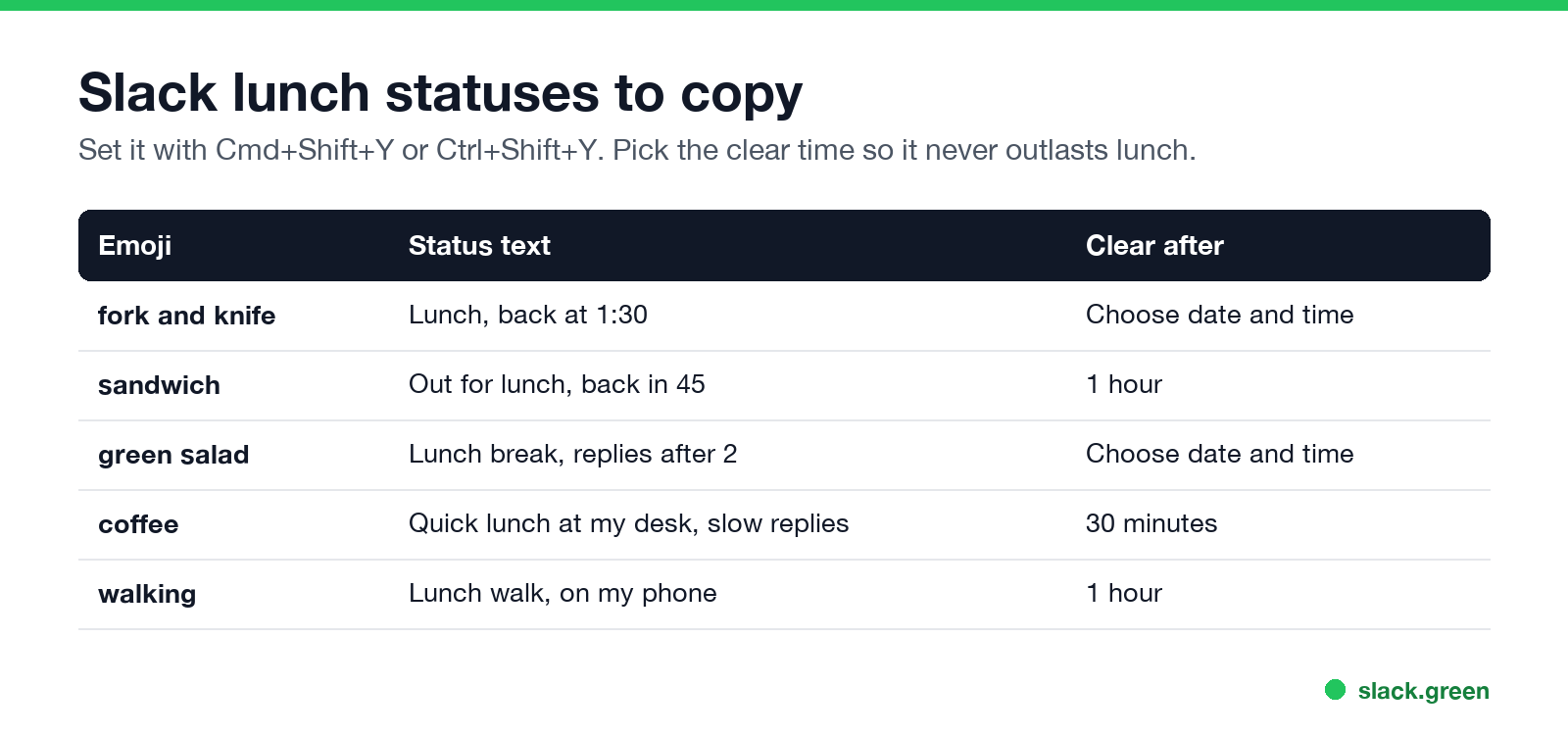
- • 🍴 Lunch, back at 1:30
- • 🥪 Out for lunch, back in 45
- • 🥗 Lunch break, replies after 2
- • ☕ Quick lunch at my desk, slow replies
- • 🚶 Lunch walk, on my phone
- • Scheduled status. Queue this week's lunches in advance; see how to schedule a Slack status.
- • Calendar. The Google Calendar and Outlook apps set In a meeting only for events with other invitees, so a solo lunch block does nothing; see sync Slack status with Google Calendar.
- • API. A small daily job can set the status with an expiry; code is in set a Slack status with the API.
Put the time you are back in the text. More lines, by situation, are in the Slack status ideas tool and Slack status examples.
How to set a Slack lunch status automatically
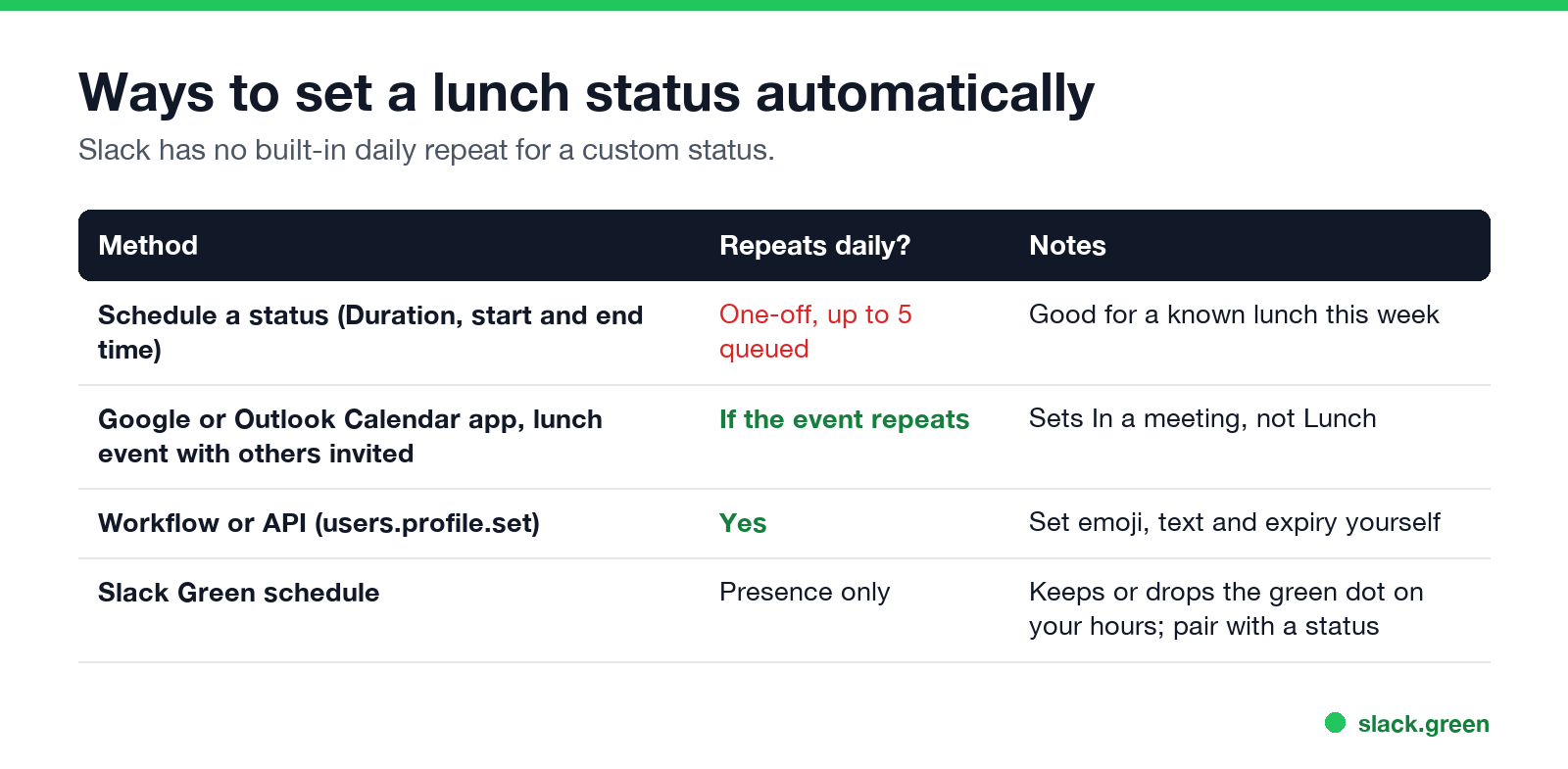
| Method | Repeats daily? | Notes |
|---|---|---|
| Scheduled status | No, one-off; up to 5 queued | In Update your status, Duration, Choose a start and end time |
| Calendar app with a lunch event | Only if the event repeats and has other invitees | Sets In a meeting, not Lunch |
| Workflow or API | Yes | users.profile.set with text, emoji and expiry |
Set a lunch status on your phone
Tap your profile picture, tap the status field, type the status, pick an emoji, tap Clear after, choose the time, and tap Done.
Should you pause notifications at lunch?
If you want a quiet lunch, check Pause notifications when you set the status. Notifications resume when the status clears. Urgent messages can still reach you once a day; see Slack Do Not Disturb.
What happens to your dot at lunch
Your status and your dot are separate. The status says "Lunch"; the dot turns grey 10 minutes after you stop using Slack, and on your phone as soon as you leave the app. Coworkers see both. The rules are in how long does Slack stay active. For short breaks, some people write AFK instead; see what does AFK mean in Slack.
FAQ
How do I set a lunch status on Slack?
Profile picture, Update your status, type "Lunch, back at 1:30", pick an emoji, set a clear time, Save.
Can Slack set my lunch status automatically every day?
Not with a built-in setting. Use scheduled statuses, a workflow, or the API.
What emoji should I use for lunch on Slack?
🍴, 🥪 or 🥗 are the common ones.
Does a lunch status keep me green?
No. Your dot goes grey 10 minutes after your last input in Slack.
How long should a lunch status last?
Set it to clear when you are back, usually 30 minutes to an hour.
Related Articles
Slack Workflow Builder Examples: 12 Workflows to Copy, With Triggers and Steps
Twelve Slack Workflow Builder examples with the exact trigger and steps for each: daily standups, channel welcomes, time-off approvals, help desk requests, emoji escalations, keyword routing, incidents, list updates and webhooks from other tools. Plus where Workflow Builder lives, what it costs and how branches work.
Slack Timer: How to Set a Countdown, Pomodoro or Focus Timer in Slack
Slack has no built-in timer, but four built-in tools act like one: /remind me to ... in 25 minutes, a status that clears itself, /dnd for a focus block, and Workflow Builder for dated countdowns. For a live countdown in a channel, use a Marketplace app or a 15-line bot script.
Slack Red Dot Won't Go Away? What It Counts and How to Clear It
A red dot on the Slack icon means unread activity somewhere; a red number means DMs, mentions, keywords or followed thread replies. Press Shift+Esc to mark all read, check Threads, Activity, Later and other workspaces, then clear the cache or reset the OS badge.