
Slack Mute a Channel Without Hiding It: The Setting, Tested
In current Slack, muting a channel also hides it from the sidebar until you turn off one checkbox in Preferences. We muted a test channel, had a bot post and then @mention us in it, and recorded what the sidebar, the badge and Activity showed each time.
To mute a Slack channel without hiding it, open Preferences > Home and untick Hide muted channels from your sidebar. Muted channels then stay in your channel list, greyed out with a crossed-out bell. With the box ticked, which is how our account was set, a muted channel leaves the sidebar and comes back only when someone mentions you in it. We tested both settings in the Slack web app on 3 October 2026, in a test channel where a bot posted for us.
Where the mute option is now
Right-click a channel in the sidebar (or open its name menu). Under Notify you about... there are three choices: All new posts, Just mentions, and a third whose label depends on your setting. With hiding on it reads Mute and hide:
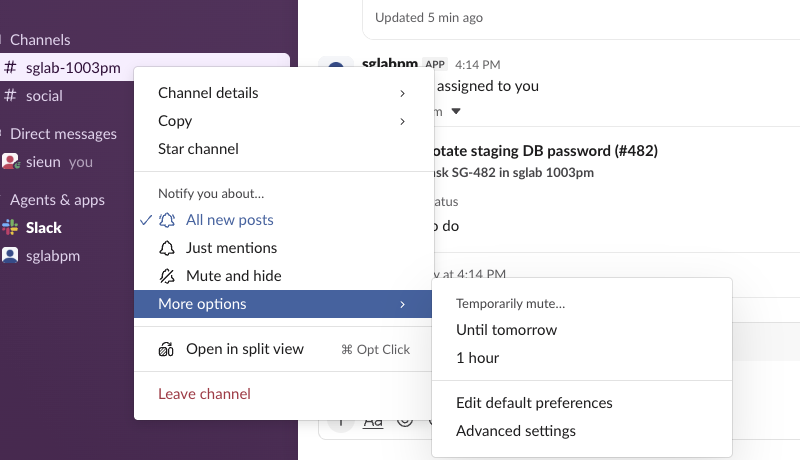
With hiding off, the same item reads Mute channel. That label is the quickest way to tell which setting you have without opening Preferences.
Clicking Mute and hide showed a toast, "#sglab-1003pm muted. Undo", moved the channel to the bottom of the section while it was open, and removed it from the sidebar as soon as we opened another channel.
Keep muted channels visible
- Click your workspace name, then Preferences.
- Open Home.
- Under Sidebar Organization, untick Hide muted channels from your sidebar.
- • A plain post changed nothing. No badge, no Activity item, the channel stayed hidden.
- • An @mention of us brought the channel back into the sidebar with a mention badge of 1, and the Activity count went from 1 to 2. The mention was the top item under Activity > All, as "Mention in #sglab-1003pm".
- • After we opened the channel and read the mention, it left the sidebar again as soon as we moved to another channel.
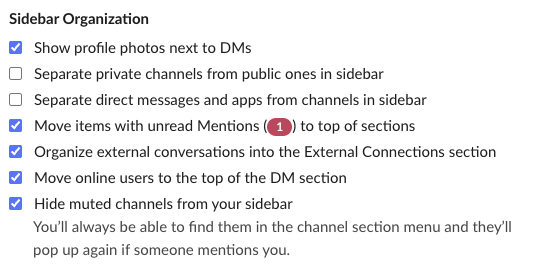
The change applied at once, with no reload. Our muted channel reappeared in the list, greyed, with the crossed-out bell. In users.prefs.get the checkbox is stored as show_muted_items_outside_sidebar_menus, which went from false to true when we unticked it. The pref named hide_muted_channels_from_sidebar stayed false the whole time, so do not read that one.
What a muted channel does when someone posts or mentions you
With the channel muted and hidden, a test bot posted twice in it:
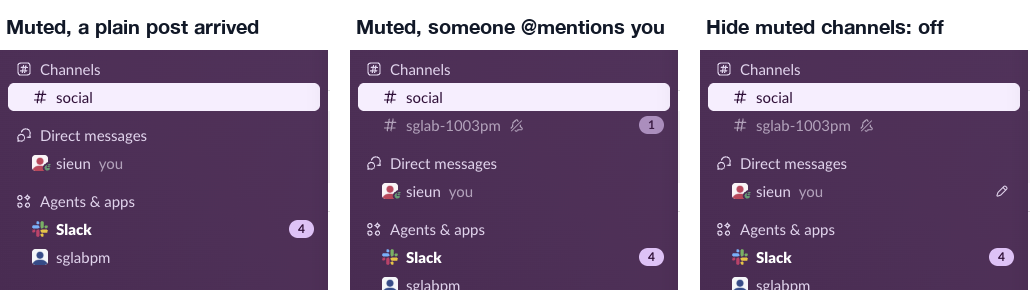
So muting already lets mentions through. You do not need a separate "mute except for mentions" setting.
Never appear "away" on Slack again
Cloud-based. No downloads. Works 24/7 even when your laptop is off.
Find muted channels that are hidden
Right-click the Channels section header. Under Muted conversations the menu listed our hidden channel by name, and clicking it opens the channel:
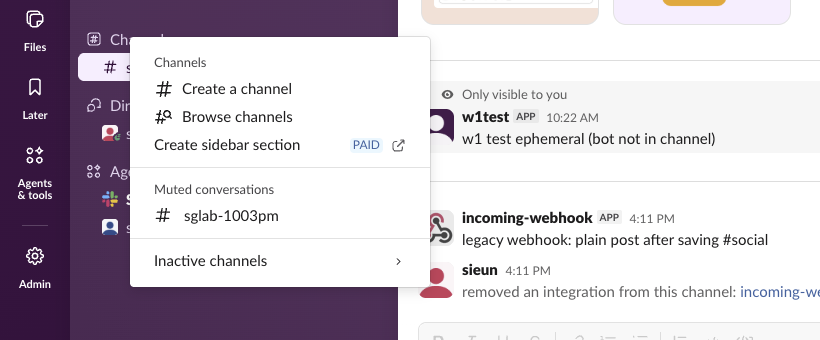
Inactive channels in the same menu holds channels hidden by the separate Active only filter (Preferences > Home > Filter conversations by), which hides conversations with no activity in 30 days. If channels went missing and you never muted them, that filter is the cause; Slack channels disappeared from the sidebar covers it.
Mute a channel for a set time
The menu has More options > Temporarily mute... with two choices: Until tomorrow and 1 hour. We picked 1 hour. The toast said "#sglab-1003pm muted for 1 hour. Undo", and the channel's notification prefs changed to:
{"C0C6HQAM8JV": {"muted": false, "temp_mute_expiration_ts": 1791016265}}muted stays false and the expiry is a Unix time 3,597 seconds after the click, so a temporary mute is a separate timer and ends by itself. There is no custom length in the menu. For a whole workspace, pause notifications with Slack do not disturb instead.
Questions
Does muting a channel tell anyone? Our test workspace has one member, so we could only check the channel itself: no message appeared there when we muted or unmuted. The change is stored in your own notification prefs, under your user.
Does a muted channel still count in unreads? With hiding on, a plain post gave no badge and no Activity item. Only the mention did.
Stop Jiggling Your Mouse.
Join hundreds of remote workers who never worry about their Slack status. Set it up once, stay green forever.
Related Articles
Slack All Unreads: Turn It On, Shortcuts, and Clear Everything
Slack's Unreads view collects every unread message on one page. We turned it on, opened it with Cmd+Shift+A, cleared one channel with Esc and the whole workspace with Shift+Esc, and read Slack's own unread counts before and after each step.
Slack Bookmarks: Where They Are Now, and Why They Disappear
Slack channel bookmarks now live in folder tabs above the messages, not in a bookmarks bar. We added, moved and deleted them in a test channel and through the bookmarks API, and found the delete that hides bookmarks the API still lists.
Slack Work Objects: A Working Unfurl, Flexpane and the Errors We Hit
We built a Work Object unfurl for a fake ticket tracker in a free Slack workspace: the manifest setting, the chat.unfurl metadata that rendered the card, the entity_details_requested event behind the flexpane, and every error on the way.