
How to Change Sleep Settings on a Mac (Ventura to Tahoe)
On macOS Ventura and newer, the Mac's sleep timer is its display timer: set it in System Settings > Lock Screen, under Turn display off on battery and on power adapter when inactive. The Mac sleeps about a minute after the display turns off, unless you turn on Prevent automatic sleeping in Battery > Options, or in Energy on a desktop Mac. Every setting, where it lives by macOS version, and the pmset commands.
To change when your Mac sleeps, open Apple menu > System Settings > Lock Screen and set Turn display off on battery when inactive and Turn display off on power adapter when inactive. On macOS Ventura and newer there is no separate "computer sleep" slider: the Mac goes to sleep shortly after its display turns off. To keep a Mac awake with the display off, open System Settings > Battery > Options on a MacBook, or System Settings > Energy on an iMac, Mac mini or Mac Studio, and turn on Prevent automatic sleeping on power adapter when the display is off. On macOS Monterey and older, the same timers are sliders in System Preferences > Battery or Energy Saver.
The setting names here are from Apple's Mac User Guide, "Set sleep and wake settings for your Mac" and "Change Lock Screen settings on Mac", checked on 27 September, and the Terminal output is from a MacBook Pro (M2 Max) on macOS Tahoe 26.5.
If you change sleep settings so that Slack stays green, note that it will not: Slack counts input only in its own window, so an awake Mac still shows you away after 10 minutes. Slack Green keeps your Slack status green from a server during the hours you set, with the Mac asleep.
Where each Mac sleep setting lives
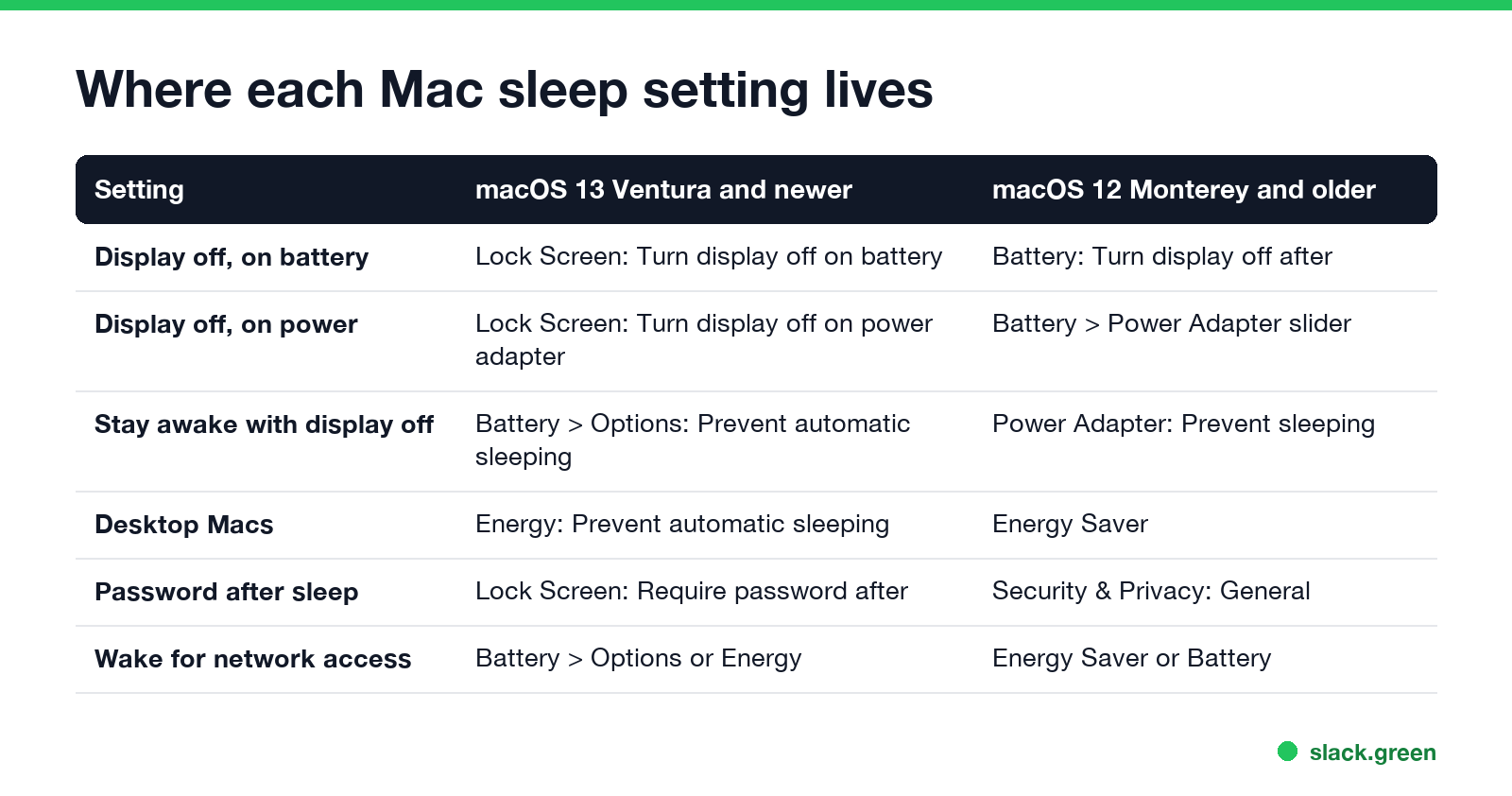
| Setting | macOS 13 Ventura and newer | macOS 12 Monterey and older |
|---|---|---|
| Display off, on battery | Lock Screen: Turn display off on battery when inactive | Battery: Turn display off after |
| Display off, on power | Lock Screen: Turn display off on power adapter when inactive | Battery > Power Adapter: Turn display off after |
| Stay awake with the display off (laptop) | Battery > Options: Prevent automatic sleeping on power adapter when the display is off | Battery > Power Adapter: Prevent your Mac from automatically sleeping when the display is off |
| Stay awake with the display off (desktop) | Energy: Prevent automatic sleeping when the display is off | Energy Saver |
| Password after sleep | Lock Screen: Require password after screen saver begins or display is turned off | Security & Privacy > General |
| Wake for network access | Battery > Options or Energy | Energy Saver or Battery |
| Put hard disks to sleep | Battery > Options or Energy | Energy Saver or Battery |
How to change the Mac sleep time
- Choose Apple menu > System Settings.
- Click Lock Screen in the sidebar. You may need to scroll down.
- Click the menu next to Turn display off on battery when inactive and pick a time.
- Click the menu next to Turn display off on power adapter when inactive and pick a time, or Never.
The Mac sleeps about a minute after the display turns off. Apple notes that some options may not be available on every Mac, and on a work Mac a management profile can lock them.
Separate the lock from sleep. On the same page, Require password after screen saver begins or display is turned off sets how soon you need your password. A long display timer with a short password delay keeps the Mac awake and still locks it quickly once the display turns off. The lock side is covered in keep your Mac screen from locking.
How to set a Mac to never sleep
Never appear "away" on Slack again
Cloud-based. No downloads. Works 24/7 even when your laptop is off.
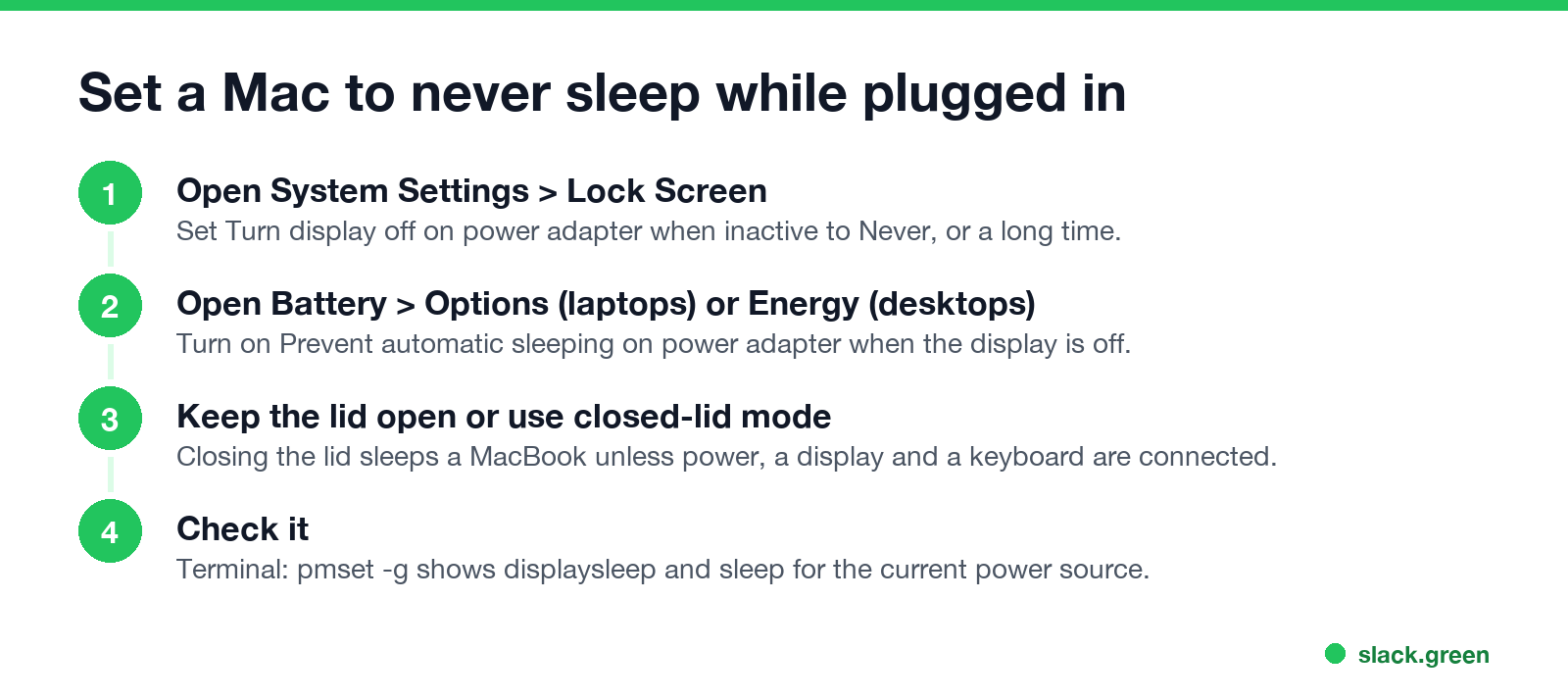
On battery there is no "never sleep" option in Settings, by design. For one long task, use caffeinate or a keep-awake app instead, below.
Check and change sleep settings in Terminal
pmset reads and changes the same timers. These lines are from our MacBook Pro's output (other settings left out):
pmset -g customBattery Power:
displaysleep 2
sleep 1
disksleep 10
powernap 1
AC Power:
displaysleep 10
sleep 1
disksleep 10
powernap 1The numbers are minutes. displaysleep 2 on battery means the display turns off after 2 minutes, and sleep 1 means the Mac sleeps about a minute later. To change them, use -b for battery, -c for the charger, or -a for both:
# display off after 15 minutes on battery (-b) and 30 on the charger (-c)
sudo pmset -b displaysleep 15
sudo pmset -c displaysleep 30

# never sleep the Mac itself on the charger (desktop use only)
sudo pmset -c sleep 0

# check the result
pmset -g
sleep 0 stops system sleep. Use it on a desktop Mac that runs as a server, not on a laptop you carry, because a laptop that never sleeps drains its battery in a bag.
Keep the Mac awake for one task
Changing timers is permanent until you change them back. For a single download, render or presentation, caffeinate -d in Terminal keeps the display and the Mac awake until you press Control-C, and apps like Amphetamine and KeepingYouAwake add a menu bar switch; they are compared in KeepingYouAwake vs Amphetamine.
If the Mac sleeps even after these changes, Mac keeps going to sleep shows how to read the reason for every sleep in pmset -g log. If it will not sleep at all, see why is my Mac not going to sleep.
FAQ
Never appear "away" on Slack again
Cloud-based. No downloads. Works 24/7 even when your laptop is off.
Where is Energy Saver on a Mac? On macOS Ventura and newer it is gone. Laptops use Battery, desktop Macs use Energy, and the display timer is in Lock Screen.
How do I stop my MacBook from sleeping when the lid is closed? Connect power, an external display and an external keyboard or mouse. Without those, closing the lid always sleeps it.
How do I make my Mac screen stay on longer? Set Turn display off on power adapter when inactive in Lock Screen to a longer time.
Why are my Mac sleep settings greyed out? A configuration profile from your company or school controls them. Check System Settings > General > Device Management.
Stop Jiggling Your Mouse.
Join hundreds of remote workers who never worry about their Slack status. Set it up once, stay green forever.
Related Articles
Can My Employer See What I Watch on YouTube at Work?
On a work laptop or the office network, your employer can see that you used YouTube, when, and for how long. With HTTPS inspection or monitoring software, they can see which videos, because the video address and the browser tab title both name it. On your own phone on mobile data, they see nothing.
Can My Employer See My iMessages on a Work Mac?
Not through device management or the network: Jamf or Intune cannot read Messages, and iMessage is end-to-end encrypted. But if you sign in to Messages on a work Mac, your texts are stored on that Mac, where monitoring screenshots, backups and admin access can reach them. How to check, and how to take iMessage off the Mac without deleting it from your iPhone.
Can My Boss See My Private Outlook Calendar Events?
Usually not the details. When you mark an Outlook event Private, someone who can read your calendar sees only Private appointment, the time and a lock. The exceptions are delegates you gave Can view private items, the people invited to the event, anyone with full access to your mailbox in new Outlook or the web, and compliance admins. How to check who has which access, and what Private does not hide.