
Slack Huddle Background: Blur, Pictures, Uploads and Themes
A Slack huddle has two backgrounds: the one behind you on camera, and the theme behind the whole huddle window. Where each one is, what you can pick, and why many people see no upload button.
To change your background in a Slack huddle, click the small arrow next to the camera button in the huddle toolbar and choose Video background. You get None, Blur, or one of six pictures. The picture behind the whole huddle window is a different setting, the huddle theme: open the three-dot menu in the toolbar and choose Choose a huddle theme.
We opened both menus in the Slack web app on 29 September 2026, in a test workspace with one member, and read the list of backgrounds Slack's app loads. In that workspace there was no button to upload your own picture. The upload section below explains why.
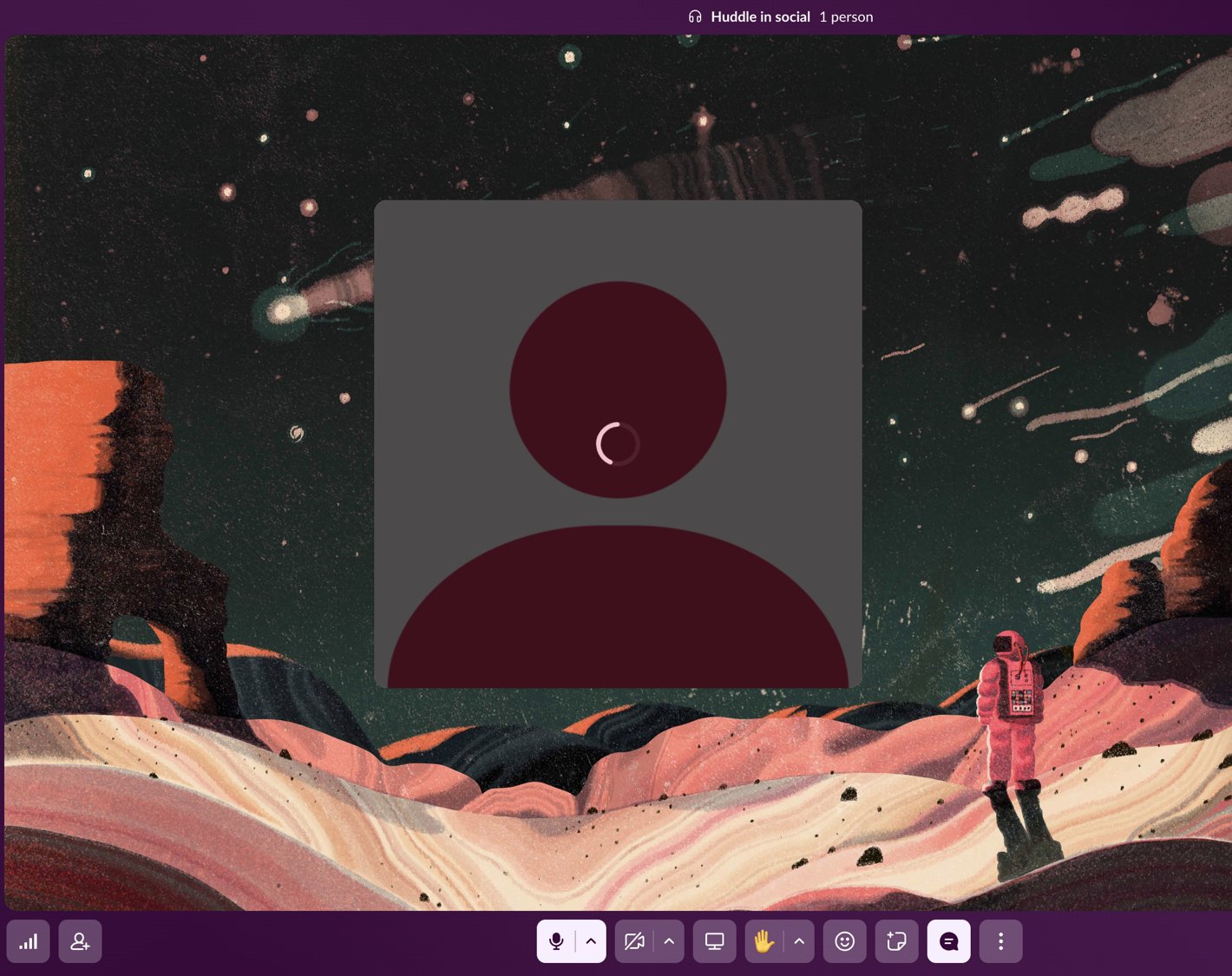
Change your video background in a huddle
- Start or join a huddle.
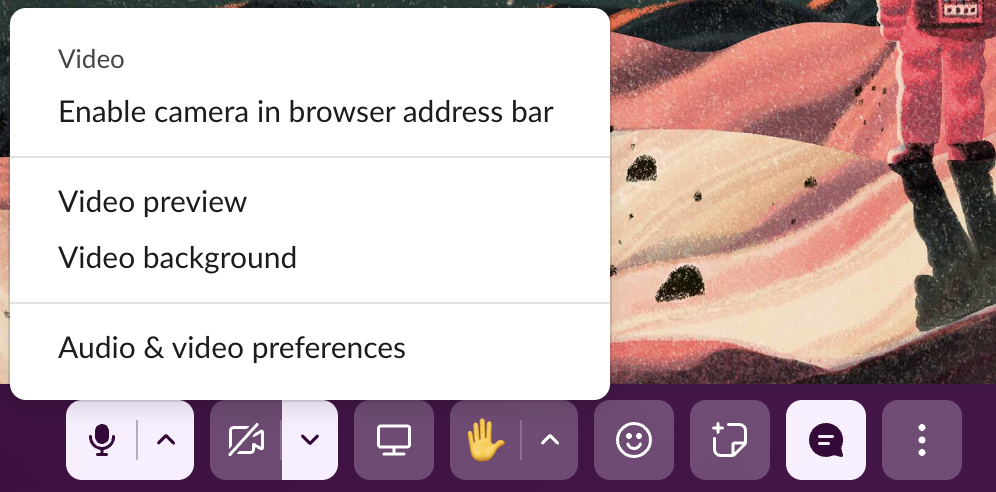
- In the toolbar at the bottom, click the small arrow to the right of the camera button. Its label is Video settings.
- Click Video background.
- Open Video settings, the arrow next to the camera, and click Video background.
- Click Upload image and choose a picture from your computer. The file picker accepts any image type.
- Click Set Background. To go back, open the window again and click Remove image.
Slack opens a window called Choose background with eight tiles. It has no Save button, so picking a tile is the whole step.
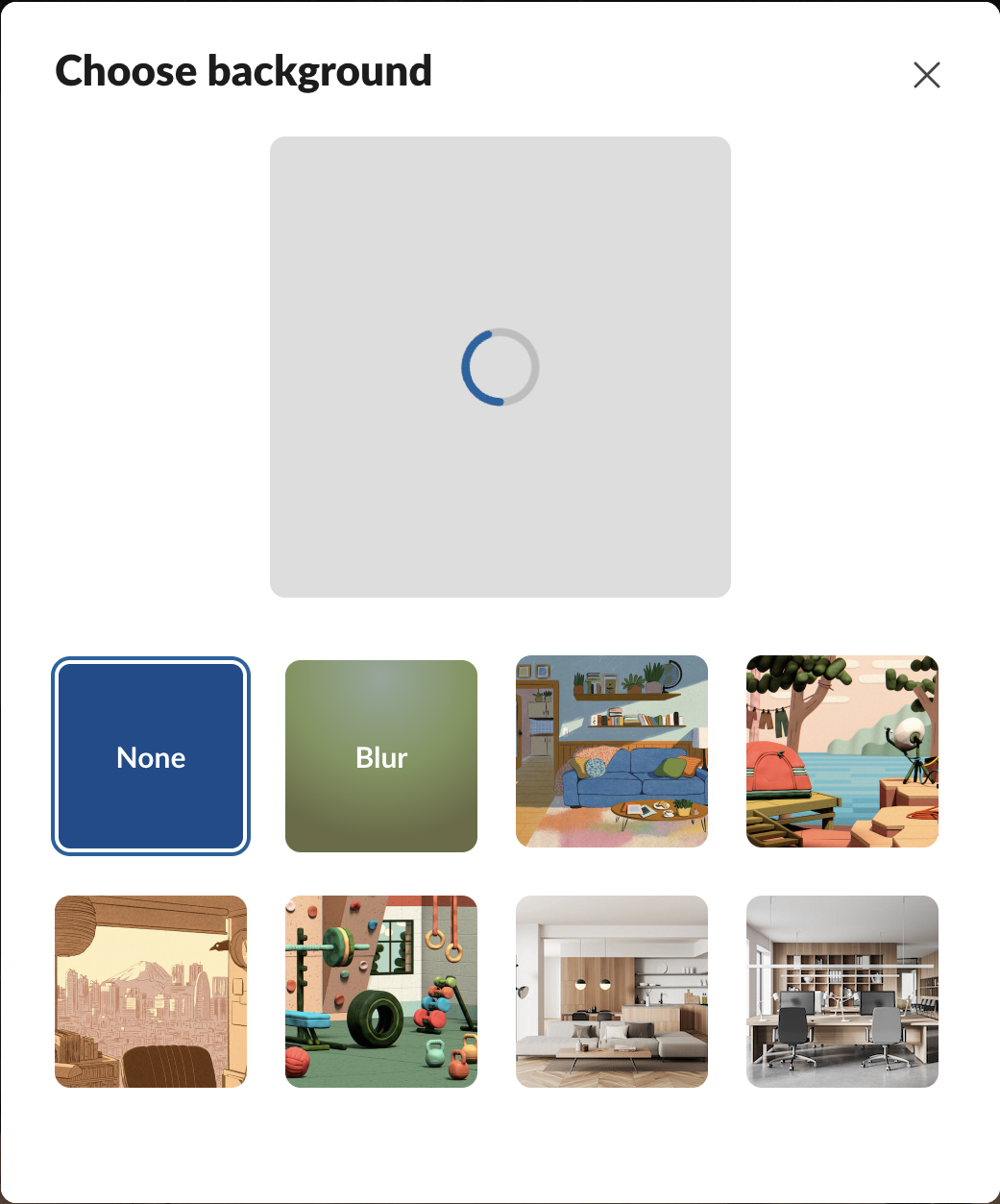
| Tile | Credit in Slack's app | Image size |
|---|---|---|
| Living Room | Art by Haley Tippmann | 4,320 x 4,320 |
| Remote Work | Art by Hudson Christie | 2,159 x 2,159 |
| Tokyo Sight | Art by Luis Mendo | 4,320 x 4,320 |
| Gym | Art by Hudson Christie | 2,160 x 2,160 |
| Home | 400 x 400 | |
| Office | 400 x 400 |
The names and credits come from the code Slack's web app loaded that day, and the sizes from the image files it points to. All six pictures are square. The Video background item was in the menu even with our camera off, so you can open the background window before you turn the camera on.
Upload your own background image
In our workspace, Choose background had no upload button. Slack's web app code has a second, newer window for the same job. It is titled "Choose a video background", says "Pick an image or upload your own", and has an Upload image button and a Set Background button. Slack switches it on with a feature flag named huddle_background_picker, which was off in our workspace. So whether you see Upload image depends on whether Slack has turned that flag on for you.
If your workspace has the newer window:
The same code hides the upload button in huddles in channels shared with another company through Slack Connect. The preset pictures stay available there.
Never appear "away" on Slack again
Cloud-based. No downloads. Works 24/7 even when your laptop is off.
Blur your background every time
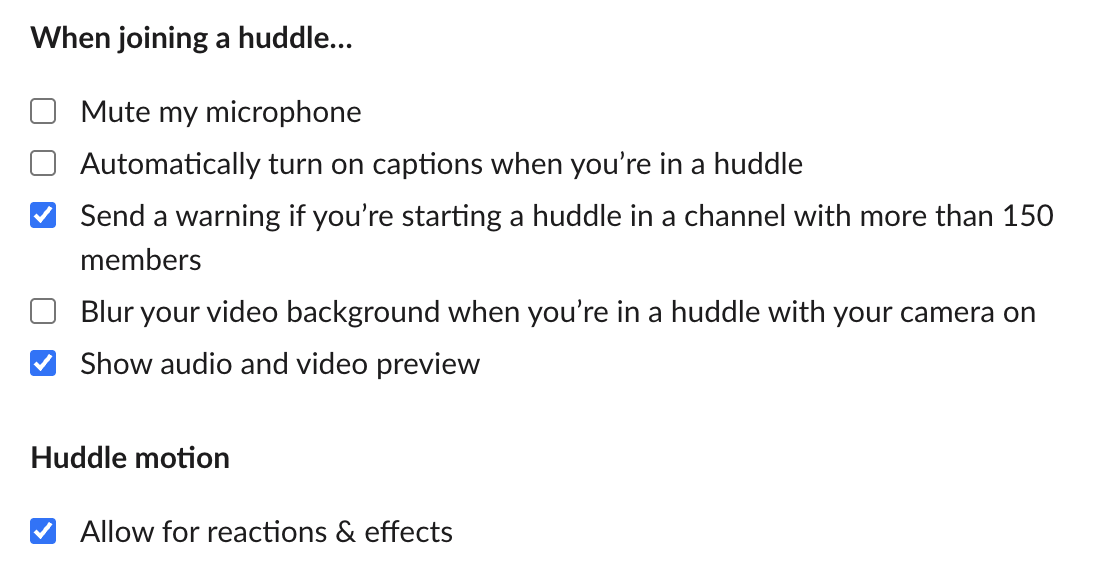
To start every huddle with a blurred background, click your profile picture, open Preferences, then Audio & video. Under "When joining a huddle..." tick "Blur your video background when you're in a huddle with your camera on". It was the only background setting on that page.
Change the huddle theme
The theme is the artwork behind the whole huddle window, around the video tiles. Our huddle opened on Stargazing, the first picture above. To change it, click the three dots at the right of the toolbar and choose Choose a huddle theme. On 29 September it had a "New" label.
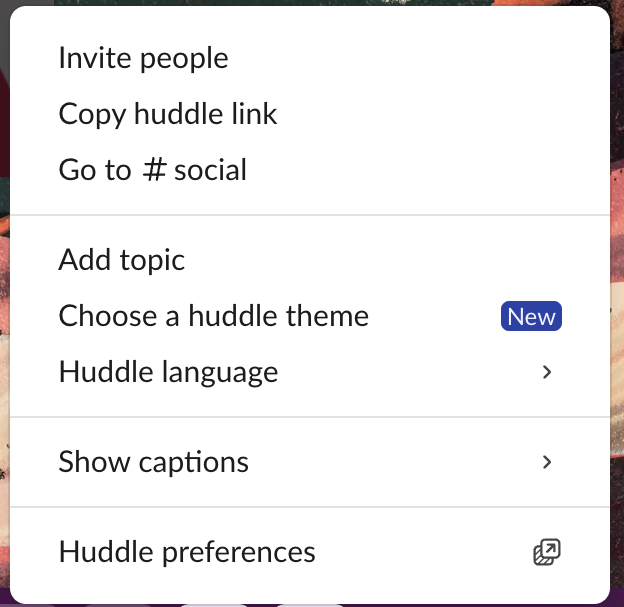
We asked Slack for the theme list with huddles.listBackgrounds, the call its app makes to fill this window. It returned 17 themes in four groups:
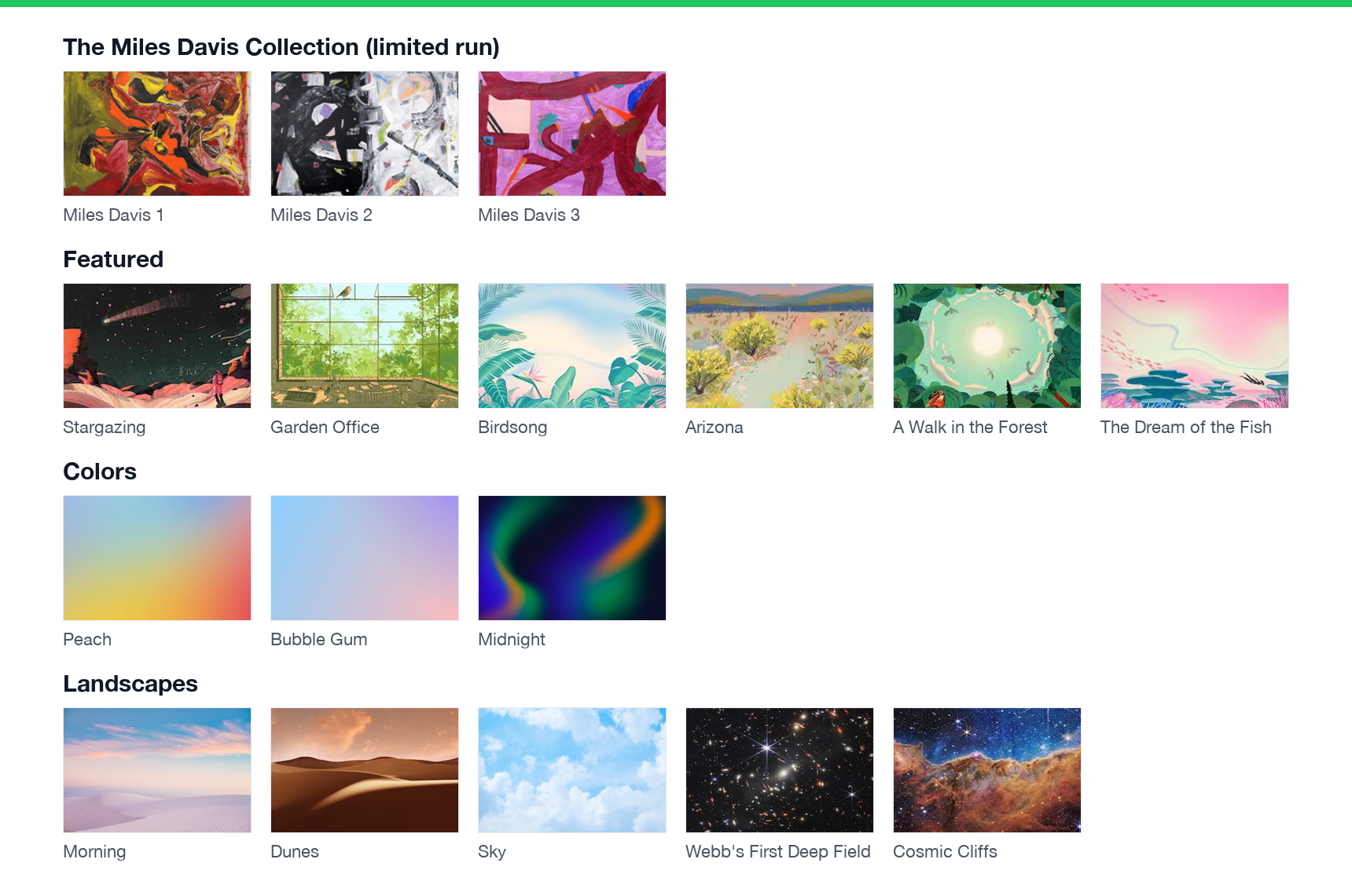
| Group | Themes | Credit |
|---|---|---|
| The Miles Davis Collection | Miles Davis 1, 2 and 3 | Marked as a limited run |
| Featured | Stargazing, Garden Office, Birdsong, Arizona, A Walk in the Forest, The Dream of the Fish | Lisk Feng, Luis Mendo, Jun Cen, Haley Tippmann |
| Colors | Peach, Bubble Gum, Midnight | |
| Landscapes | Morning, Dunes, Sky, Webb's First Deep Field, Cosmic Cliffs | NASA, ESA, CSA, STScI for the two Webb images |
The Miles Davis themes were also announced in our profile menu that day, as "Miles Davis themes just dropped". Slack's code builds the theme window from this list only, with no upload option, so you cannot use your own picture as a theme. Slack's code saves the theme on the huddle itself, not in your preferences, so it is the same for everyone in the huddle. Your video background only changes your own tile.
When the background options do nothing
Blur and pictures work on your camera image, so they need a working camera. When Slack cannot use the camera, the huddle preview says so before you join:
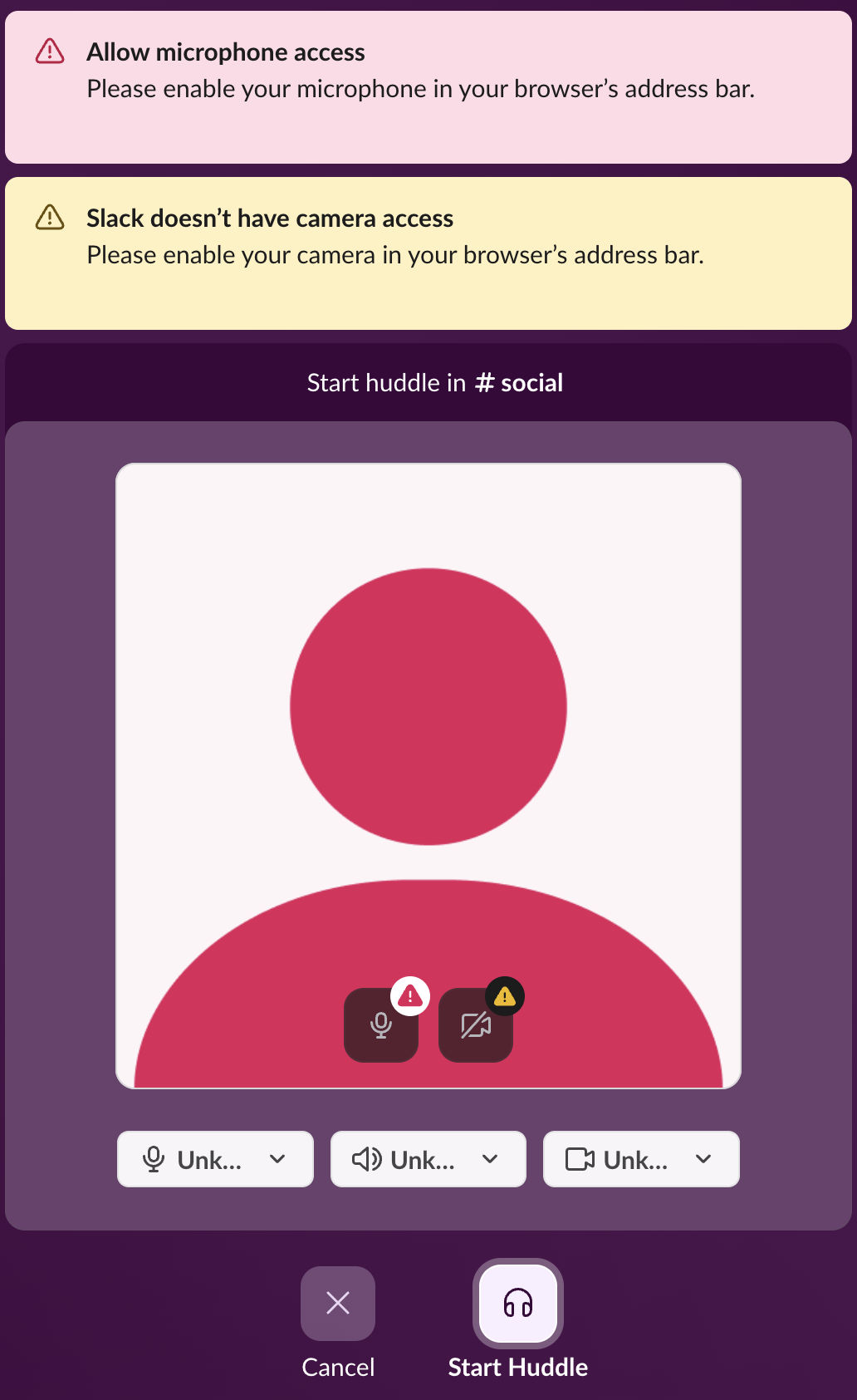
In a browser, Slack's own message says what to do: allow the camera for app.slack.com from the address bar. Other camera and sound problems, and their fixes in the desktop app, are in Slack huddle not working.
Stop Jiggling Your Mouse.
Join hundreds of remote workers who never worry about their Slack status. Set it up once, stay green forever.
Related Articles
Slack Headphones Icon: What It Means in Each Spot, and Huddling Alone
The headphones icon in Slack means huddles: the button that starts one, a live huddle next to a channel, the bar you are in. We started a huddle alone to show every spot, and checked whether you can huddle in your own DM.
Slack Canvas Formatting: Shortcuts That Work and Ones That Stay as Text
We typed every common markdown shortcut into a Slack canvas. Headings, lists, checklists, quotes and code convert as you type; a single *star* makes bold, not italic; links, dashes for a divider and ==highlight== stay as plain text.
Slack "Remind me about this": What Happens When the Time Comes
Set a reminder on a Slack message from its three-dot menu, then watch where it goes. We tested it on 29 September 2026: the message waits in Later and fires as a card in Activity, with no Slackbot DM.