
Slack chat.scheduleMessage: Limits and Errors We Measured
We called chat.scheduleMessage with a bot token for times from 10 seconds to 121 days ahead, listed and deleted the results, and watched which messages still arrived. The limits, the exact errors, and a delete that returned ok but did not stop the post.
To schedule a Slack message from code, call chat.scheduleMessage with a channel, the text and post_at, a Unix timestamp in seconds. Slack returns a scheduled_message_id and posts the message at that time. You need a bot or user token with chat:write; the Slack web client's own session token was refused with not_allowed_token_type. We ran every call below with a bot token from Python and slack_sdk on 30 September 2026, against a test channel.
Schedule a message from Python
import os, time
from slack_sdk import WebClient

client = WebClient(token=os.environ["SLACK_BOT_TOKEN"])
resp = client.chat_scheduleMessage(
    channel=os.environ["CHANNEL"],          # channel ID, C...
    post_at=int(time.time()) + 120,         # two minutes from now
    text="Scheduled test: +2 minutes",
)
print(resp["scheduled_message_id"], resp["post_at"])
Output:
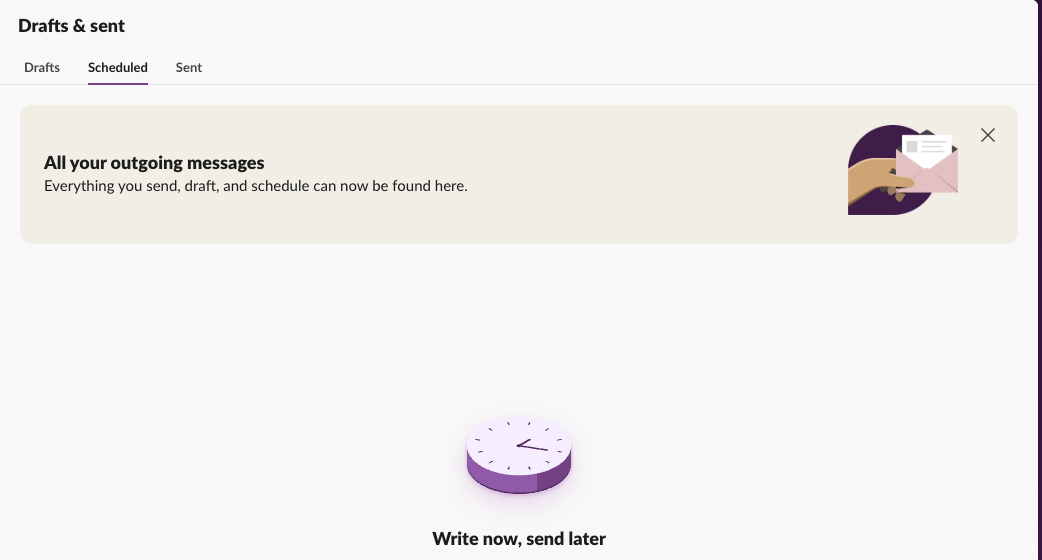
Q0C56TJCTLP 1790772151The message arrived as an ordinary message from the app, with ts 1790772151.59, under a second after post_at. It does not appear in anyone's Drafts & sent > Scheduled tab: with a bot message pending, that tab stayed empty for the workspace owner. Only the API lists it. Scheduling from Slack's own message box is covered in how to delay and schedule Slack messages.
How far ahead, and how soon
We scheduled the same text for different offsets from the current time:
post_at | Result |
|---|---|
| 1 hour ago, now, +10 s, +11 s | time_in_past |
| +12 s | accepted |
| +2 minutes | accepted, posted on time |
| +119 days | accepted |
| +120 days and 1 minute | accepted |
| +120 days and 1 hour (10,371,600 s) | accepted, the latest we found |
| +120 days, 1 hour and 42 s | time_too_far |
| +121 days | time_too_far |
Slack's docs say 120 days; in our run the cut-off sat about an hour past that. Anything under about 12 seconds ahead counts as the past, so a script that computes post_at as "now" gets time_in_past. If you need to send right away, call chat.postMessage instead.
Listing and deleting scheduled messages
msgs = client.chat_scheduledMessages_list(channel=channel)["scheduled_messages"]
for m in msgs:
    client.chat_deleteScheduledMessage(channel=channel, scheduled_message_id=m["id"])
Each listed item has id, channel_id, post_at, date_created and text. Our first run of this loop crashed on the first item with invalid_scheduled_message_id: the list still included the +2 minute message a few seconds after it had posted, and it can no longer be deleted then. Wrap each delete in try/except SlackApiError and skip that error.
Never appear "away" on Slack again
Cloud-based. No downloads. Works 24/7 even when your laptop is off.
A delete that returns ok can still post
We scheduled messages at different distances ahead and deleted each one right away with chat.deleteScheduledMessage, then watched the channel:
for ahead in [45, 60, 75, 90, 120, 180, 300]:
    r = client.chat_scheduleMessage(channel=channel, post_at=int(time.time()) + ahead, text=f"delete window test {ahead}s")
    try:
        client.chat_deleteScheduledMessage(channel=channel, scheduled_message_id=r["scheduled_message_id"])
        print(f"{ahead:>3}s ahead: deleted")
    except SlackApiError as e:
        print(f"{ahead:>3}s ahead: {e.response['error']}")
Time left before post_at when we deleted | API answer | Did the message post? |
|---|---|---|
| 45, 60 and 61 s | invalid_scheduled_message_id | yes |
| 63 to 300 s (13 tries) | ok | yes, every one |
| 330 to 600 s (36 tries) | ok | no |
Within the last minute, Slack refuses the delete. Between about 1 and 5 minutes before the send time, it answers ok and removes the message from chat.scheduledMessages.list, but the message posts anyway. These all arrived in our channel after a successful delete:
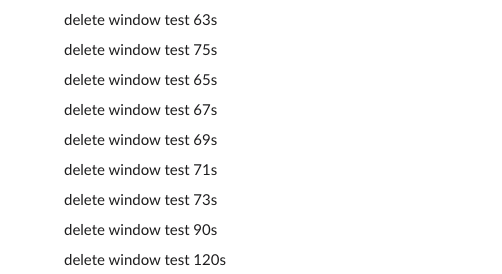
So if a scheduled message must not go out, delete it more than 5 minutes before post_at. Inside that window, the reliable fix is chat.delete on the posted message afterwards, which needs its ts from the channel history.
Scheduling many messages at once
We scheduled 35 messages for the same time in one channel, 10 minutes ahead. Slack accepted 31 and refused the 32nd with restricted_too_many. Slack's docs put the limit at 30 messages per channel in any 5-minute window, so treat 30 as the ceiling. For a batch, spread post_at across several minutes or channels. The per-second posting limits are in Slack API rate limits.
FAQ
Can I schedule a message with a webhook?
No. An incoming webhook posts at once. Schedule from code that holds a token, or use a recurring workflow for repeats.
Can a scheduled message be a thread reply?
Yes. We scheduled a reply 15 seconds ahead with the parent's ts as thread_ts, and it arrived inside that thread. How thread_ts works when posting right away is in send a Slack message from Python.
How do I schedule in a user's time zone?
post_at is always UTC seconds. Convert the user's local time first, for example with Python's zoneinfo, and the Slack timezone converter shows the same moment across zones.
Stop Jiggling Your Mouse.
Join hundreds of remote workers who never worry about their Slack status. Set it up once, stay green forever.
Related Articles
Slack Invite Link Expiration: 30 Days, and How to Check One
Slack invite links expire after 30 days and have no longer option. We made links in a test workspace, deactivated them, and found a signed-out check that tells a live link from a dead one.
Slack Pinned Messages: Where Pins Are Now, and the 100-Pin Limit
In the current Slack desktop and web app, pinned messages sit in a Pins tab at the top of the channel. We pinned, edited, deleted and searched pins in a test workspace, and pinned messages until Slack refused the 101st.
Set Up Mobile Overrides in Slack: What the Checkbox Changes
Slack's Set up mobile overrides checkbox lets your phone get a different notification level than your computer. We ticked it in every combination and read back the saved settings after each click.