
How to Add an App to Slack and to a Channel (Tested on Free)
Click Agents & tools, then Apps, open the app and click Add to Slack, then Allow. Then add it to each channel from the channel's Agents & apps tab. Screenshots from a Free workspace on October 31, 2026.
To add an app to Slack, click Agents & tools in the left rail, then Apps. Search for the app, open it, click Add to Slack, and click Allow on the permission screen. An installed app is not in any channel yet, so open the channel, click its name, go to the Agents & apps tab and add it there. We ran the whole flow on a Free workspace on October 31, 2026, with a small test app of our own, and every screenshot below comes from that run.
Step 1: open the Apps page
In the current Slack layout the apps list sits under Agents & tools (the grid icon in the far-left rail), not under a "More" menu as older guides show. Click it, then pick Apps in the panel:
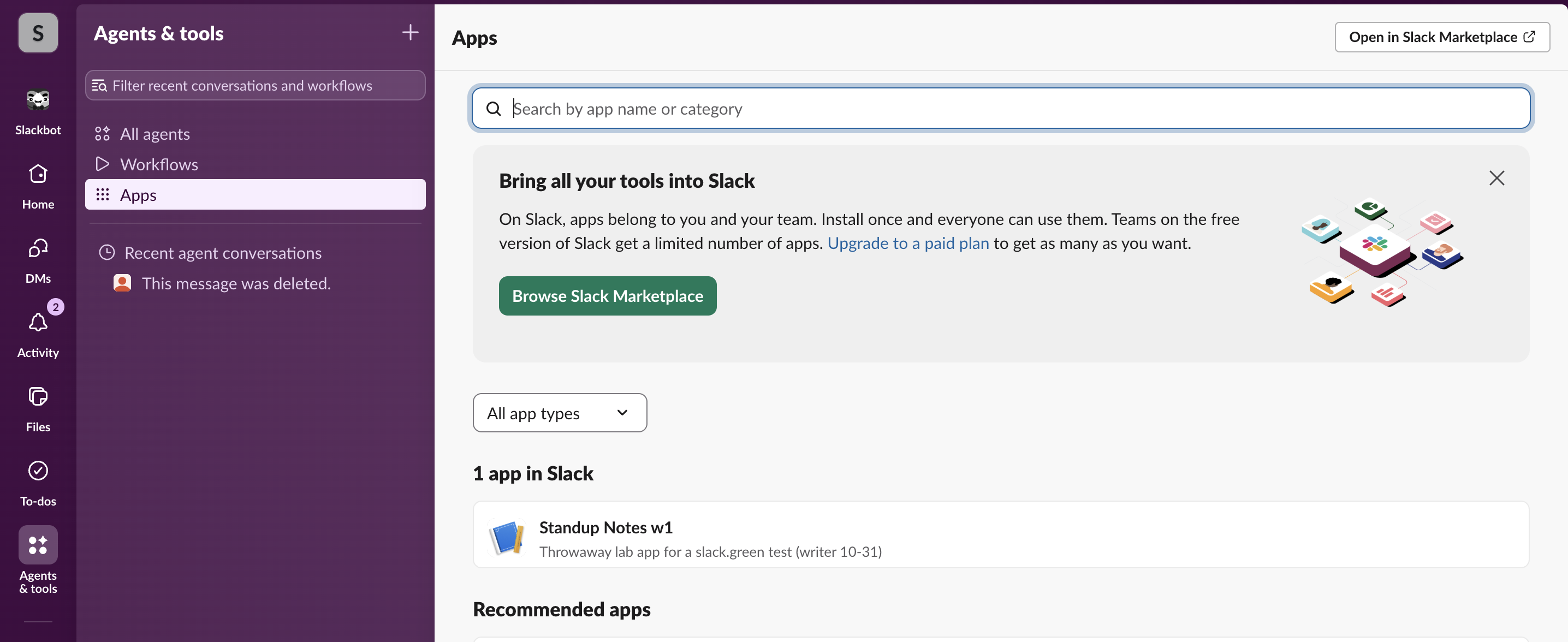
The page lists the apps already in the workspace ("1 app in Slack" for us), recommended apps, and a search box. Browse Slack Marketplace and Open in Slack Marketplace open the full directory, the old "App Directory", in a browser tab. On Free the page says so plainly: "Teams on the free version of Slack get a limited number of apps." That number is 10, as our Slack free plan limits page shows.
Step 2: open the app and click Add to Slack
Click an app in the list and a side panel opens with its description and an Add to Slack button:
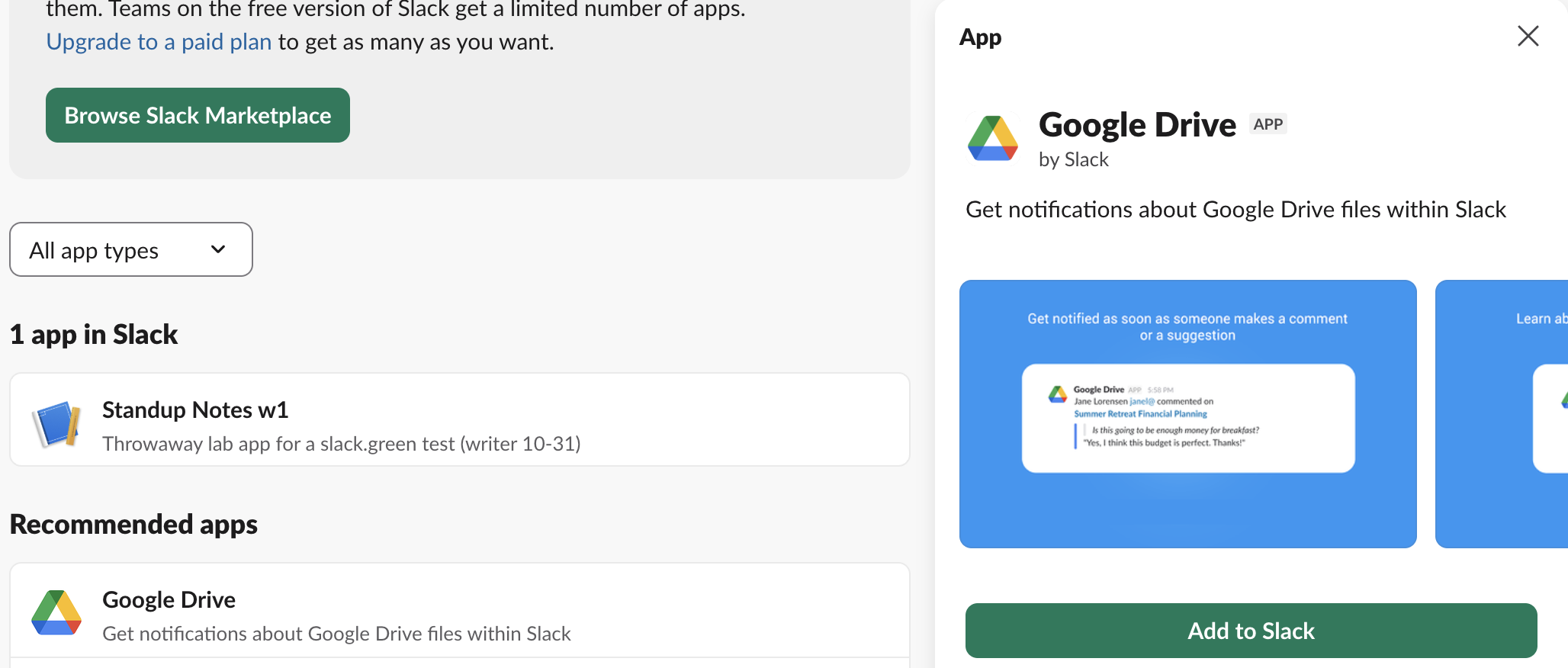
We stopped at this panel for Google Drive, since installing a real third-party app would hand it access to the test workspace. The rest of the flow below uses our own test app, which goes through the same Slack permission screen that every app uses.
Step 3: read the permission screen, then click Allow
Slack shows what the app can see and do before anything is installed:
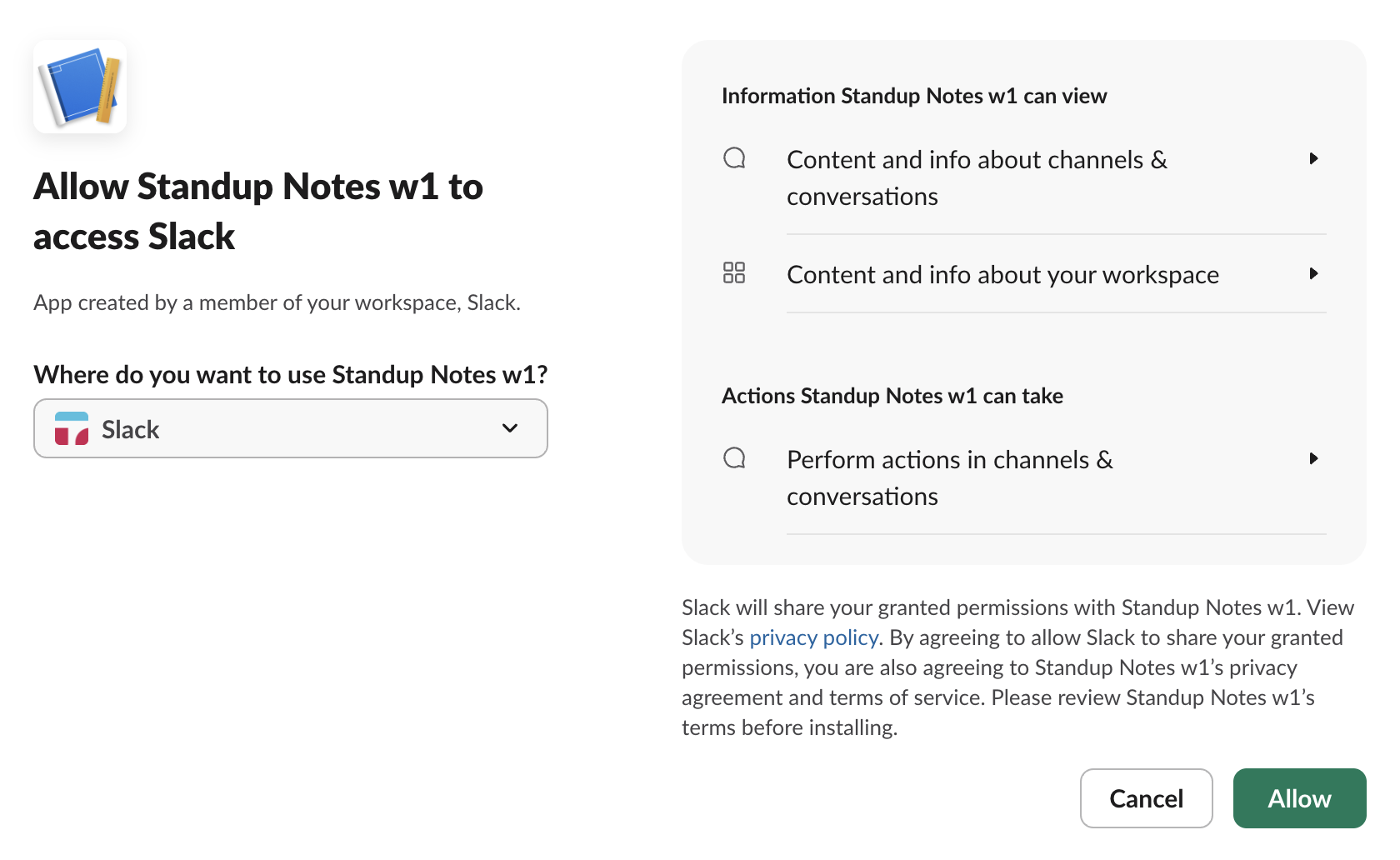
Two things on this screen matter. The Where do you want to use menu picks the workspace, so if you are in several, check it before you click Allow; an app installed to the wrong workspace will not show up in the one you are looking at. The permission groups fold several scopes into one line. Our app asked for six scopes and Slack showed three lines; clicking the arrow next to each line listed what sits inside:
| Scope the app asked for | What the screen said |
|---|---|
channels:read | View basic information about public channels in your workspace |
channels:history | View messages and other content in public channels that the app has been added to |
groups:history | View messages and other content in private channels that the app has been added to |
users:read | View people in your workspace |
chat:write | Send messages as @standupnotes |
channels:join | Join public channels in your workspace |
Read message access the way the screen words it: "channels that the app has been added to". The app reads nothing in a channel until someone adds it there, which is step 4. After Allow, the app showed up in the sidebar under Apps and on the Apps page.
Never appear "away" on Slack again
Cloud-based. No downloads. Works 24/7 even when your laptop is off.
Step 4: add the app to a channel
Before this step, a message from our app to #w1-1031-apps failed with not_in_channel, even though the app was installed. To add it:
- Open the channel and click the channel name at the top.
- Open the Agents & apps tab.
- Click Add agents and apps, then the + next to the app, then Add.
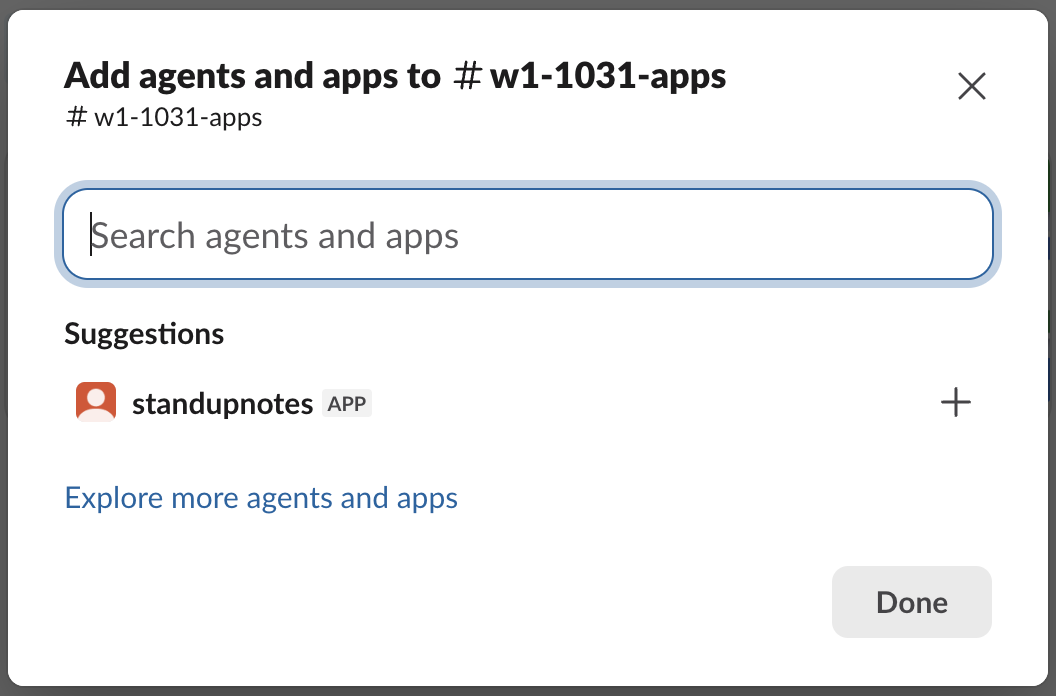
The channel then showed "sieun and standupnotes joined #w1-1031-apps", the tab counted one app, and the same message from the app went through. Many people use /invite @appname in the channel instead; we did not test that route on this run.
If your workspace requires approved apps
Admins can stop members from installing apps directly. On our Free workspace the setting was there and off: go to Manage apps, then App Management Settings, and Require approved apps read "Disabled. Members can install and uninstall any app." Clicking Edit showed one checkbox:
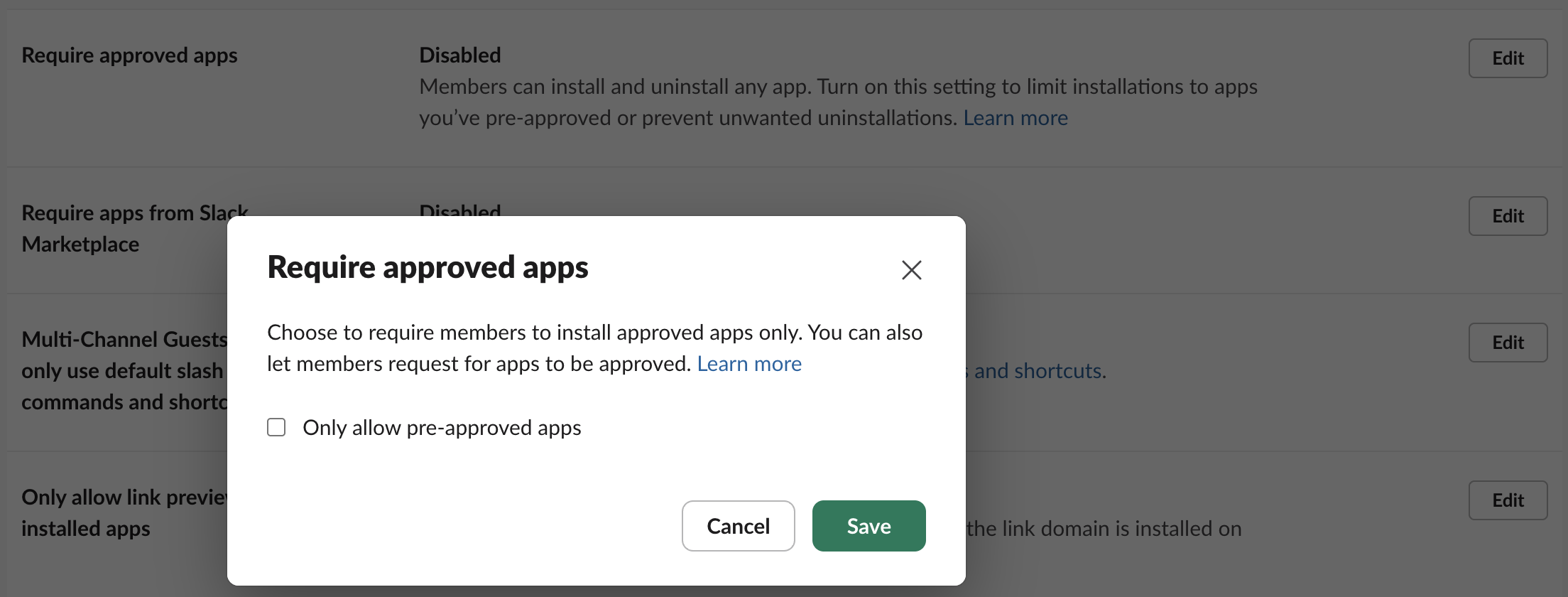
The dialog text says you can "also let members request for apps to be approved". We left it off, because a one-person workspace has no member who could send a request, so we cannot show the member's side. Only Owners and Admins see this page; the difference between the two roles is in Slack workspace owner vs admin.
When the app does not show up
| What you see | Likely cause | Fix |
|---|---|---|
| App missing from Apps | Installed to another workspace | Re-run step 3 and check the workspace picker |
App replies with nothing, or its posts fail with not_in_channel | App not added to the channel | Step 4 |
Your own app fails with missing_scope | Scope not granted at install | Add the scope and reinstall, see Slack missing_scope error |
To take an app back out, see how to remove an app from Slack. If you are building your own app, the install flow behind the Allow button is covered in Slack oauth.v2.access.
FAQ
How many apps can a Free Slack workspace add?
Ten. The Installed apps page on our Free workspace showed a banner that reads "With Slack Pro, you can install unlimited apps."
Does everyone in the workspace get the app I add?
The Apps page says "Install once and everyone can use them." The app still reads only the channels it was added to, as the permission screen in step 3 states.
Stop Jiggling Your Mouse.
Join hundreds of remote workers who never worry about their Slack status. Set it up once, stay green forever.
Related Articles
How to Resolve or Close a Slack Thread (and Who Can Lock One)
Slack has no Resolve or Close button for threads. We checked every thread menu as a member, found the admin-only lock in Slack's code, and tested the workarounds that do work: a checkmark, a to-do you mark complete, and muting replies.
How to Search for Images in Slack, Including Text Inside Them
To find an image in Slack, search, switch the results from Messages to Files and set File type to Images, or type type:images. We tested 6 images: Slack also found words written inside PNGs, but not inside JPGs.
Lock Icon Next to a Slack Channel? What the Lock and Grey Text Mean
A padlock next to a Slack channel means it is private. Grey text with a crossed-out bell means you muted it. We made a private, muted, archived and unread channel and screenshot each one in the sidebar.