
How to Keep a Citrix Session Active: Find Which Timeout Logs You Out
A Citrix session can end from four different timers: Windows locking inside the virtual desktop, the Citrix session idle timer, the Citrix Gateway session time-out, and the StoreFront web page timeout. Only input from your own device into the Citrix window resets them. How to tell which one hit you and what keeps each one quiet.
Reading on your phone?
Run the idle test on your computer
Slack sets you away on your computer, so this free test runs there. Send yourself this page and press Start at your desk.
To keep a Citrix session active, send input into the Citrix window from your own keyboard or mouse before the shortest idle timer runs out. The hard part is knowing which timer that is. A Citrix session can be cut by four separate timeouts: Windows locking the screen inside the virtual desktop, the Citrix Session idle timer on the virtual desktop, the Citrix Gateway session time-out, and the StoreFront web page timeout when you launch from a browser. Each shows a different message, and only an admin can change them. A local mouse jiggler helps only while the Citrix window is in front, and the ICA keep-alive setting does not stop idle timeouts at all. For Slack itself, Slack Green keeps your dot green from a server, so it stays green whatever the Citrix session does, free for 7 days with no card.
Which Citrix timeout logged you out?
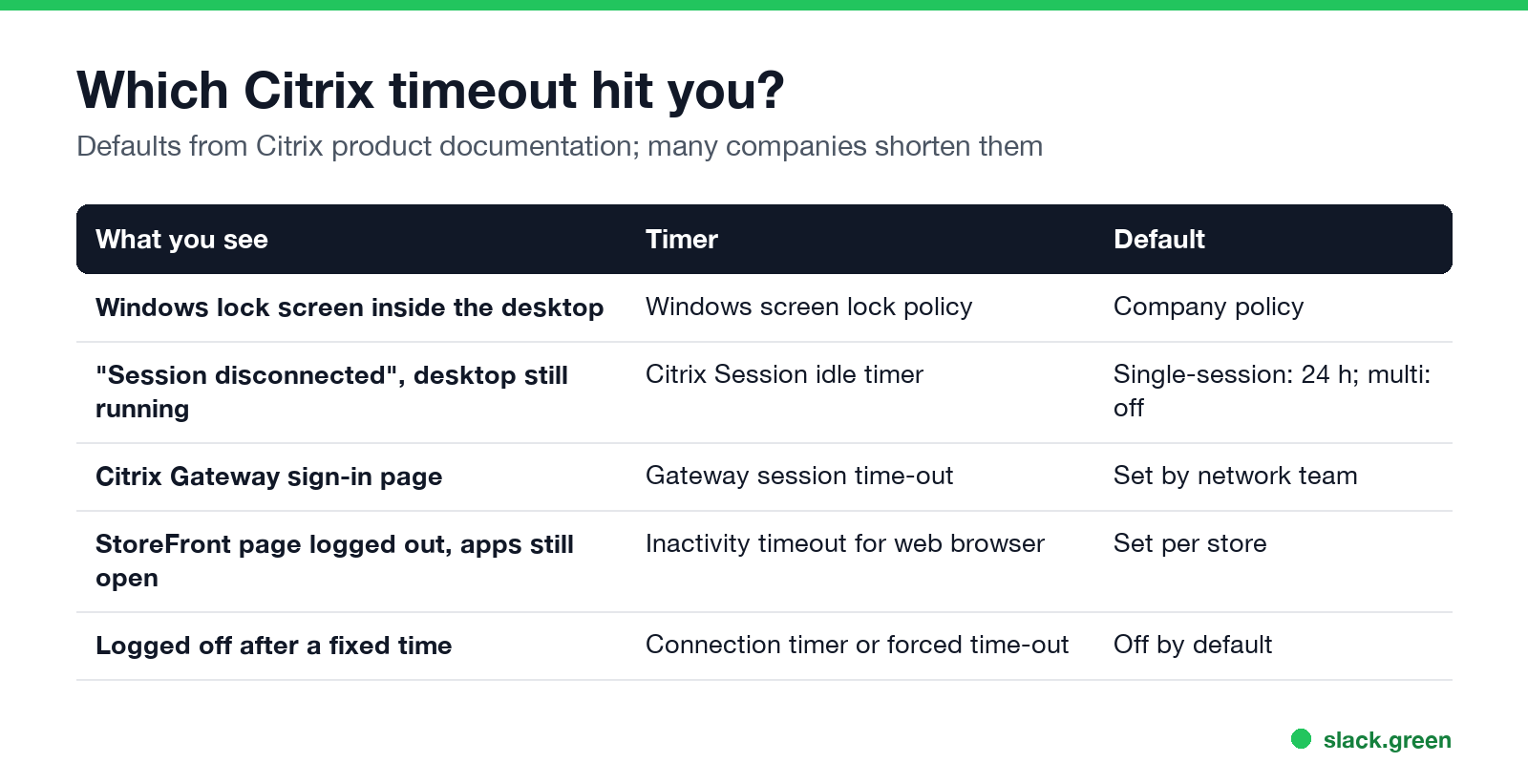
| What you see when you come back | Timer | Default | Who sets it |
|---|---|---|---|
| The Windows lock screen inside the Citrix desktop | Windows screen lock (Group Policy in the virtual desktop) | Company policy, often 10 to 15 minutes | Windows admin |
| "Session disconnected", the window closed, the desktop is still running when you reconnect | Citrix Session idle timer | Single-session desktops: on, 1,440 minutes (24 hours). Multi-session: off | Citrix admin |
| You are sent to the Citrix Gateway sign-in page | Citrix Gateway session time-out | Set by the network team | Gateway admin |
| The StoreFront web page says you were logged out, but open apps keep running | StoreFront "Inactivity timeout for web browser" | Set per store | StoreFront admin |
| You are logged off after a fixed time, active or not | Session connection timer or Gateway forced time-out | Off by default | Citrix or Gateway admin |
The defaults in the table come from Citrix's product documentation. Many companies shorten them, which is why one employer's Citrix drops you after 15 minutes and another's never does.
The StoreFront timeout catches many people. Citrix's docs say it applies only to the store page in a browser, and that the installed Citrix Workspace app "does not apply an inactivity timeout when connected to a StoreFront store." So if you launch from a browser, the store tab can log out while your desktop keeps running.
Keeping the Citrix session open does not keep Slack green on its own, because Slack sets you away 10 minutes after your last keyboard or mouse input in the session. A server-side tool keeps your Slack dot green with no input, even with no Citrix session open.
What counts as activity in a Citrix session
Citrix describes its idle timer in terms of input from the user: it tracks how long a connection is kept "when there is no input from the user." In practice that means keyboard and mouse input from your own device, sent into the Citrix window.
- • Typing or moving the mouse inside the Citrix window counts.
- • Moving the mouse over the Citrix window without clicking counts, because the pointer position is sent to the session.
- • Work in local apps outside the Citrix window does not count. Citrix never sees it.
- • Watching a video or a long report render inside the session does not count.
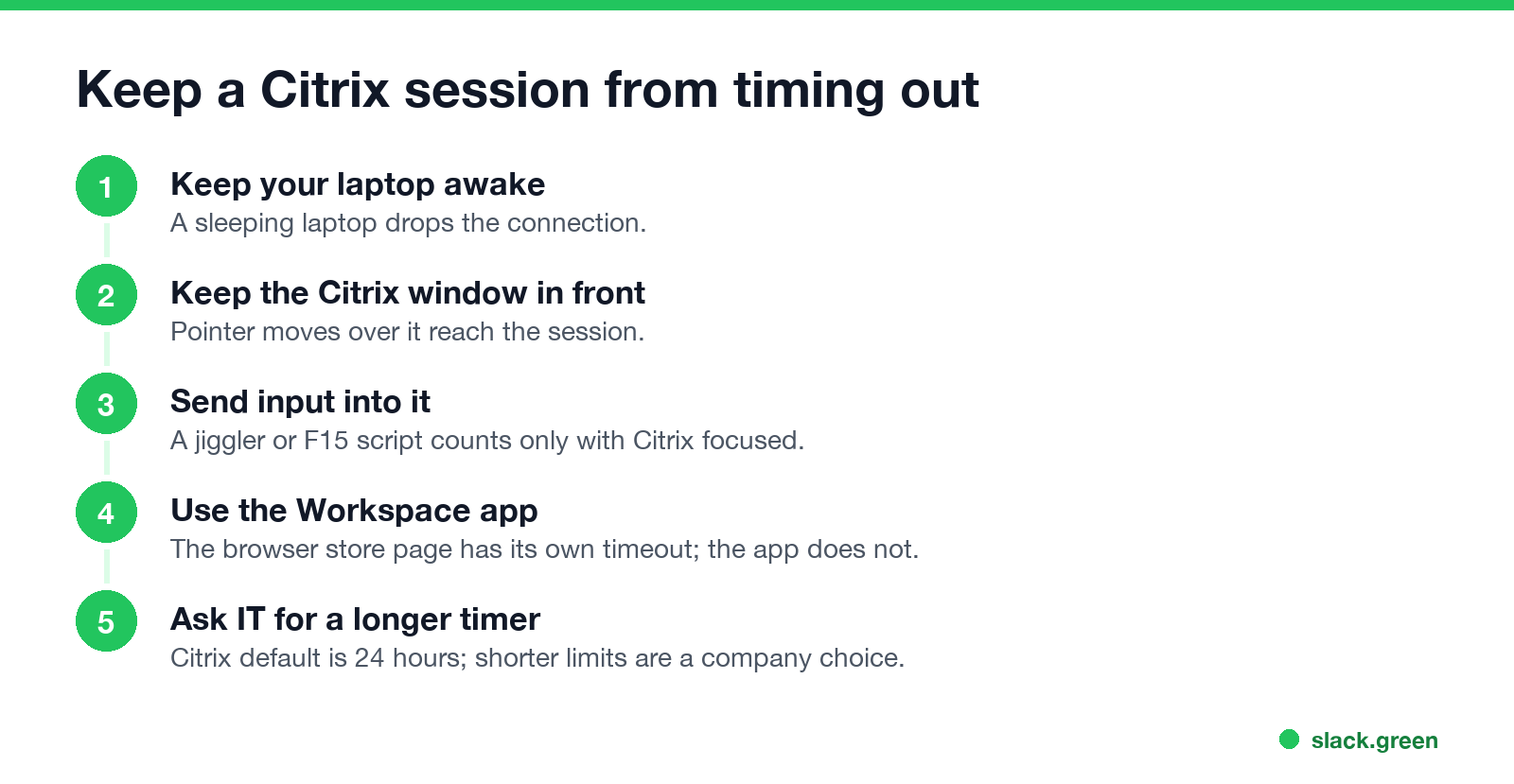
- Keep your own computer awake. If it sleeps, the connection breaks. Change the power settings, or see keep a computer awake without admin rights.
- Keep the Citrix window in front and the pointer over it when you step away for a few minutes. A USB or software jiggler on your laptop then moves the pointer inside the session, which counts.
- For key-based input, a local script that presses F15 reaches the session only if the Citrix window has focus. Keyboard jiggler has the scripts.
- If you use the StoreFront web page, install the Citrix Workspace app instead. The browser page has its own inactivity timeout; the installed app does not.
- Ask IT which timer you hit and whether it can be longer for your role. Citrix's single-session default is 24 hours, so a 15-minute limit is a company choice, and support teams often have a reason for it.
- • Session idle timer and Session idle timer interval: Citrix Studio policy, ICA > Session limits. On by default for single-session desktops at 1,440 minutes.
- • Session idle timer – Multi-session: the same for multi-session (RDS) machines, off by default. Citrix notes that its policies override Microsoft Group Policy timers here, and recommends setting them in one place only.
- • Disconnected session timer: logs off a session after it has been disconnected for a set time. Off by default for single-session desktops.
- • StoreFront: Edit store website > Store timeouts > Inactivity timeout for web browser, or
Set-STFWebReceiverService -SessionStateTimeout. - • Citrix Gateway: session time-out and forced time-out in the session profile. If you raise the StoreFront timeout above the Gateway's, raise the Gateway's too.
This is also why a local keep-awake tool is not enough. It keeps your own laptop awake, which matters, because a sleeping laptop drops the connection. But it sends no input to the session.
How to keep a Citrix session from timing out
Some people run a jiggler inside the virtual desktop instead. That usually needs install rights you do not have, and it may not reset Citrix's idle timer, which is documented around input from the user device. Company policy may also forbid either kind; see are mouse jigglers safe before you try one on a work laptop.
Citrix keep alive does not stop idle timeouts
"Citrix keep alive" is a policy setting, not a way to stay logged in. The ICA keep-alive messages setting makes the server send a small message every 60 seconds by default to check whether the connection still works. Citrix's docs say it "prevents broken connections from being disconnected", and that it does not work with Session Reliability turned on. It does not count as user input, so the Session idle timer still runs.
In other words, keep-alive helps with a flaky network. It does nothing for a timer that ends sessions when you stop typing.
For Citrix admins: where the timers live
A longer idle timer keeps an unattended desktop open. Pair it with a Windows screen lock inside the session so an idle desktop is not an open door.
Citrix and your chat status
Teams and Slack inside a Citrix desktop follow their own rules. Teams counts input anywhere in the virtual desktop, so input that keeps Citrix alive also keeps Teams Available. The Slack desktop app counts input anywhere on the computer it runs on (Slack desktop 4.52.178 code, checked 7 Oct 2026); inside a Citrix session that means input in the session.
On VMware Horizon, now Omnissa Horizon, the same input rule applies but the timers differ; see VMware Horizon idle timeout.
Citrix session questions
How long before Citrix times out? It depends on your company. Citrix's default idle timer for single-session desktops is 24 hours, but admins often set 15 to 60 minutes, and a browser store page or the Gateway can end sooner.
Why does Citrix disconnect me when I am working? You are working in a local app, not in the Citrix window, so Citrix sees no input. Or the Gateway or a forced time-out ended the session regardless of activity.
Does a mouse jiggler work with Citrix? On your own computer, only while the pointer is over the Citrix window, since the moves reach the session only then.
Does Citrix keep alive stop timeouts? No. ICA keep-alive checks the connection; it is not user input.
Related Articles
VMware Horizon Idle Timeout: Which Timer Disconnected You
Horizon does not disconnect idle sessions by default. When yours drops, one of these set it: the Idle Time Until Disconnect (VDI) agent policy, the 10-hour Forcibly disconnect users limit, a logoff after disconnect in the pool, the Windows lock inside the desktop, or your own laptop going to sleep. How to tell which, and what counts as activity.
How to Keep a Remote Desktop Session Active and Stop Idle Disconnects
Remote Desktop sessions end for four reasons: an idle time limit set by policy, a network device that drops quiet connections, a lock screen on the remote PC, and a minimized window that stops drawing. The setting, registry value and PowerShell line for each.
Wireless Mouse With a Jiggler: How the Built-in Mode Works
A wireless mouse with a jiggler is a normal mouse with a jiggle mode in its firmware: hold the DPI button for about 3 seconds and the cursor moves on its own. Two models in the top results, how they compare with a USB dongle and a mechanical mover, and what they do for Teams and Slack.