
How to Make a Slack Channel Private, and Why It Can Fail for Members
Open the channel, click its name, go to Settings and choose Change to a private channel. We tried it as a regular member on a free workspace: Slack showed the option and then failed with Something went wrong.
To make an existing Slack channel private, open the channel, click the channel name at the top, select the Settings tab, click Change to a private channel, and confirm with Change to Private. Slack keeps the channel's name, members and history. The catch is permission. On 2 November 2026 we tried it on our own free-plan workspace as a regular member who had just created the channel. Slack showed the option and the confirmation, then refused with "Something went wrong". Below are the steps, the error we got, what it means, and the two channels that can never go private.
Steps on desktop or in a browser
- Open the public channel.
- Click the channel name in the header (or right-click the channel in the sidebar and choose View channel details).
- Select the Settings tab.
- Scroll to the bottom and click Change to a private channel.
- Read the confirmation and click Change to Private.
This is the Settings tab we saw as a regular member, on a channel we had created a minute earlier. The option sits at the bottom, under the channel name, huddle and tab settings:
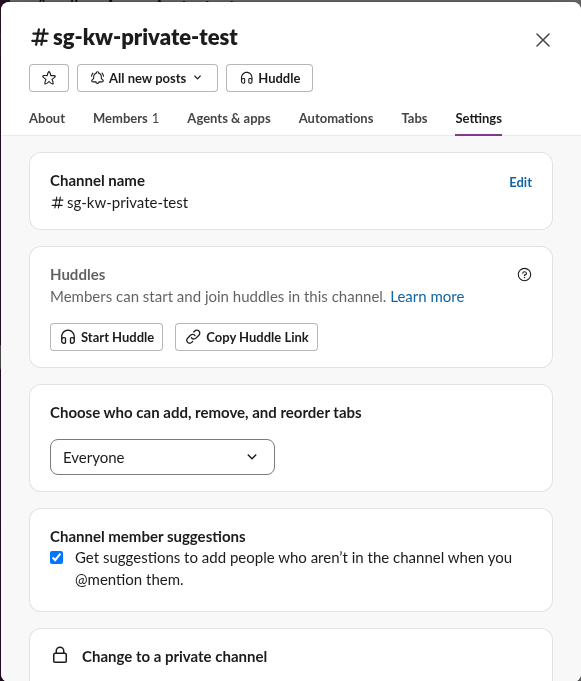
The confirmation tells you two things before you commit. The channel's history and members do not change. And every file already shared in the channel stays "publicly accessible to everyone" in the workspace, because the files keep their public share. Through the API, our test file still reported is_public: true with a public share after the attempt. If a file must stop being visible, delete it or share it again inside the private channel after the switch.
The error a member gets: "Something went wrong"
When we clicked Change to Private as a member, the dialog stayed open with a red box: "Something went wrong. Sorry about that - please try again later, and contact Slack if this problem persists."
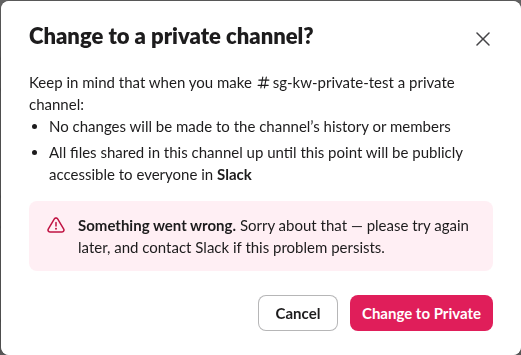
Trying again does not help, because it is not a temporary fault. We recorded the request the web app sent, conversations.convertToPrivate, and Slack answered {"ok":false,"error":"restricted_action"}. The channel stayed public: conversations.info gave is_private: false before and after, with the same channel ID.
So if you see "Something went wrong" on this dialog, check your role before anything else. Slack's help center says workspace owners and admins can make a channel private by default, and owners can widen or narrow that. Creating the channel did not give our member the right on the free plan. Ask an owner or admin to do it, or to change who may. Our Slack workspace Owner vs Admin page lists who holds which rights.
Never appear "away" on Slack again
Cloud-based. No downloads. Works 24/7 even when your laptop is off.
Channels you cannot make private
The workspace's default channel (often called #general, or #all-
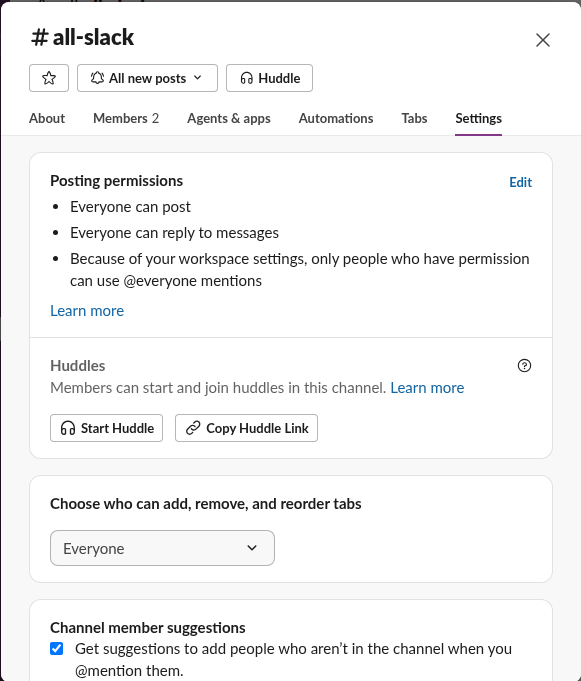
Slack Connect channels shared with another company follow that company's rules as well, so check with both sides before you change one.
What changes after the switch
When an owner or admin converts the channel:
Going the other way is more restricted. Only owners can make a private channel public by default, and our make a private Slack channel public test as an owner shows each screen and the notice Slack posts.
If you only want a quieter channel rather than a hidden one, muting it or archiving it may fit better.
FAQ
Can I make a Slack channel private on the free plan?
Yes, the option exists on every plan. Who can use it is the limit: on our free workspace a regular member got restricted_action.
Will members be notified when a channel goes private?
Slack posts a notice in the channel itself. Members are not removed, so they keep reading it as before.
Stop Jiggling Your Mouse.
Join hundreds of remote workers who never worry about their Slack status. Set it up once, stay green forever.
Related Articles
How to Resolve or Close a Slack Thread (and Who Can Lock One)
Slack has no Resolve or Close button for threads. We checked every thread menu as a member, found the admin-only lock in Slack's code, and tested the workarounds that do work: a checkmark, a to-do you mark complete, and muting replies.
How to Search for Images in Slack, Including Text Inside Them
To find an image in Slack, search, switch the results from Messages to Files and set File type to Images, or type type:images. We tested 6 images: Slack also found words written inside PNGs, but not inside JPGs.
Lock Icon Next to a Slack Channel? What the Lock and Grey Text Mean
A padlock next to a Slack channel means it is private. Grey text with a crossed-out bell means you muted it. We made a private, muted, archived and unread channel and screenshot each one in the sidebar.