
How to Use Slack Block Kit Builder: Templates, Preview, Payload
Slack's Block Kit Builder at app.slack.com/block-kit-builder lets you pick a template, add blocks, preview the message on Desktop or Mobile, and copy the JSON payload for a webhook or chat.postMessage. A walk through the current builder, a working deploy message, and the steps to send it.
To use Slack's Block Kit Builder, open app.slack.com/block-kit-builder while signed in to Slack, pick a template on the Templates tab or open the Builder tab, and add blocks from the left panel. The middle column shows how the message will look, and the right column holds the JSON. When it looks right, click Copy Payload and send that JSON with an incoming webhook or chat.postMessage. The builder is free and needs no app.
We went through the current builder on 28 September; the screenshots below are from that session. We also make free Slack tools, including a markdown to Slack converter whose output drops into a section block.
What Block Kit Builder does
Block Kit is Slack's JSON format for app messages, modals and the App Home tab. Messages are a list of blocks: a header, sections of text, images, buttons, dividers, and newer blocks such as tables and cards. The builder is a visual editor for that JSON. It does not send messages to a channel; your webhook or app does.
How to use Slack Block Kit Builder, step by step
- Open the builder. Go to
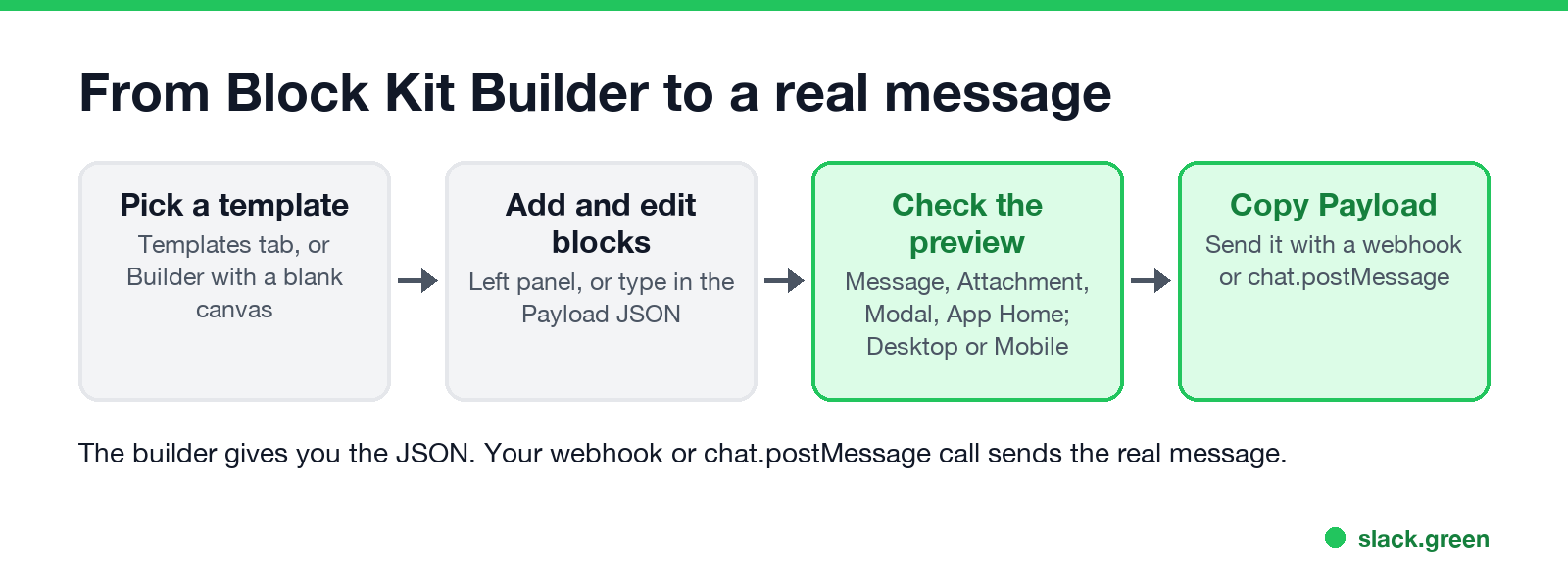
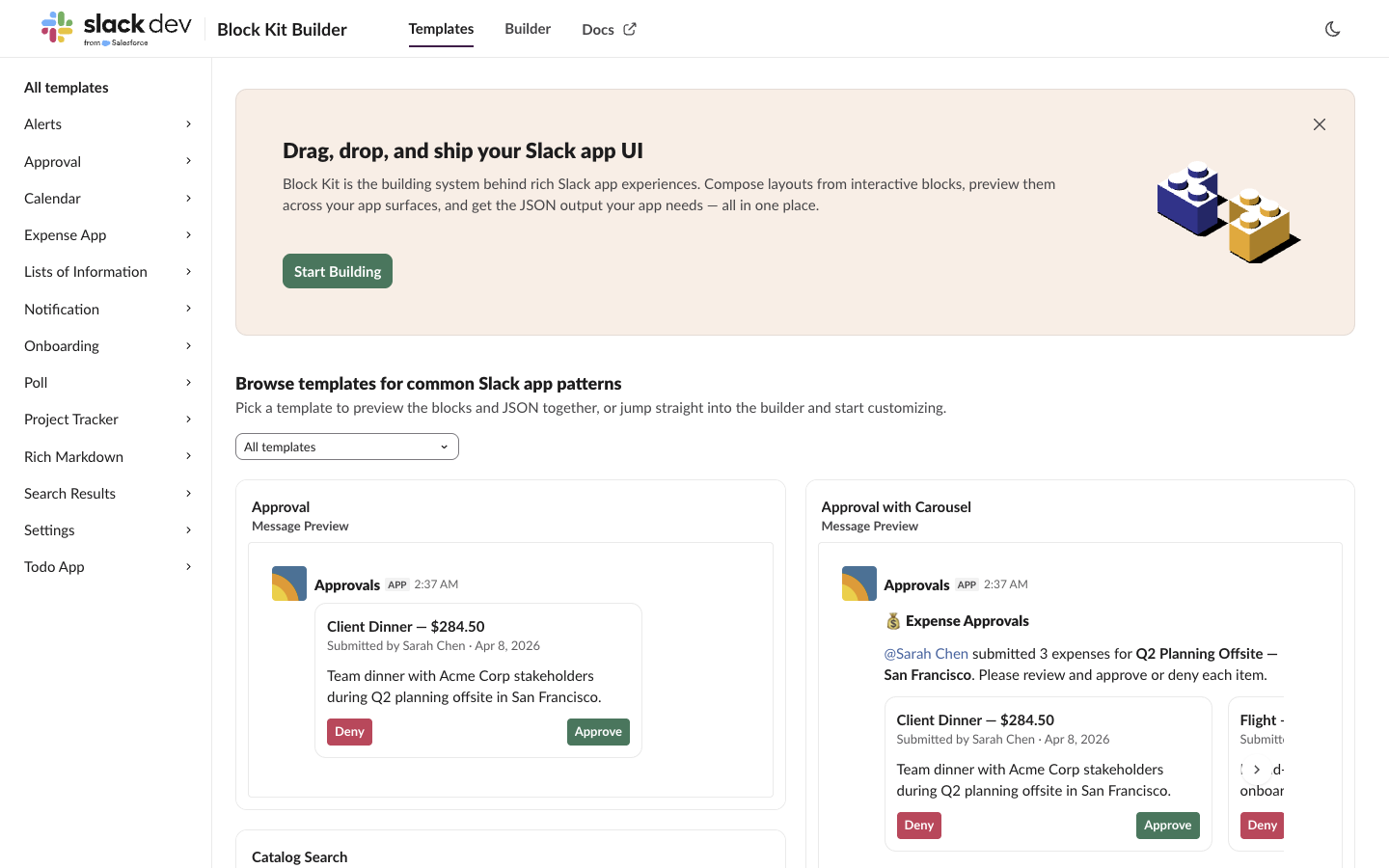
app.slack.com/block-kit-builder. Pick your workspace in the menu at the top right if you are in more than one. - Start from a template. The Templates tab has groups such as Alerts, Approval, Notification, Onboarding, Poll and Rich Markdown. Click one to open it in the builder.
- Add or change blocks. On the Builder tab, the left panel lists block types: Agents, Markdown, Section, Actions, Condition, Input, Structure, Rich Text, Image, Card and Carousel, Callout, Table, Data Visualization, Container and Reference. Click one to add it. You can also type in the Payload panel on the right; the preview updates as you edit.
- Choose the surface. The first menu above the preview switches between Message Preview, Attachment Preview, Modal Preview and App Home Preview. A block that works in a modal may not work in a message, and the builder shows that.
- Check Desktop and Mobile. The second menu switches the preview between Desktop and Mobile. Long button rows and wide images look different on a phone.
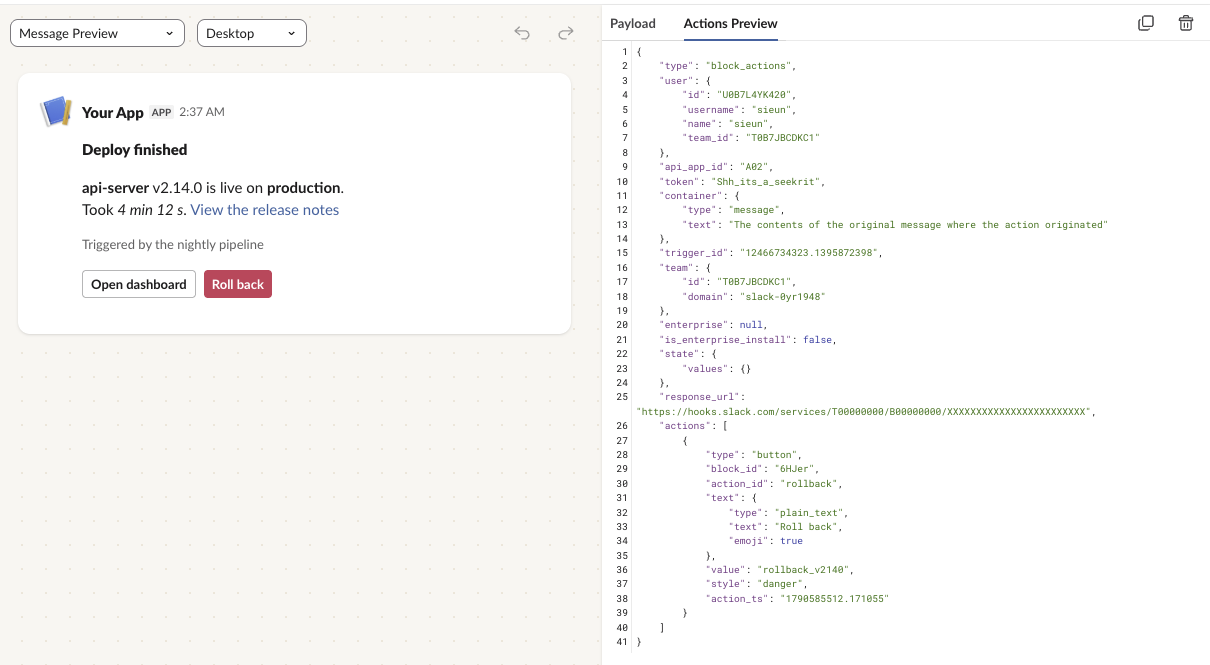
- Test the buttons. Click a button or pick a menu option in the preview, then open the Actions Preview tab. It shows the
block_actionspayload your app would receive. - Copy the JSON. Click Copy Payload (the copy icon above the JSON). The trash icon, Clear Blocks, empties the canvas.
Example: a deploy message with buttons
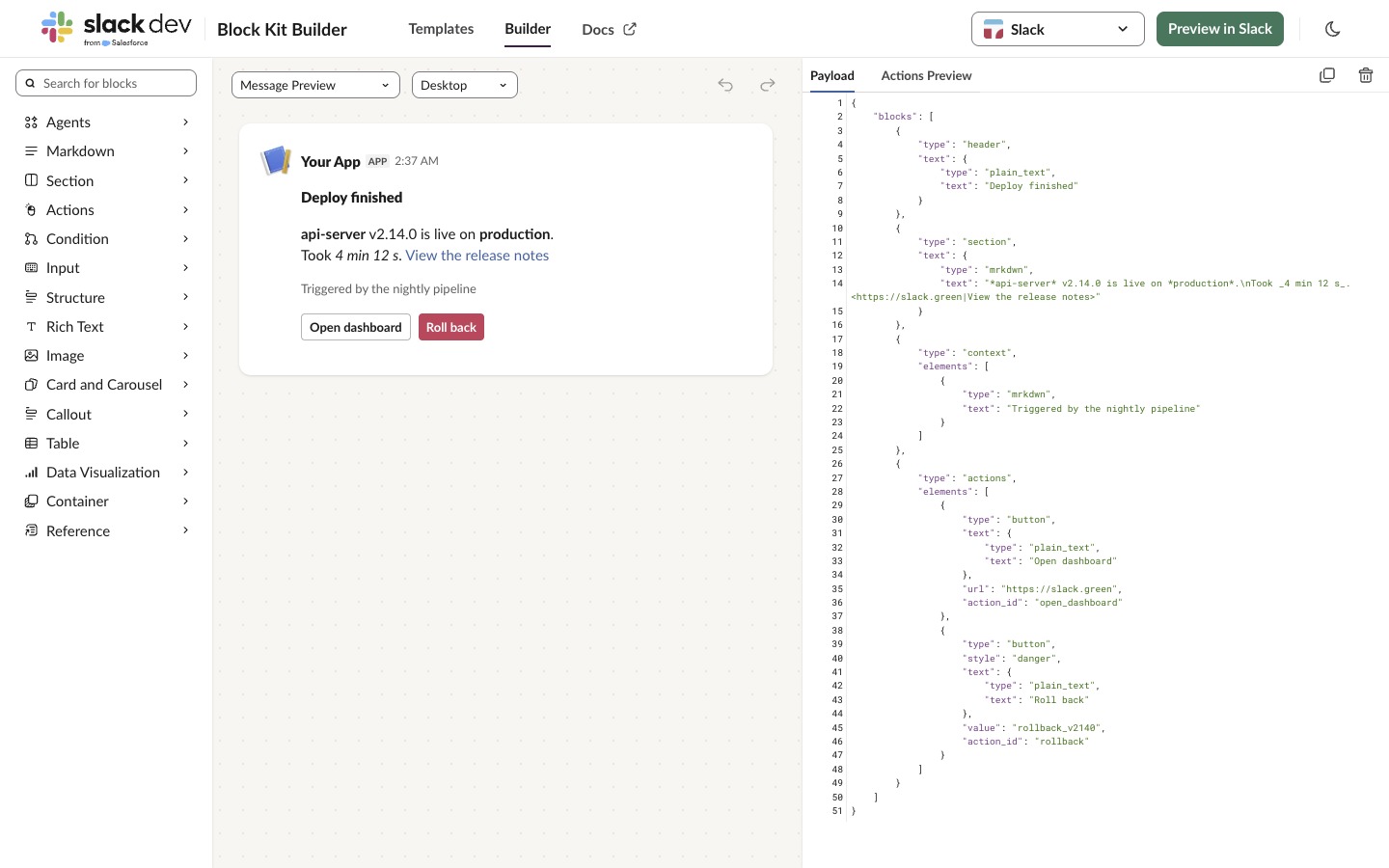
We built this message in the builder. It has a header, a section with mrkdwn text and a link, a context line and two buttons:
{
  "blocks": [
    {
      "type": "header",
      "text": {
        "type": "plain_text",
        "text": "Deploy finished"
      }
    },
    {
      "type": "section",
      "text": {
        "type": "mrkdwn",
        "text": "*api-server* v2.14.0 is live on *production*.\nTook _4 min 12 s_. <https://slack.green|View the release notes>"
      }
    },
    {
      "type": "context",
      "elements": [
        {
          "type": "mrkdwn",
          "text": "Triggered by the nightly pipeline"
        }
      ]
    },
    {
      "type": "actions",
      "elements": [
        {
          "type": "button",
          "text": {
            "type": "plain_text",
            "text": "Open dashboard"
          },
          "url": "https://slack.green",
          "action_id": "open_dashboard"
        },
        {
          "type": "button",
          "style": "danger",
          "text": {
            "type": "plain_text",
            "text": "Roll back"
          },
          "value": "rollback_v2140",
          "action_id": "rollback"
        }
      ]
    }
  ]
}
Clicking Roll back in the preview and opening Actions Preview showed the payload an app gets, with "action_id": "rollback", "value": "rollback_v2140" and "style": "danger":
A button with a url opens that link. A button with only a value needs an app with interactivity turned on to receive the click; an incoming webhook alone cannot handle it.
Never appear "away" on Slack again
Cloud-based. No downloads. Works 24/7 even when your laptop is off.
Send the payload with a webhook
An incoming webhook takes the same JSON. Add a top-level text: Slack uses it in notifications and for screen readers when the message has blocks.
curl -X POST -H "Content-Type: application/json" \
  -d '{"text": "Deploy finished: api-server v2.14.0",
       "blocks": [{"type": "section", "text": {"type": "mrkdwn",
         "text": "*api-server* v2.14.0 is live on *production*."}}]}' \
  "$SLACK_WEBHOOK_URL"
Paste the whole blocks array from Copy Payload in place of the one here. Setting up the webhook is in how to create a Slack webhook, and more request shapes and error codes are in Slack webhook curl example. With a bot token, send the same body to chat.postMessage with a channel field.
Share a Block Kit Builder link
The builder keeps the payload in the page address: after the # is the JSON, URL-encoded. Copy the address bar and anyone signed in to Slack sees the same message. You can also build such a link from code:
import json
import urllib.parse

blocks = {"blocks": [{"type": "section", "text": {"type": "mrkdwn", "text": "*Hello* from a link"}}]}
url = "https://app.slack.com/block-kit-builder#" + urllib.parse.quote(json.dumps(blocks, separators=(",", ":")))
print(url)
We opened the link this script printed on 28 September, and the builder loaded the message from it.
Block Kit Builder tips
mrkdwn: *bold*, _italic_, <https://example.com|link text>. Standard markdown like **bold** and [text](url) stays literal there. The rules and the markdown block, which does read standard markdown, are in Slack Block Kit markdown. To convert text you already have, use the markdown to Slack converter, and preview a single text with the Slack message formatter.<@U0123ABCD> with a member ID; see how to mention a user in a Slack webhook.<!date^1790553600^{date_short} at {time}|fallback>; our Slack timestamp generator builds the string.FAQ
Is Slack Block Kit Builder free?
Yes. You need a Slack account to open it, but no app and no paid plan.
Can Block Kit Builder send a message to a channel?
No. It builds and previews the JSON. Send it with a webhook, chat.postMessage or a workflow.
How do I add a button in Block Kit Builder?
Add an Actions block from the left panel, or add a button element to a section as its accessory. Give it a url to open a link, or an action_id and value for your app to handle.
How do I add an image in Block Kit?
Add an Image block with an image_url and alt_text. The image has to be at a public URL.
Can I use Block Kit Builder for modals and App Home?
Yes. Switch the surface menu above the preview to Modal Preview or App Home Preview.
Stop Jiggling Your Mouse.
Join hundreds of remote workers who never worry about their Slack status. Set it up once, stay green forever.
Related Articles
How to Make an Emoji From a Video (Slack and Discord)
To make an emoji from a video, cut 1 to 2 seconds, crop it to a square, scale it to 128 x 128 and save it as a GIF under 128 KB for Slack or 256 KB for Discord. One tested ffmpeg command, the frame rate and color settings that decide the file size, and a free browser tool that shrinks the GIF for you.
Can Slack Messages Be Subpoenaed? Yes, Here Is How It Works
Yes. Slack messages, including DMs, can be requested in a lawsuit or an investigation. Most requests go to the company that owns the workspace, which exports them. Slack itself gives out message content only with a search warrant and tells the company first. Slack's own policy, its disclosure numbers, legal holds, and what deleted messages mean.
Wireless Mouse With a Jiggler: How the Built-in Mode Works
A wireless mouse with a jiggler is a normal mouse with a jiggle mode in its firmware: hold the DPI button for about 3 seconds and the cursor moves on its own. Two models in the top results, how they compare with a USB dongle and a mechanical mover, and what they do for Teams and Slack.