
How to Put an Image Inline in a Slack Message (Between Text)
A normal Slack message cannot hold an image between two lines of text: a pasted image is always sent as a file under the text. We tested it, plus the three ways that do put a picture between words: a canvas, Block Kit, or separate messages.
You cannot put an image between two lines of text in a normal Slack message. Whatever you paste or drag into the message box is sent as a file attachment under the whole text, even if you paste it in the middle of a sentence. On 4 November 2026 we tested this in the Slack web app on a Free plan workspace, and the image always landed at the bottom. To place a picture between paragraphs, use a canvas, a Block Kit message sent by an app or the API, or split the text into several messages.
What happens when you paste an image mid-sentence
We typed "First open Settings, like this:", pasted a screenshot, and then typed "then click Save." in the same message box. Slack did not keep the image at the cursor. It put a thumbnail in a row under the text, the way it shows any file you attach.
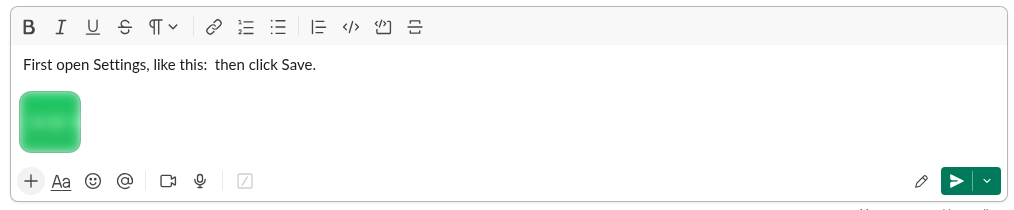
After we pressed Enter, the message showed the text first and the image under it. When we read the message back through Slack's API, the text was stored as First open Settings, like this: then click Save. with two spaces where the image had been. The image was saved as a separate file, image.png, linked to the message. Slack keeps the text and the files in different parts of a message, so there is no position inside the text where a picture could sit.
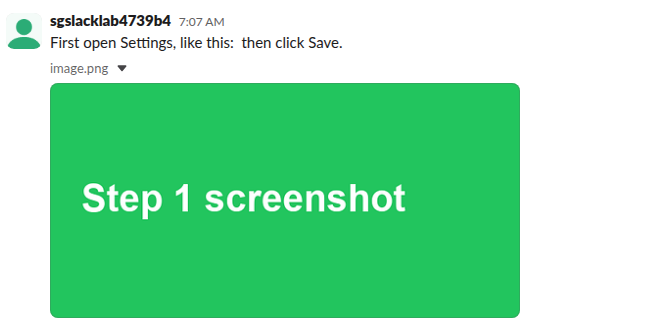
Dragging a file in or using the plus button adds it the same way, as a file of the message, and Slack's help says one message can take up to 10 files.
Markdown image syntax turns into a link
Pasted Markdown now formats in the Slack message box, so we tried the Markdown way of writing an image, , in the middle of a sentence. Slack turned it into a link with the text "Settings button". Because the URL pointed at a public PNG, Slack also added a preview of the image under the message. So the picture still showed after the text, not in its place. A bare image URL in the text did the same: the text stayed in one piece and the preview came at the end.
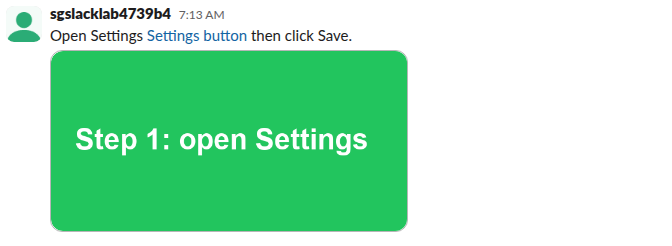
If previews are off in your workspace or for that link, you get only the link. Our guide to Slack link previews explains when Slack makes one.
Way 1: write it in a canvas
A canvas is the one place in the Slack app where you can type text, put an image under it, and keep typing below the image. We opened our test channel, clicked Add canvas, then New blank canvas, typed a line, pasted the same screenshot, and typed the next line. The image stayed where we pasted it, between the two lines. Canvases in channels worked on our Free plan workspace.
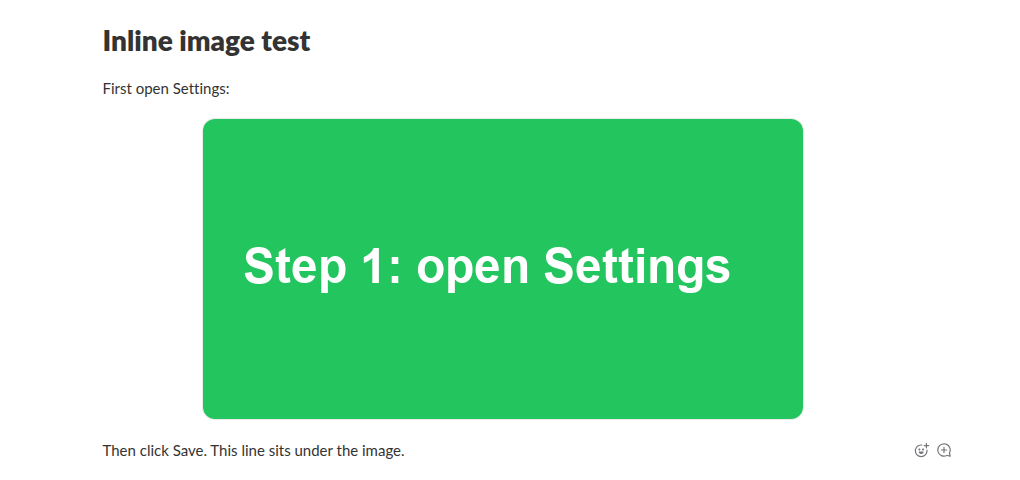
Use a canvas for step-by-step guides, onboarding notes or anything people will read more than once, then share the canvas in the channel. More on headings, lists and other layout in our canvas formatting guide.
Way 2: send a Block Kit message
A message built from Block Kit blocks can mix text and images in any order. We sent this message with chat.postMessage through Slack's API: a section with text, an image block, another section, a second image block and a closing line.
[
  {"type": "section", "text": {"type": "mrkdwn", "text": "First open *Settings*:"}},
  {"type": "image", "image_url": "https://example.com/step1.png", "alt_text": "The Settings button"},
  {"type": "section", "text": {"type": "mrkdwn", "text": "Then click *Save*:"}},
  {"type": "image", "image_url": "https://example.com/step2.png", "alt_text": "The Save button"},
  {"type": "section", "text": {"type": "mrkdwn", "text": "Done."}}
]
Slack showed it in exactly that order, with each image between the lines of text.
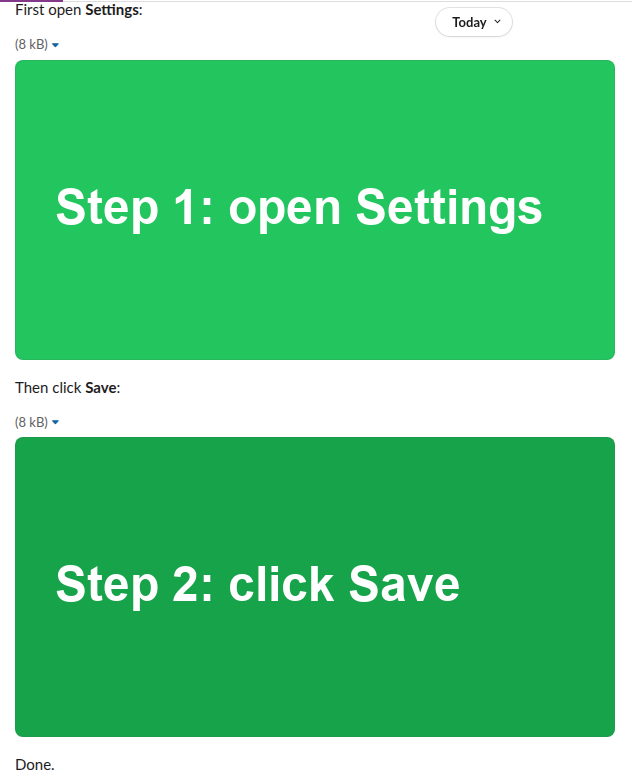
Two limits matter here. You cannot build this in the normal message box, so it needs an app, a bot, a webhook or a script. And image_url must be a public URL that Slack can fetch, unless you use a file already uploaded to Slack. Our Slack image block guide covers both forms, sizes and errors, and you can design the layout first in Block Kit Builder.
Never appear "away" on Slack again
Cloud-based. No downloads. Works 24/7 even when your laptop is off.
Way 3: split the text into messages
Without an app and outside a canvas, the simple fix is to send the text in parts: the first step, then a message with the image, then the next step. Each message keeps its image right under its own text. Use a thread if you do not want five messages in the channel. If an image is already sent in the wrong place, our guide on editing an image in a Slack message shows what you can and cannot change after sending.
Add alt text to an image
Slack lets you add a description (alt text) to an image you shared. Hover over the image and click Add description. Slack opened an Edit alt text window with the file name and a Description box. We typed "The Settings button in step 1", clicked Done, and the file's alt_txt field in the API then held that text. For a Block Kit image, set alt_text in the block instead.
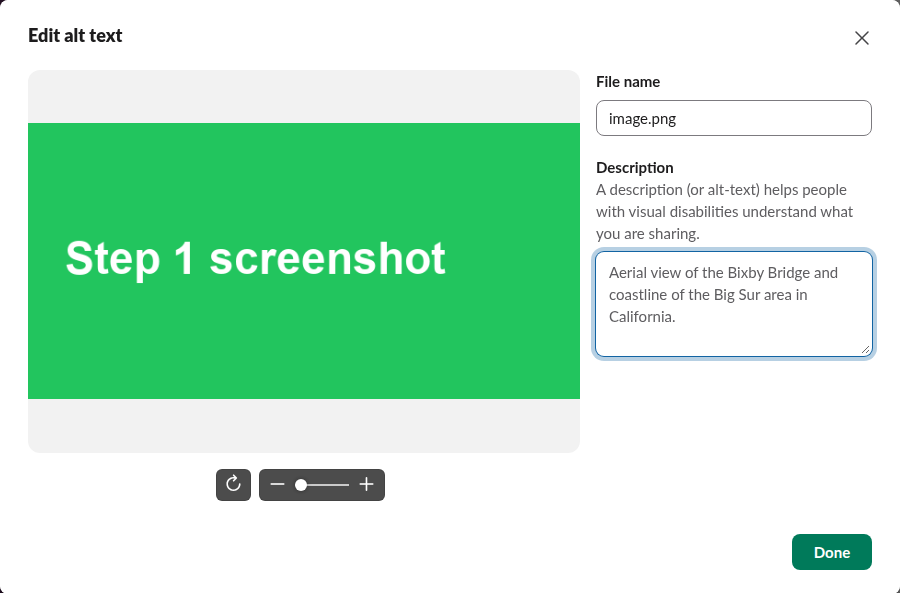
After we saved the first description, Slack asked whether we wanted reminders to add alt text before sending images. You can turn those reminders on or off later under Preferences, Accessibility.
Which way to use
| You want | Use | Works from the normal app? |
|---|---|---|
| A quick message with one picture | Paste the image; it goes under the text | Yes |
| Steps with a picture after each step | A canvas | Yes |
| A bot or workflow message with pictures between lines | Block Kit image blocks | No, needs an app or the API |
| No app and no canvas | One message per step | Yes |
FAQ
Can I make the image appear before the text?
Not in one normal message: the text always comes first and the files after it. Send the image as its own message first, then the text, or use a canvas.
Does Slack shrink pasted images?
Slack shows a preview sized to fit the message, and the full file opens when you click it. Whether Slack changes the file itself is covered in does Slack compress images.
Why did my image show as a link instead of a picture?
A link to an image only shows a picture when Slack makes a preview of it. If the URL needs a login, or previews are off, you get a plain link. Upload the file instead, or see Slack images not showing for other causes.
Stop Jiggling Your Mouse.
Join hundreds of remote workers who never worry about their Slack status. Set it up once, stay green forever.
Related Articles
Slack SDK for Rust: slack-morphism Tested (Post, History, Socket Mode)
Slack has no official Rust SDK. The community crate that works today is slack-morphism: on 5 November 2026 we used version 2.31.1 to post a message, page through history with a cursor and answer a mention over Socket Mode. Code and output below.
Slack Deep Links: Every slack:// Command in the Current App
A Slack deep link is a slack:// URL such as slack://channel?team=T123&id=C123 that opens the desktop or mobile app on a channel, person, file or setting. We read the handler in Slack's current code, listed the commands it accepts, and tested the https fallbacks.
How to Show Unread Channels on Top in Slack (What Works Now)
Slack has no sort that lifts unread channels to the top. The closest is Filter and sort > Unreads, which hides every read channel. We tried each sort and filter in the sidebar with one unread channel and screenshot the order.