
How to Edit an Image in a Slack Message (Replace, Remove or Add)
You can change the image in a Slack message you already sent: open Edit message, remove the old image with its X, add a new one with the + button, and save. We tested every step in the Slack web app on October 28, 2026, including adding an image to a text-only message.
To edit an image in a Slack message you already sent, hover over the message, open More actions (the three dots) and choose Edit message. The image shows as a thumbnail in the edit box. Click the X on the thumbnail to remove it, use the + button to upload a new one, and click Save. We did this in the Slack web app on October 28, 2026: the message kept its time and text, showed the new image, and got the usual (edited) label.
Slack cannot change the pixels of an image. There is no crop, draw or annotate tool in the message. To fix the picture itself, edit it on your computer and swap it in with the steps below.
Replace the image in a sent message
- Hover over your message and click More actions (three dots), then Edit message. Slack's shortcut panel also lists E for editing a message that has keyboard focus.
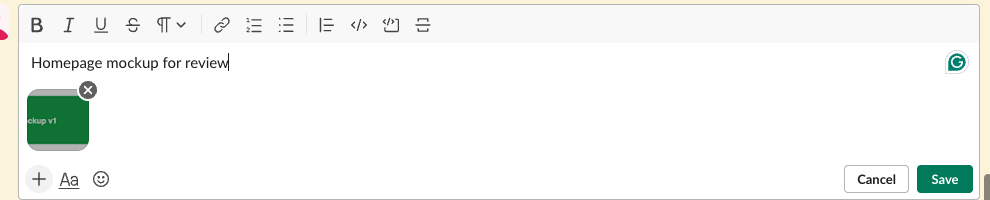
- The edit box opens with your text and a small thumbnail of each file. Hover the thumbnail and click the X (Remove file).
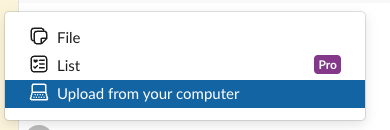
- Click the + button at the bottom left of the edit box and choose Upload from your computer.
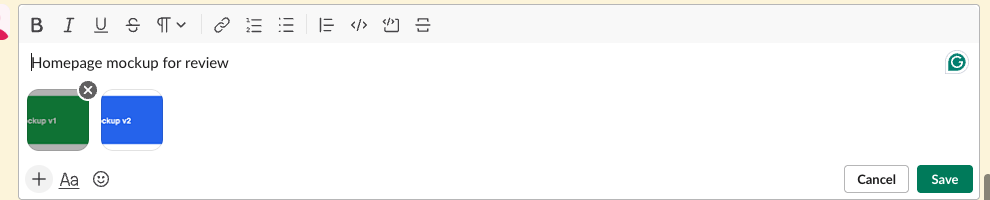
- Pick the new image. Its thumbnail appears next to the text.
- Click Save.
This is the edit box with our first image, a green "Mockup v1" picture, and the remove button on its thumbnail:
The + button in the edit box has the same upload item as the normal message box:
We uploaded a blue "Mockup v2" picture, so the edit box held both images:
Then we removed the green one and saved. The channel showed the new image under the old text, with (edited) after the text:

Add an image to a message that had none
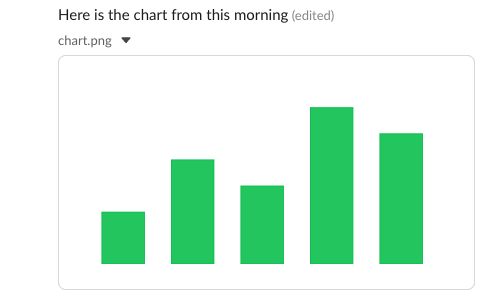
The same + button works on a text-only message. We posted "Here is the chart from this morning", opened Edit message, uploaded a bar chart from the + menu and saved. The message now carried the chart, marked (edited):
Slack's help page on editing messages does not mention files at all, and a Reddit thread in r/Slack asked whether it was possible at all. In the current web app it is.
What happens to the old image
Removing an image in the edit box takes it out of the message, but it does not delete the file. After our edit, Slack's API still returned the old file mockup-v1.png, now with no channel listed. Slack keeps such a file in your files until you delete it. To get rid of it for good, open Files, find it, and use Delete file; how to delete files in Slack has the steps and what each delete removes.
| What we did in the edit box | Result in the channel | Old file |
|---|---|---|
| Removed image, added a new one, saved | New image, text unchanged, (edited) | Still exists, shared nowhere |
| Added an image to a text-only message | Image added, (edited) | None |
Never appear "away" on Slack again
Cloud-based. No downloads. Works 24/7 even when your laptop is off.
Change an image without editing the message
Hover the image itself and open its own More actions menu. It is a different menu from the message menu:
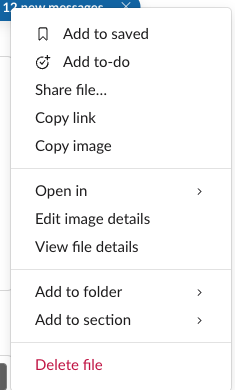
Edit image details opens a window with the file name, a description, and buttons to rotate and zoom the preview:
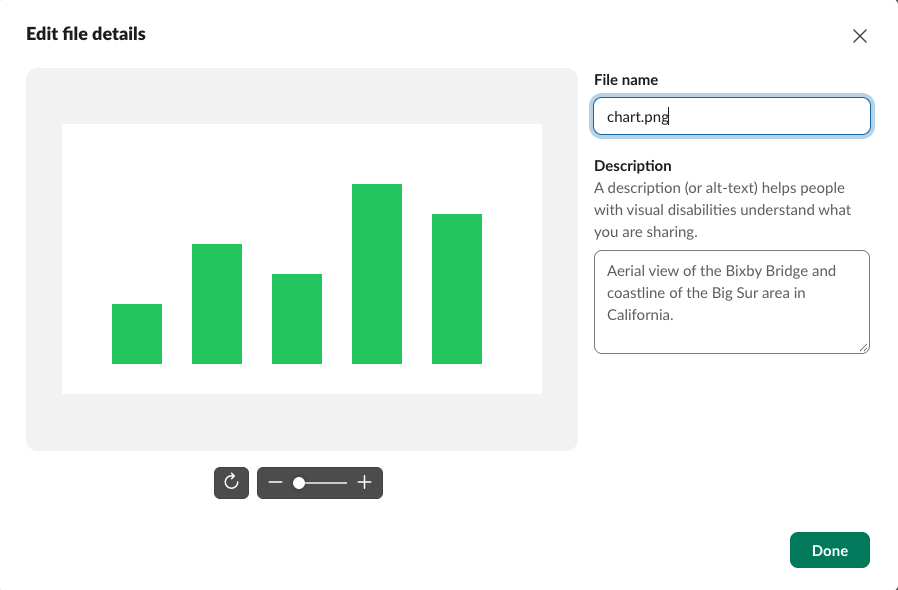
The description is the image's alt text, which screen readers announce. In our test the rotate button only turned the preview: after Done, the image in the channel was not rotated, and the file still measured 480 by 270 pixels after a reload. So rotate the picture on your computer and replace it as above.
Edit limits that also apply to images
You can only edit your own messages, and only while the workspace allows it. Admins can set editing to never, a time window, or any time; the Slack edit time limit shows that setting and what happens when the window closes. When it is closed, Edit message is missing from the menu and you cannot swap the image either. Other people see the (edited) label but not the old image; does Slack show edited messages covers who can still see an earlier version.
On the phone, Slack's help says you can edit text, but we did not test files in the mobile app. If you cannot find the upload button there, delete the message and post the new image instead.
FAQ
Can a bot or the API change the image in a message?
Not in a message that holds an uploaded file. Slack's docs for chat.update describe changing the text and blocks of a message. An image block points at a URL, so a bot can post a new image_url that way. A file someone uploaded is a separate object, and chat.update has no argument to replace it.
Does editing an image notify people again?
No. Slack sends no new notification for an edit. People who already opened the channel see the new image with the (edited) label the next time they look.
Why is there no Edit message item?
Either it is not your message, or your workspace limits editing to a time window that has passed. A workspace owner sets this under Settings & permissions, Message Editing.
Stop Jiggling Your Mouse.
Join hundreds of remote workers who never worry about their Slack status. Set it up once, stay green forever.
Related Articles
Slack Canvas Shortcuts: Keyboard Keys, the / Menu and Dates
Slack canvases have their own keyboard shortcuts: Cmd + Option + 1 to 3 for headings, Cmd + Shift + 7, 8 and 9 for lists and checklists, and / for an insert menu that adds dates and reminders. We pressed every formatting shortcut in a real canvas on October 28, 2026.
How to Copy or Duplicate a Slack Canvas
Slack canvases have no Duplicate button. To copy one, select all, copy, and paste into a new canvas, or copy it by API. We tested both on October 28, 2026: headings and lists came through, but links to sections still pointed at the old canvas.
Slack Canvas Table of Contents: The Built-in Outline and Section Links
Every Slack canvas already has a table of contents: hover the short lines at the left edge and a list of all headings opens. For a contents list inside the canvas, copy a link to each heading and paste them as a list. We tested both on October 28, 2026.