
Slack Jump to Date: Where the Menu Is and What Each Option Does
Slack's Jump to date menu hides in the date divider above messages. We tested it in a 500-message channel and an older channel: which options appear, how far back the calendar goes, and how to do it by API.
To jump to a date in a Slack channel, click the date divider above a day's messages (it reads "Today" or a date like "Friday, October 2nd") and choose Jump to a specific date. A calendar opens, and the channel scrolls to the first message on or after the day you pick. On 5 October 2026 we tested the menu in Slack's web app in two channels of our free-plan test workspace: #social, whose last messages were 3 days old, and a new channel where a bot had just posted 500 messages.
The menu changes with the channel
The divider's menu was not the same in both channels:
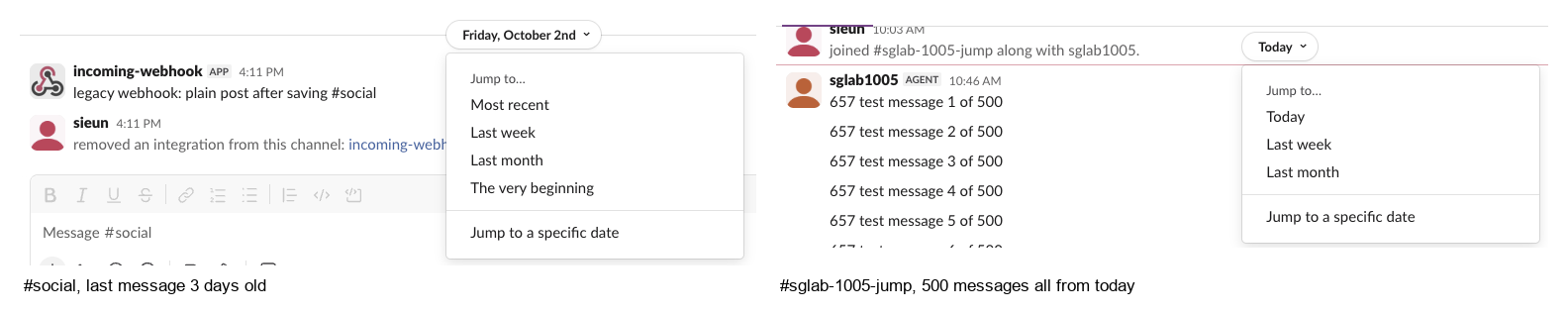
| Option | What it did in our test |
|---|---|
| Most recent | Shown in #social, where nothing was posted today |
| Today | Shown when the channel has messages from today. Goes to the first message of today, not the newest |
| Last week, Last month | Shown in both channels |
| The very beginning | Shown in #social only, not in the channel we were reading from its first message |
| Jump to a specific date | Opens the calendar |
The "Today" row tripped us up. In the busy channel we clicked it while reading message 1 and waited 20 seconds: the view did not move, because message 1 was the first message of today. To get to the newest message, use the Latest messages button that floats above the composer. It brought message 500 into view in 343 ms.
The divider is only above each day
The menu lives on the date divider. In the 500-message channel every message was from the same morning, so there was one divider, above message 1. While we were reading messages 410 to 439 and at message 500, the page had no date divider at all, so the menu could not be opened. If you cannot find a divider, scroll up to the start of the day, or press Latest messages and scroll up from there.
Never appear "away" on Slack again
Cloud-based. No downloads. Works 24/7 even when your laptop is off.
How far back the calendar goes
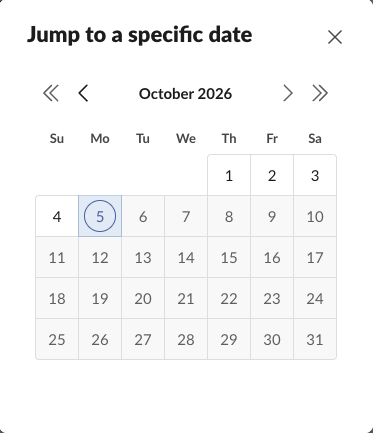
We stepped back month by month in #social. Future days were greyed out, and the oldest month we could open was June 2026, with June 1 greyed out. The channel was created on 1 June 2026 at 15:31 UTC, which is 2 June in our Seoul time zone, so the calendar started on the day the channel, and our workspace, was created, in our time zone. The double arrows for whole years were disabled because the channel was less than a year old.
We then picked 15 June, a day with no messages left in #social. Slack did not show an error or an empty day. It scrolled to the first message after that date, which was on 2 October. On our free plan, conversations.history also returned is_limited: true for this channel, Slack's flag for limited history. On a free workspace, where messages older than 90 days are hidden, an old date can land you weeks later without a notice. Details of that limit are in Slack free plan limits.
Jump to a date with the API
For a script, conversations.history takes oldest and latest as Unix timestamps. We pulled one minute of the 500-message channel with a user token:
import os, datetime as dt
from zoneinfo import ZoneInfo
from slack_sdk import WebClient

client = WebClient(token=os.environ["SLACK_USER_TOKEN"])
tz = ZoneInfo("Asia/Seoul")
start = dt.datetime(2026, 10, 5, 10, 50, tzinfo=tz)
end = start + dt.timedelta(minutes=1)

r = client.conversations_history(channel=os.environ["CHANNEL"], oldest=str(start.timestamp()),
                                 latest=str(end.timestamp()), inclusive=True, limit=200)
msgs = sorted(r["messages"], key=lambda m: float(m["ts"]))
print(len(msgs), "messages between", start.strftime("%H:%M"), "and", end.strftime("%H:%M"))
print("first:", msgs[0]["text"], "| last:", msgs[-1]["text"])
link = client.chat_getPermalink(channel=os.environ["CHANNEL"], message_ts=msgs[0]["ts"])["permalink"]
print("permalink:", link)
Output:
61 messages between 10:50 and 10:51
first: 657 test message 246 of 500 | last: 657 test message 306 of 500
permalink: https://slack-0yr1948.slack.com/archives/C0C6S6PLR0C/p1791165000120919
The permalink opens Slack scrolled to that message, which is the same as a jump to that moment. Opening it in a browser first showed a "Launching Slack" page; "open this link in your browser" loaded the channel at that message, with the day's divider and its menu right above it. The p number is the message ts without the dot; how to see the exact time a Slack message was sent shows how to decode it.
FAQ
Can I search messages from a specific date instead?
Yes. Search with on:, before: or after:, for example on:2026-10-02. The full list is in Slack search operators.
Does jump to date work in DMs?
Yes. Our DM with a bot had the same "Today" date divider with the Jump to date button as a channel.
Stop Jiggling Your Mouse.
Join hundreds of remote workers who never worry about their Slack status. Set it up once, stay green forever.
Related Articles
Slack API Unread Messages: last_read, unread_count and conversations.mark, Tested
Slack's Web API has no single unread-messages call. We tested what conversations.info returns for channels and DMs, counted unreads from last_read, and moved the sidebar badge with conversations.mark.
Slack Themes: Custom Theme Strings That Import, Tested
Slack's custom theme now takes 4 colors. We pasted old 8-color strings, Slack's own Share output and our own themes into Import, and logged which ones Slack accepted.
Slack agent_view vs assistant_view: Both Tested Side by Side
We switched one Slack app from assistant_view to agent_view and recorded what the user sees, which events arrive, and which status and title calls still work.