
Slack RSS Feed: How to Add One, and How Often It Checks
Install Slack's free RSS app, click Add RSS integration, paste the feed URL and pick a channel, or type /feed subscribe in the channel. In our test on October 31 Slack checked the feed every 20 minutes, and items already in the feed were never posted.
To add an RSS feed to Slack, install Slack's own RSS app from the Slack Marketplace, click Add RSS integration, paste the feed URL, choose a channel and click Subscribe to this feed. Once the app is installed, you can also type /feed subscribe https://example.com/feed.xml in a channel. We set up two feeds of our own on a Free workspace on October 31, 2026, and logged every request Slack's server made to them: after the first check, Slack fetched each feed every 20 minutes, and it never posted the items that were already in the feed when we subscribed.
Add the RSS app and your first feed
- Open the RSS app in the Slack Marketplace (search "RSS" from Agents & tools, then Apps, or go to
https://<your-workspace>.slack.com/apps/A0F81R7U7-rss). - Click Add to Slack, then Add RSS integration. This creates the app's configuration page.
- Under Add a Feed, paste the feed URL and pick the channel in Post to Channel.
- Click Subscribe to this feed.
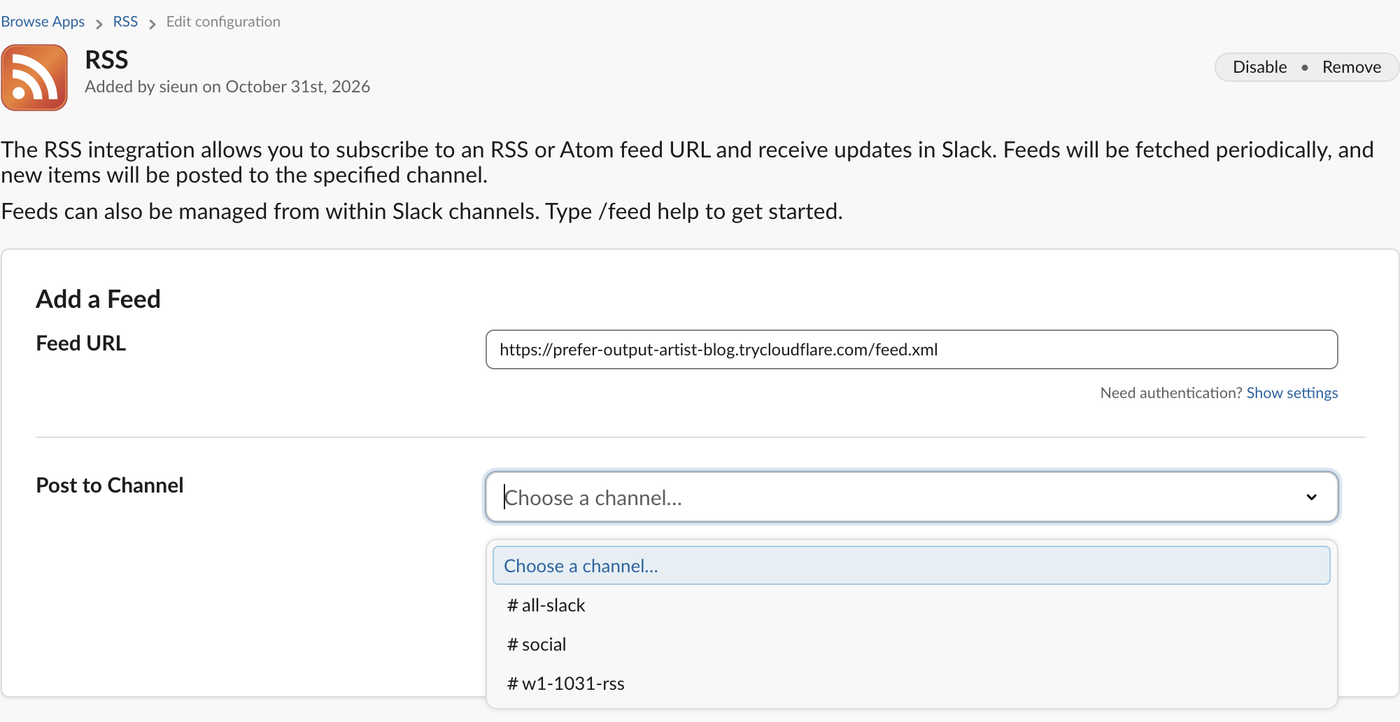
It installed on our Free workspace with no upgrade step, though the Marketplace page still shows the Pro banner about unlimited apps; the Free plan's app cap is on our Slack free plan limits page. Need authentication? Show settings opens a username and password pair for feeds behind HTTP basic auth. RSS and Atom both work, according to the app's own description. The general install flow, including admin approval, is the same as for any other Slack app.
Or use /feed in the channel
The app adds a /feed command. /feed help answered:
Valid commands: subscribe, list, remove, help.
To subscribe to a feed in this channel: /feed subscribe http://kotaku.com/vip.xml
To list subscribed feeds from this channel: /feed list
To remove a feed from this channel: /feed remove ID
/feed subscribe <url> replied "Feed subscribed:" with the feed title and a copy of the newest item, visible only to us. /feed list showed each feed with a numeric ID, which is what /feed remove takes. The two errors we got:
| What we subscribed | Slack's reply |
|---|---|
| A URL that returned 404 | Encountered a problem fetching the feed |
| A normal web page (HTML) | Sorry, '…' doesn't look like a feed url. Try again? |
How often Slack checks an RSS feed
Our feeds ran on a small web server that logged each request. Slack's fetcher identified itself as Slackbot 1.0 (+https://api.slack.com/robots) and came from Amazon Web Services addresses. We added test items at known times and noted when each one appeared in the channel:
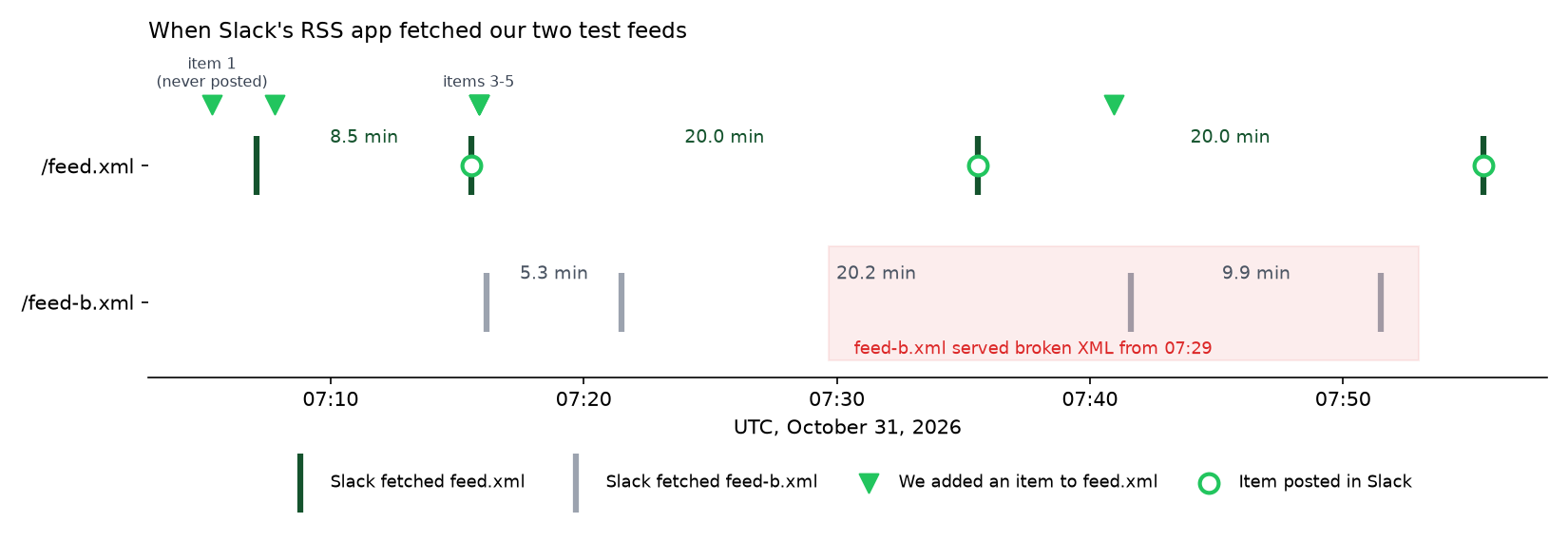
| Feed | Slack's requests (UTC) | Gaps |
|---|---|---|
| feed.xml | 07:07:04 (subscribe), 07:15:34, 07:35:33, 07:55:31 | 8.5, 20.0, 20.0 min |
| feed-b.xml | 07:16:10 (subscribe), 07:21:28, 07:41:38, 07:51:30 | 5.3, 20.2, 9.9 min |
So expect a new item to show up within about 20 minutes, not instantly. In our run the delays were 7 min 47 s (item 2), 19 min 43 s (items 3 to 5, added together) and 14 min 36 s (item 6). The first check after subscribing came sooner, after 5 to 9 minutes. If you need posts within seconds, the RSS app is the wrong tool; push the item yourself with an incoming webhook instead.
From the second regular check on, Slack sent a HEAD request with an If-Modified-Since header set to its last successful fetch, then a full GET. Our server sent no Last-Modified header, so every check downloaded the whole feed. A feed server that answers 304 Not Modified gives Slack the chance to skip the download.
Never appear "away" on Slack again
Cloud-based. No downloads. Works 24/7 even when your laptop is off.
What the posts look like, and what gets skipped
Slack RSS feed not working? What we saw
We switched one feed to broken XML at 07:29 and watched. Slack did not post anything, did not send any message to the channel, and the configuration page still listed the feed with a normal "Fetched" age:
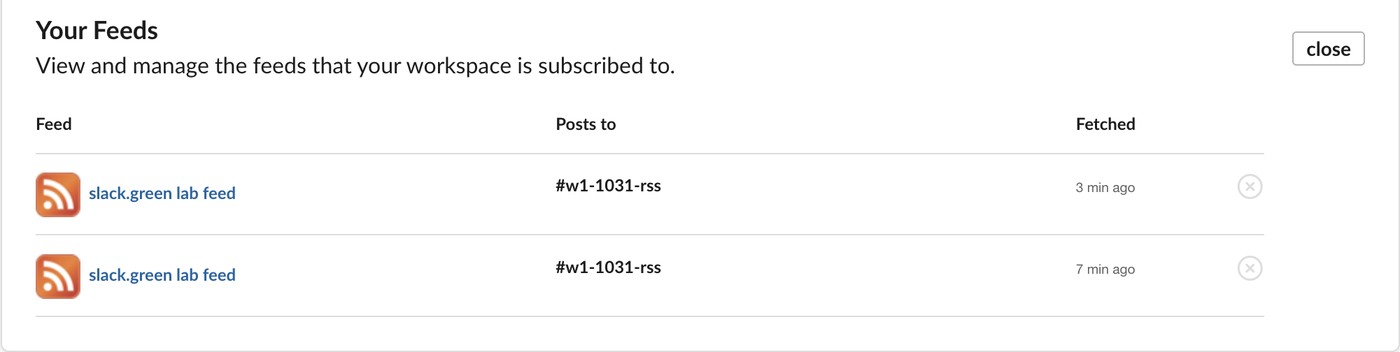
The second row in that screenshot is the broken feed. What changed was the timing: after the failed parse Slack came back after 9.9 minutes instead of 20, and its If-Modified-Since header still held the time of the last good fetch (07:21:28). So a broken feed fails silently. If posts stop, open the feed URL in a browser or an XML validator before you blame Slack.
The "Fetched" column is not a request log either. At 07:48 it said "3 min ago" for feed.xml, but our server had no request from Slack for that feed between 07:35:33 and 07:55:31.
Other causes worth ruling out: Slack fetches from its own servers (Amazon addresses in our log), so the feed must be reachable from the public internet, not only on a company VPN or localhost, and it must be a feed and not a web page (the HTML error above),.
Remove a feed or the app
Type /feed list, then /feed remove <ID>; Slack answered "Feed 12467970906274 (slack.green lab feed) deleted". To remove the app, open its configuration page and click Remove next to Disable. After that, Installed apps no longer listed RSS.
FAQ
Can I change how often Slack checks the feed?
No. The app has no interval setting; the configuration page has only the URL, the login fields and the channel.
Stop Jiggling Your Mouse.
Join hundreds of remote workers who never worry about their Slack status. Set it up once, stay green forever.
Related Articles
How to Resolve or Close a Slack Thread (and Who Can Lock One)
Slack has no Resolve or Close button for threads. We checked every thread menu as a member, found the admin-only lock in Slack's code, and tested the workarounds that do work: a checkmark, a to-do you mark complete, and muting replies.
How to Search for Images in Slack, Including Text Inside Them
To find an image in Slack, search, switch the results from Messages to Files and set File type to Images, or type type:images. We tested 6 images: Slack also found words written inside PNGs, but not inside JPGs.
Lock Icon Next to a Slack Channel? What the Lock and Grey Text Mean
A padlock next to a Slack channel means it is private. Grey text with a crossed-out bell means you muted it. We made a private, muted, archived and unread channel and screenshot each one in the sidebar.