
Uptime Kuma Slack Notifications: Setup, Message Format and Timing (Tested)
Uptime Kuma posts to Slack through an incoming webhook. We ran Uptime Kuma 2.5.9 in Docker, took a test site down twice and timed the alerts: 49 to 56 seconds for Down at a 20-second interval, 16 to 17 seconds for Up. Settings, message formats and a working template below.
To send Uptime Kuma alerts to Slack, create a Slack incoming webhook for the channel, then in Uptime Kuma open Settings > Notifications > Set Up Notification, pick Slack, paste the webhook URL and attach the notification to your monitors. On 5 November 2026 we ran Uptime Kuma 2.5.9 in Docker, pointed an HTTP monitor at a small test site, stopped the site twice and timed the Slack messages. With a 20-second check interval and no retries, the Down alert reached Slack 49 and 56 seconds after the site went away, and the Up alert 16 and 17 seconds after it came back.
Step 1: get a Slack webhook URL
Uptime Kuma's Slack notification only speaks to incoming webhooks; it has no field for a bot token. Create a Slack app (or reuse one), add the incoming-webhook scope, install it and pick the channel on the install screen. Slack gives you a URL that starts with https://hooks.slack.com/services/. Our guide to creating a Slack webhook walks through the screens. The webhook always posts to the channel picked at install, so make one per alert channel.
Step 2: add the notification in Uptime Kuma
In Uptime Kuma 2.5.9 the Slack form has these fields:
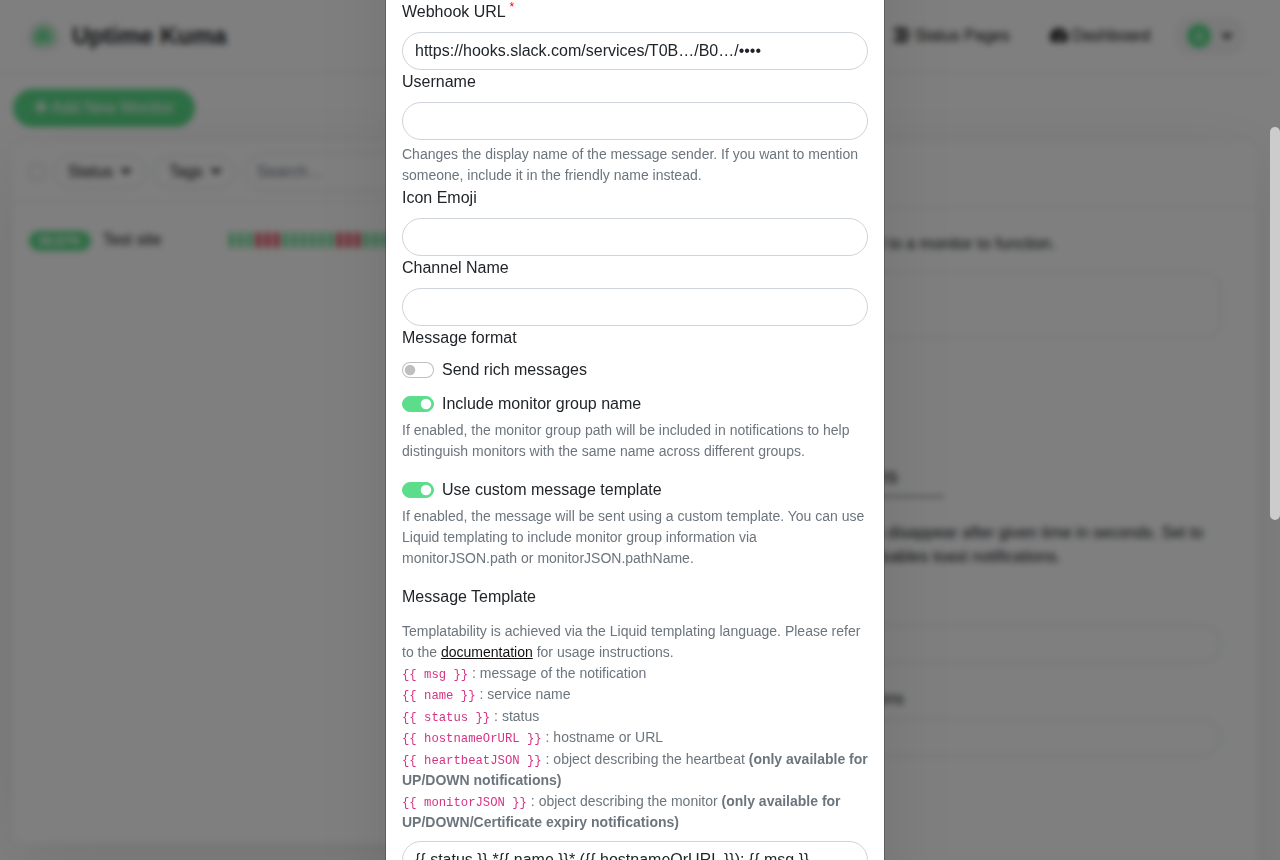
- • Webhook URL is the only required field.
- • Username, Icon Emoji and Channel Name are passed to Slack as
username,icon_emojiandchannel. The dialog says Channel Name can "bypass the Webhook channel", but webhooks from a Slack app ignore all three: we posted{"channel": "#social", "username": "renamed", "icon_emoji": ":ghost:"}to our webhook and the message still went to the install channel under the app's own name and icon. Only old legacy webhooks honor them. - • Send rich messages turns the alert into a colored card (below).
- • Include monitor group name adds the group path when the monitor sits in a group.
- • Use custom message template replaces the message with your own Liquid template.
Further down are Notify Channel, which appends @channel to every alert, Default enabled for new monitors, Apply on all existing monitors and a Test button. Our Test press posted the plain line "Slack #sg-1105b-lab Testing", which is the notification's friendly name plus "Testing". Then open each monitor, tick the notification under Notifications, and save.
What the alerts look like
We made an HTTP monitor named "Test site" with a 20-second interval and 0 retries, stopped the site's container, waited, and started it again. Here is our channel:
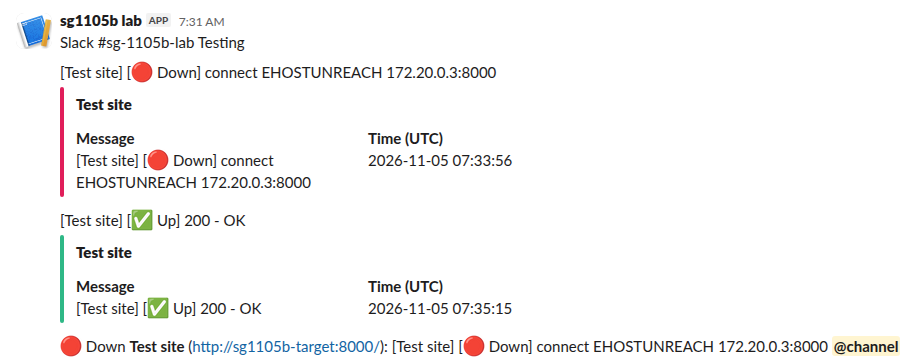
With Send rich messages on, Uptime Kuma sends the text line plus an attachment. We read the code that builds it in the container (server/notification-providers/slack.js): a header block with the monitor name, a section with Message and Time in the server's time zone, a red bar (#e01e5a) for Down and a green one (#2eb886) for Up. The same code adds a Visit Uptime Kuma button only when Settings > General > Primary Base URL is set, and a Visit site button only when the monitored address parses as a public URL. We had neither, so our cards had no buttons.
With rich messages off and no template, the code sends the monitor name and the message as two plain lines.
Never appear "away" on Slack again
Cloud-based. No downloads. Works 24/7 even when your laptop is off.
A custom template
Template mode takes Liquid. The dialog lists {{ msg }}, {{ name }}, {{ status }}, {{ hostnameOrURL }}, {{ heartbeatJSON }} and {{ monitorJSON }}. We used:
{{ status }} *{{ name }}* ({{ hostnameOrURL }}): {{ msg }}With Notify Channel on as well, Slack received this exact text for the second outage:
:red_circle: Down *Test site* (<http://sg1105b-target:8000/>): [Test site] [:red_circle: Down] connect EHOSTUNREACH 172.20.0.3:8000 <!channel>{{ status }} renders as the emoji plus Down or Up, Slack shows *Test site* in bold because webhook text is mrkdwn, and <!channel> is how the Notify Channel switch makes the message ping everyone in the channel as @channel. Template mode sends no card, so you choose between the colored layout and your own wording.
How fast the alerts arrive
From the monitor's heartbeat log and the Slack message timestamps:
| Event | Run 1 | Run 2 |
|---|---|---|
| Test site stopped | 07:33:46 | 07:36:59 |
| First failed check started | 07:33:56 | 07:37:15 |
| Down message in Slack | 07:34:35 (49 s) | 07:37:55 (56 s) |
| Test site started | 07:34:59 | 07:38:18 |
| Up message in Slack | 07:35:15 (16 s) | 07:38:35 (17 s) |
The Down alert took longer than the 20-second interval because the failed check itself took about 40 seconds: the connection ended with EHOSTUNREACH instead of failing fast, and Uptime Kuma sends the alert when the check finishes. A site that answers with an error code would alert sooner. Each retry you allow adds one more retry interval before the alert, so 3 retries at 20 seconds add about a minute.
Uptime Kuma did not post anything when the monitor was created and its first check passed. Alerts come only on a change between Up and Down.
When nothing reaches Slack
We changed the last characters of the webhook URL and pressed Test. Uptime Kuma showed:
Request failed with status code 403 (code=ERR_BAD_REQUEST) (HTTP 403 Forbidden) invalid_tokeninvalid_token means the URL is wrong or the webhook was removed, for example because the app was uninstalled. Other errors and their fixes are in our Slack webhook troubleshooting guide. If Test works but no alerts arrive, check that the notification is ticked on the monitor itself; a new notification is not attached to existing monitors unless you tick Apply on all existing monitors.
FAQ
Can Uptime Kuma post to several Slack channels?
Yes. Make one webhook per channel and one Uptime Kuma notification per webhook, then tick the ones you want on each monitor.
Can I use a Slack bot token instead of a webhook?
Not with the Slack notification type in 2.5.9; its only connection field is the webhook URL. To post with a bot token, use the generic Webhook notification type against your own endpoint that calls chat.postMessage.
Stop Jiggling Your Mouse.
Join hundreds of remote workers who never worry about their Slack status. Set it up once, stay green forever.
Related Articles
Does Slack Track Your Mouse Movement or Detect a Jiggler?
No. The Slack desktop app reads one number, how long the computer has been idle, plus each device's connection state. It does not record your mouse path, your screen or your keystrokes. The check, printed from the app's code.
Sign in with Slack (OpenID Connect): A Tested Python Example
Sign in with Slack is OpenID Connect on top of OAuth 2.0: send the user to slack.com/openid/connect/authorize, swap the code at openid.connect.token, and check the RS256 id_token. We ran the whole flow on 5 November 2026 and show the real claims and errors.
How to See What Devices Are Logged Into Your Slack Account
Open your account's Access Logs page (my.slack.com/account/logs). It lists every sign-in with the app, IP address, time and login count, and lets you download a CSV. We read ours on 5 November 2026, including the entry a Sign in with Slack app leaves.