
Webex Status Ideas: 35 Custom Statuses Under 75 Characters
35 Webex status ideas you can paste into Set a status: funny ones, meetings, focus time, lunch, out of office and time zones, each under Webex's 75-character limit. How to set a custom status, save five for reuse, and make it clear on its own.
Good Webex status ideas are short, say when you will reply, and fit Webex's limit of 75 characters. A few that work: "Back-to-back meetings until 3 PM. Reply after 3:15", "Deep work until 11:00. I'll check messages at 11", "Lunch, back at 1:00", and, for a quiet Friday, "Converting coffee into action items". Below are 35 of them by situation, each checked against the limit, plus the steps to set one in Webex.
The limits are from Cisco's help article "Webex App | Set a Custom Status", read on 28 September: up to 75 characters with emoji, up to five saved statuses, and a clear-after time from 30 minutes to 30 days. Our free status ideas generator writes lines that also fit Webex.
How to set a custom status in Webex
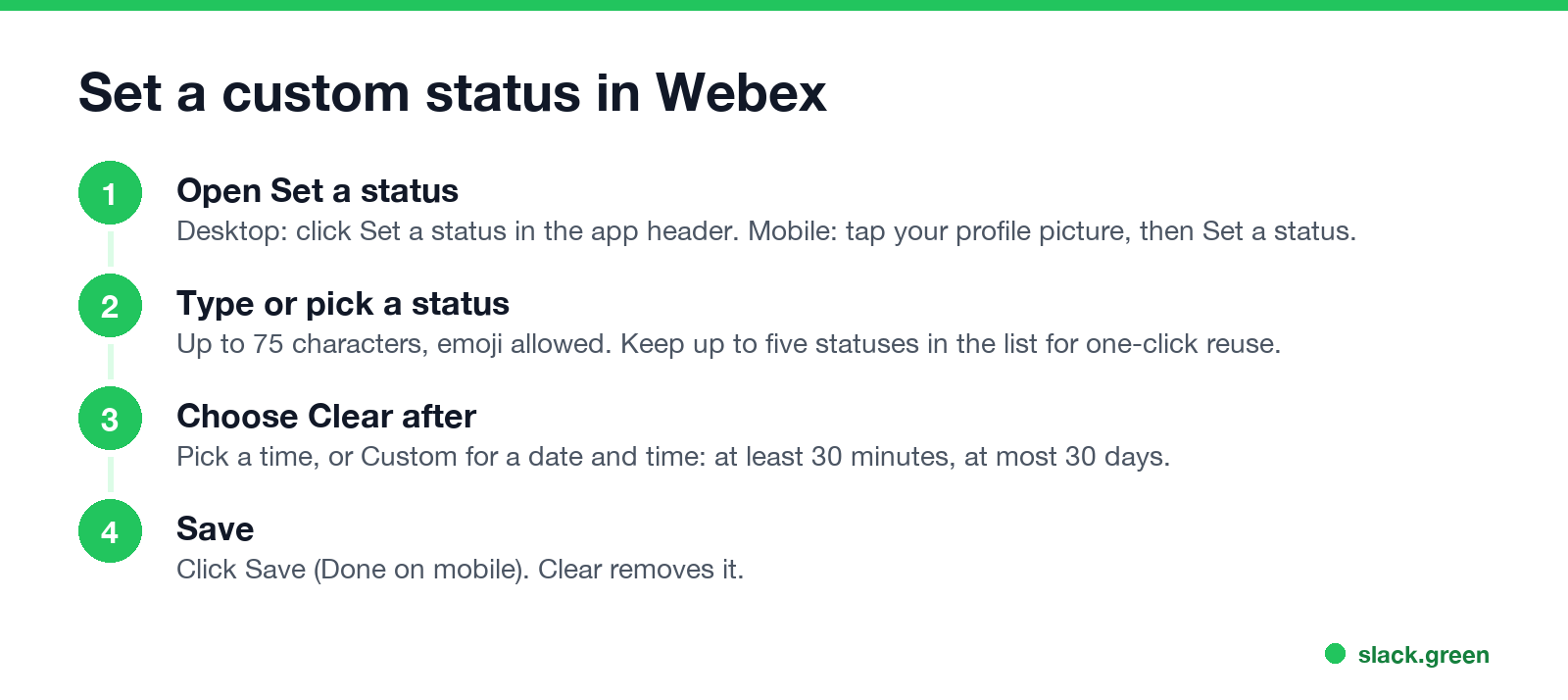
- Desktop: click Set a status in the app header. Mobile: tap your profile picture, then Set a status.
- Pick a status from the list, or type one in What's your status?. It can be up to 75 characters and can include emoji.
- Under Clear after, pick a time, or Custom for a date and time. The minimum is 30 minutes and the maximum 30 days.
- Click Save (Done on mobile). Clear removes the status.
- • 🎧 Pretending to be on a call. Please play along
- • ☕ Converting coffee into action items
- • 🐢 Replying at the speed of Webex on hotel Wi-Fi
- • 🤐 On mute, for everyone's safety
- • 🧠 Loading... please do not refresh
- • 📎 Attached to my desk until 5
- • 🔕 Muted my notifications, not my feelings
- • 🍕 In a meeting about lunch
- • 🙃 Unmute me if I start talking to myself
- • 🦥 Low power mode until the coffee kicks in
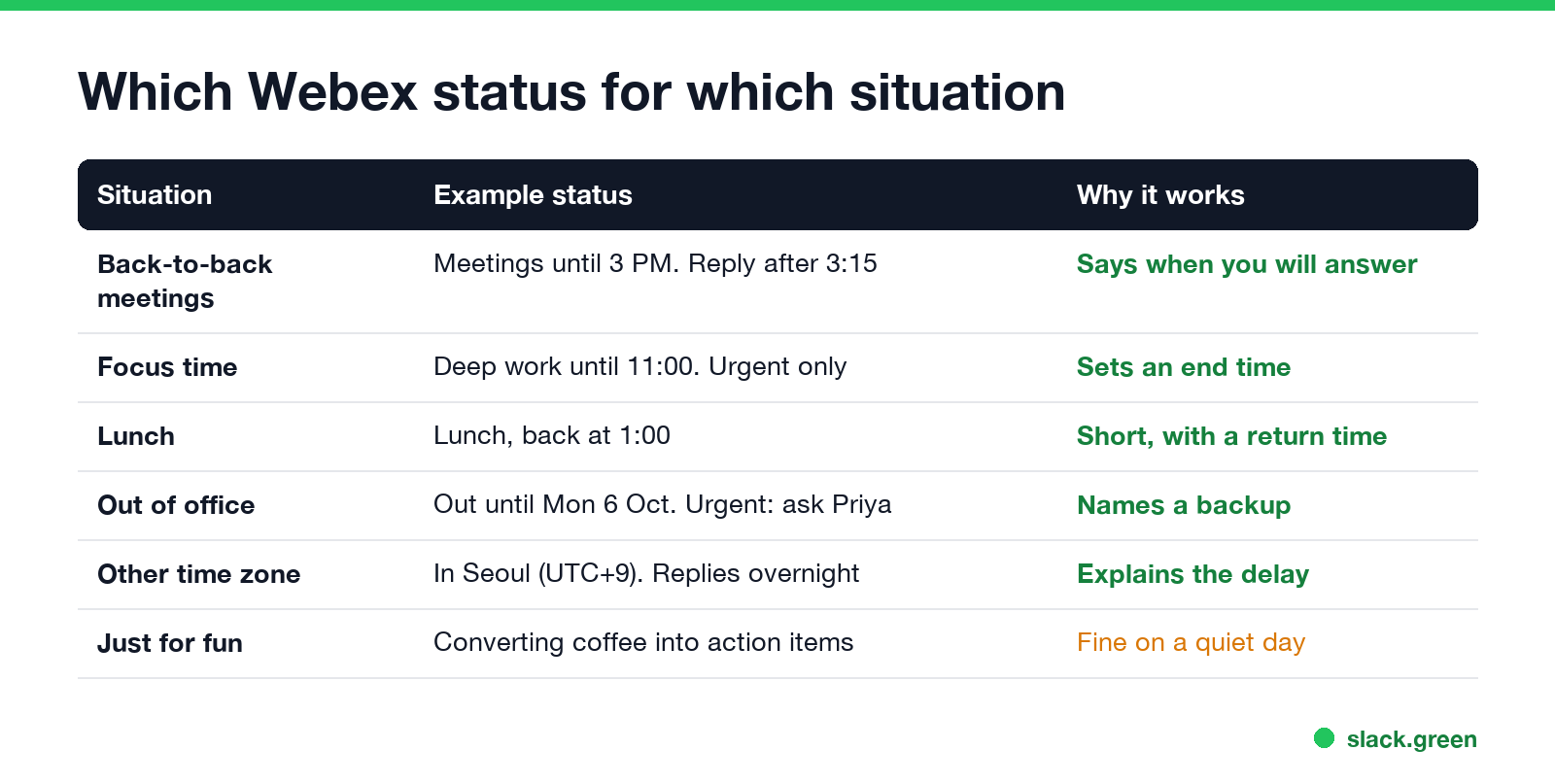
- • 📅 Back-to-back meetings until 3 PM. Reply after 3:15
- • 🎤 Presenting. Messages wait until the Q&A
- • 📞 On a customer call, back in 30 min
- • 📝 In interviews all afternoon. Urgent? Call my mobile
- • 🧑🏫 Running training until noon
- • 🎯 Deep work until 11:00. I'll check messages at 11
- • 🚧 Heads down on the Q4 report. Urgent only
- • 🔇 Focus block. Replies at the top of the hour
- • 🧩 Debugging. Back when the bug is
- • 📵 Notifications off until 2 PM ET
- • 🥪 Lunch, back at 1:00
- • 🚶 Walking break, 15 min
- • ☕ Coffee run. Want one?
- • 🏋️ Gym at lunch, back 1:30
- • 👶 School pickup, back at 3:30
- • 🌴 Out of office until Mon 6 Oct. Urgent: ask Priya
- • ✈️ Travelling today, slow replies
- • 🤒 Out sick, back tomorrow
- • 🏖️ On vacation until the 14th. No laptop, no Webex
- • 🎓 At a conference all week, checking messages at night
- • 🏠 Working from home today
- • 🌏 In Seoul (UTC+9). Replies overnight for US folks
- • 🕘 Working 7:00-15:30 CET
- • 🚆 Commuting, on mobile only
- • 📶 Patchy Wi-Fi today, email if Webex drops
- • Put the time in. "Back at 1:00" answers the question people would message you to ask.
- • Say what to do if it is urgent. A phone number is too much for a status, but "Urgent? Call my mobile" or a backup's name is enough.
- • Front-load it. People scan a status in a second, so put the key words first. All 35 lines above are under 55 characters, well inside the 75 allowed.
- • Let it clear itself. Set Clear after every time. A stale "In a meeting" at 6 PM is worse than none.
- • Pair it with Do Not Disturb when you need quiet, not just a label; see Webex Do Not Disturb.
You can keep up to five statuses in the list, so set up the ones you use every week once. The custom status is separate from the presence dot; the dot colors and icons are in Webex status icons meaning.
Funny Webex status ideas
Safe for a work account: nothing your manager would need to ask about.
Webex status ideas for meetings and busy days
Webex already shows a meeting icon while you are in a Webex meeting. A custom status adds what the icon cannot: when you will reply.
Webex status for focus time
A focus status works best with an end time, so people know whether to wait or call.
Webex status for lunch and breaks
Short ones. Set Clear after to the length of the break, so you do not come back still at lunch at 4 PM.
Webex out of office status ideas
Name a backup and a return date. Use Clear after > Custom to set the end date, up to 30 days ahead.
Webex status ideas for remote work and time zones
Useful when your team spans time zones; our time zone converter gives the offsets.
Tips for a Webex status people read
For an automatic reply while you are away, see Webex away message. If Webex keeps showing you in a meeting after it ends, the fix is in Webex status stuck in a meeting. If you want the dot to stay green while you work in other apps, see how to keep Webex status active, and to hide it, how to hide your online status on Webex.
More status ideas for Teams and Slack
The same lines work in other chat apps with small changes. Teams allows 280 characters; see funny Teams status messages. Slack allows 100 characters plus an emoji; see funny Slack status ideas, or generate a batch in our status ideas tool.
FAQ
How long can a Webex status be?
75 characters, and it can include emoji. Cisco's help gives the same limit on desktop, iPhone and Android.
How do I make my Webex status clear automatically?
Pick a time under Clear after when you set it, or Custom for a date. It can last from 30 minutes to 30 days.
Can I save statuses in Webex?
Yes, up to five, so they are one click away in the Set a status list.
What is a good Webex status for a meeting?
One with an end time: "Back-to-back meetings until 3 PM. Reply after 3:15".
What is a funny Webex status for work?
"Converting coffee into action items" or "On mute, for everyone's safety". Keep it light enough for the whole company to read.
Related Articles
Wireless Mouse With a Jiggler: How the Built-in Mode Works
A wireless mouse with a jiggler is a normal mouse with a jiggle mode in its firmware: hold the DPI button for about 3 seconds and the cursor moves on its own. Two models in the top results, how they compare with a USB dongle and a mechanical mover, and what they do for Teams and Slack.
Does Sapience Track Mouse Movement? What It Records and Flags
Sapience records that you used the mouse and keyboard, with a timestamp, and which app, website and window title were in front. It does not record keystrokes, clicks or screenshots. What that means for idle time, meetings, private time and mouse jigglers, from Sapience's own help center.
Does Discord Notify When You Change Your Status?
Switching between Online, Idle and Do Not Disturb sends no notification. But friends on the Discord mobile app can get a push when you come online, set a new custom status, or start a game, and you cannot stop Discord from sending it. They can turn it off on their side; you can go Invisible.