
How to Mark a Message Urgent in Slack (There Is No Flag)
Slack has no urgent or priority flag on messages. On October 27, 2026 we checked every menu in the Free plan's message box and message menu and found none. What works instead: a DM, @here or @channel, a reminder on the message, and the reader's VIP and keyword settings.
You cannot mark a message as urgent in Slack. Unlike Microsoft Teams, Slack has no priority or "important" flag on messages. On October 27, 2026 we went through the message box and the message menu on our Free test workspace and found no such option. To make something urgent in Slack, you send it to the right place and set off the right notification: a DM, @here or @channel, a reminder, or the reader's own VIP and keyword alerts.
What the message box offers
The buttons under the message box in our test were Attach, Show formatting, Emoji, Mention someone, Record video clip, Record audio clip, Run shortcut, Send now and Schedule for later. The + button opened this:
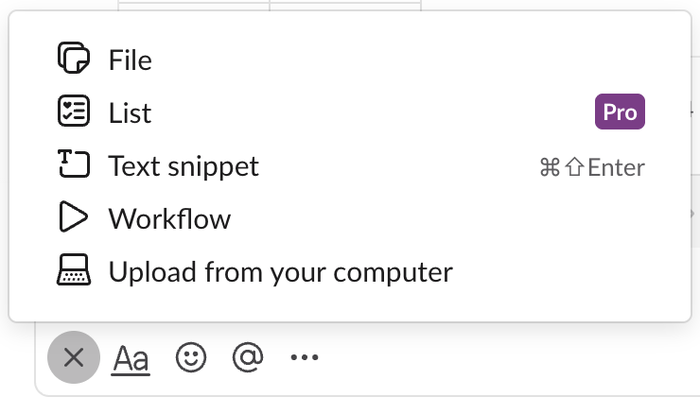
None of them sets a priority. The message menu on a sent message had no priority item either: it listed Edit message, Mark unread, Add to saved, Add a reminder, Turn off notifications for replies, Copy link, Copy message, Pin to channel, Connect to apps and Delete message…. We checked the Free plan only.
1. Send it as a DM
A DM notifies the person under Slack's default settings, while a plain channel message often does not. For one person, a DM with the request in the first line is the most direct "urgent" Slack has.
2. Use @here or @channel
In a channel, typing @here showed this suggestion:
> @here Notify every online member in this channel.
@channel notifies every member, online or not. Our message @here urgent test: please check the build now went out right away in a 2-member channel, with no confirmation prompt, and @here was highlighted in the message. In larger channels admins can limit who may use these mentions. How to mention everyone in Slack covers the differences and the limits.
Never appear "away" on Slack again
Cloud-based. No downloads. Works 24/7 even when your laptop is off.
3. Add a reminder to the message
If the urgent part is "do not forget this," a reminder on the message works. Hover over the message, open the three-dot menu and choose Add a reminder:
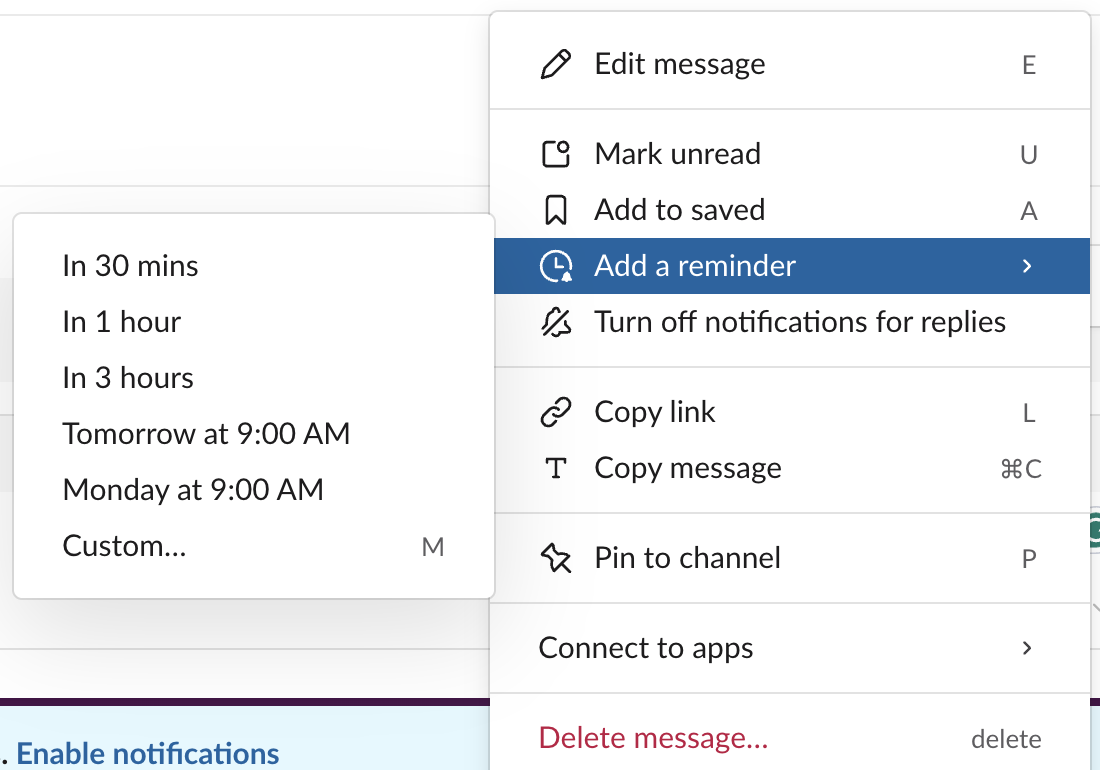
We picked In 30 mins. Slack put a To-do added label above the message and confirmed "Reminder set for Today at 4:50 PM":
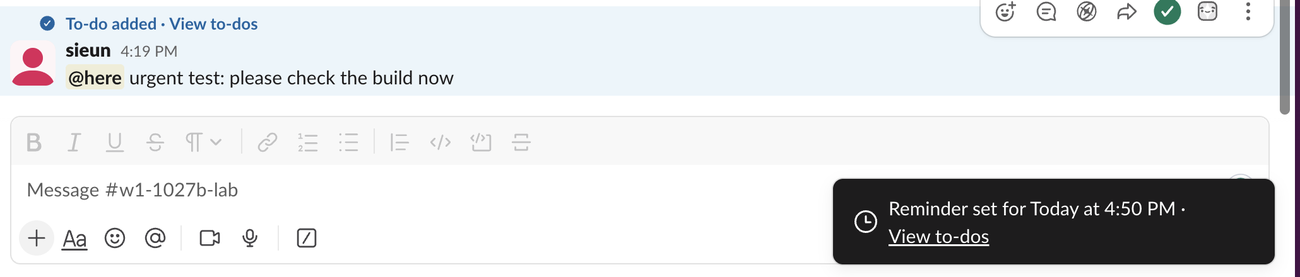
The message then showed in To-dos under In progress, due in 30 minutes. A reminder like this only reminds you. To nudge someone else, use /remind @person, which the Slack /remind builder writes for you. Remind me about this message covers the message reminder in more detail.
4. Ask the reader to make you a VIP
The person who receives messages can decide what breaks through. In Preferences > Notifications, our account had these options:
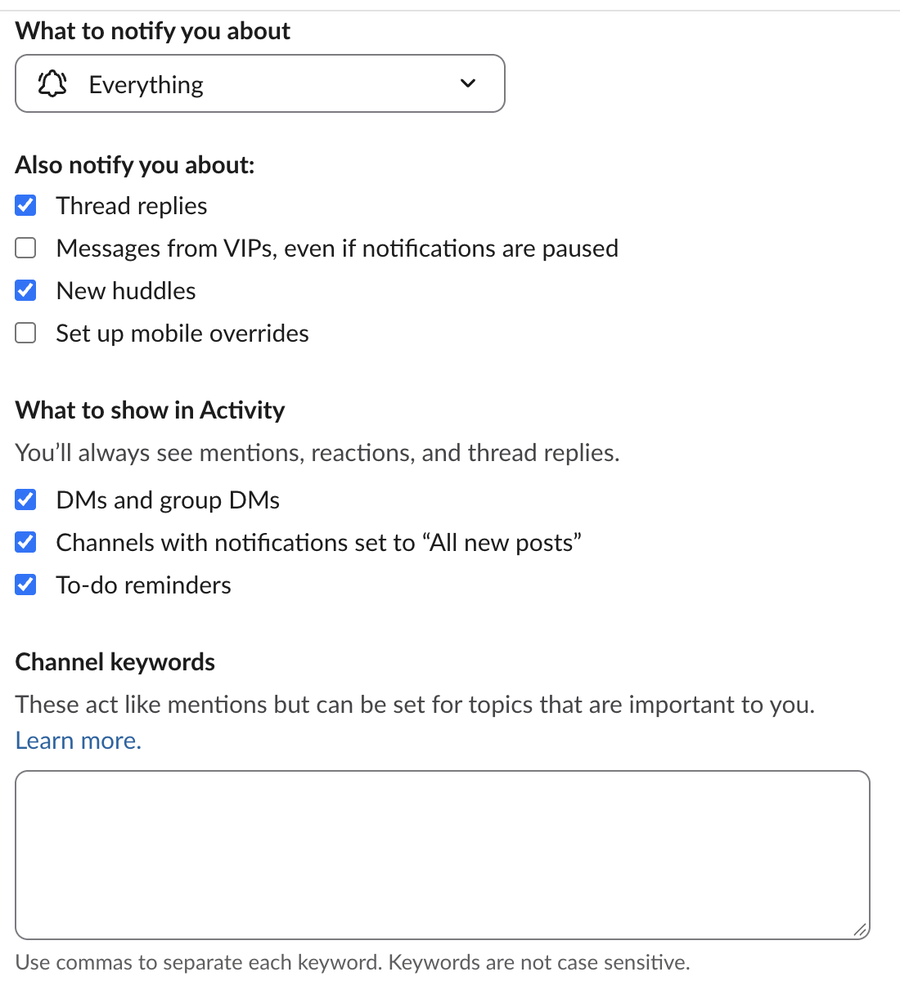
Messages from VIPs, even if notifications are paused lets a short list of people reach someone during Do Not Disturb. If your manager or on-call lead turns that on and adds you, your DMs get through when theirs are paused. We did not test the VIP list itself, because it needs a second person.
5. Agree on a keyword
The Channel keywords box on the same page works like a mention for any word. A team can agree that urgent or p1 is the keyword, and each person adds it. Slack keyword notifications shows how matching works. If someone has paused notifications, Slack Do Not Disturb explains what still gets through.
FAQ
Does Slack have a priority or important flag like Teams?
Not in our test. The Free plan's message box and message menu had no priority, urgent or important option on October 27, 2026. The closest options are a DM, @here/@channel, and the reader's VIP setting.
Can I pin an urgent message so people see it?
Yes, Pin to channel is in the message menu. A pin does not notify anyone, so pair it with a mention. Slack pinned messages shows where pins appear.
Stop Jiggling Your Mouse.
Join hundreds of remote workers who never worry about their Slack status. Set it up once, stay green forever.
Related Articles
How to Delete a Thread in Slack (Parent and Replies)
Slack has no delete-thread button. Deleting the first message leaves 'This message was deleted.' with the replies still attached; the thread only disappears once every reply is deleted too. We tested both in the app and through the API on October 27, 2026.
How to Delete Files in Slack (Deleting the Message Is Not Enough)
Delete a Slack file from Files or from the file's own menu with Delete file. In our October 27, 2026 test, Delete message on a file post removed the post but left the file on Slack's servers. We also deleted files in bulk with a short script.
Where Are Slack Files Stored? Servers, Files Tab and Downloads
Files you share in Slack are stored on Slack's servers under files.slack.com, not on your computer. Inside Slack you find them in Files and in each channel's Files tab, and downloads go wherever your app or browser saves them. We tested where each one shows up.