
Slack "Remind me about this": What Happens When the Time Comes
Set a reminder on a Slack message from its three-dot menu, then watch where it goes. We tested it on 29 September 2026: the message waits in Later and fires as a card in Activity, with no Slackbot DM.
To get a reminder about a Slack message, hover over it, click the three dots (More actions), choose Remind me, and pick a time: In 30 mins, In 1 hour, In 3 hours, Tomorrow at 9:00 AM, Monday at 9:00 AM, or Custom. The message goes into your Later list with a due time. When that time comes, Slack puts a Reminder card in Activity. It does not send you a Slackbot message.
We set a message reminder in the Slack web app on 29 September 2026 and watched what happened at the due time. The screenshots below are from that test, in a one-person test workspace.
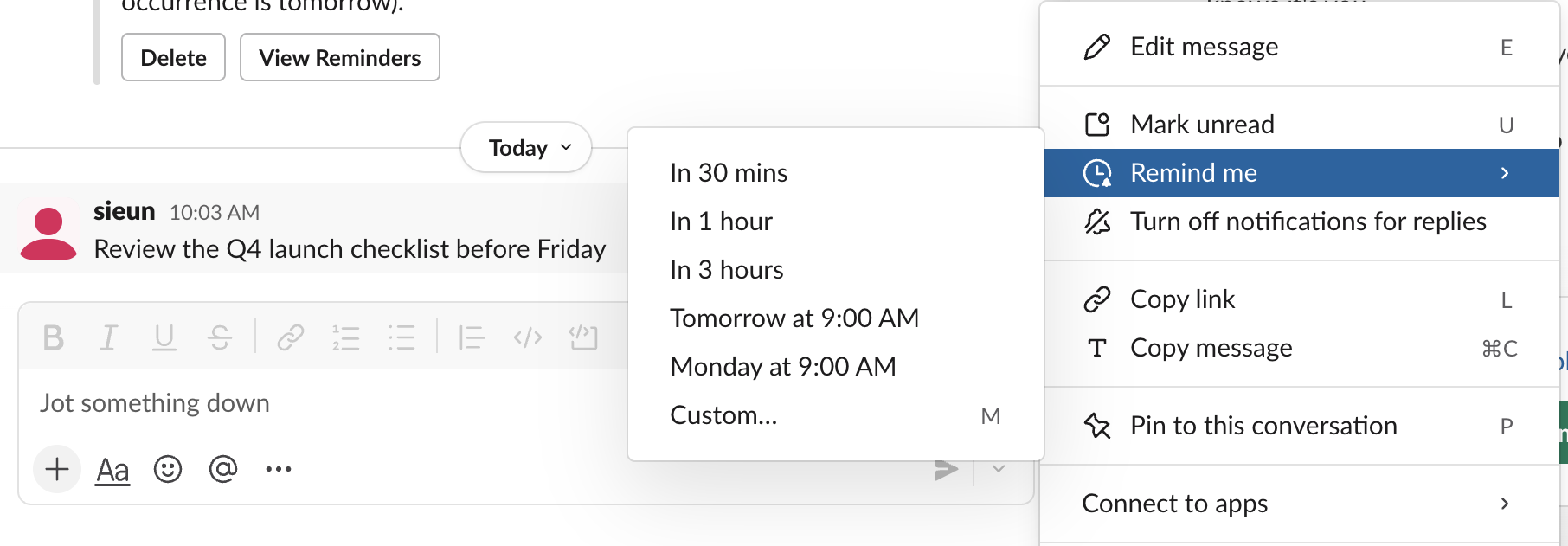
Set a reminder on a message
- Hover over the message. A small toolbar appears at its top right.
- Click the three dots at the end of the toolbar.
- Point at Remind me and pick a time from the submenu.
The presets are relative to when you click. On a Tuesday, "Monday at 9:00 AM" meant the next Monday. Custom opens a small window with a date and a time. The submenu lists M as the keyboard shortcut for Custom.
Slack's help center says the same menu works on files. On a phone, it says to tap and hold the message, tap Remind me, and choose a time or Custom time.
Pick your own date and time
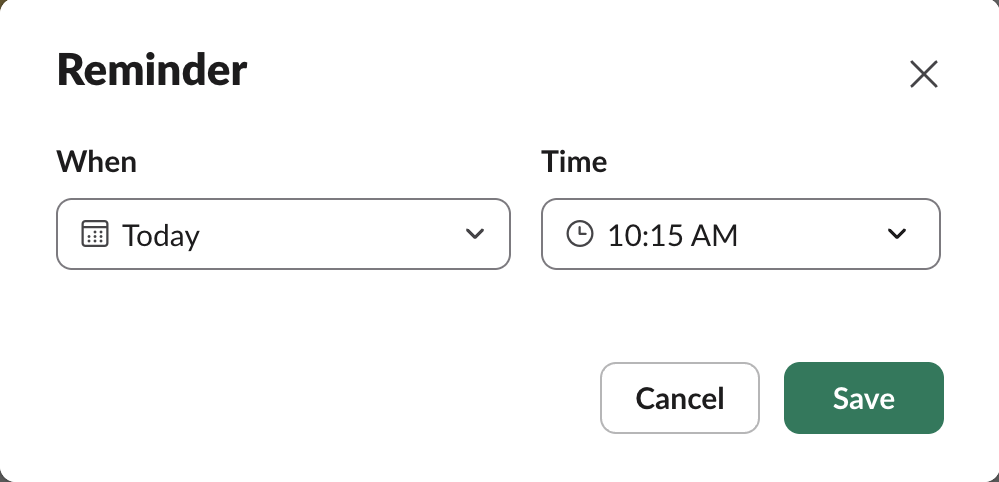
Custom opens a window called Reminder, with When (a date, set to Today) and Time. The time list moves in 15-minute steps and starts at the next quarter hour. It also accepts a time you type: at 10:04 we typed 10:12 AM, pressed Enter and saved, and Slack kept 10:12.
As soon as you save, the message gets a line above it in the conversation:

That line tells you the reminder is saved. The message is now also in Later, so a message reminder is a saved item with a due time. How Later works and how to clear it out is in Slack save for later.
Never appear "away" on Slack again
Cloud-based. No downloads. Works 24/7 even when your laptop is off.
What happens when the reminder is due
Here is what we saw, minute by minute:
| Time (KST) | What happened |
|---|---|
| 10:03 | Test message posted in our own DM |
| 10:04 | Remind me, Custom, 10:12 AM, Save. The message showed "Saved for later, Due in 8 minutes" |
| 10:12 | A Reminder card appeared in Activity. The Activity and Later icons each gained a badge |
| 10:12 | In Later, the item showed a yellow "Overdue, less than 1 minute ago" label next to "Direct Message" |
| 10:12 to 10:16 | Nothing arrived in the Slackbot DM or in the Slack app DM |
The card in Activity shows where the message was, who wrote it and the text, with a Mark Complete button:
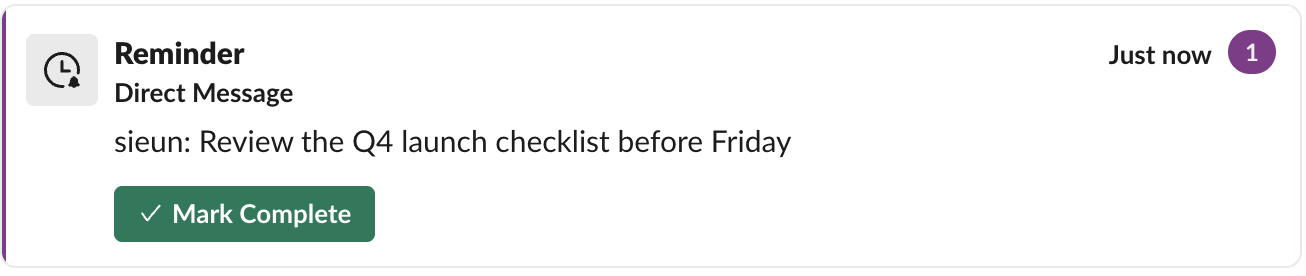
So if you set a message reminder and "nothing happened", look in Activity first, then in Later. A 2024 thread in r/Slack describes the old behaviour, a Slackbot DM that said "You asked me to remind you about this message". In our test that DM never came. Other reasons a reminder seems to go missing are in Slack reminder not working.
Snooze or clear it after it fires
In Later, hover over the overdue item and click the clock. The menu is headed "Snooze..." and repeats the same times, plus Clear reminder.
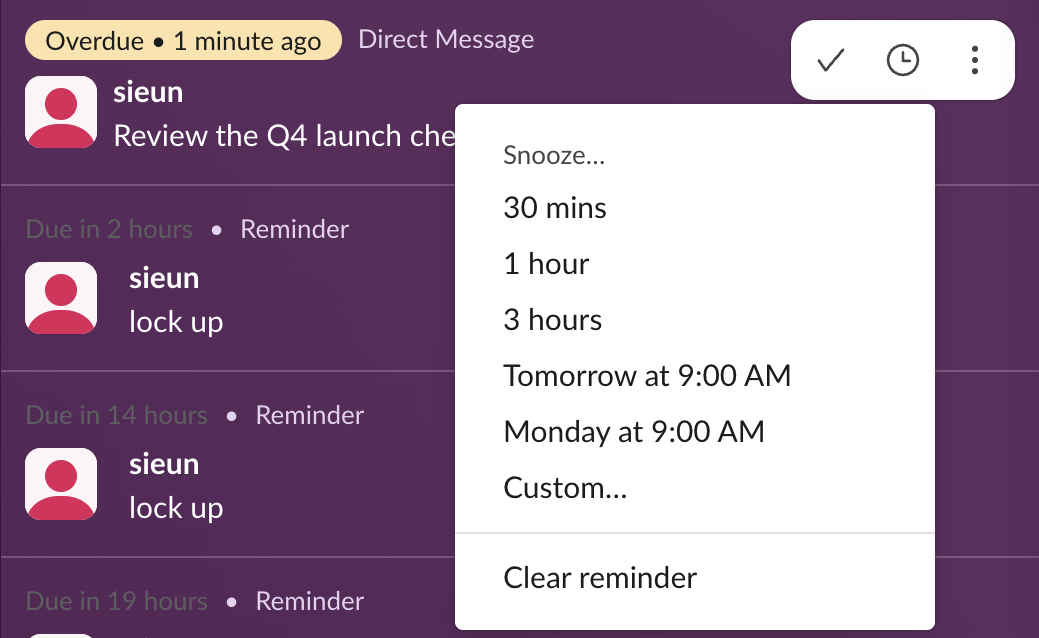
We tried Clear reminder. The message stayed in Later as a plain saved item with no due time, and the badges on Activity and Later each went down by one. Use the checkmark instead when you have dealt with the message. Changing the time of other reminders works the same way; see how to edit a Slack reminder.
Remind me or /remind
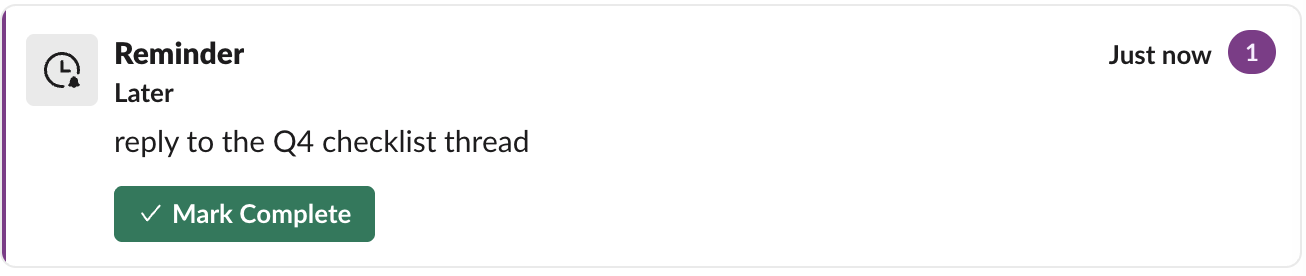
/remind is the other way to set a reminder, and people often suggest it as the fix for message reminders. We set /remind me to reply to the Q4 checklist thread in 1 minute at 10:14:24. Slack answered "I will remind you ... at 10:15AM today", and the reminder came due at 10:15:24, 60 seconds later. It also arrived as a card in Activity, labelled Later, and not as a Slackbot message:
| Remind me (message menu) | /remind me | |
|---|---|---|
| Starts from | A message or file | Text you type |
| Times | 5 presets or Custom date and time | Any phrase Slack understands, such as "in 20 minutes" |
| Repeats | No | Yes, for example "every weekday at 9am" |
| Can post in a channel | No | Yes, with /remind #channel |
| Label in Later | The conversation, such as "Direct Message" | "Reminder" |
| When due | Card in Activity, badges on Activity and Later | The same |
| Slackbot DM in our test | None | None |
Use Remind me when the reminder is about a message you want to reopen. The card shows the author and the text. Use /remind when the reminder should repeat or should post in a channel for the whole team. Commands you can copy are in Slack /remind command examples, and the /remind builder writes the command from a few menus.
Stop Jiggling Your Mouse.
Join hundreds of remote workers who never worry about their Slack status. Set it up once, stay green forever.
Related Articles
Slack Headphones Icon: What It Means in Each Spot, and Huddling Alone
The headphones icon in Slack means huddles: the button that starts one, a live huddle next to a channel, the bar you are in. We started a huddle alone to show every spot, and checked whether you can huddle in your own DM.
Slack Canvas Formatting: Shortcuts That Work and Ones That Stay as Text
We typed every common markdown shortcut into a Slack canvas. Headings, lists, checklists, quotes and code convert as you type; a single *star* makes bold, not italic; links, dashes for a divider and ==highlight== stay as plain text.
Slack Huddle Background: Blur, Pictures, Uploads and Themes
A Slack huddle has two backgrounds: the one behind you on camera, and the theme behind the whole huddle window. Where each one is, what you can pick, and why many people see no upload button.