
Slack Spell Check Not Working: The Setting, and the Grammarly Conflict We Measured
Slack has one spell check switch, under Preferences > Language & region. In our test browser it was on, yet Slack web showed no red underlines: the Grammarly extension had set spellcheck to false on the message box. How to check yours.
Slack's spell check setting is in Preferences > Language & region > Spellcheck: one checkbox, "Enable spellcheck on your messages and canvases". Open Preferences from the menu under your workspace name. If the box is ticked and Slack in a browser still shows no red underlines, check your browser extensions. On 7 October 2026 we typed ten misspelled words into Slack web in a Chrome-based browser with the Grammarly extension installed. Slack's checkbox was on, but the message box carried spellcheck="false", no word got a red underline, and Grammarly drew its own blue line instead. We then reproduced the cause on a blank test page: Grammarly turned spellcheck="true" into "false" there too.
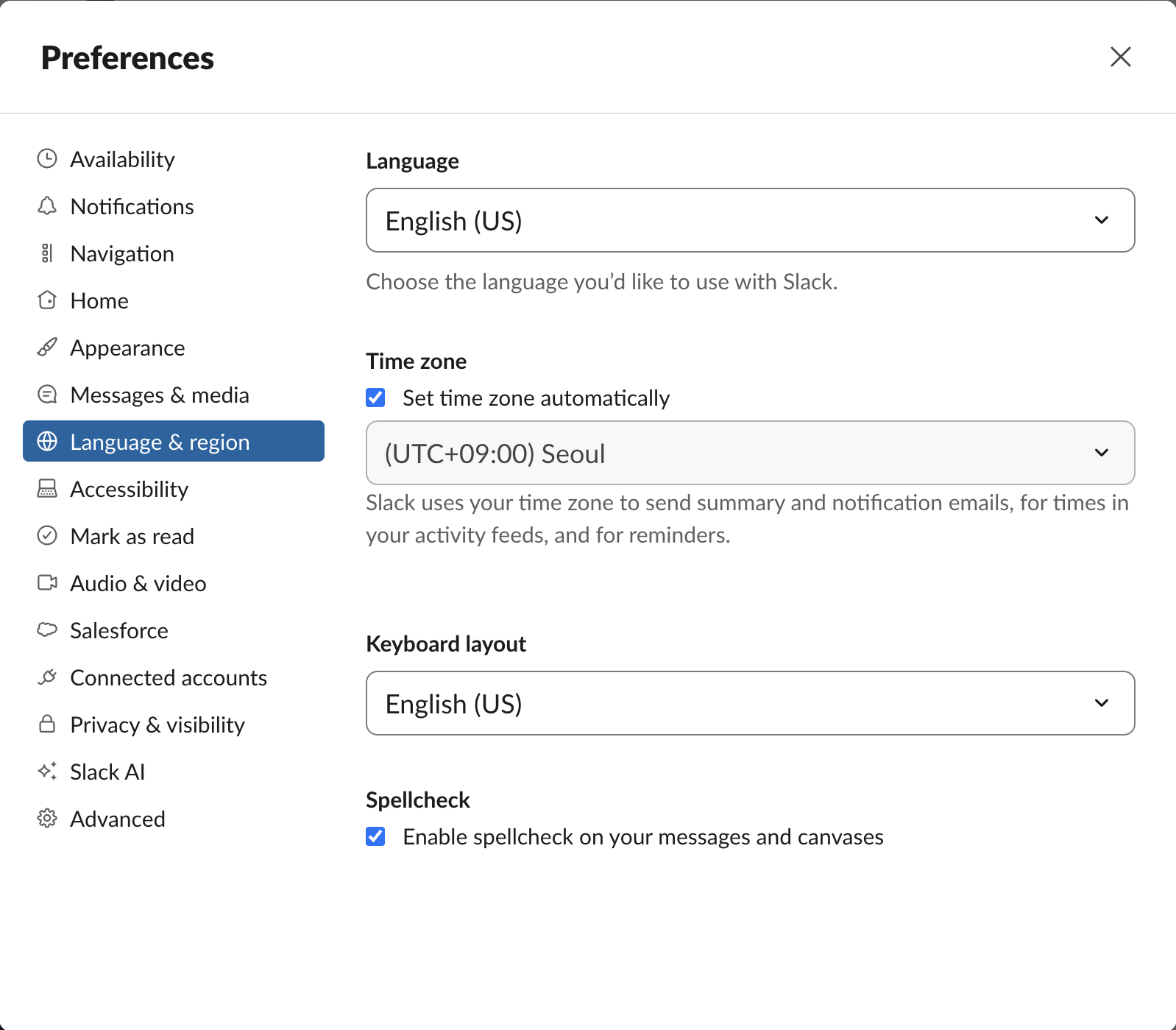
The spell check setting in Slack web
In Slack web the Language & region page had four settings: Language, Time zone, Keyboard layout and Spellcheck. There was no list of spell check languages and no autocorrect option. In a browser, the words are checked by the browser's own spell checker, in the languages the browser is set to. Slack's setting decides whether Slack lets the browser check its message box at all.
We switched the checkbox off and on again while watching the message box. In our browser the box said spellcheck="false" in both states, which pointed to something outside Slack's setting.
What we saw in the message box
We typed teh recieve definately seperate occured tommorow accomodate wierd untill goverment into a channel's message box and did not send it.

No word got the usual red wavy line. The one blue line under the whole sentence came from Grammarly, whose green button sat at the right edge of the box. These were the message box's attributes, read in the page:
| Attribute | Value |
|---|---|
spellcheck | false |
data-gramm | false |
contenteditable | true |
data-qa | texty_input |
data-gramm="false" is a marker that asks Grammarly to leave a field alone. Grammarly did not add it to the fields on our test page below, so on Slack it comes from Slack. Grammarly attached anyway.
Never appear "away" on Slack again
Cloud-based. No downloads. Works 24/7 even when your laptop is off.
Grammarly turns off the browser's spell checker
To rule Slack out, we opened a plain web page in the same browser and added two empty fields of our own: a contenteditable box with spellcheck="true" and a normal textarea. We typed the same misspellings into both, then read the attributes:
({
  box: document.querySelector('#ce').getAttribute('spellcheck'),
  textarea: document.querySelector('#ta').getAttribute('spellcheck'),
  grammarly: !!document.querySelector('grammarly-extension, grammarly-desktop-integration')
})
Output:
{ box: "false", textarea: "false", grammarly: true }We had written spellcheck="true" on the box ourselves; after Grammarly attached, it said "false". With Grammarly running, the browser's spell checker is off in every field Grammarly takes over, Slack's message box included, whatever Slack's own setting says. You get Grammarly's suggestions instead of the browser's red underlines.
We could not remove Grammarly from the browser we test in, so we did not see Slack's own red underlines appear in this test. We also did not test the Slack desktop app, Firefox or Safari.
How to check your own browser
- In Slack, open Preferences > Language & region and make sure Enable spellcheck on your messages and canvases is ticked.
- Click into a message box, open the browser's developer console (Cmd+Option+J on a Mac in Chrome, Ctrl+Shift+J on Windows) and run:
document.querySelector('[data-qa="texty_input"]').getAttribute('spellcheck')"false" and you have Grammarly or another writing extension, turn the extension off for app.slack.com, reload Slack, and run the line again."true" and you still see no underlines, check the browser's own spell check setting and its languages, since Slack web has no language list of its own.Spell check only marks words; it never changes how Slack formats the message. If bold or lists are what look wrong, our formatting toolbar guide covers the toolbar and markup.
Stop Jiggling Your Mouse.
Join hundreds of remote workers who never worry about their Slack status. Set it up once, stay green forever.
Related Articles
Slack API in Postman: A 16-Request Collection We Ran With Newman, and the Errors It Catches
How to call the Slack Web API from Postman with a bearer token and variables, plus a 16-request collection we ran against a real workspace with newman: 16 requests, 17 assertions, 0 failures, and the five mistakes it checks.
Slack Block Kit Input Block: Modal Fields, state.values and Inline Errors, Tested
We opened a modal with seven input blocks in a test workspace and captured every payload: what Slack checks before your app sees anything, the exact view_submission state.values, response_action errors, dispatch_action, and input blocks in messages.
Slack Workspace Icon: Size, Crop and Transparency, Tested on a Real Workspace
We uploaded six workspace icons to a test Slack workspace: 100 px, 1024 px, a wide image, a transparent PNG and two oversize files. What Slack accepted, what it stored, and how to remove an icon.