
How to Hide the Sidebar in Slack (and What You Can Shrink Instead)
Current Slack has no way to hide the channel sidebar: no shortcut, no menu item. You can drag it down to 180 pixels and switch the left tab rail to icons only. We checked the web app and the desktop menus.
You cannot fully hide the channel sidebar in the current version of Slack. There is no shortcut for it, and no menu item. What you can do is drag the sidebar's right edge to make it narrower, down to a minimum of 180 pixels, and right-click the tab rail on the far left to switch it to Icons only. On October 27, 2026 we tried both in Slack's web app on our Free test workspace, pressed the old toggle shortcut, and read the menus in the Slack desktop app for Mac, version 4.52.182.
There is no toggle shortcut any more
Older guides say Cmd+Shift+D (Ctrl+Shift+D) hides the sidebar. In our test it did nothing. Slack's own shortcut panel (Cmd+/) lists only one sidebar shortcut, and it resizes:
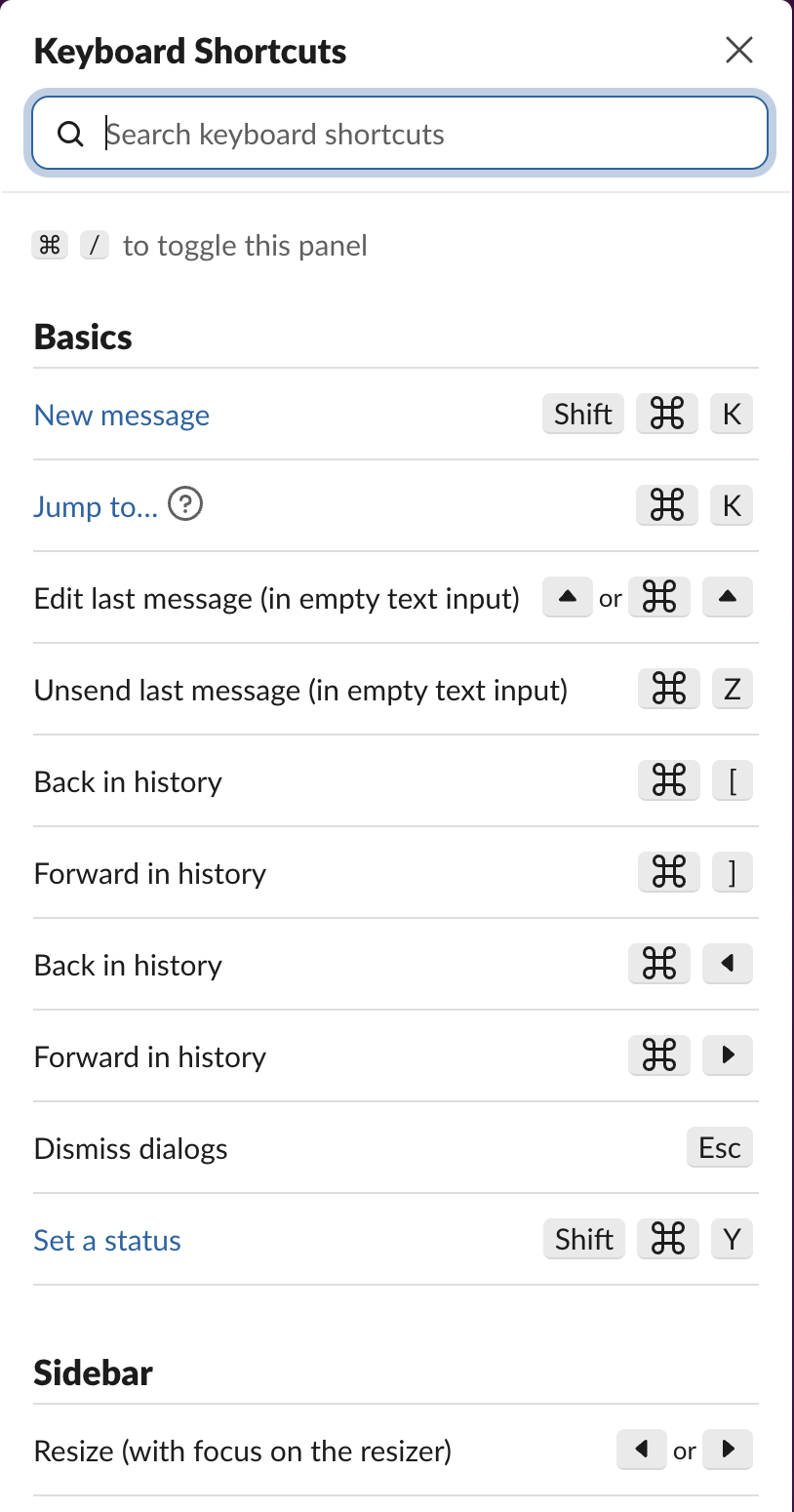
The desktop app has no menu item for it either. We read the menu definitions inside Slack 4.52.182 for Mac. Its View menu has Reload, Force Reload, Toggle Full Screen, Actual Size, Zoom In and Zoom Out, and nothing for the sidebar.
Make the sidebar as narrow as it goes
Drag the line between the sidebar and the conversation to the left. In our test the edge stopped at 180 pixels, and the widest it went was 450. Channel names are cut short but stay readable:
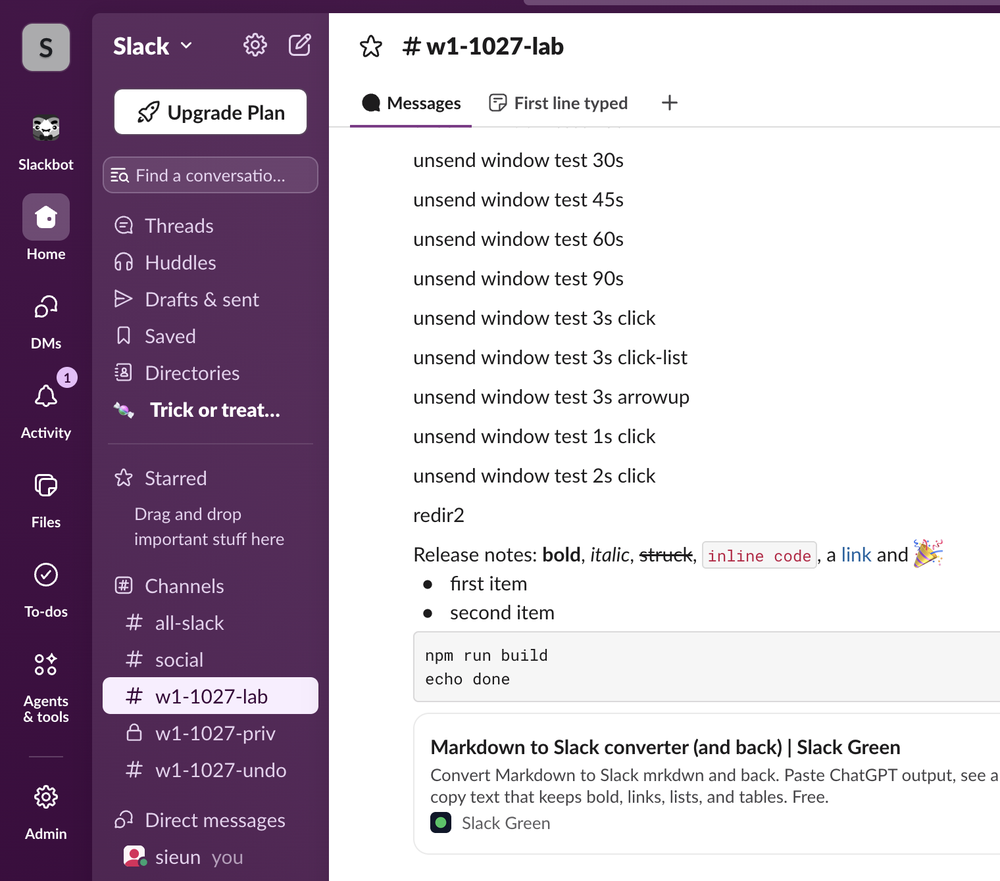
The width stayed the same after we reloaded the page. With the keyboard, click the edge and press the left or right arrow keys; each press moved it 10 pixels.
Switch the tab rail to icons only
The narrow column on the far left, with Home, DMs, Activity and the rest, is the tab rail. Right-click any tab in it:
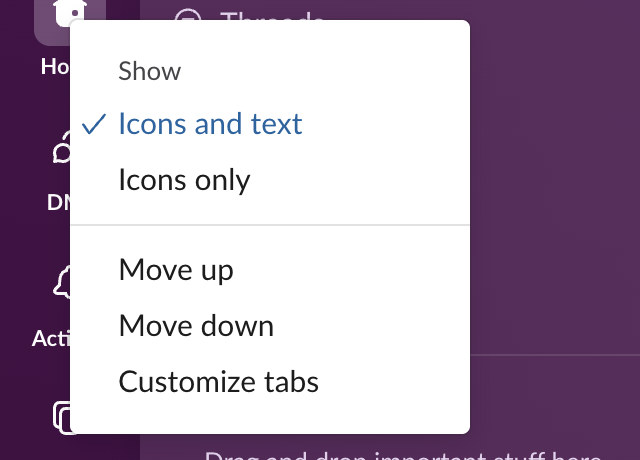
Icons only drops the labels under each icon. In our test the rail went from 70 to 48 pixels wide. Customize tabs lets you remove tabs you never use; Slack's help says unchecked tabs (under Preferences > Navigation) move under More. We switched our test workspace back to Icons and text afterwards.
Never appear "away" on Slack again
Cloud-based. No downloads. Works 24/7 even when your laptop is off.
Hide what is in the sidebar instead
If the problem is clutter rather than width, shorten the list:
- • Filter to Active only from the Manage my sidebar menu at the top of the Home tab. It hides conversations with no activity in the last 30 days.
- • Hide muted conversations from the same menu.
- • Collapse sections by clicking a section name such as Channels or Direct messages.
Slack sidebar sections covers sorting, filtering and custom sections on paid plans. If channels vanish when you did not ask, Slack channels disappeared from the sidebar lists the settings that cause it.
Getting more room on a small screen
The desktop app's View menu has two items that leave more room for messages. Toggle Full Screen (Cmd+Ctrl+F on Mac) removes the window frame in the desktop app, and Zoom Out (Cmd+-) makes everything smaller, sidebar included. More layout shortcuts are in our Slack keyboard shortcuts cheat sheet.
FAQ
Can I hide the workspace switcher?
Slack's help says the View options icon shows or hides the workspace switcher when you are signed in to more than one workspace. Our test account has one workspace, so we could not check it; using multiple Slack workspaces covers switching.
Stop Jiggling Your Mouse.
Join hundreds of remote workers who never worry about their Slack status. Set it up once, stay green forever.
Related Articles
How to Mark a Message Urgent in Slack (There Is No Flag)
Slack has no urgent or priority flag on messages. On October 27, 2026 we checked every menu in the Free plan's message box and message menu and found none. What works instead: a DM, @here or @channel, a reminder on the message, and the reader's VIP and keyword settings.
How to Delete a Thread in Slack (Parent and Replies)
Slack has no delete-thread button. Deleting the first message leaves 'This message was deleted.' with the replies still attached; the thread only disappears once every reply is deleted too. We tested both in the app and through the API on October 27, 2026.
How to Delete Files in Slack (Deleting the Message Is Not Enough)
Delete a Slack file from Files or from the file's own menu with Delete file. In our October 27, 2026 test, Delete message on a file post removed the post but left the file on Slack's servers. We also deleted files in bulk with a short script.