
How to Stop Slack From Opening on Startup (Windows and Mac)
To stop Slack opening at startup on Windows, open Task Manager, go to Startup apps, right-click Slack and choose Disable. On a Mac, open System Settings, General, Login Items and remove Slack. Steps for Windows 10 and 11, macOS, and what changes for your Slack status.
To stop Slack from opening when your computer starts, turn it off in your operating system's startup list. On Windows 11, press Ctrl+Shift+Esc to open Task Manager, choose Startup apps, right-click Slack and select Disable; you can also use Settings, Apps, Startup. On a Mac, open System Settings, General, Login Items, select Slack under Open at Login, and click the minus button. Slack still works when you open it yourself; it just stops launching on its own.
While Slack is closed on a computer, that computer reports you as away. If your team reads the dot, Slack Green keeps it green during the working hours you set, from the cloud, whether Slack is open or not.
Turn off Slack at startup
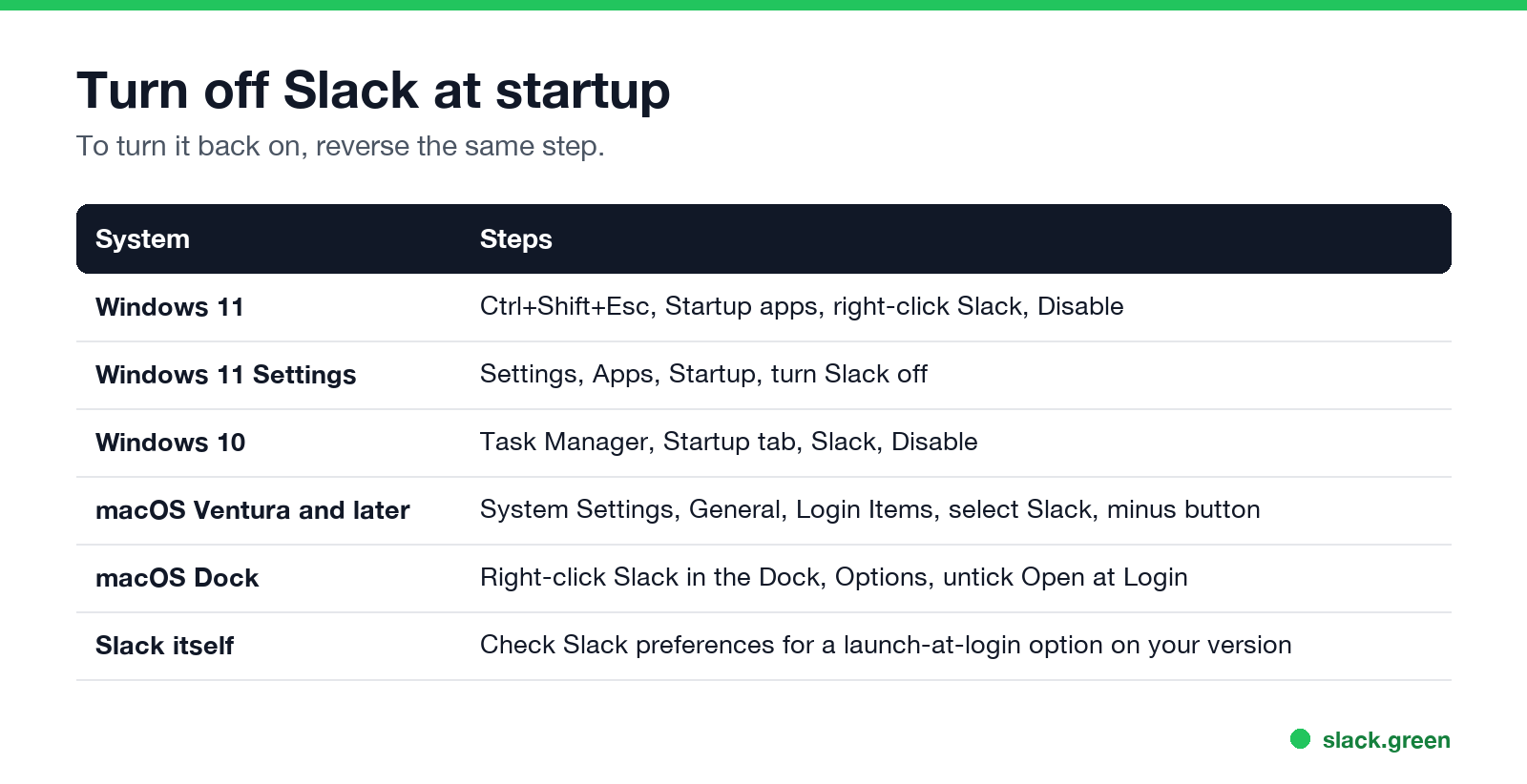
| System | Steps |
|---|---|
| Windows 11 | Ctrl+Shift+Esc, Startup apps, right-click Slack, Disable |
| Windows 11 Settings | Settings, Apps, Startup, turn Slack off |
| Windows 10 | Task Manager, Startup tab, Slack, Disable |
| macOS Ventura and later | System Settings, General, Login Items, select Slack, minus button |
| macOS Dock | Right-click Slack in the Dock, Options, untick Open at Login |
Some Slack versions also have a launch-at-login option in Slack's own preferences. If Slack keeps coming back after you disabled it in the system list, check there too. To undo any of this, reverse the same step.
Stop Slack running in the background
Closing the Slack window on Windows often leaves it running in the notification area, so notifications keep arriving. To quit fully, right-click the Slack icon in the notification area and choose Quit, or use File, Quit Slack. On a Mac, press Cmd+Q. Quitting also frees the memory Slack uses; see why Slack uses so much memory.
What changes for your status when Slack does not start
Never appear "away" on Slack again
Cloud-based. No downloads. Works 24/7 even when your laptop is off.
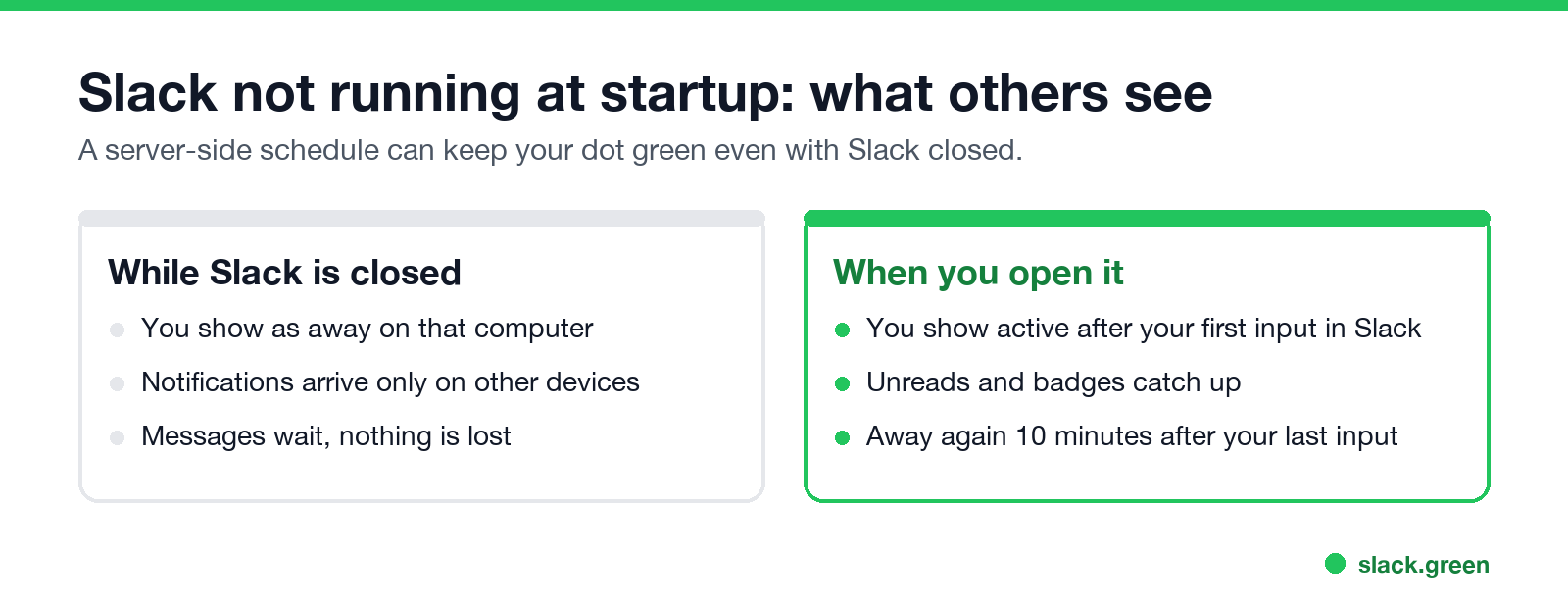
- • While Slack is closed on a computer, that computer counts as away. You still get notifications on your phone if Slack is installed there.
- • When you open it, you show as active after your first input in Slack, and away again 10 minutes after your last one. The rules are in how long does Slack stay active.
- • Nothing is lost. Messages wait until you open Slack.
If you want Slack in a browser tab instead of an app, see Slack desktop app vs browser; if links keep opening the wrong one, see Slack keeps opening in the browser.
FAQ
How do I stop Slack from opening automatically?
Disable it in Task Manager's Startup apps on Windows, or remove it from Login Items on a Mac.
How do I stop Slack from opening on startup on Windows 11?
Ctrl+Shift+Esc, Startup apps, right-click Slack, Disable.
How do I stop Slack from launching at login on a Mac?
System Settings, General, Login Items, select Slack, click the minus button.
Does disabling startup uninstall Slack?
No. It only stops Slack opening on its own.
Will I still get Slack notifications?
Only on devices where Slack is running, such as your phone.
Stop Jiggling Your Mouse.
Join hundreds of remote workers who never worry about their Slack status. Set it up once, stay green forever.
Related Articles
How to Keep Your Outlook Status Green (It Comes From Teams)
Your Outlook status shows your Microsoft Teams presence, so to keep Outlook green you keep Teams Available: Teams signed in and running, input on the computer, no lock or sleep, and no leftover status. What sets you Away, and what you can change.
How to Keep a Mac Screen From Locking (Without Breaking IT Rules)
To stop a Mac from locking, open System Settings, Lock Screen, set the screen saver and display-off times to Never or longer, and raise Require password after screen saver begins or display is turned off. Or run caffeinate -d. What a managed Mac allows, and why Slack still shows you away.
Does Microsoft Teams Track Your Activity? What Admins Can See
Teams admins can see activity counts per person: messages in channels and chats, meetings, 1:1 calls, audio, video and screen share time, and your last activity date. Your status follows keyboard and mouse activity on the whole computer. Teams does not log keystrokes, your screen, or other apps.