
How to Send a Slack Message Without Notifying Anyone (Tested)
Slack has no silent send button. We tested which messages raise a notification badge and which do not, including edits, threads, code and DMs.
To send a Slack message without notifying someone, post it in a channel without @mentioning them, or schedule it for when they are working. Slack has no 'send silently' button, but a channel message with no mention only turns the channel bold for most people, and a scheduled message notifies nobody until it is delivered. A direct message always counts as a notification for the recipient, so a DM is never silent.
We measured each trick on 22 November 2026 in a Free test workspace: an app posted messages, and we read the recipient's unread and mention counts (the red badges) from Slack's client.counts call before and after each one. The recipient also had Slack's notification schedule pausing notifications at the time, which changes the sound and pop-ups but not the badges we counted.
What notifies and what does not
| What the sender did | Recipient's mention badge | Shows in their Activity |
|---|---|---|
| Channel message, no mention | 0 (channel turns bold) | No |
| Channel message with @name | 1 | Yes |
| Their name typed without @ | 0 | No |
@name inside code formatting | 1 | Yes |
| Plain message, then edited to add @name after they read it | 0 | Yes, as already read |
| Plain message, then edited to add @name before they read it | 1 | Yes |
| Thread reply with @name | 1 (in Threads) | Yes |
| Thread reply, no mention, in a thread they replied to | 0, thread marked unread | Yes |
| Scheduled message with @name | 0 until delivery, then 1 | Yes, at delivery |
| Direct message, no mention | 1 | Yes |
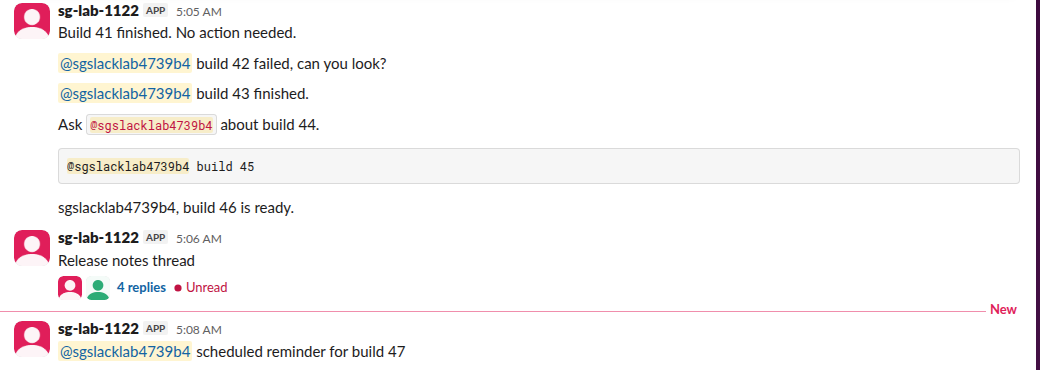
The test channel, as the recipient saw it. Note that the mention inside code formatting is still a real mention:
5 ways to send a message without pinging anyone
- Leave out the @. By default a channel notifies its members only for mentions, so a message without one just makes the channel bold. People who set that channel to All new messages still get notified, and you cannot see who did.
- Write the name without the @. Typing 'Sam, the report is ready' created no mention in our test. The exception is a person who added their name as a keyword notification, which notifies them anyway.
- Schedule it. Click the arrow next to Send and pick a time. In our test the scheduled message changed nothing until it was delivered, then its mention counted 1 second after the scheduled time. Our guide to scheduling Slack messages shows the menu.
- Reply in a thread instead of the channel. A reply without a mention reaches only people who follow that thread, and it marks the thread unread rather than sending a notification.
- Respect their pause. If the recipient's notifications are paused by Do Not Disturb or their schedule, a mention lands as a badge they see later. Slack's help says the sender can then choose to notify them anyway for urgent cases; if you do not, the message stays quiet until their pause ends. Why Slack pauses notifications explains the schedule.
Never appear "away" on Slack again
Cloud-based. No downloads. Works 24/7 even when your laptop is off.
Tricks that do not work
Putting the @mention in code formatting. Some guides say backticks stop the ping. In our test a mention inside inline code and inside a code block both counted as mentions and showed in Activity. What matters is whether the message holds the person's member ID, and an @name picked from the list does.
Editing a mention in later. This half works. If the person had already read the message, adding @name afterwards raised no badge, but the message still appeared in their Activity under Mentions, marked as read. If they had not read it yet, the edit raised the mention badge to 1:
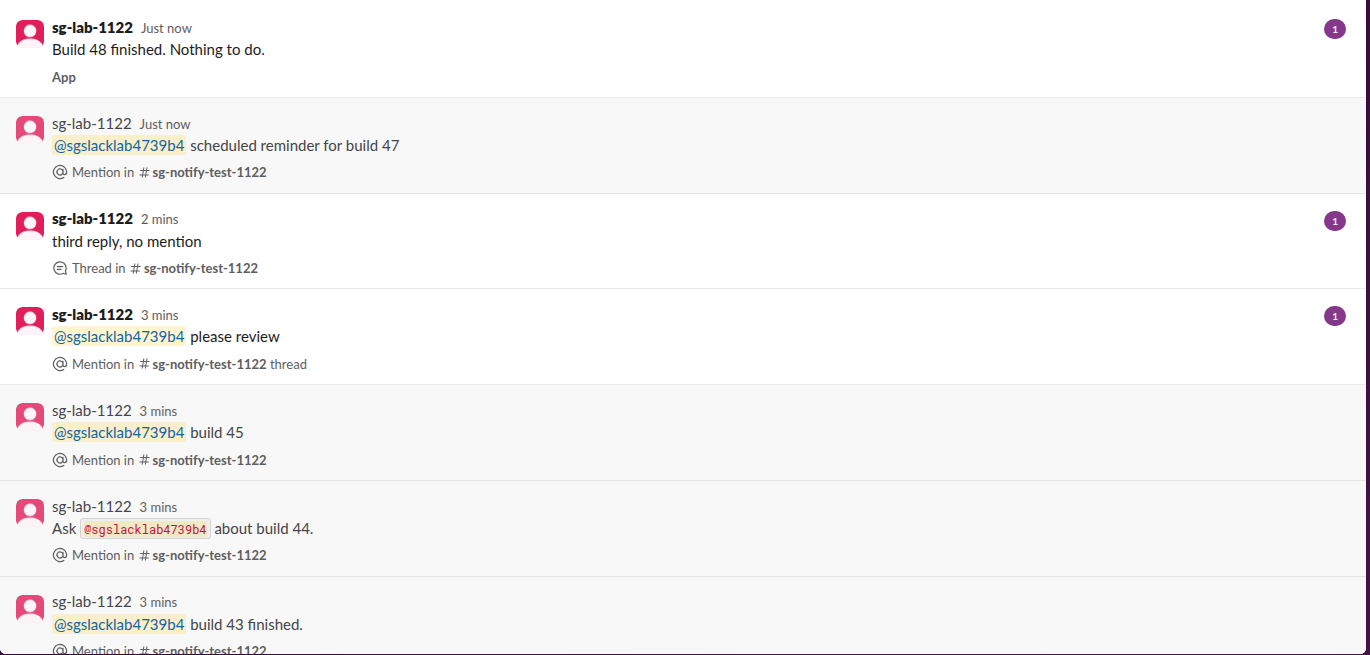
A quiet DM. A direct message counted as a mention even with no @ in it. If the point is to avoid a ping, post in a channel or schedule the DM for their morning.
For @here, @channel and @everyone, which notify whole groups, see what each of them does.
FAQ
Can I turn off notifications for one message I send? No. Slack has no per-message silent option. Use one of the five methods above.
Does a reaction notify the person? Reactions follow the recipient's own settings, and we did not count them in this test. Slack's Activity tab has a separate Reactions filter.
Will people see that I edited a mention in? The message shows as edited to everyone, and in our test the edited mention appeared in the person's Activity.
Stop Jiggling Your Mouse.
Join hundreds of remote workers who never worry about their Slack status. Set it up once, stay green forever.
Related Articles
How to Mute Someone on Slack: DMs, Hide Person and What Still Shows
Slack has no mute button for a person across all of Slack. You can mute your DM with them, which stops notifications but still shows a number badge, or use Hide person. We muted a DM and tested what still came through on October 28, 2026.
Slack Red Dot Won't Go Away? What It Counts and How to Clear It
A red dot on the Slack icon means unread activity somewhere; a red number means DMs, mentions, keywords or followed thread replies. Press Shift+Esc to mark all read, check Threads, Activity, To-dos and other workspaces, then clear the cache or reset the OS badge.
Slack @here vs @channel vs @everyone: Who Gets Notified
@here notifies only active members, @channel every member of the channel, and @everyone the whole workspace from the general channel. Tested in real Slack: none of them work in a thread, even with Also send to channel ticked, and @everyone typed elsewhere is plain text.