
Slack Canvas Version History: See and Restore Old Versions
Every Slack canvas keeps a version history, even on the Free plan. Open the canvas menu, choose View version history, pick a version and click Restore this version. We edited a canvas three times and restored the first version on October 28, 2026.
To see a Slack canvas's version history, open the canvas, click the three dots at its top right, and choose View version history. A History panel lists every saved version with the editor's name and the time. Click one to preview it, then click Restore this version to bring it back. We tested this on a Free plan workspace on October 28, 2026: the history was there with no upgrade prompt, and restoring an old version did not delete the newer ones.
Where View version history is
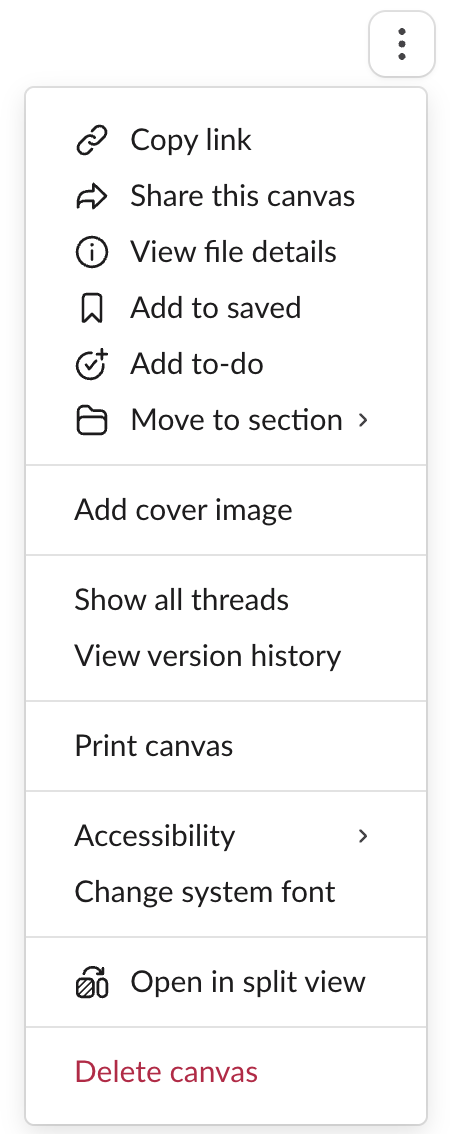
We created a channel canvas in a test channel with Add canvas, then New blank canvas. The canvas menu (the three dots at the top right of the canvas) had View version history in its middle group:
What the history shows
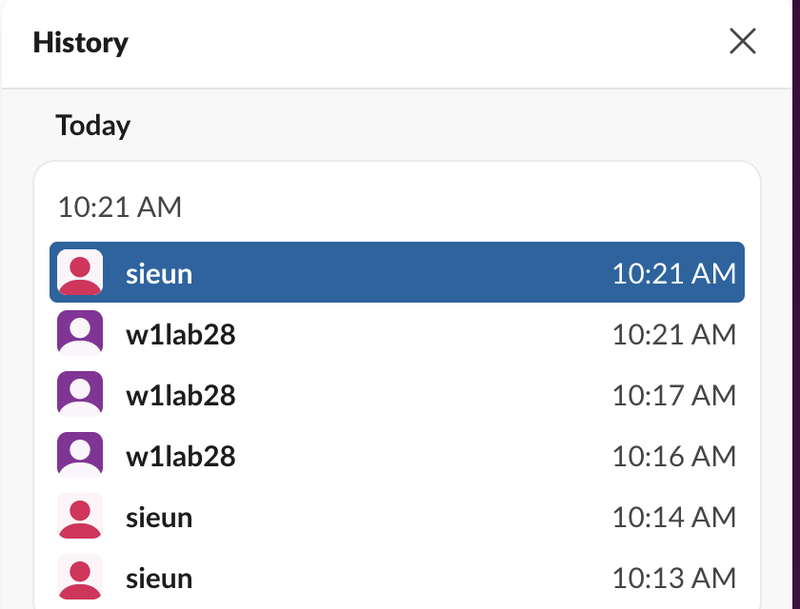
We created the canvas and typed its title in the editor, then made three edits from a test app with the canvases.edit API over about five minutes, each adding one line (version 1, version 2 and version 3 of a ship date). The History panel then listed five entries, newest first, each with the author and the minute:
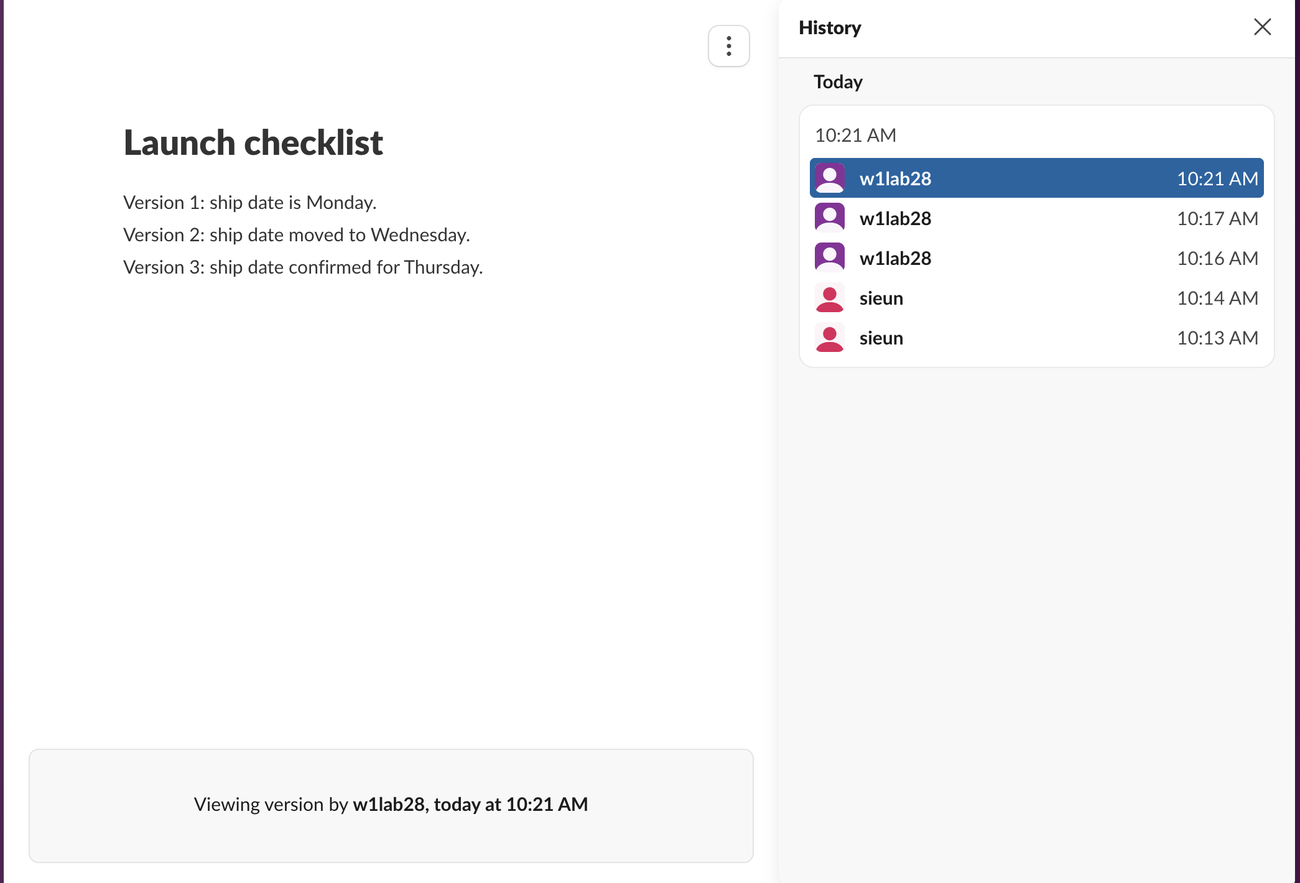
Edits made through the API by an app show up under the app's name, just like a person's edits. Two edits in the same minute got two entries. The history does not mark what changed; you see the whole canvas as it was, and you compare by eye.
Restore an older version
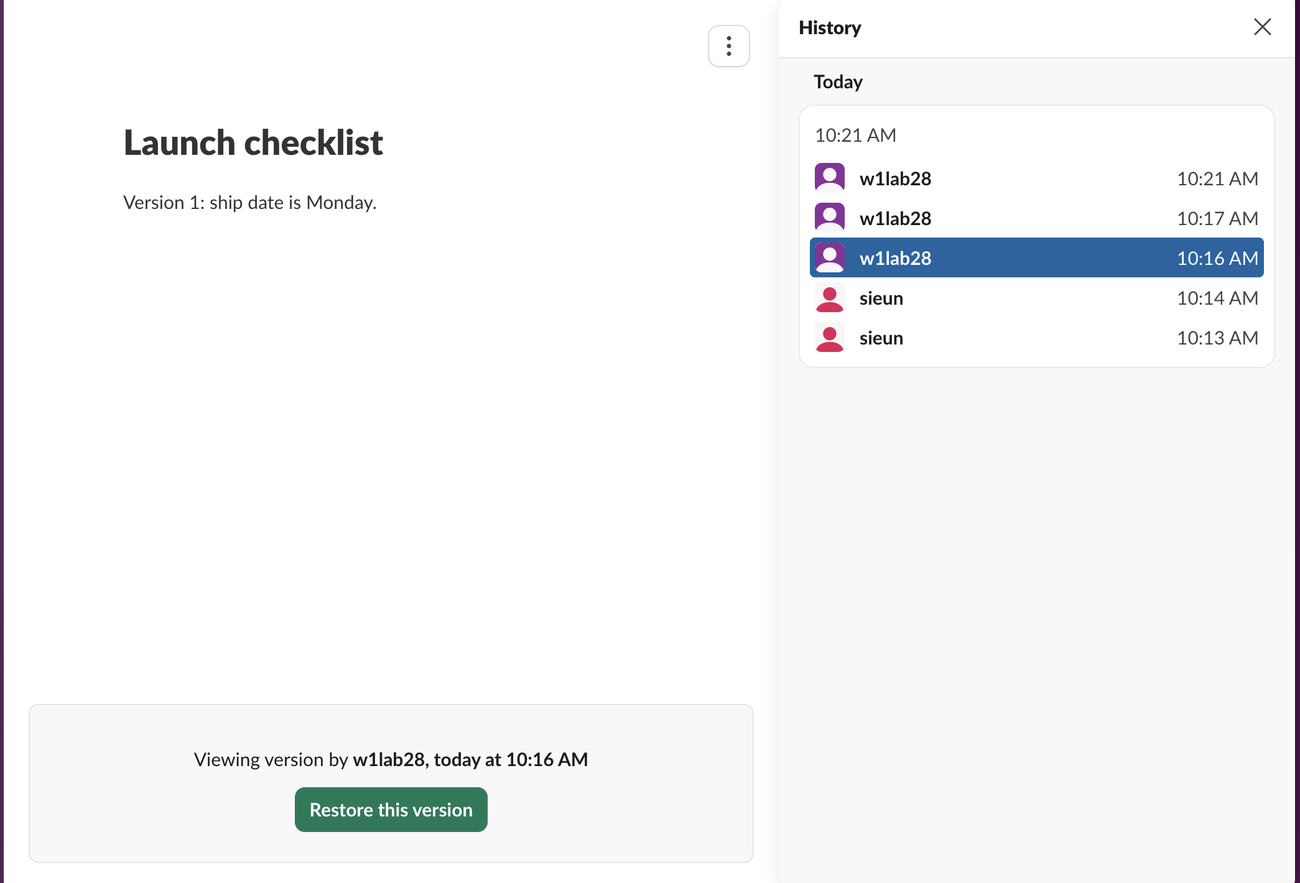
We clicked the 10:16 AM entry. The canvas showed only the first line, and a Restore this version button appeared at the bottom:
Slack asked to confirm:
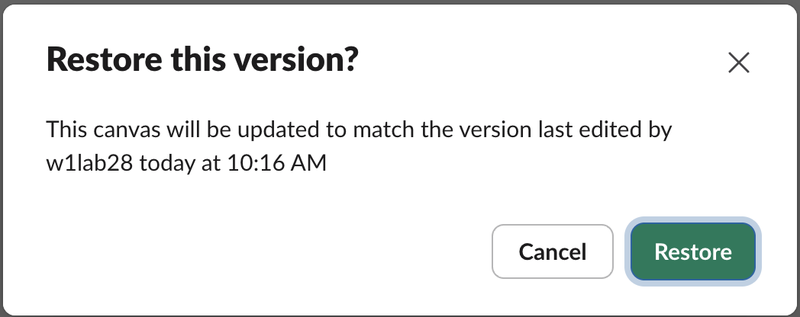
After Restore, a toast said "Canvas restored to the version by w1lab28, today at 10:16 AM" and the canvas went back to one line. The history then had a new entry on top, under our name, and the three later versions were still listed below it:
So a restore is not destructive. If you restore the wrong version, open the history again and restore the newer one.
Never appear "away" on Slack again
Cloud-based. No downloads. Works 24/7 even when your laptop is off.
Undo instead of history
For a change you just made, Cmd+Z (Ctrl+Z on Windows) inside the canvas undoes it, as in any editor. Version history is for going back further, or for undoing someone else's edit. Undo in the rest of Slack works differently; see how to undo in Slack.
Admins can turn history off
Workspace owners and admins can hide the history for everyone. In the admin pages, Settings & permissions, the Canvases section has one checkbox, which was on in our Free workspace:

If View version history is missing from your canvas menu, this box is probably unticked, or you can only view the canvas, not edit it. Slack's help page on canvas settings says anyone who can edit a canvas can see its history.
FAQ
Is canvas version history a paid feature?
No. Channel and DM canvases are on every plan, and we used version history and restore on the Free plan. Standalone canvases (not attached to a channel or DM) need a paid plan, as how to find a canvas in Slack shows.
Can other people see that I restored a version?
Yes, anyone who opens the history. The restore adds an entry under the name of the person who clicked Restore.
Does version history survive if the canvas is deleted?
No. Deleting the canvas deletes it with its history. To keep a copy outside Slack, see how to export a Slack canvas.
Stop Jiggling Your Mouse.
Join hundreds of remote workers who never worry about their Slack status. Set it up once, stay green forever.
Related Articles
Turn Off 'Joined the Channel' Messages in Slack (Tested)
Workspace owners and admins turn off join and leave messages in Settings & permissions, Channel Join & Leave Messages. It works on the Free plan. We switched it on and off on October 28, 2026: with it off, leaves posted nothing, but joins in a small channel still showed.
How to Mute Someone on Slack: DMs, Hide Person and What Still Shows
Slack has no mute button for a person across all of Slack. You can mute your DM with them, which stops notifications but still shows a number badge, or use Hide person. We muted a DM and tested what still came through on October 28, 2026.
How to Turn Off Huddles in Slack: Channel, Notifications and Sounds
To stop huddles in one channel, open the channel's Settings and set Huddles to No. To stop huddle alerts for yourself, untick New huddles in Preferences > Notifications. We tested both in a Free workspace on October 28, 2026.