
How to Export Slack Channel Members to a CSV (3 Ways, Tested on Free)
Slack has no button that exports one channel's member list. We tested the workspace member export, a short API script that writes one channel's members to CSV, and the member list inside a standard export.
Slack has no button that exports the members of one channel. The channel's Members tab lists people but cannot download them. Owners and admins can export the whole workspace as a CSV from Manage members, but that file has no channel column. To get one channel's members, use Slack's API (conversations.members, then users.info) or read channels.json in a standard export. On October 26, 2026 we tried all three in our Free test workspace, with a channel that held one person and one test app.
What the channel's member list shows
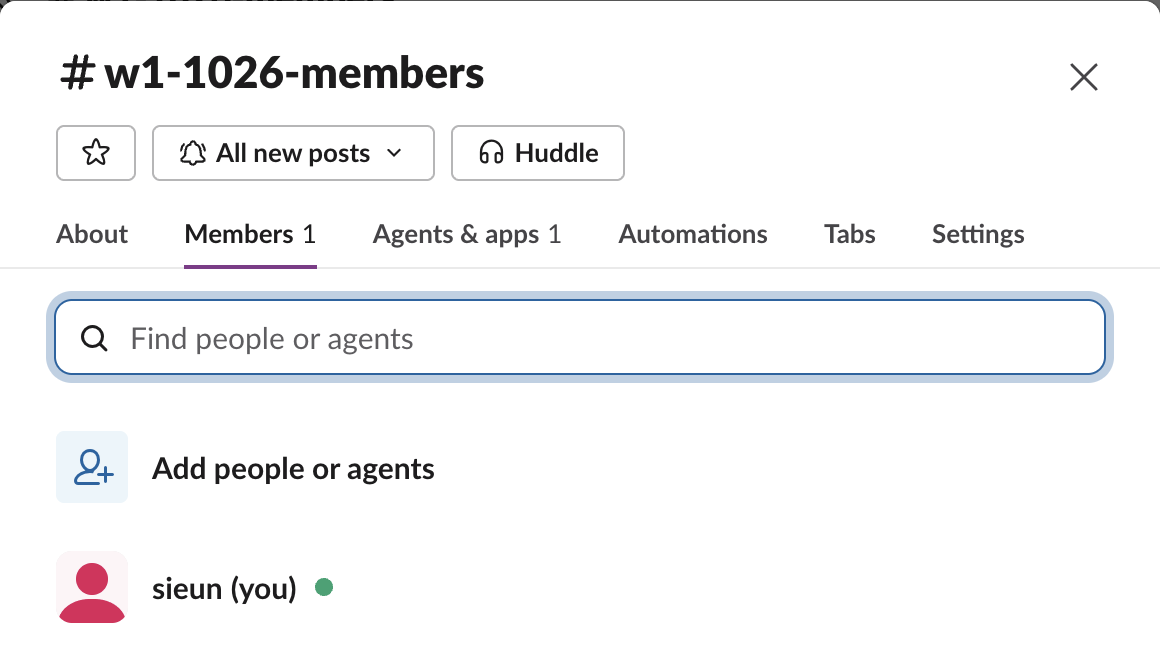
Click the channel name at the top of the channel to open its details. The Members tab showed only one member, us:
The channel had two members as far as Slack's API was concerned. The second, our test app w1lab26, is listed on its own Agents & apps tab, and the Members count leaves it out:
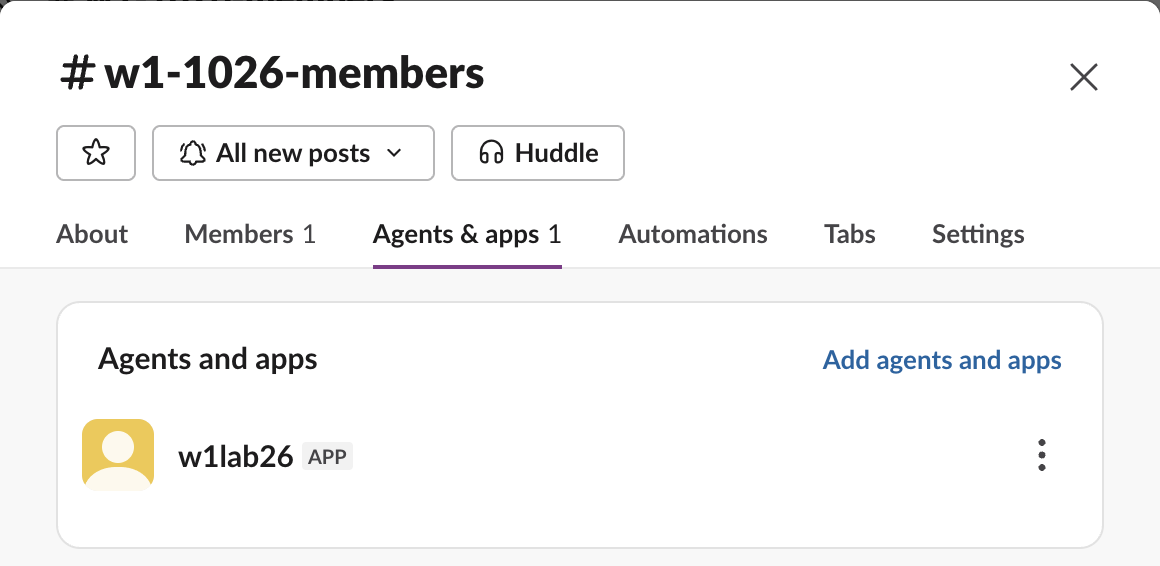
Neither tab has an export or copy option. On a small channel you can copy names by hand. For anything larger, use one of the methods below.
Export the whole workspace list (owners and admins)
Go to Admin > Manage members and click Export full member list. Our Free workspace allowed it for the Primary Owner. The link changed to Export started...:
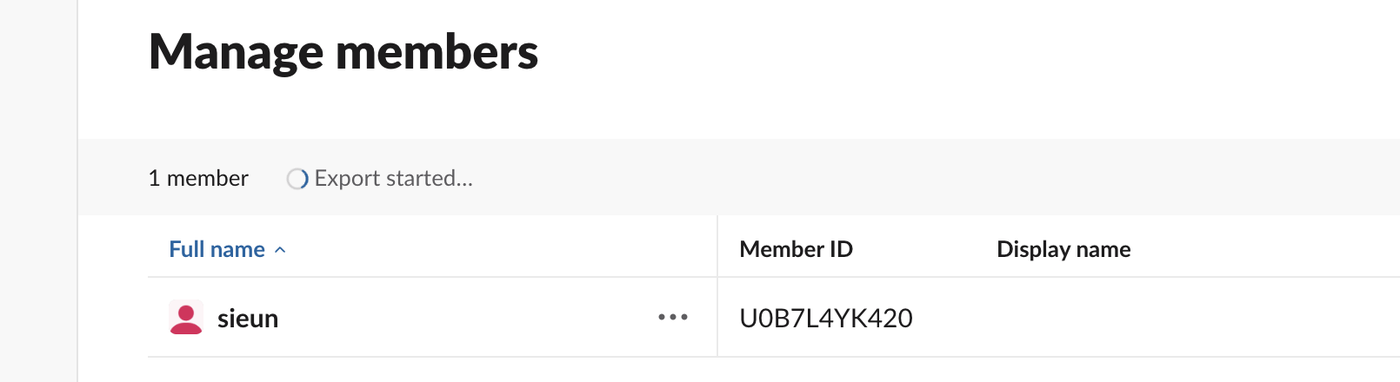
The file did not download. A few seconds later it arrived as a direct message from the Slack app: "Here's the CSV you requested", with a 3,739-byte file named slack-slack-0yr1948-members.csv. Its header row:
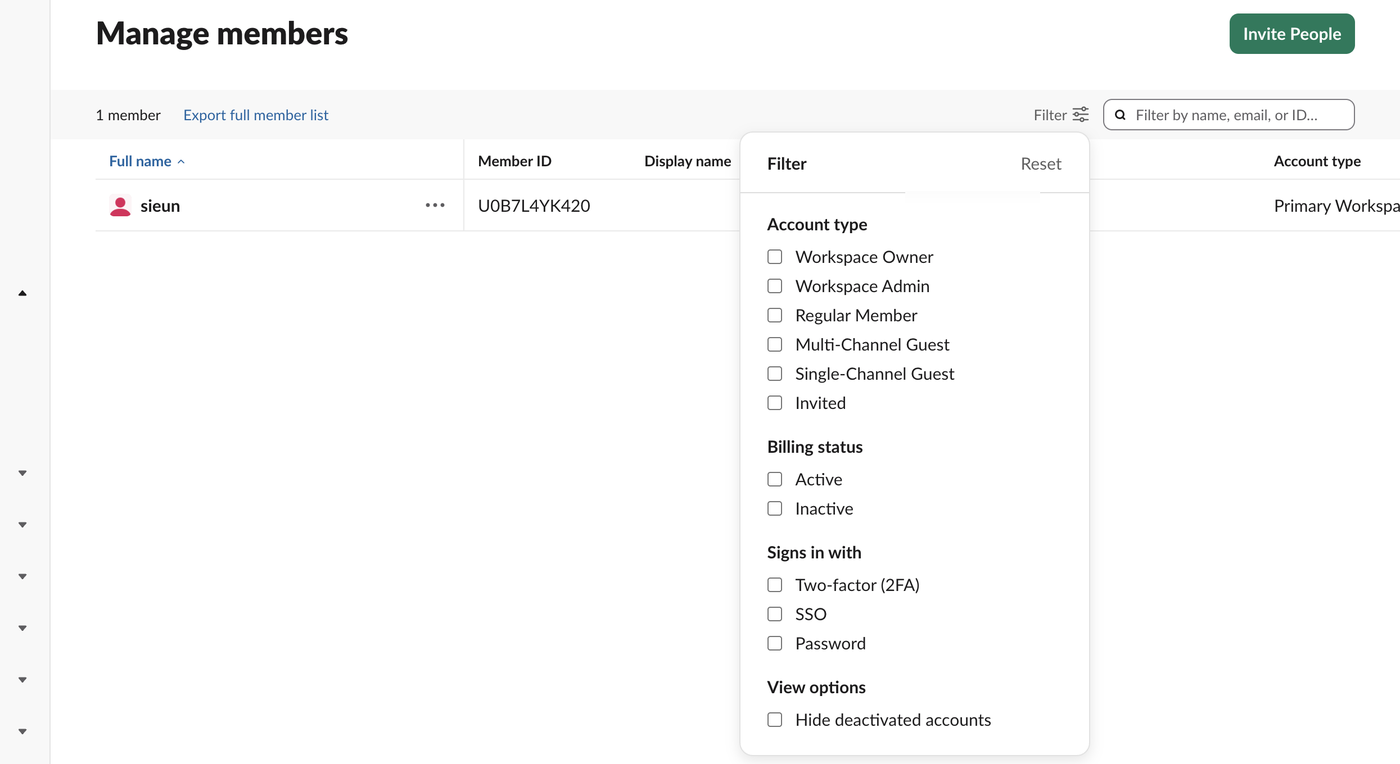
username,email,status,billing-active,has-2fa,has-sso,userid,fullname,displayname,expiration-timestampThe page said "1 member", but the CSV had 37 rows: the owner, our test app as Bot, and 35 Deactivated accounts left from older test apps. Filter on status before you count people. There is also no channel column, and the Filter menu on Manage members offers account type, billing status and sign-in method, but no channel:
Never appear "away" on Slack again
Cloud-based. No downloads. Works 24/7 even when your laptop is off.
Export one channel with a short script
This is the script we ran. It pages through conversations.members, looks up each person with users.info, and writes a CSV. It needs a bot token with channels:read (groups:read for private channels), users:read, and users:read.email if you want emails; Slack bot token shows how to get one. Our bot was a member of the channel.
import csv, os, sys, requests

TOKEN = os.environ["SLACK_TOKEN"]
CHANNEL = sys.argv[1]
API = "https://slack.com/api/"
H = {"Authorization": f"Bearer {TOKEN}"}

def call(method, **params):
    r = requests.get(API + method, headers=H, params=params, timeout=30).json()
    if not r["ok"]:
        sys.exit(f"{method}: {r['error']}")
    return r

ids, cursor = [], None
while True:
    r = call("conversations.members", channel=CHANNEL, limit=200, cursor=cursor or "")
    ids += r["members"]
    cursor = r.get("response_metadata", {}).get("next_cursor")
    if not cursor:
        break

with open("channel_members.csv", "w", newline="") as f:
    w = csv.writer(f)
    w.writerow(["user_id", "name", "display_name", "email", "is_bot", "deleted"])
    for uid in ids:
        u = call("users.info", user=uid)["user"]
        p = u.get("profile", {})
        w.writerow([uid, u.get("real_name", ""), p.get("display_name", ""),
                    p.get("email", ""), u.get("is_bot", False), u.get("deleted", False)])
print(f"{len(ids)} members written to channel_members.csv")
Run it with the channel ID (see how to find a Slack channel ID):
SLACK_TOKEN=xoxb-... python3 export_channel_members.py C0CBY34A0JHOur output, with the email address removed:
2 members written to channel_members.csv

user_id,name,display_name,email,is_bot,deleted
U0B7L4YK420,sieun,,<email removed>,False,False
U0CC72TKAF6,w1lab26,,,True,False
Unlike the Members tab, the API counts the app as a member, so the is_bot column is worth keeping. Slack API: get users in a channel covers the paging edge cases, including a cursor that points at an empty page.
Read the members from a standard export
A workspace export also holds channel membership. We ran a standard export (Admin > Import & export data > Export) for the last 24 hours. Its channels.json listed each public channel with a members array:
{"id": "C0CBY34A0JH", "name": "w1-1026-members", "members": ["U0B7L4YK420", "U0CC72TKAF6"]}Match those IDs against users.json in the same ZIP to get names. On Free the export covers public channels only. Slack export viewer shows what else is in the ZIP and how to browse it.
FAQ
Can a regular member export a channel's member list? Not from Slack's menus. The workspace export is an admin page. A member can run the script if the workspace lets them create an app and install it.
Does the workspace CSV include deactivated people and apps?
Yes. Ours listed 35 deactivated accounts and 1 bot next to 1 active person, so filter the status column first.
Stop Jiggling Your Mouse.
Join hundreds of remote workers who never worry about their Slack status. Set it up once, stay green forever.
Related Articles
Slack Export Viewer: Open a Slack Export ZIP in Your Browser (2 Free Tools Tested)
A Slack export is a ZIP of JSON files. We exported our Free workspace, looked inside the ZIP, and opened it with slack-export-viewer and slackdump view to compare how each shows threads, reactions and apps.
Slack Analytics on the Free Plan: What Owners Can See and Export
On a Free workspace, Admin > Analytics shows one overview page and an Export button with daily message counts. Channel, file and member analytics need a paid plan. We opened every tab and read the CSV.
How to Make a Poll in Slack: Emoji Polls, Poll Apps and What We Found
Slack has no poll button. Post the question with one emoji per option and let people react, or install a poll app. We ran an emoji poll, counted it with Slack's API, and tried to install Simple Poll on a Free workspace.