
Slack Green vs Presence Scheduler: What Each Keeps Green
Presence Scheduler pings the Slack API to stop away flips and adds a Chrome extension on your machine for the green dot. Slack Green holds the whole session from a cloud server. The mechanism difference decides which fits you.
Slack Green is our product, and Presence Scheduler at presencescheduler.com is one of the oldest names people compare us against. The two products promise the same outcome, a Slack dot that stays green on a schedule, but they work differently enough that the comparison is mostly about mechanism, not features. Presence Scheduler combines Slack API calls with an optional Chrome extension running on your computer. Slack Green holds your Slack session from a cloud server with nothing on your machine. Both mechanisms are described from each vendor's own documentation, and where their design has an advantage, it is listed below the same way as ours.
How each one works
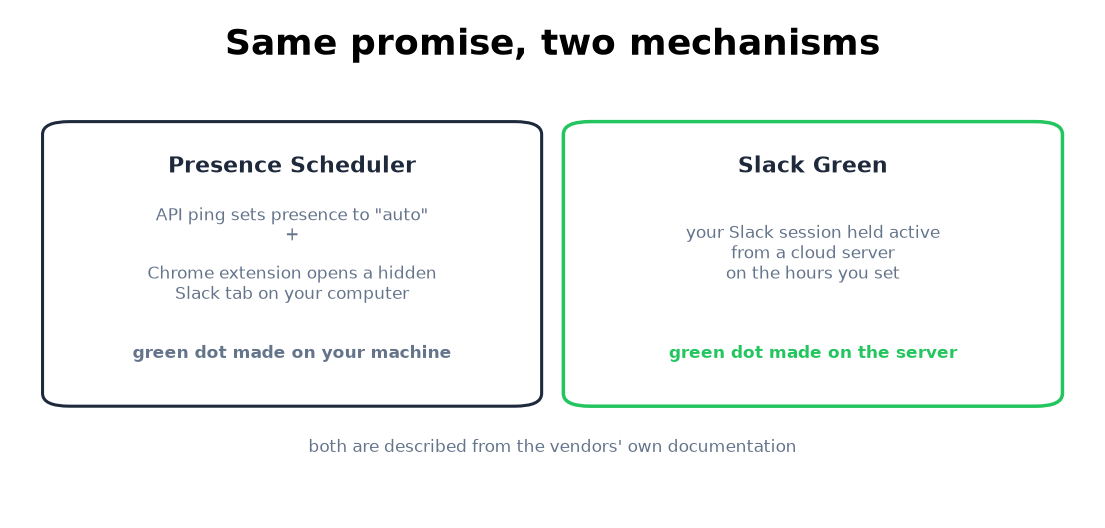
Presence Scheduler connects to your workspace through the Slack API and sets your presence to "auto" every few minutes. That call undoes the away state, and their site is upfront about its limit: with a modern API key, you will "still likely show offline" unless you add their Chrome extension. The extension closes that gap from your side: it opens a hidden Slack tab in your Chrome and interacts with it during your scheduled hours, so the green dot comes from your own computer being on, with Chrome running.
Slack Green authenticates as your own Slack session on a cloud server and keeps that session active during your schedule. There is no API-key step and no extension; the dot comes from the server, so the state of your computer stops mattering. The setup is copying two browser tokens, which takes about two minutes.
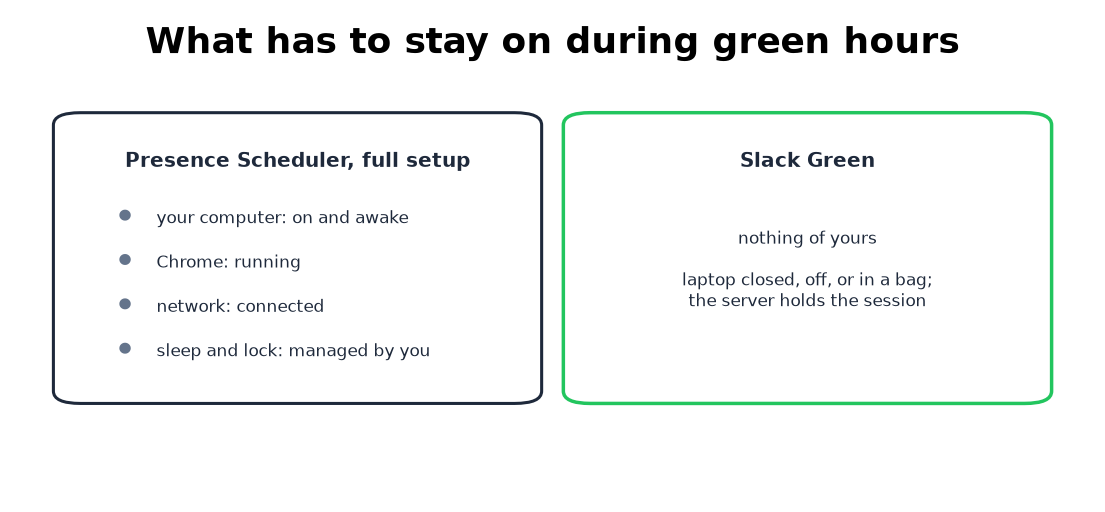
The practical consequence sits in one question: what has to stay on? With Presence Scheduler's full setup, your computer and Chrome during green hours. With Slack Green, nothing of yours; laptop closed, phone off, the dot holds.
Side by side
| Slack Green | Presence Scheduler | |
|---|---|---|
| Green dot comes from | cloud server session | Chrome extension on your machine |
| Away-flip prevention | same server session | Slack API "auto" ping |
| Computer must stay on | no | yes, for the green dot |
| Works with laptop closed | yes | no, unless another machine runs Chrome |
| Scheduling | hours, days, timezone | hours and timezone on paid plan |
| Free tier | 7-day trial, no card, or 14 days with a card (slack.green, 3 November 2026) | 7 days, API ping only, no schedules |
| Price after trial | paid plans on slack.green | $4.50/mo, less on longer terms |
| Extra surface installed | nothing | Chrome extension |
Two honest credits to them. First, transparency: their site explains exactly how the API call and the extension divide the work, including the limit of the API-only path, which is more mechanism detail than most tools in this market publish. Second, the API-only free tier is a real, zero-install way to stop the specific problem of manual-away flips sticking, even though it does not produce a green dot by itself.
Where the extension model bites
Running the dot from your own Chrome inherits every desktop failure mode: the 10-minute rules and sleep flips are handled by the extension, but the machine still has to be awake, online, and running Chrome through your entire schedule. Sleep settings, OS updates, a closed lid, an IT-managed lockdown, each one takes the dot down with it, which is the same list that limits every extension in the category. Server-side tools exist to delete that list. The trade both categories share: a third party touches your Slack account, so read the vendor's security notes first; ours are here.
Which one to pick
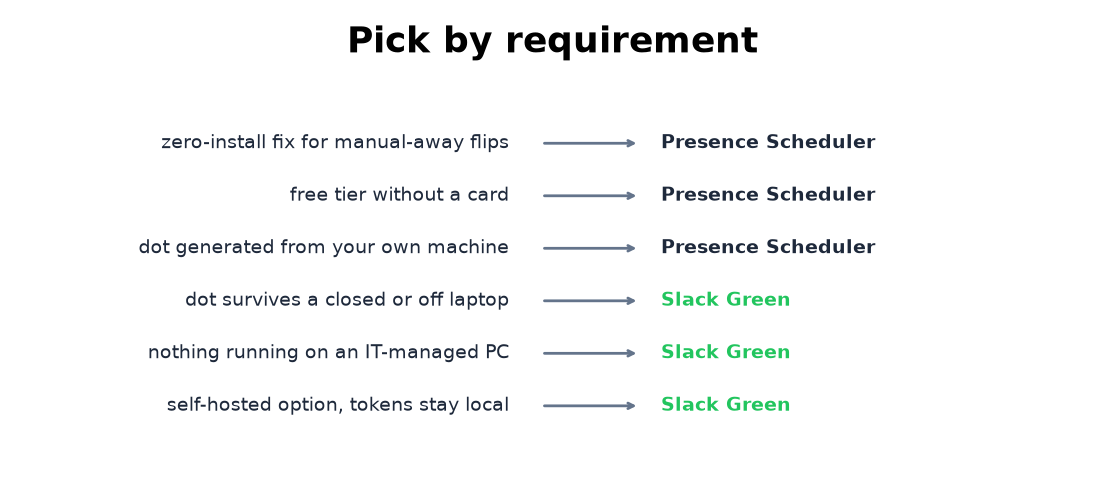
Pick Presence Scheduler if you only need manual-away flips undone and want a zero-install free tier, or if you are fine keeping a computer on and prefer the dot generated from your own machine. Pick Slack Green if the point is a dot that survives your laptop being closed, off, or locked down by IT, with nothing installed anywhere. If the deciding factor is trust rather than mechanism, Slack Green also ships a self-hosted CLI that keeps your tokens on your own hardware, which neither cloud dashboard can match.
Another cloud tool in this market, Idle Pilot, is compared in Slack Green vs Idle Pilot. Every method in the market, free ones included, is compared in how to keep Slack active.
Related Articles
Slack Green vs StayGreenOnSlack: an Honest Comparison
Slack Green and StayGreenOnSlack are the two closest products in the server-side presence category: both keep your Slack status active from the cloud on a schedule. The real differences are setup, the self-hosted option, languages, the API, and price.
Fake Slack Active Status: What Works and What Gets Noticed
Seven ways people fake an active Slack status, which ones hold up, and the thing that gives most people away. It isn't the dot.
Slack Green vs Idle Pilot: Price, Platforms and Setup
Idle Pilot and Slack Green both keep you available from the cloud with the laptop closed. Idle Pilot covers Slack or Teams for $9 a month. Slack Green covers Slack only for $3.99. The full comparison.