
Zoho Cliq Idle Status: What It Means and When It Shows
Idle in Zoho Cliq means you set yourself to Available but have not used Cliq for 10 minutes. Cliq switches it on by itself, on web, desktop and mobile, and you still get notifications and calls. What idle tells your coworkers, how it differs from Away and Invisible, and what you can change.
Idle in Zoho Cliq means you are signed in and set to Available, but you have not used Cliq for 10 minutes. Cliq switches you to Idle by itself; nobody chose it for you. Zoho's help center gives the same 10 minutes for the web, desktop and mobile apps, and says an idle user still receives notifications and calls. As soon as you use Cliq again, you are back to Available.
We took these rules from Zoho's help articles "The different statuses in Cliq" and "How can a user make last seen visible to contacts?", and the status codes from the Cliq REST API docs, all read on 28 September.
The same idea exists in every work chat app, with different timers. In Slack, the dot goes grey after 10 minutes without input in the Slack window. We build Slack Green, which keeps a Slack dot green from our servers during the hours you set. It does not work with Cliq.
What idle means in Zoho Cliq
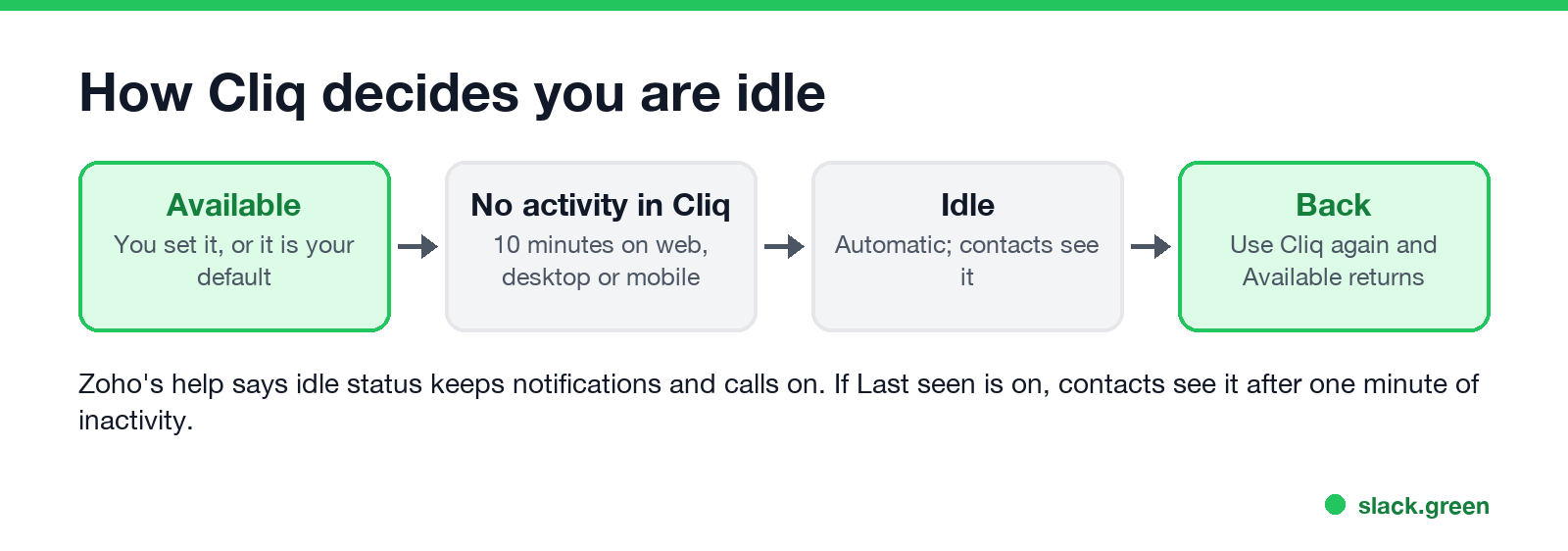
- • It is automatic, and it starts from Available. Zoho's help describes the switch to Idle only for the Available status.
- • The timer is 10 minutes. Zoho's note says the change from Available to Idle takes 10 minutes of inactivity on web, desktop and mobile.
- • You still get everything. Messages, notifications and calls keep arriving while you are idle.
- • Coworkers can see it if you are one of their contacts. Zoho says you can only see the status of a user who is a contact.
- • It ends by itself the next time you use Cliq.
Idle does not mean you are not working. It means Cliq has not seen you for 10 minutes. You may be in another app, on a call, or reading a document.
Idle vs Away vs Invisible and other Cliq statuses
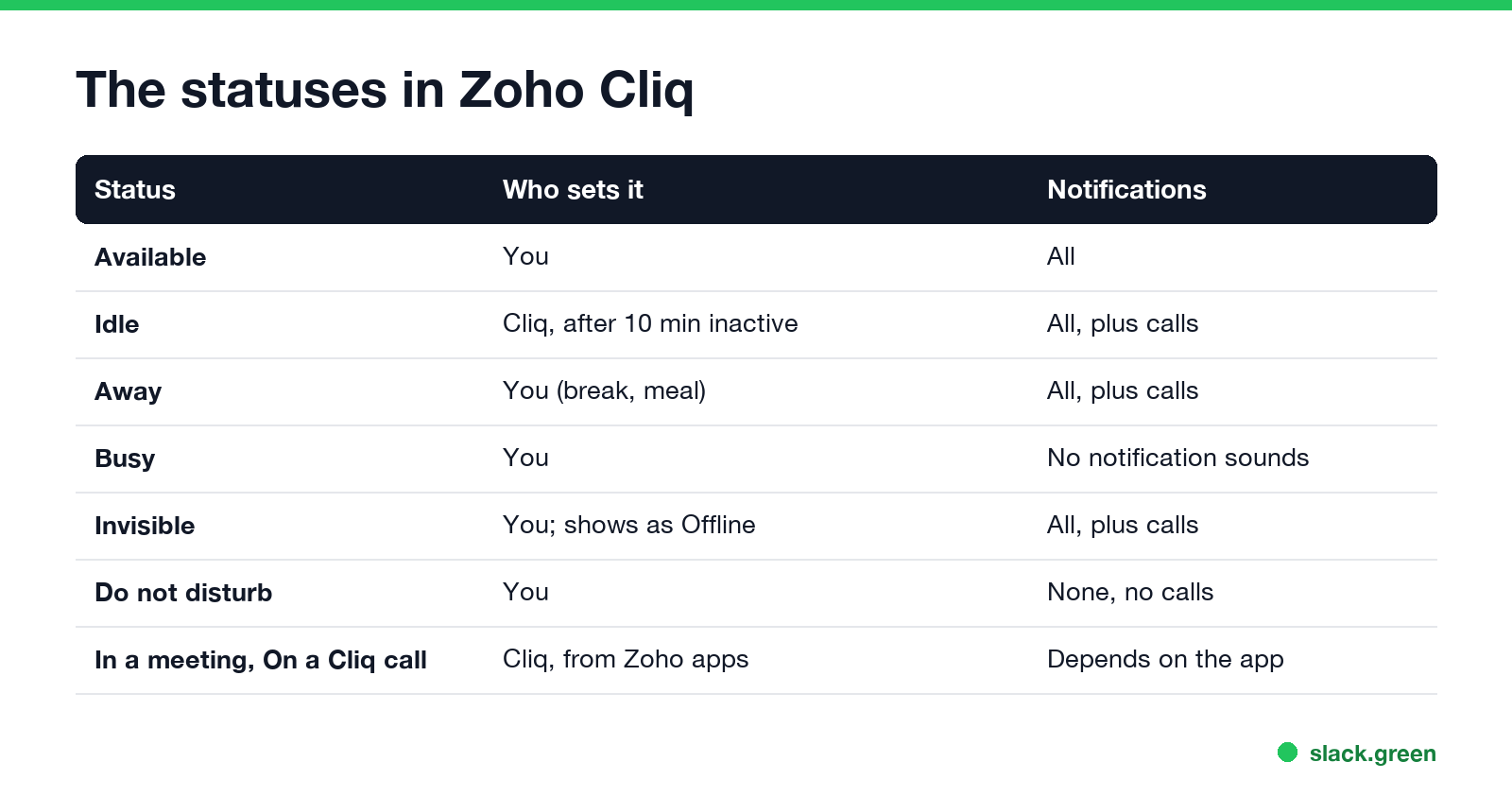
| Status | Who sets it | What you receive |
|---|---|---|
| Available | You | All notifications and calls |
| Idle | Cliq, after 10 minutes inactive | All notifications and calls |
| Away | You, for a break or a meal | All notifications and calls |
| Busy | You | Messages, but no notification sounds |
| Invisible | You; others see you as Offline | All notifications and calls |
| Do not disturb | You | No notifications or calls |
Cliq also sets a status from other Zoho apps: "On a Cliq call" during a Cliq audio or video call, "In a meeting" during a Zoho Meeting conference or a scheduled Calendar event, and "In a remote session" in Zoho Assist. With the Remote Work view, the header offers five more: Available for Collaboration, Engaged at work, Meal break, Short Break and Do not disturb.
Engaged at work turns off desktop notification sounds and pop-ups so you can focus, and you still receive messages silently.
Can you change the idle timer or turn it off?
Never appear "away" on Slack again
Cloud-based. No downloads. Works 24/7 even when your laptop is off.
Not from the user settings that Zoho documents. The help center lists no option to change the 10 minutes. On Zoho's community forum, a request for "a setting to change the timeout or even disable the automatic Idle mode" is filed as an idea under review. The poster says their team treats Idle and Available as the same thing.
What you can do:
The "auto lock" timeout in Cliq's settings is a different feature: it locks the app after a period without use, like a screen lock. It does not change your status timer.
Last seen in Zoho Cliq
When you are idle, your contacts can also see when you were last active, if Last seen is turned on. Zoho's help says contacts can view your last seen from one minute of inactivity. To change it:
If you turn it off, your contacts cannot see your last seen, and you cannot see theirs.
Zoho Cliq custom status
Next to the status itself, you can type a custom status text:
Developers can set the same thing with the Cliq REST API. This call adds an Away status with a message; it needs an OAuth token with the ZohoCliq.Profile.CREATE scope:
curl -X POST "https://cliq.zoho.com/api/v2/statuses" \
  -H "Authorization: Bearer $CLIQ_TOKEN" \
  -H "Content-Type: application/json" \
  -d '{"code": "away", "message": "Stepped out, back in 15 minutes."}'
The API accepts available, busy, invisible, away and dnd as the code, and has separate endpoints to read your current status (GET /statuses/current) and to switch to a saved one (PUT /statuses/{STATUS_ID}/set). There is no idle code, because Cliq sets idle itself. Accounts outside the US data center use their own domain, such as cliq.zoho.eu or cliq.zoho.in. We did not run this call; it follows Zoho's API reference. For status wording ideas that work in any app, try our free status generator.
Idle timers in other work chat apps
Never appear "away" on Slack again
Cloud-based. No downloads. Works 24/7 even when your laptop is off.
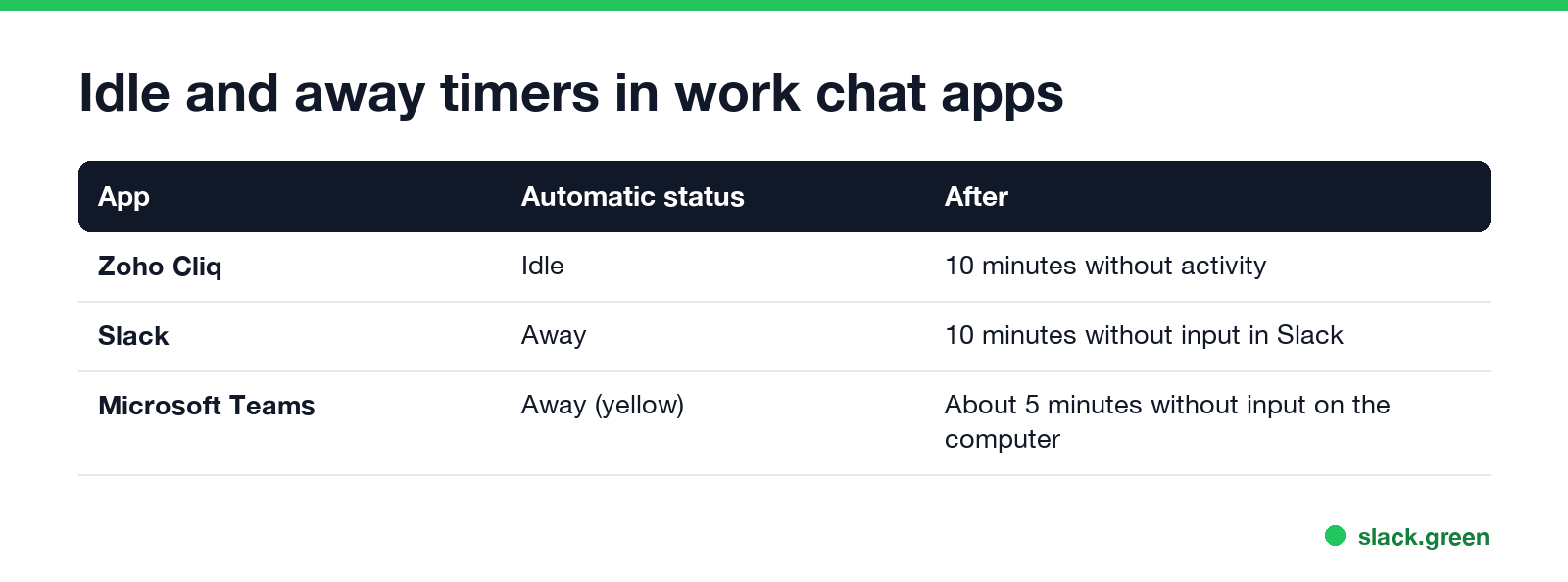
| App | Automatic status | After |
|---|---|---|
| Zoho Cliq | Idle | 10 minutes without activity in Cliq |
| Slack | Away | 10 minutes without input in the Slack window |
| Microsoft Teams | Away (yellow) | About 5 minutes without input on the computer |
How Slack decides is in how does Slack decide when you're away, and the Teams timer is in how long before Teams shows away. Discord has its own idle moon; see what does idle mean on Discord.
FAQ
What does idle mean in Zoho Cliq?
You are set to Available but have not used Cliq for 10 minutes. Cliq sets it for you.
How long before Zoho Cliq shows idle?
10 minutes of inactivity, on web, desktop and mobile.
Do I get notifications when I am idle in Cliq?
Yes. Idle users still receive notifications and calls.
How do I stop Zoho Cliq from showing idle?
There is no documented setting to change the timer. Set Away, Busy or Do not disturb yourself, or Invisible to hide your presence.
What is the difference between idle and away in Cliq?
Cliq sets Idle after 10 minutes of inactivity. You set Away yourself, for a break or a meal.
Can my boss see when I am idle in Cliq?
Contacts can see your status, and your last seen if it is on. Admins can also restrict which statuses you may use.
Stop Jiggling Your Mouse.
Join hundreds of remote workers who never worry about their Slack status. Set it up once, stay green forever.
Related Articles
Slack Emoji for Approved, Perfect and Sounds Good
The Slack emoji for approved is ✅ :white_check_mark:. For perfect, use 💯 :100: or 🤌 :pinched_fingers:; for sounds good or sure, 👍 :+1: or 👌 :ok_hand:. Every code checked in Slack, what each one means to readers, custom LGTM and SGTM emoji, and a pinned legend for approval channels.
Tips for Working Across Time Zones: 10 Habits That Work
Working across time zones works when the team writes things down, keeps a short overlap window for live talk, says the zone with every time, and lets tools deliver messages in each person's working hours. Ten habits, a follow-the-sun handoff note, the Slack settings that help, and a script that shows your team's local times.
Slack Webhook curl Example, Plus Python and Node.js
Send a Slack message with one curl command: POST a JSON body with a text field to your incoming webhook URL, and Slack answers ok. Tested examples for curl, jq, Block Kit, Python with retries and Node.js, how to escape quotes and new lines, and what 400 invalid_payload and 429 mean in code.