
Mattermost Away Status: 5-Minute Timer, Icons and How to Stay Online
Mattermost sets you Away after 5 minutes without activity and Offline when you close the app, lock or sleep the computer. The desktop app counts mouse and keyboard activity anywhere on the computer. Admins can change the timer with UserStatusAwayTimeout.
Mattermost sets you Away automatically after more than 5 minutes without activity, and Offline when you quit the desktop app, close the browser tab, lock or sleep the computer, or leave the mobile app. In the desktop app, any mouse or keyboard activity on the computer keeps you Online, even in another app. In a browser, only activity in the Mattermost tab counts. The 5-minute timer is a server setting, UserStatusAwayTimeout, which only a system admin can change, and it applies to everyone.
Mattermost is the self-hosted alternative to Slack, and its presence rules are looser than Slack's. Slack counts only input inside its own window and sets you away after 10 minutes without it. If your team is on Slack instead, Slack Green keeps your Slack status active from our servers during the hours you set.
Mattermost status icons and what they mean
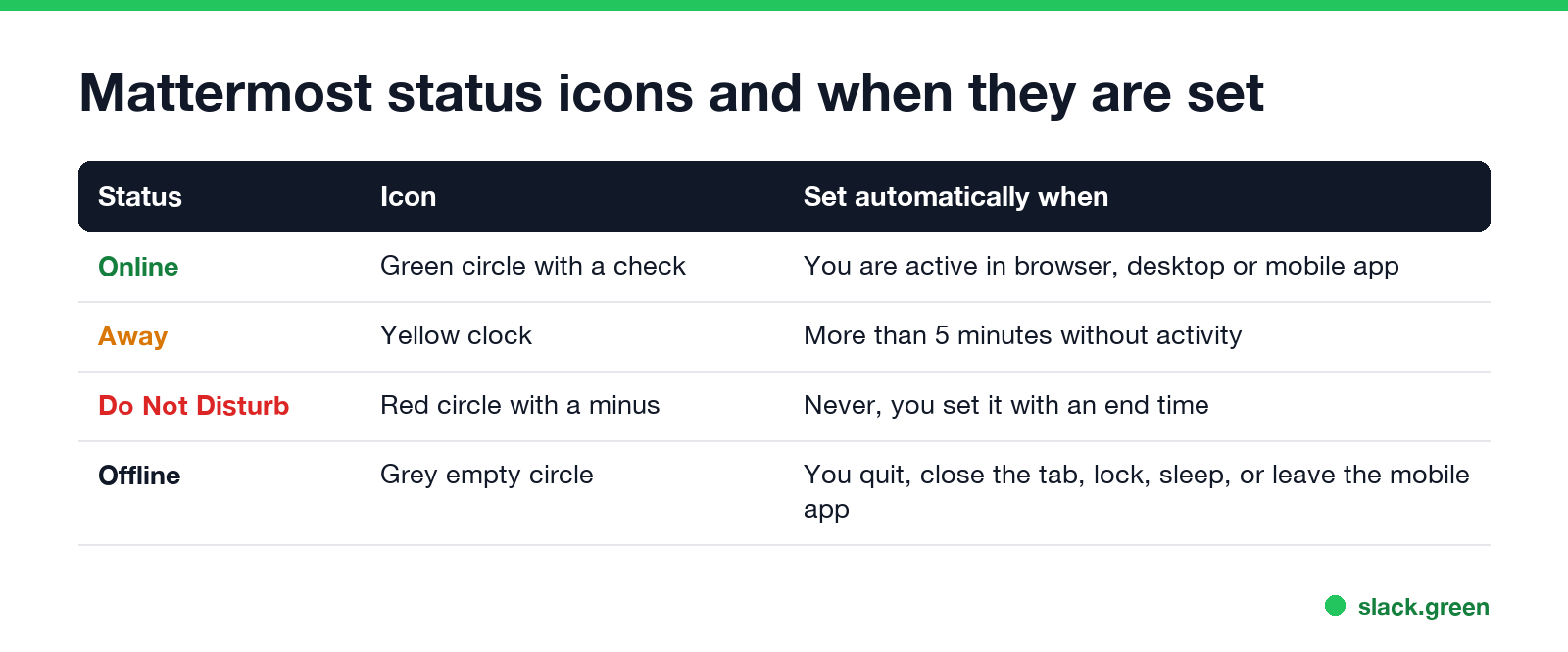
Mattermost shows your availability as a small icon on your profile picture, in the channel sidebar, in conversations and in direct messages. The Mattermost docs list four:
| Status | Icon | Set automatically when |
|---|---|---|
| Online | Green circle with a check | You are active in the browser, desktop or mobile app |
| Away | Yellow clock | You have been inactive for more than 5 minutes |
| Do Not Disturb | Red circle with a minus | Never, you set it yourself, with an end time |
| Offline | Grey empty circle | You quit the app, close the tab, lock or sleep the computer, or leave the mobile app |
A custom status is separate. It is an emoji and up to 100 characters of text next to your name, such as "In a workshop until 3". It does not change the availability icon.
When Mattermost sets you Away
The Mattermost end-user guide says Away is "set automatically for you when you've been inactive for more than 5 minutes." What counts as activity depends on the app:
- • Desktop app. "Any mouse or keyboard activity keeps your availability set to Online." That means activity anywhere on the computer, so typing in a code editor with Mattermost in the background keeps you Online.
- • Browser. You count as inactive when you are not typing in or moving between channels, when you switch to another browser tab, or when the browser window is minimized or behind other windows.
- • Mobile app. You go Offline, not Away, as soon as you switch apps, close Mattermost or lock the phone.
That difference explains most "Mattermost keeps showing me away" complaints. A user on the Mattermost forum who kept going Away used the web version in a Chrome tab. Another user replied that the desktop app on his Windows PC kept him Online while he worked in other apps, without touching Mattermost for 45 minutes. So the first fix is to use the desktop app instead of a browser tab.
How to set your status in Mattermost
Never appear "away" on Slack again
Cloud-based. No downloads. Works 24/7 even when your laptop is off.
Select your profile picture and choose Online, Away, Do Not Disturb or Offline. Or type a slash command in any message box:
/online
/away
/dnd
/offline
A status you set by hand stays until you change it. The Mattermost API reference says a manual status "will remain that value until set 'online' again, which will return the status to being automatically updated based on user activity." So setting yourself Online is also how you switch the automatic timer back on after a manual Away.
Do Not Disturb takes an end time, such as 30 minutes, 1 hour, 2 hours, tomorrow or a custom time, and it switches back when that time comes, which "may take up to five minutes", per the docs. It also turns off desktop, email and push notifications.
Change the Mattermost idle timeout (admins)
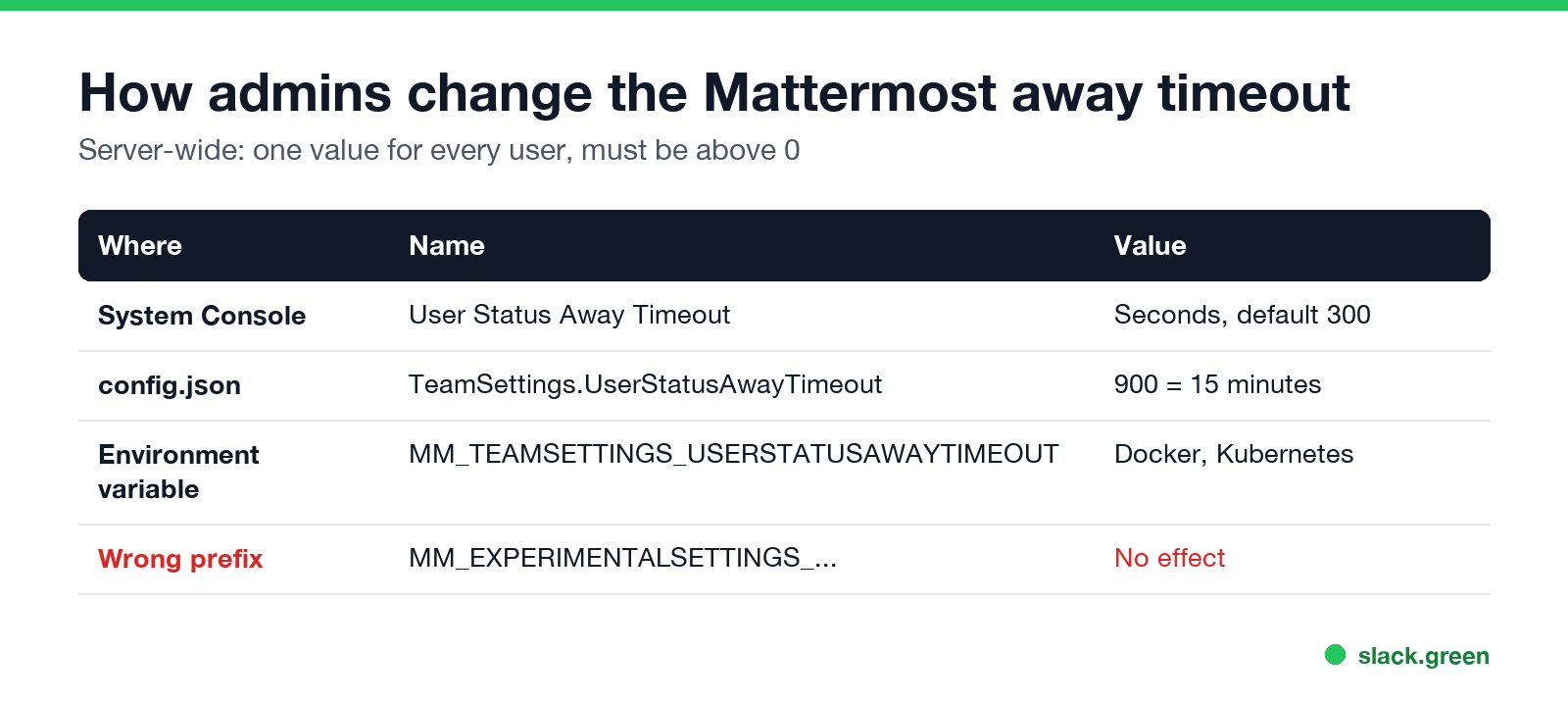
The timer is one server-wide number in seconds. There is no per-user setting; a request for one on Mattermost's feature forum has more than 200 votes. A system admin can change it three ways.
In the System Console, look for User Status Away Timeout. Mattermost lists it among the experimental settings.
In config.json, the key sits under TeamSettings:
{
  "TeamSettings": {
    "UserStatusAwayTimeout": 900
  }
}
With environment variables, which is how Docker and Kubernetes installs usually set config, the name follows the MM_<SECTION>_<SETTING> pattern:
MM_TEAMSETTINGS_USERSTATUSAWAYTIMEOUT=900The default is 300 (5 minutes), and the value must be above 0. One admin on GitHub set MM_EXPERIMENTALSETTINGS_USERSTATUSAWAYTIMEOUT and saw no change. The setting lives under TeamSettings in the server code, so that prefix is the wrong one. A longer timeout also delays the push notifications that Mattermost sends once you go Away, which a forum admin with a 1,200-second value noticed.
Stay Online in Mattermost without admin access
Scripts can also set your status through the REST API, such as the open-source mattermost-autoaway script on GitHub, which switches Online and Away based on the desktop's idle state. A script that forces Online all day overrides the automatic status for as long as it runs, so your team loses the signal that you stepped away.
Mattermost away status vs Slack and Teams
Never appear "away" on Slack again
Cloud-based. No downloads. Works 24/7 even when your laptop is off.
| Mattermost | Slack | Microsoft Teams | |
|---|---|---|---|
| Away after | 5 minutes, admin can change | 10 minutes, fixed | About 5 minutes |
| Activity that counts (desktop) | Mouse or keyboard anywhere on the computer | Only input inside the Slack window | Input anywhere on the computer |
| Lock or sleep | Offline | Away | Away, then Offline |
| Change the timer | Server setting | Not possible | Not possible |
Slack is the strictest of the three, which is why its dot goes grey while you work in another app. How Slack decides is in Slack active status explained, and how the three chat tools compare as products is in free Slack alternatives.
Mattermost status questions
How long before Mattermost shows Away? More than 5 minutes without activity, unless your admin changed UserStatusAwayTimeout.
Why does Mattermost show me Away while I am working? You are probably in a browser tab, where only activity in that tab counts. The desktop app counts activity anywhere on the computer.
Can I turn off automatic Away in Mattermost? Not as a user. Setting your status by hand stops the automatic change until you set Online again. Admins can raise the timeout for everyone.
Can other people see when I was last online? If the admin enables last active time, your profile shows when you were last active while you are Away or Offline.
Stop Jiggling Your Mouse.
Join hundreds of remote workers who never worry about their Slack status. Set it up once, stay green forever.
Related Articles
KeepingYouAwake vs Amphetamine: Which Mac Keep-Awake App to Use
KeepingYouAwake is a free, open-source menu bar switch that runs Apple's caffeinate for you. Amphetamine is a free App Store app with triggers, schedules and a closed-lid mode. Pick KeepingYouAwake for one click and Homebrew, Amphetamine for automation. Neither keeps Slack or Teams active.
Computer Locks After 15 Minutes? How to Tell If Group Policy Set It
A work laptop that locks after exactly 15 minutes, with screen settings greyed out, is almost always following a policy from IT: the Windows machine inactivity limit, a forced screen saver, or an Intune device lock. Security baselines and PCI DSS ask for 15 minutes. How to see which policy it is, and what you can and cannot change.
How to Keep a Citrix Session Active: Find Which Timeout Logs You Out
A Citrix session can end from four different timers: Windows locking inside the virtual desktop, the Citrix session idle timer, the Citrix Gateway session time-out, and the StoreFront web page timeout. Only input from your own device into the Citrix window resets them. How to tell which one hit you and what keeps each one quiet.