
Archive a Slack Channel: What Happens, How to Undo It, and Archive vs Delete
We archived, unarchived and deleted channels in Slack web and through the API, and recorded what members see, what apps can still do, and which names stay taken.
Archiving a Slack channel makes it read-only for everyone. No one can post, the channel leaves the sidebar, and every message and file stays where it was. Anyone who opens it sees an Unarchive link, and one click brings it back with its history and members. Deleting is different: it removes the messages for good. On 7 October 2026 we archived, unarchived and deleted test channels in a free-plan workspace, in Slack web and with the API, and wrote down what changed at each step.
How to archive a channel
- Open the channel and click its name at the top.
- Open the Settings tab.
- Click Archive channel for everyone.
- Confirm with Archive Channel.
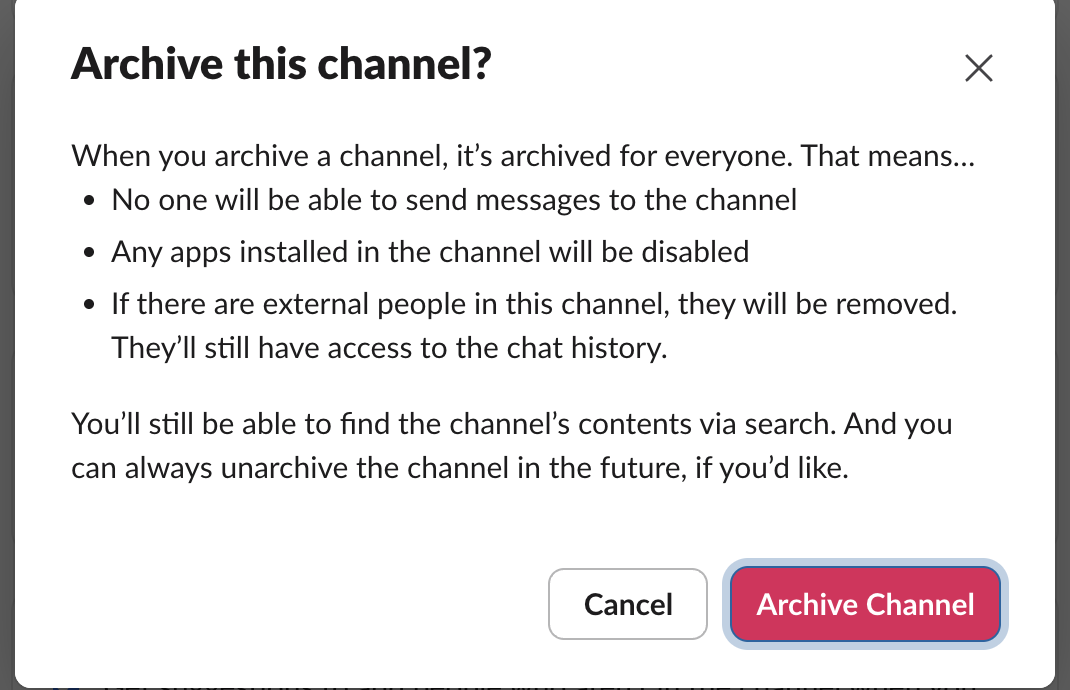
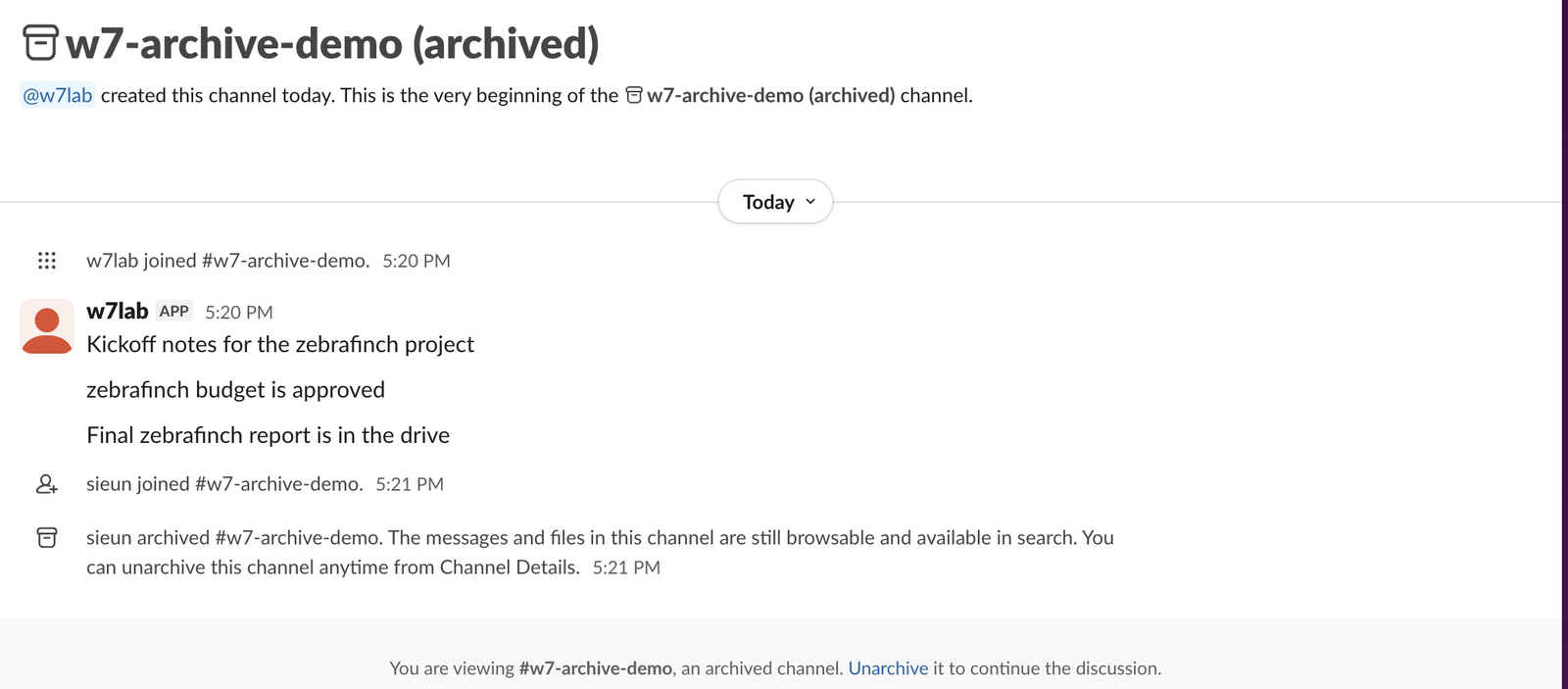
Slack then moved us to the general channel, and the archived channel left the sidebar. When we opened it again by link, the name had "(archived)" after it, the composer was gone, and a bar at the bottom read "You are viewing #w7-archive-demo, an archived channel. Unarchive it to continue the discussion." Slack also added a system line to the channel: "sieun archived #w7-archive-demo. The messages and files in this channel are still browsable and available in search."
The general channel cannot be archived. Through the API that returned cant_archive_general.
How to unarchive it
Open the archived channel and click Unarchive in the bottom bar. There was no confirm step. The composer came back at once, a line "sieun unarchived #w7-archive-demo" was added, and the channel returned to the sidebar.
Members are kept through the archive. Incoming webhooks are not: our webhook test found that a webhook for an archived channel answers 404 no_active_hooks and stays dead after the unarchive, so make a new one. conversations.members on the archived channel still listed both members, and after the unarchive our test app posted again without being re-added. The confirm dialog says apps "will be disabled", which matched what we saw only while the channel was archived.
Archived messages still show in search
The archive dialog promises that "You'll still be able to find the channel's contents via search." We checked. We posted the word quokkaling in a channel, archived the channel, and searched for it 30 seconds later: one result, labelled "w7-archive-search (archived)".
Messages posted by an app are a different story. Our three test messages in the archived channel came from a bot, and a search for zebrafinch showed none of them, only a control message we had typed ourselves in another channel. Slack's search page has an Exclude automations button that is switched on by default. Clicking it off brought back all three archived bot messages and the bot's control message, with the archived channel named on each result.
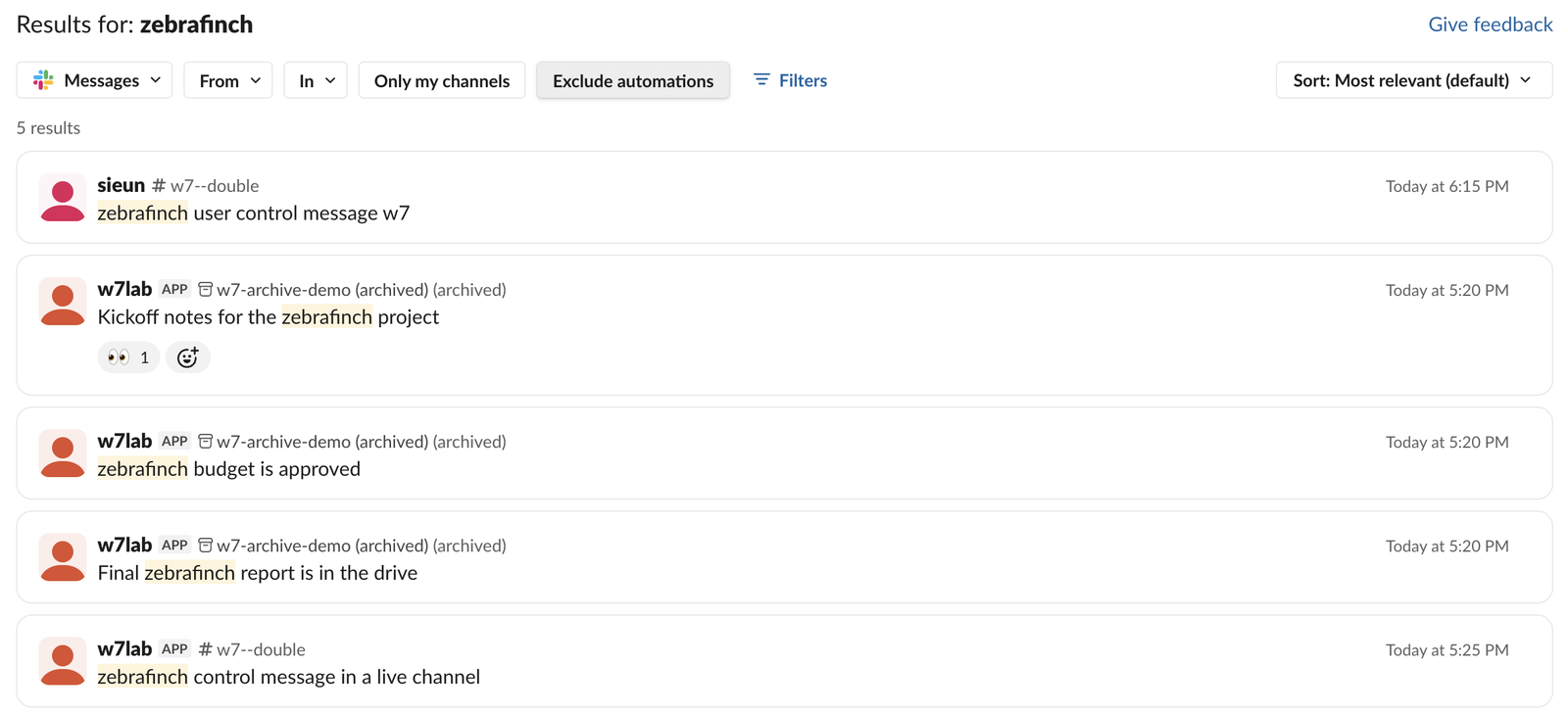
So if an archived channel's alerts or bot posts seem to have vanished from search, switch off Exclude automations before you assume they are gone. The search API behaved the same way for our account: search.messages returned only the human-written message.
Never appear "away" on Slack again
Cloud-based. No downloads. Works 24/7 even when your laptop is off.
Archive vs delete
| Archive | Delete | |
|---|---|---|
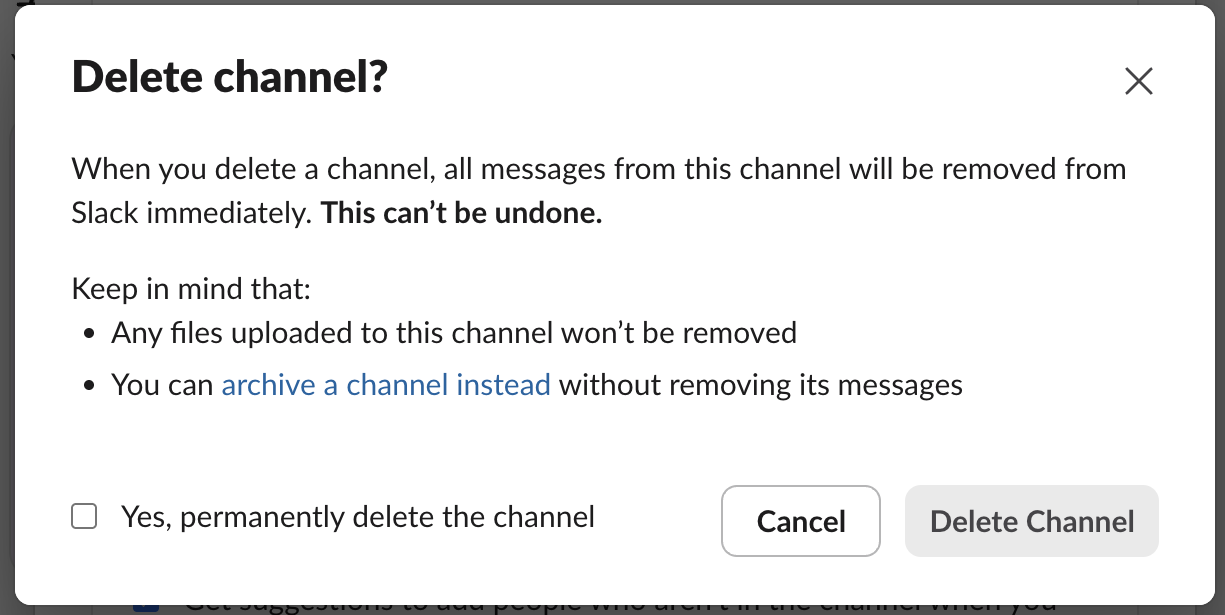
| Messages | Kept, readable by anyone who opens the channel | Removed at once; "This can't be undone" |
| Files posted in it | Kept | Kept as files ("Any files uploaded to this channel won't be removed") |
| Undo | Unarchive, one click | None |
| Channel name | Stays taken: a new channel with that name got name_taken | Free at once: we made a new channel with the deleted one's name a minute later |
| Confirm step | One button | A checkbox, "Yes, permanently delete the channel", before the button turns on |
| In the API | conversations.archive | No conversations.delete in the public Web API; admin.conversations.delete is part of the Enterprise admin API |
Pick archive when a project ends and the history might matter later. Pick delete only when the messages should not exist anymore, and remember the files stay. The name rules for a replacement channel are in our Slack channel name rules test.
What the API does with an archived channel
We sent these calls with a bot token to a public channel the bot had joined, then archived it.
| Call | Result |
|---|---|
conversations.archive | {"ok": true} |
conversations.archive again | already_archived |
chat.postMessage | is_archived |
conversations.join | is_archived |
conversations.invite | is_archived |
conversations.setTopic | is_archived |
reactions.add on an old message | {"ok": true} |
conversations.history | ok, all messages returned |
conversations.info | ok, "is_archived": true |
conversations.list (default) | includes the archived channel |
conversations.list with exclude_archived=true | leaves it out |
conversations.unarchive | {"ok": true} |
conversations.unarchive again | not_archived |
conversations.archive on the general channel | cant_archive_general |
Two rows are worth knowing if you run a bot. conversations.list returns archived channels unless you pass exclude_archived=true, so a bot that picks channels from that list will try to post into archived ones and get is_archived. And reactions.add still worked on a message in an archived channel, so "read-only" covers new messages and channel settings, not reactions sent through the API.
Both conversations.archive and conversations.unarchive need the channels:manage scope for public channels (groups:write for private ones), and the caller has to be a member. A bot that is not in the channel gets not_in_channel; see Slack not_in_channel for that error.
FAQ
Does archiving remove the channel's files? No. Files stay with their messages, and the system line Slack adds says the messages and files are "still browsable and available in search".
Can I post one last message after archiving?
No. The composer is gone in the app and chat.postMessage returns is_archived. Post first, then archive.
What happens to scheduled messages in a channel that gets archived? They are not sent. Slack keeps them with no destination; our scheduled message test shows what the sender sees.
Can I make the archived channel's name free again? Rename the archived channel first, or delete it. Archived channels keep their names, so a new channel with the same name fails until you do.
Stop Jiggling Your Mouse.
Join hundreds of remote workers who never worry about their Slack status. Set it up once, stay green forever.
Related Articles
Slack Bot Scopes: The Scope Each API Method Needs, Measured on 44 Methods
We gave a Slack bot one scope, called 44 common Web API methods, and read the needed field of every missing_scope error. Then we added the scopes and called them again. The table shows which scope clears each method.
Slack File Size Limit: 1 GB Is Exactly 1,073,741,824 Bytes, Tested
We uploaded files of 50 MB, exactly 1 GiB and 1 GiB plus one byte to Slack through its upload API. The limit is 1,073,741,824 bytes, and a failed upload can still leave a broken file behind.
Slack Dark Mode: Where the Setting Is, and Which Custom Emoji Disappear
Slack's dark mode is under Preferences > Appearance > Color Mode, with Light, Dark and System. We switched modes in Slack web with three test emoji and measured which ones vanish.