
Slack Canvas Table of Contents: The Built-in Outline and Section Links
Every Slack canvas already has a table of contents: hover the short lines at the left edge and a list of all headings opens. For a contents list inside the canvas, copy a link to each heading and paste them as a list. We tested both on October 28, 2026.
A Slack canvas makes its own table of contents. When a canvas has headings, a column of short grey lines appears at its left edge, one line per heading. Hover over those lines and a list of every heading opens; click a heading and the canvas scrolls to it. There is no "insert table of contents" block, but you can build one inside the canvas: open the menu next to each heading, choose Copy link to section, and paste the links as a list. We tested both in the Slack web app on October 28, 2026, in a canvas with seven headings.
Open the built-in outline
- Add headings to the canvas. Type
#,##or###and a space at the start of a line, or use the Aa menu. - Look at the left edge of the canvas, next to the text. Each heading adds a short line there.
- Hover over the lines. The outline opens with the canvas title on top and every heading under it.
- Click a heading to jump to it.
This is the outline of our test canvas:
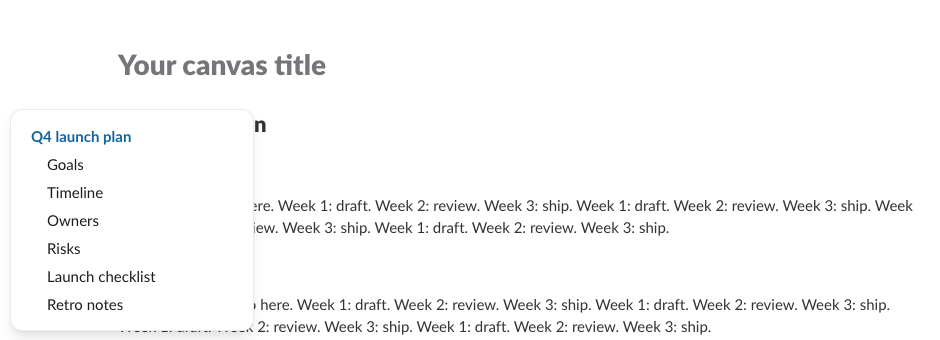
In our canvas, clicking Retro notes in the outline scrolled the page to that heading and put the cursor in it. The outline is not part of the canvas content: when we copied the whole canvas, the outline did not come along as text. Formatting tips for the headings themselves are in Slack canvas formatting.
Copy a link to one section
Hover over a heading and a drag handle (six dots) appears to its left. Click it to open the section menu:
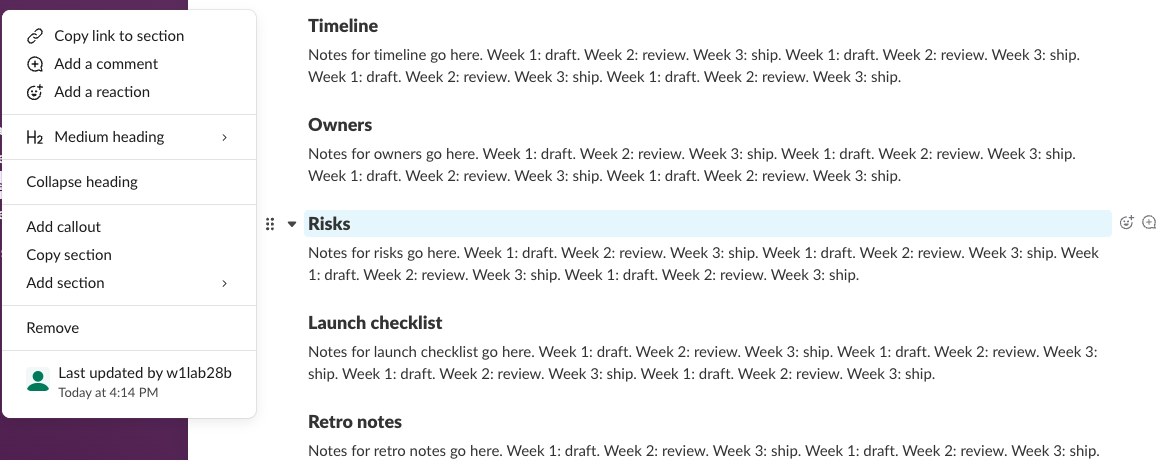
Copy link to section copies a link that ends in ?focus_section_id= and the heading's ID, for example:
https://your-workspace.slack.com/docs/T0B7JBCDKC1/F0CCUDJEYJD?focus_section_id=temp:C:fMK2833dbd5c6a4b02597d5d78c2Slack's shortcut panel lists Ctrl + Option + Q for Copy anchor link. With the cursor in a heading, it copied the same kind of link and showed "Link copied to clipboard".
When we posted a section link in a channel, Slack's preview showed only that section, the Risks heading and its text, not the whole canvas:
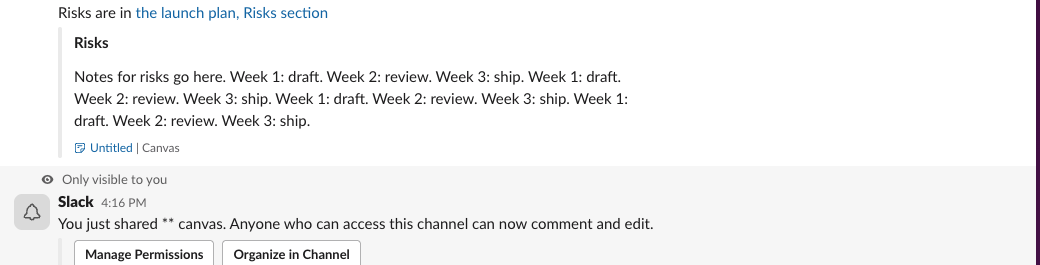
Two things to know before you share one. Slackbot said the canvas was now shared and that "Anyone who can access this channel can now comment and edit", so posting the link also shares the canvas with that channel; are Slack canvases private explains who sees what. And clicking the link opened the full canvas with the cursor on the Risks heading.
Never appear "away" on Slack again
Cloud-based. No downloads. Works 24/7 even when your laptop is off.
Build a table of contents inside the canvas
For a contents list that readers see at the top of the page:
- and a space.We inserted our list through Slack's API (see the FAQ), so the steps above are the manual route to the same links.
Our list of six section links looked like this:
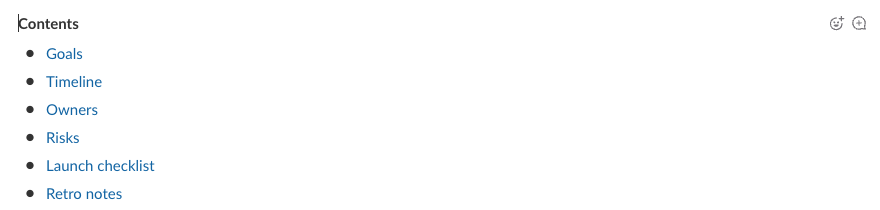
We put 18 paragraphs of text between the list and the first heading, so the headings started well below the screen. Clicking Goals in the list moved the Goals heading from 1,458 pixels down the page to near the top of the view, 202 pixels down. The links worked inside the canvas, without a new tab.
One catch: section links point to this canvas by its file ID. If you copy the canvas, the copied list still points to the original canvas. In our test, pasting the whole canvas into a new one kept all six links, and all six still pointed to the old canvas. How to copy a Slack canvas has that test.
Fold long sections instead
The same section menu has Collapse heading, and a small arrow appears next to a heading when you hover it. Folding the long sections keeps a canvas short without a contents list. We did not test how much text one fold hides.
FAQ
Can I add a table of contents through the API?
Yes, as links. canvases.sections.lookup returns the ID of each heading, and canvases.edit can insert a markdown list whose links end in ?focus_section_id= plus that ID. We built the list in our test this way, and the links worked like ones made by hand.
Why does my canvas have no outline lines on the left?
The outline only lists headings. A canvas made of bold text and bullets has no headings, so nothing shows. Turn the section titles into headings first.
Do section links work for people outside the channel?
Only if they can open the canvas. A section link opens the whole canvas, so the canvas's own sharing settings decide who gets in.
Stop Jiggling Your Mouse.
Join hundreds of remote workers who never worry about their Slack status. Set it up once, stay green forever.
Related Articles
Slack Canvas Shortcuts: Keyboard Keys, the / Menu and Dates
Slack canvases have their own keyboard shortcuts: Cmd + Option + 1 to 3 for headings, Cmd + Shift + 7, 8 and 9 for lists and checklists, and / for an insert menu that adds dates and reminders. We pressed every formatting shortcut in a real canvas on October 28, 2026.
How to Copy or Duplicate a Slack Canvas
Slack canvases have no Duplicate button. To copy one, select all, copy, and paste into a new canvas, or copy it by API. We tested both on October 28, 2026: headings and lists came through, but links to sections still pointed at the old canvas.
Does Slack Collapse Long Messages? When Show More Appears
Slack shows a normal message in full, however long it is: a 40-line message and a 3,900-character message both showed with no Show more link in our October 28, 2026 test. Show more appears only on legacy attachments from apps, at 6 lines or about 700 characters.