
Slack Mark as Read Settings: All 3 Options Tested on 30 Messages
Preferences > Mark as read decides where a channel opens and whether opening it clears the unread. We posted 30 messages and opened the channel under each option, then tried Esc and Shift+Esc.
Slack marks a channel as read the moment you open it, unless you change it. The setting is in Preferences > Mark as read, under When I view a channel. The first two options mark the channel read at once. The third, Start me at the newest message, but leave unseen messages unread, keeps the unread until you clear it. On October 23, 2026 we posted 30 messages into a test channel, marked only the first 3 as read, and opened the channel under each option in Slack's web app.
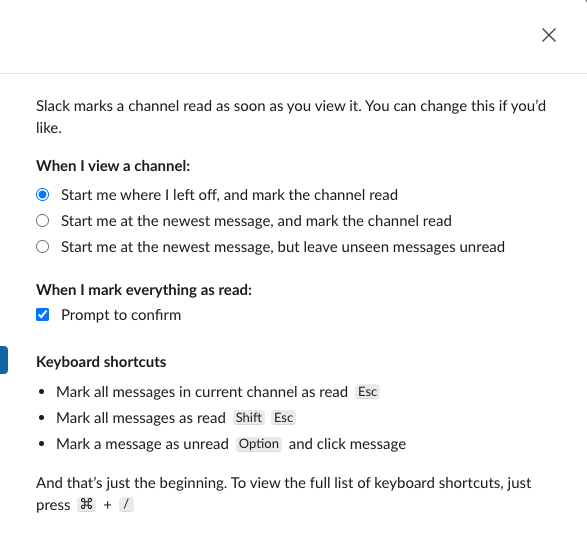
To open it, click your profile picture at the bottom left, choose Preferences, then Mark as read in the list on the left. The change takes effect at once. There is no save button.
What each option did
Each time, Messages 1 to 3 were read and Messages 4 to 30 were unread. We opened the channel from the sidebar and read the channel's stored read position through Slack's API 8 seconds later.
| Option | Where the channel opened | Read after 8 seconds? |
|---|---|---|
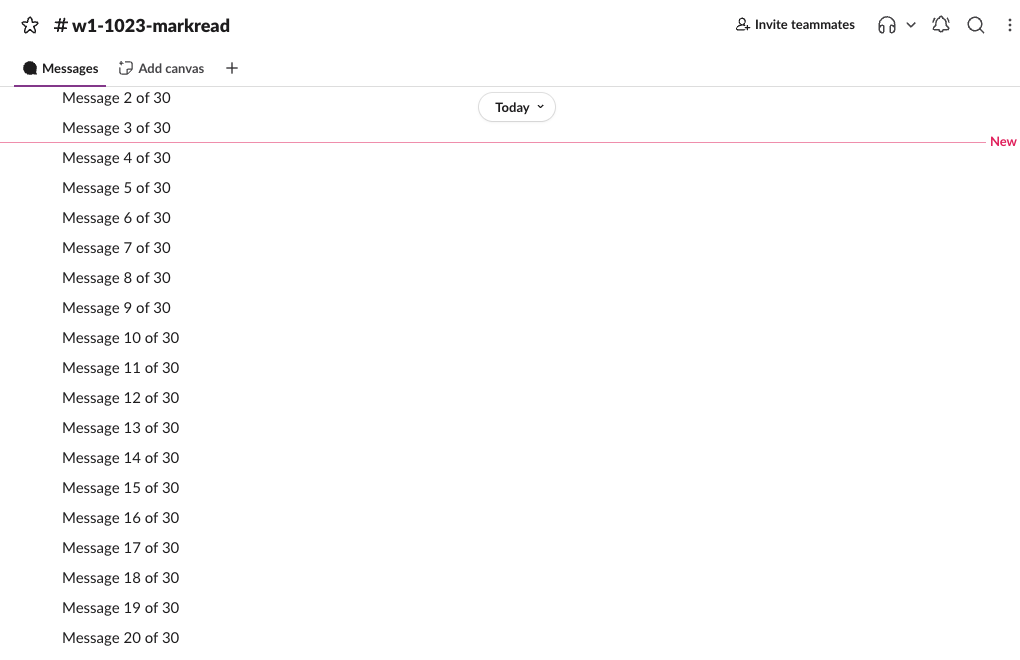
| Start me where I left off, and mark the channel read | At a red New line under Message 3 | Yes, up to Message 30 |
| Start me at the newest message, and mark the channel read | At the bottom, Messages 12 to 30 | Yes, up to Message 30 |
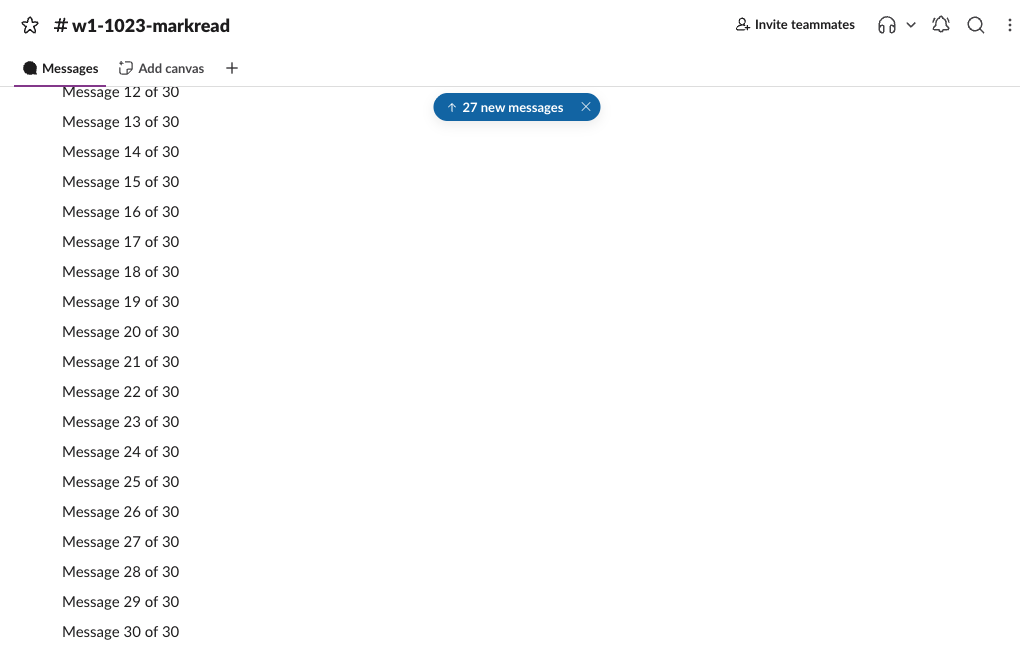
| Start me at the newest message, but leave unseen messages unread | At the bottom, with a 27 new messages button | No, still read only up to Message 3 |
The first option is Slack's default and the one most people have. It starts at the oldest unread message, so you read down from where you stopped:
The third option opens at the bottom and leaves the channel bold in the sidebar. A blue 27 new messages button at the top shows how much you have not seen:
Which one to pick
- • If you want to read everything in order, keep Start me where I left off.
- • If you only care about the latest messages, pick Start me at the newest message, and mark the channel read. Older unread messages are marked read without you seeing them.
- • If you open channels to glance and want them to stay unread until you have really read them, pick leave unseen messages unread, and clear each channel with Esc when you are done.
The settings are stored as two values on your account, which you can see with Slack's users.prefs.get API method. In our test the first option was mark_msgs_read_immediately true and start_scroll_at_oldest true, the second was true and false, and the third was false and false.
Never appear "away" on Slack again
Cloud-based. No downloads. Works 24/7 even when your laptop is off.
Mark as read with Esc and Shift+Esc
With the third option on, we opened the unread channel and pressed Esc. The read position moved to Message 30 at once, so Esc marks the whole channel read.
Shift+Esc marks everything in the workspace read. Because Prompt to confirm was ticked, Slack first asked:
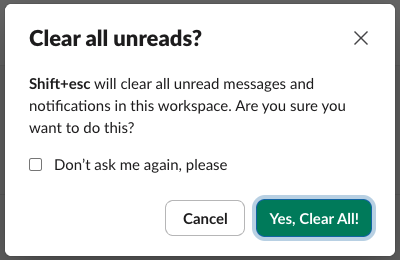
We clicked Cancel, because the workspace had other unread conversations we wanted to keep. The Don't ask me again box in the dialog and the Prompt to confirm box in the Mark as read settings both turn this question off.
To do the opposite and make a message unread again, Alt-click it (Option-click on a Mac), as shown in Slack mark as unread. To go through all unread channels on one page, use the All unreads view.
When the channel opens at the bottom anyway
In one run we opened the channel by loading its link in a new browser page, instead of clicking it in the sidebar. With Start me where I left off set, the channel opened at the bottom with the 27 new messages button, and it was still unread 13 seconds later. With the second option, the same kind of load marked it read. If a channel does not open where you left off, click the new messages button, or open the channel from the sidebar.
FAQ
Can other people see that I read their message?
No. The Mark as read settings only move your own unread markers. Slack shows no read receipts to the sender, which does Slack have read receipts covers in detail.
Does this setting sync to my other devices?
The two values are saved on your Slack account, not in the browser; we read them back through Slack's API. We tested only the web app, so we did not check whether the phone app follows them.
Stop Jiggling Your Mouse.
Join hundreds of remote workers who never worry about their Slack status. Set it up once, stay green forever.
Related Articles
How to Star a Channel in Slack (and Why Starred Items Seem to Vanish)
Click the star next to the channel name, or right-click a DM and pick Star conversation. We starred a channel and a DM, collapsed the Starred section, and checked what the Free plan allows.
How to Turn Off Reaction Notifications in Slack (and Why There Is No Switch)
Slack's notification settings no longer have a reactions switch. We had a bot react to our messages, then hid the reactions with the Activity filter and the Mentions tab, and tried the old hidden setting.
Slack: Download All Files From a Channel (Script and Test)
Slack has no download-all button for a channel. We uploaded 8 files, checked what the Files tab and search show, and ran a files.list script that saved all 8, after it first found only 4.