
VMware Horizon Idle Timeout: Which Timer Disconnected You
Horizon does not disconnect idle sessions by default. When yours drops, one of these set it: the Idle Time Until Disconnect (VDI) agent policy, the 10-hour Forcibly disconnect users limit, a logoff after disconnect in the pool, the Windows lock inside the desktop, or your own laptop going to sleep. How to tell which, and what counts as activity.
VMware Horizon, now sold as Omnissa Horizon, does not disconnect idle desktop sessions out of the box. When your session drops after a quiet spell, an administrator turned on a timer, or something outside Horizon ended it. There are five usual suspects: the Idle Time Until Disconnect (VDI) policy on the Horizon Agent, the Forcibly disconnect users limit in Horizon Console (600 minutes, or 10 hours, by default), a pool setting that logs you off after a disconnect, the Windows lock screen inside the virtual desktop, and your own laptop going to sleep.
What resets the idle timer is input that the Horizon Client sends into the session: typing and mouse movement inside the Horizon window. Work in local apps on your laptop does not count, because Horizon never sees it.
We build Slack Green, which keeps your Slack status green from our servers without depending on any window staying active, so we track how idle timers work in remote desktops. The Citrix version of this page is how to keep a Citrix session active.
Which Horizon timeout hit you?
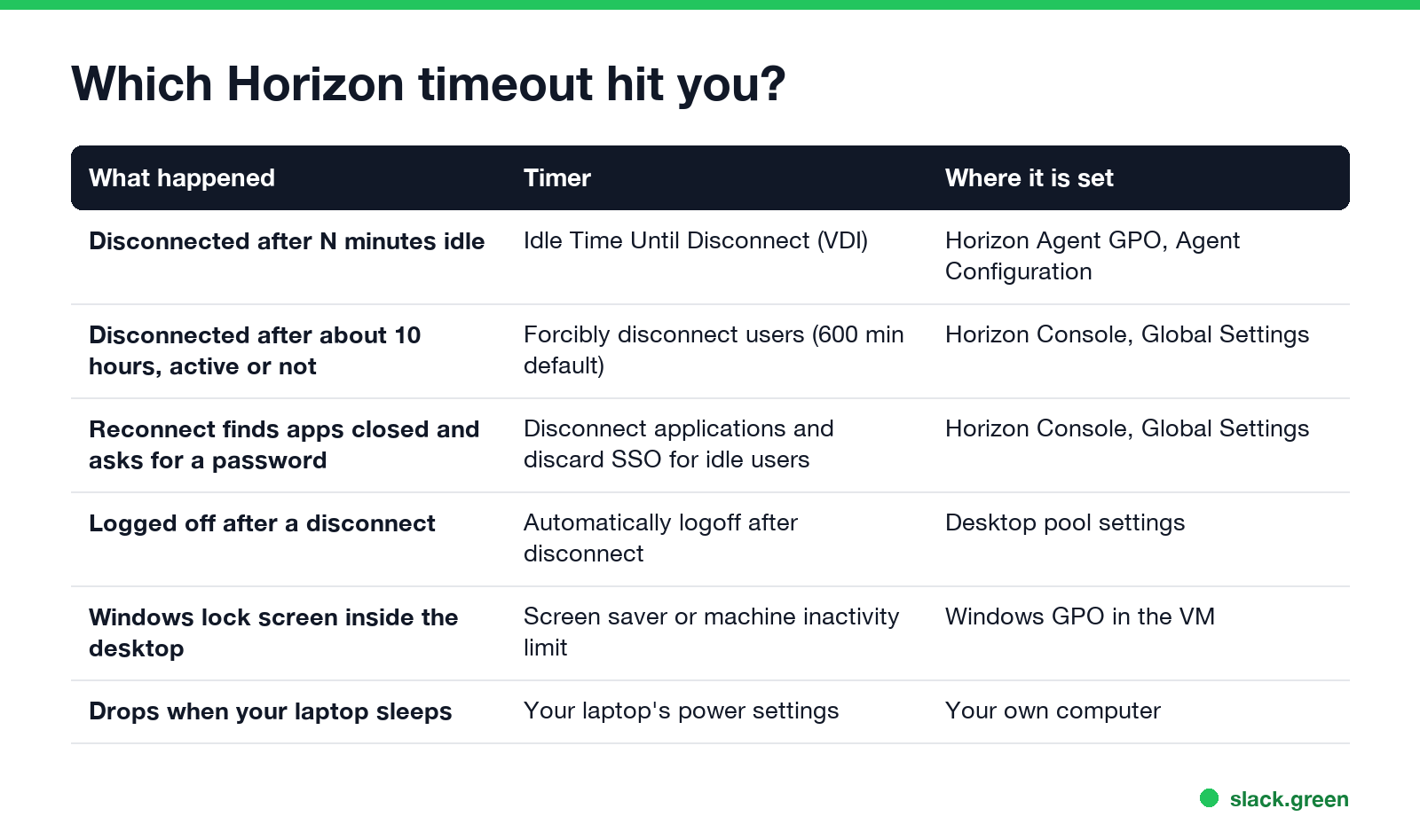
| What happened | Timer | Where it is set |
|---|---|---|
| Disconnected after the same number of idle minutes each time | Idle Time Until Disconnect (VDI) | Horizon Agent group policy, Agent Configuration |
| Disconnected after about 10 hours, even while working | Forcibly disconnect users, 600 minutes by default | Horizon Console, Global Settings |
| Published apps closed and a sign-in prompt on return | Disconnect applications and discard SSO credentials for idle users | Horizon Console, Global Settings |
| Logged off, not just disconnected, after a drop | Automatically logoff after disconnect, or Disconnect Session Time Limit (VDI) | Desktop pool settings, or Horizon Agent group policy |
| A Windows lock screen inside the desktop, session still connected | Screen saver or machine inactivity limit | Windows group policy inside the virtual desktop |
| The session drops when your laptop sleeps | Your laptop's power settings | Your own computer |
Two of these catch people out. The 10-hour Forcibly disconnect users limit is a session length cap, not an idle timer, so it disconnects you even in the middle of typing. And the Windows lock inside the virtual desktop is not Horizon at all: the session stays connected, but Windows in the VM locks itself like any office PC. That lock, and how to read the policy behind it, is in computer locks after 15 minutes? check for a group policy.
The Horizon idle policy: Idle Time Until Disconnect (VDI)
Horizon 7.10 added an idle timer for virtual desktops as a group policy in the Horizon Agent ADMX template: Idle Time Until Disconnect (VDI), under VMware View Agent Configuration, Agent Configuration. It is not configured by default. When an admin sets it, the agent disconnects the session after that many minutes without input.
A disconnect is not a logoff. Your apps keep running in the desktop and you can reconnect to find them as you left them. A second policy, Disconnect Session Time Limit (VDI), or the pool's Automatically logoff after disconnect setting, decides how long a disconnected session waits before Windows logs you off and closes everything.
What counts as activity in a Horizon session
Never appear "away" on Slack again
Cloud-based. No downloads. Works 24/7 even when your laptop is off.
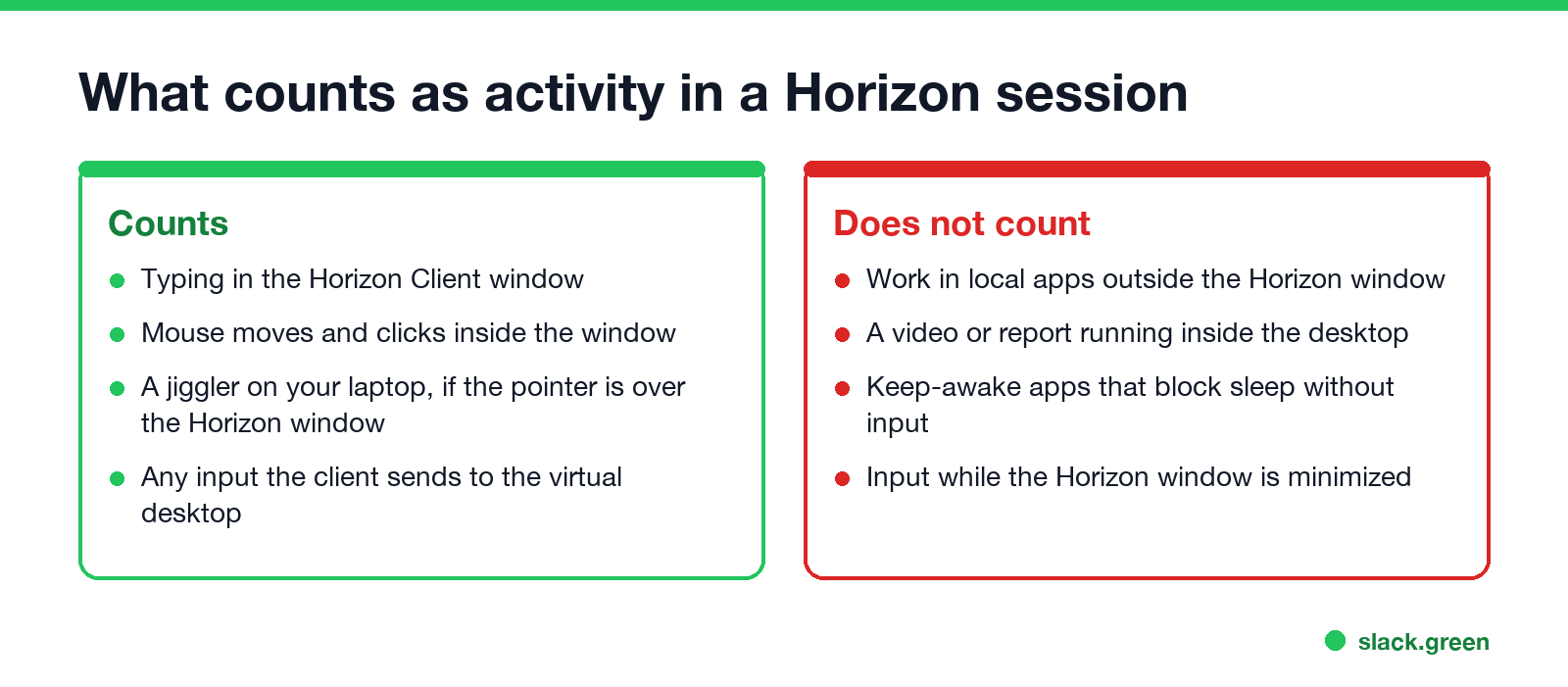
The idle timer runs on the Horizon Agent in the virtual desktop, so it only sees input that arrives there:
- • Typing or moving the mouse inside the Horizon Client window counts.
- • Work in apps on your own laptop does not count.
- • A video, a long report or a download running inside the desktop does not count.
- • A keep-awake app on your laptop, such as Caffeine or Amphetamine, blocks your laptop's sleep but sends no input.
- • Input while the Horizon window is minimized does not reach the session.
- Keep your own computer awake. If your laptop sleeps, the connection breaks, whatever the Horizon timers say. See how to stop a computer from sleeping.
- Keep the Horizon window in front when you step away for a few minutes. A USB or software mouse jiggler on your laptop then moves the pointer inside the session, and that counts as input.
- Reconnect instead of starting over. After an idle disconnect, open the Horizon Client and connect to the same desktop. Your apps are still there until the logoff timer runs out.
- Ask IT for a longer idle time if your work involves long reads or calls in the desktop. The idle policy, the discard SSO setting and the pool logoff are all admin choices, set for security or to free up virtual machines.
How to keep a Horizon session from timing out
Do not try to change Horizon policies inside the virtual desktop. They come from group policy and return at the next refresh.
For Horizon admins: where the timers live
| Setting | Location | Default |
|---|---|---|
| Forcibly disconnect users | Horizon Console, Settings, Global Settings, General Settings | After 600 minutes |
| Disconnect applications and discard SSO credentials for idle users | Same page, client session settings | Never |
| Idle Time Until Disconnect (VDI) | Horizon Agent ADMX, Agent Configuration | Not configured |
| Disconnect Session Time Limit (VDI) | Horizon Agent ADMX, Agent Configuration | Not configured |
| Automatically logoff after disconnect | Desktop pool, Desktop Pool Settings | Varies by pool type |
Set the idle disconnect a little longer than the Windows lock inside the desktop, so users see a lock screen they can clear before the session drops.
Horizon and your chat status
Never appear "away" on Slack again
Cloud-based. No downloads. Works 24/7 even when your laptop is off.
If Slack or Teams runs inside the virtual desktop, its status follows your input in the desktop, not on your laptop. Slack counts only input inside its own window and sets you away after 10 minutes without it, and a disconnected desktop sends none. Details in how to keep a remote desktop session active.
FAQ
Why does my Horizon session disconnect after 10 hours? The Forcibly disconnect users global setting defaults to 600 minutes. It caps session length whether you are active or not. Only an admin can change it.
Does VMware Horizon have an idle timeout? Not by default. Admins add one with the Idle Time Until Disconnect (VDI) agent policy, available since Horizon 7.10.
Is Omnissa Horizon the same as VMware Horizon? Yes. VMware's end-user computing business, Horizon included, became Omnissa in 2024. The settings and policy names are the same.
Does a mouse jiggler keep a Horizon session active? Only if the pointer is over the Horizon window, so its movement reaches the virtual desktop. Many IT policies forbid jigglers; check yours.
Stop Jiggling Your Mouse.
Join hundreds of remote workers who never worry about their Slack status. Set it up once, stay green forever.
Related Articles
Can My Employer See What I Watch on YouTube at Work?
On a work laptop or the office network, your employer can see that you used YouTube, when, and for how long. With HTTPS inspection or monitoring software, they can see which videos, because the video address and the browser tab title both name it. On your own phone on mobile data, they see nothing.
Can My Employer See My iMessages on a Work Mac?
Not through device management or the network: Jamf or Intune cannot read Messages, and iMessage is end-to-end encrypted. But if you sign in to Messages on a work Mac, your texts are stored on that Mac, where monitoring screenshots, backups and admin access can reach them. How to check, and how to take iMessage off the Mac without deleting it from your iPhone.
Can My Boss See My Private Outlook Calendar Events?
Usually not the details. When you mark an Outlook event Private, someone who can read your calendar sees only Private appointment, the time and a lock. The exceptions are delegates you gave Can view private items, the people invited to the event, anyone with full access to your mailbox in new Outlook or the web, and compliance admins. How to check who has which access, and what Private does not hide.