
How to Join a Slack Workspace: Invite Link, Email Code, and What Blocks It
To join a Slack workspace, open the invite link or email someone in it sent you, enter your email, and type the code Slack emails you. We joined our own test workspace with a new account and recorded every screen.
To join a Slack workspace, open the invite link or invite email that someone in the workspace sent you, enter your email address, and type the code Slack emails you. That is the whole process. On 2 November 2026 we made a brand-new Slack account on a mailbox we own and joined our test workspace on Slack's free plan with an invite link. It took four screens, with no password, name or profile step. This page shows each screen, the one setting on the inviter's side that stopped an email invite for us, and what the workspace owner sees when you arrive.
You need an invitation first
A Slack workspace is private, so you cannot search for one and join it. You join through one of these:
- • An invite link like
https://join.slack.com/t/<workspace>/shared_invite/zt-..., which anyone in the workspace who is allowed to invite can copy from Invite people > Copy Invite Link. Links last 30 days, as our Slack invite link expiration test showed. - • An invite email sent to your address from the same dialog.
- • A workspace that lets anyone with an approved email domain (such as
@yourcompany.com) sign up. Admins set this up, and you then join from the workspace's own URL. We did not test this one.
If you do not know the workspace address, our guide on finding a Slack workspace URL lists five places to look.
Step by step with an invite link
We created a new link as the workspace owner and opened it in a separate browser that had never signed in to Slack.
1. Open the link. Slack shows "Accept sieun's invitation to Slack" with the inviter's name, an email field and a set of checkboxes. The page we got had three required boxes (the User Terms of Service, consent to the use of personal information, and being older than 14) and one optional box for marketing email. We ticked the three required boxes before clicking Continue. The footer says when the invitation runs out, which was 30 days for our new link.
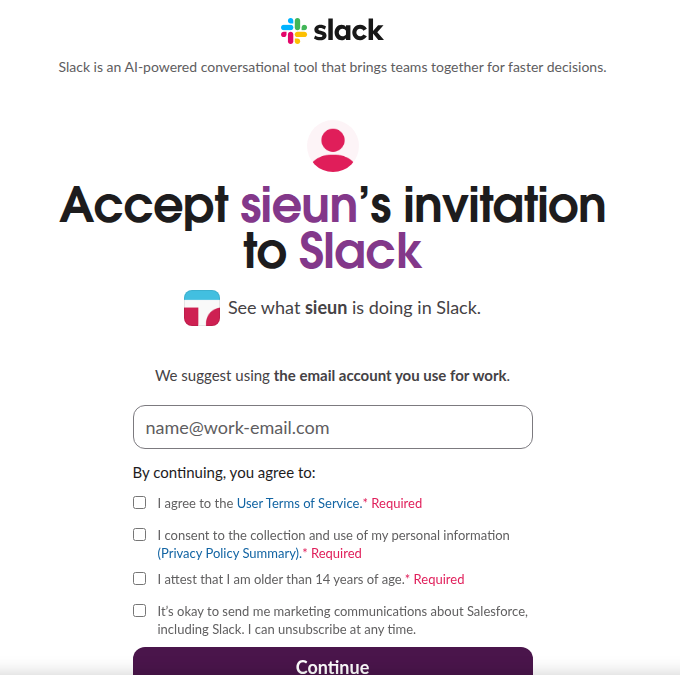
2. Enter your email and click Continue. Use the address you want this workspace to know you by. Slack moves to a "We emailed you a code" page with six boxes in two groups of three.
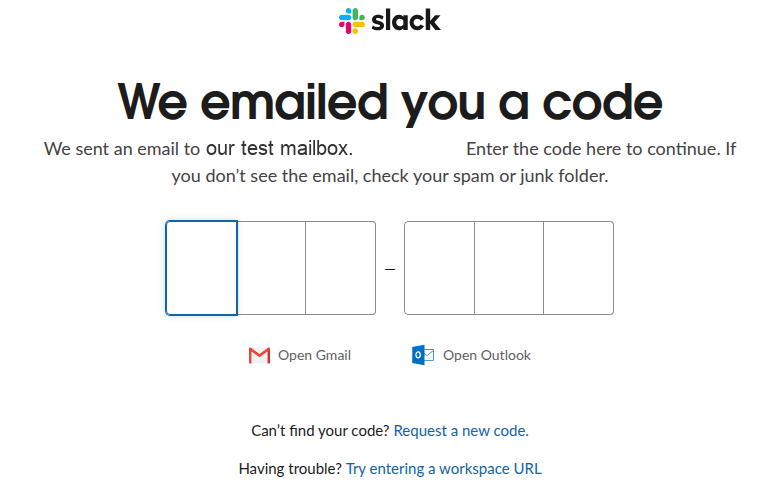
3. Type the code from the email. Our email arrived within a minute with the subject "Slack confirmation code: DWM-PTX". The page above the boxes says "6-digit confirmation code", but our code was six letters. Type it without the dash. Slack checks it as soon as the sixth box is filled, so there is no button to press.
4. You are in. Slack skipped every setup step and went straight to "Welcome to Slack! Click Open Slack to launch the desktop app. Not working? You can also use Slack in your browser." Our new account had no name of its own, so Slack used the part of the email before the @ as the display name. A second email, "New Account Details", followed with the workspace name and URL. You can set your name and photo afterwards under your profile.
The whole run, from opening the link to seeing the workspace, took under two minutes, and most of that was waiting for the email.
What the inviter and owner see
The owner's side changed at once. The member count in the channel header went from 1 to 2, and a "joined #all-slack" line appeared in the default channel, because every new member is added to the workspace's general channel.
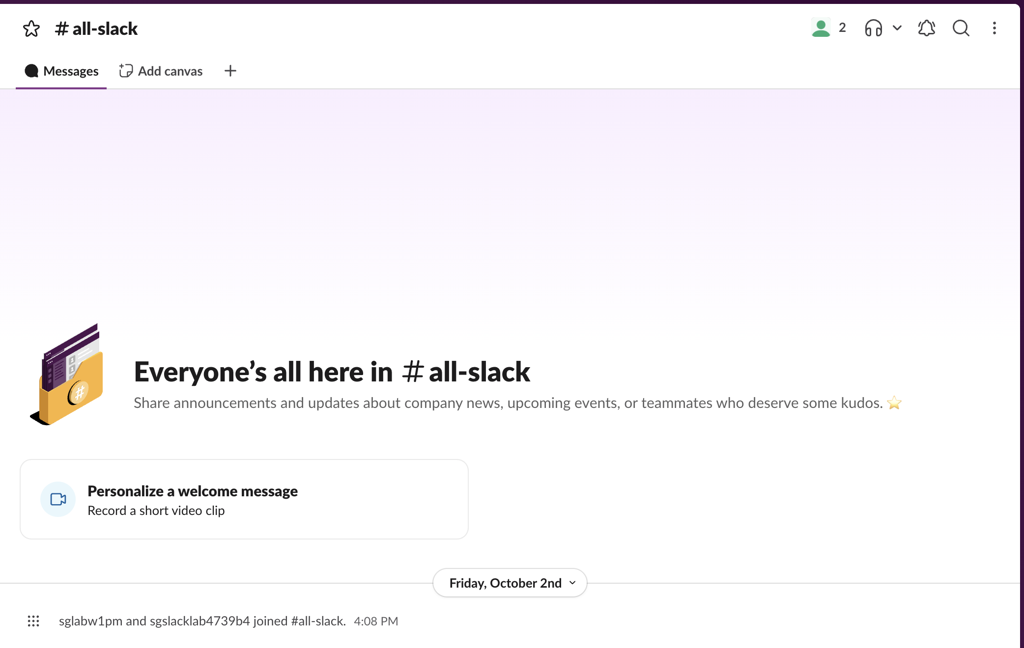
If the join line bothers you in a busy workspace, turning off joined-the-channel messages covers the setting.
Never appear "away" on Slack again
Cloud-based. No downloads. Works 24/7 even when your laptop is off.
When the invite email never arrives
Before we used the link, we tried the email route. The owner typed the new address into Invite people to Slack and clicked Send. Slack did not send anything. It showed a box instead: "Invites show your email address to anyone you invite. Verify it so people know invites are really from you", with a Verify Email button.
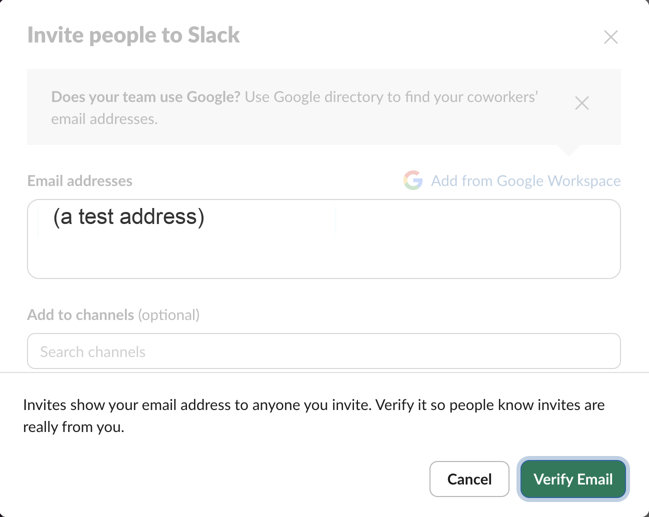
The Web API gave the same answer, inviter_email_not_verified, for the users.admin.invite method the web app uses. So if you are waiting for an invite that never comes, ask the person inviting you to check two things: whether Slack asked them to verify their own email, and whether they can send you an invite link instead. The link worked for us while the email invite was blocked.
Check your spam folder too, because Slack's email comes from a no-reply address on slack.com.
If you already have a Slack account
You do not need a new account. Enter the same email you use elsewhere and Slack adds the new workspace to it after the code. Both workspaces then show in the workspace switcher, and our page on using several Slack workspaces covers switching between them.
If you open an invite link while you are already signed in to that workspace, Slack does not show the join page at all. In our browser it went straight to the "Launching Slack" page and then into the workspace.
Signing back in later
After you join, the workspace has its own sign-in page at https://<workspace>.slack.com. Ours offered Google, Microsoft and Apple buttons, an email field that sends a new code, and a link to "sign in with a password instead". An account made through an invite link has no password until you set one, so the email code is the way back in.
To leave a workspace later, or to delete the account, see how to leave a Slack workspace or delete your account. To start your own workspace instead of joining one, see how to create a Slack workspace.
FAQ
Can I join a Slack workspace without an invitation?
Only if its admins let people with your email domain sign up on their own. Otherwise someone inside has to send you an invite link or an invite email.
Does the person who invited me see my email address?
The inviter sees the address they typed or the one you joined with, and workspace owners and admins can see members' email addresses. The invite dialog also warns the inviter that invites show their own address to you.
Stop Jiggling Your Mouse.
Join hundreds of remote workers who never worry about their Slack status. Set it up once, stay green forever.
Related Articles
How to Resolve or Close a Slack Thread (and Who Can Lock One)
Slack has no Resolve or Close button for threads. We checked every thread menu as a member, found the admin-only lock in Slack's code, and tested the workarounds that do work: a checkmark, a to-do you mark complete, and muting replies.
How to Search for Images in Slack, Including Text Inside Them
To find an image in Slack, search, switch the results from Messages to Files and set File type to Images, or type type:images. We tested 6 images: Slack also found words written inside PNGs, but not inside JPGs.
Lock Icon Next to a Slack Channel? What the Lock and Grey Text Mean
A padlock next to a Slack channel means it is private. Grey text with a crossed-out bell means you muted it. We made a private, muted, archived and unread channel and screenshot each one in the sidebar.