
How to See What Devices Are Logged Into Your Slack Account
Open your account's Access Logs page (my.slack.com/account/logs). It lists every sign-in with the app, IP address, time and login count, and lets you download a CSV. We read ours on 5 November 2026, including the entry a Sign in with Slack app leaves.
To see which devices are signed in to your Slack account, open your account's Access Logs page at my.slack.com/account/logs (or your workspace URL followed by /account/logs). It lists each sign-in with the Slack app that made it, the IP address, the date and time, and how many more logins came from the same device. Slack has no list of currently open sessions with a button per device: the only remote sign-out is Sign out all other sessions, which ends every session except the browser you are using. We read the page, its CSV download and the API call behind it with a member account on a Free workspace on 5 November 2026.
Where to find the access logs
- In a browser, go to
https://my.slack.com/account/logs. If you belong to several workspaces, use the workspace's own URL instead, such asyourteam.slack.com/account/logs. - Or open Account settings (
my.slack.com/account/settings) and click the Access Logs tab at the top.
The page is part of the Account settings site, so it opens in a browser even if you use the desktop app. Every member can see their own log; you do not need to be an admin.
What each entry tells you
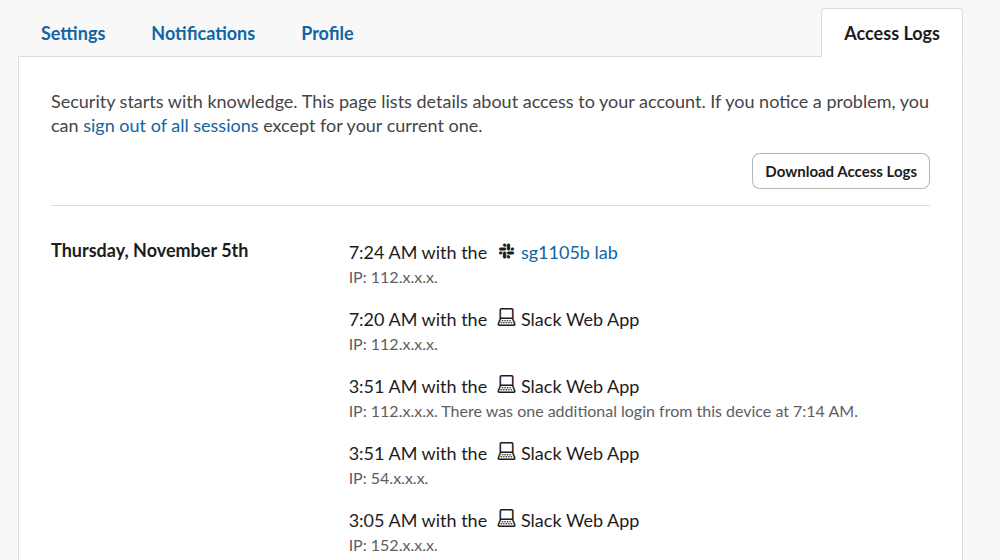
Each line reads like "3:51 AM with the Slack Web App, IP: 112.x.x.x. There was one additional login from this device at 7:14 AM." In our log of 20 entries over four days:
| Field | What we saw |
|---|---|
| Time | The first sign-in from that device and IP, in the time zone set in your account |
| App | "Slack Web App" for browser sign-ins, and the app's own name for a Sign in with Slack login |
| IP address | One entry per IP; a new IP from the same browser makes a new entry |
| Location | Country, region and internet provider for some IPs, nothing for others |
| Repeat logins | "There were 3 additional logins from this device, with the most recent at 3:27 PM" |
Location is a lookup of the IP address, not your device's position. Only 5 of our 20 entries carried one; the rest, including cloud-server IPs, showed the IP alone. Our post on whether Slack tracks your location covers what coworkers can see.
One entry surprised us. After we signed in to a test app with Sign in with Slack, the log gained a line labelled with that app's name instead of "Slack Web App". So third-party sites you log in to with your Slack account show up here too, under their own name.
Never appear "away" on Slack again
Cloud-based. No downloads. Works 24/7 even when your laptop is off.
Download the log as a CSV
Download Access Logs at the top right saves access_logs.csv. Ours had these columns:
Date Accessed,User Agent - Simple,User Agent - Full,IP Address,Number of Logins,Last Date Accessed
Thu Nov 05 2026 03:51:45 GMT+0000 (Coordinated Universal Time),Slack Web App,"Mozilla/5.0 (X11; Linux x86_64) AppleWebKit/537.36 (KHTML, like Gecko) Chrome/155.0.0.0 Safari/537.36",112.x.x.x,2,Thu Nov 05 2026 07:14:39 GMT+0000 (Coordinated Universal Time)
The CSV has what the page hides: the full browser string. That is how you tell devices apart. In our file, "X11; Linux x86_64 ... Chrome/155" was the Linux test browser we use, and "Macintosh; Intel Mac OS X 10_15_7 ... Chrome/120" entries from cloud IPs were sign-ins we did not make from a Mac at all. Each of those came a few seconds before one of our own email sign-ins, which fits a mail scanner opening the emailed sign-in link before we did. We did not prove that, but it shows why an unknown line is worth a look rather than panic.
Slack also emails you when a sign-in looks new. Our test mailbox got 4 messages titled "Slack account sign in from a new device" in four days, each naming the browser ("Chrome in KOR"), the date and the IP address, with a "This wasn't me" button that leads to a password reset. They matched the 4 entries where both the IP and the browser were new to the account; the cloud-IP entries above brought no such email.
The page gets its data from a users.accessLogs call (we watched the request when the download ran). An admin-only method, team.accessLogs, returns the same kind of data for the whole workspace; called with our member account it failed with missing_scope and "needed": "admin". For the admin side, see Slack audit logs.
How to sign out of Slack on all devices
The access log only reads. To end the other sessions, open my.slack.com/account/reset, or click the "sign out of all sessions" link at the top of the log, or use Sign out all other sessions at the bottom of Account settings. Slack lists what the button does:
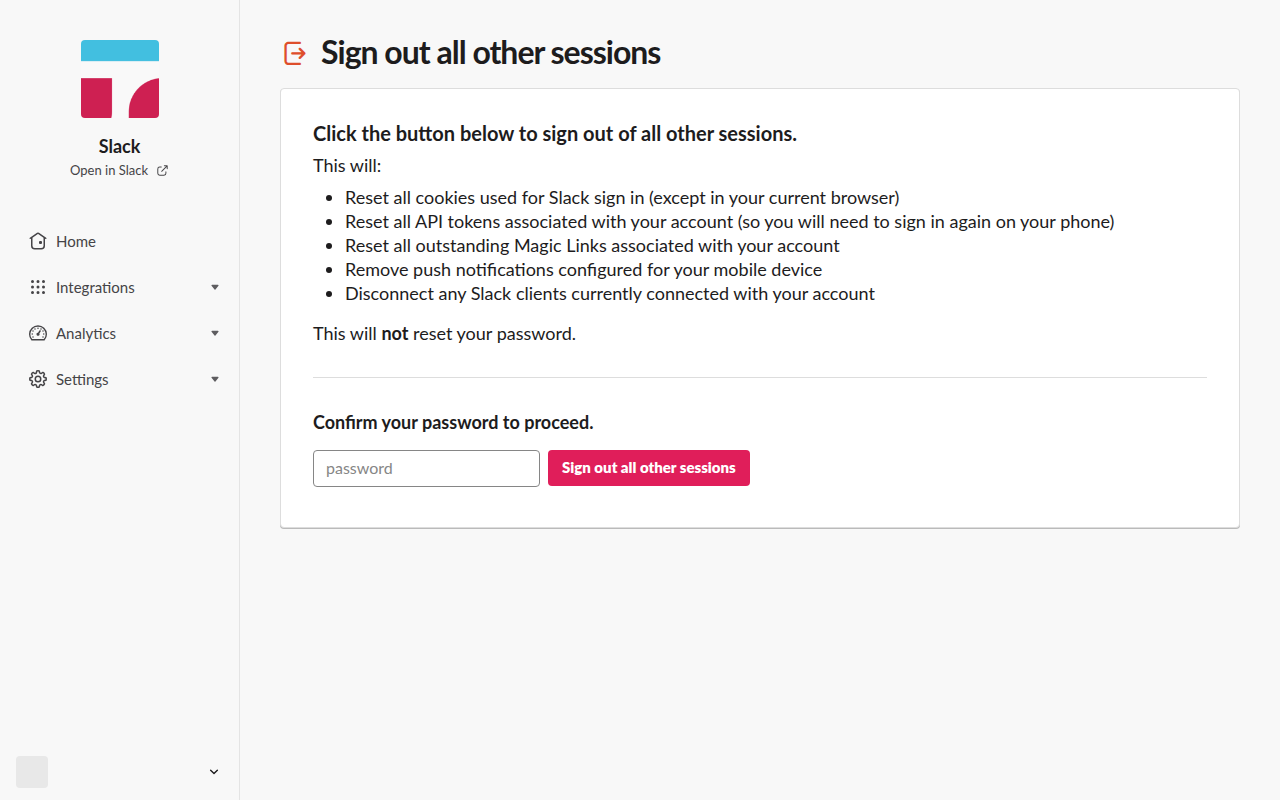
The page asks you to confirm your password before it runs. Our test account signs in only with emailed codes and has never set a password, and the page still showed the password box, so an account like that may need to set a password in Account settings first. We stopped there and did not sign the account out.
Signing out everywhere is also the fix when the log shows a device you do not know. Set or change your password and turn on two-factor authentication in the same Account settings page, then sign in again on the devices you use. If Slack then keeps signing you out on one device, our guide to why Slack keeps logging you out lists the usual causes.
FAQ
Can I sign out of just one device?
Not from the account page. Sign out on that device itself, or sign out all other sessions and sign back in where you need to.
Does the access log show which device is active right now?
No. It shows sign-ins, not live connections. To see whether your account is connected at the moment, the multiple devices guide explains the connection count Slack keeps.
Can my workspace admin see my access logs?
Slack's help says workspace owners and admins can view access logs for the whole workspace from the admin security settings, which matches the admin-only method above. The member view and the CSV are yours to read.
Stop Jiggling Your Mouse.
Join hundreds of remote workers who never worry about their Slack status. Set it up once, stay green forever.
Related Articles
Sign in with Slack (OpenID Connect): A Tested Python Example
Sign in with Slack is OpenID Connect on top of OAuth 2.0: send the user to slack.com/openid/connect/authorize, swap the code at openid.connect.token, and check the RS256 id_token. We ran the whole flow on 5 November 2026 and show the real claims and errors.
Slack SDK for Rust: slack-morphism Tested (Post, History, Socket Mode)
Slack has no official Rust SDK. The community crate that works today is slack-morphism: on 5 November 2026 we used version 2.31.1 to post a message, page through history with a cursor and answer a mention over Socket Mode. Code and output below.
Slack Deep Links: Every slack:// Command in the Current App
A Slack deep link is a slack:// URL such as slack://channel?team=T123&id=C123 that opens the desktop or mobile app on a channel, person, file or setting. We read the handler in Slack's current code, listed the commands it accepts, and tested the https fallbacks.