
Slack Activity Tab: What Lands There, the Filters, and Why You Cannot Hide It
The Activity tab collects mentions, reactions, thread replies, reminders and DMs in one feed. We sent a mention and a /remind to a test account and opened every Activity setting in Slack web.
The Activity tab is the bell in the left rail of Slack. It is one feed of everything that asks for your attention: mentions, reactions to your messages, replies in threads you follow, reminders, and, if you want them, DMs and busy channels. You cannot hide the tab itself; Slack locks it on. You can choose what else goes into it and build filtered views on top of it. On 7 October 2026 we sent a test account one @mention and one /remind, then opened every Activity setting in Slack for web to see where each item landed.
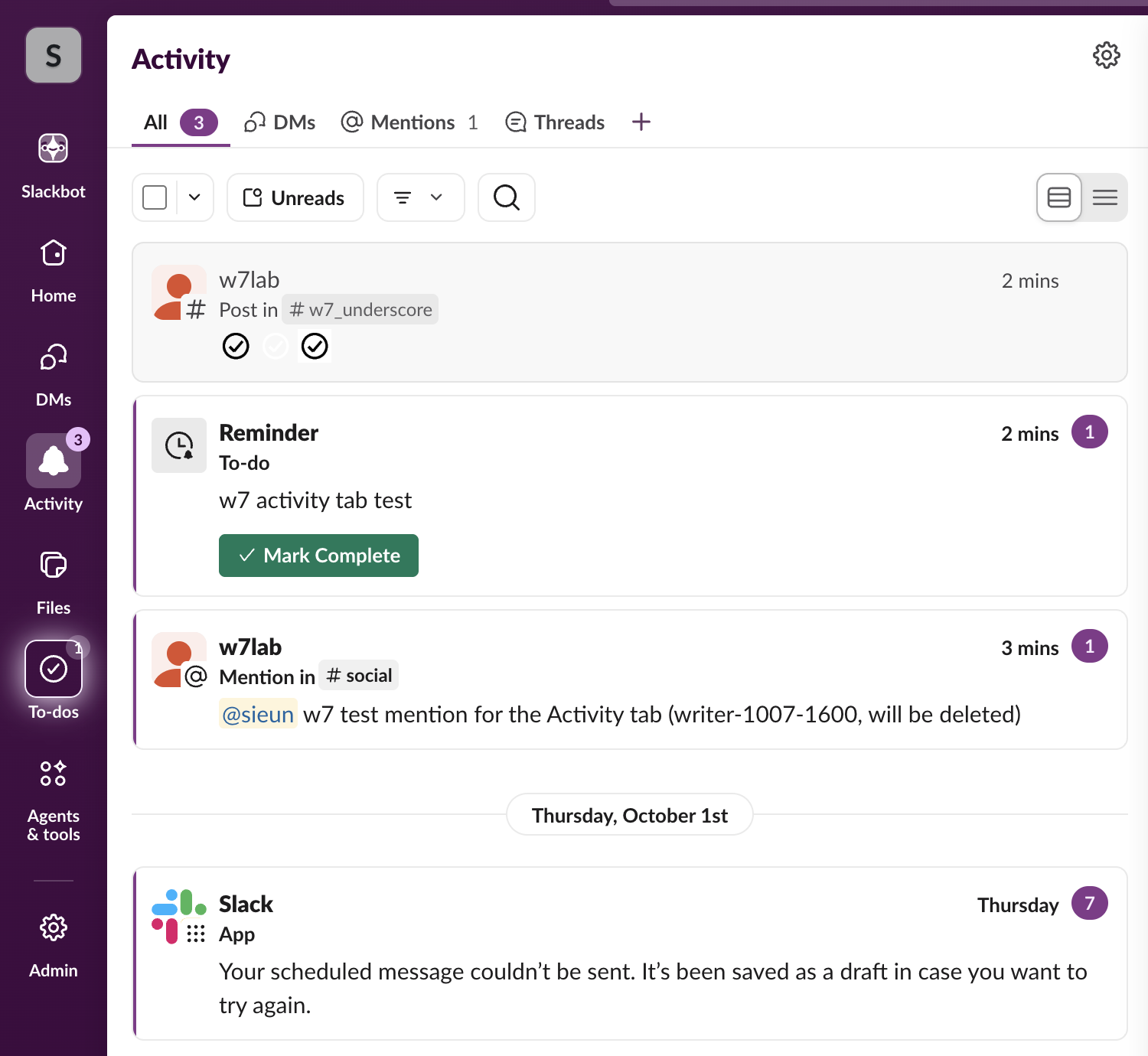
What showed up in Activity
| What we did | What Activity showed |
|---|---|
A bot posted @sieun ... in #social | A "Mention in #social" card with the message text and an unread badge |
/remind me w7 activity tab test in 1 minute | Slackbot confirmed in the DM ("I will remind you ... at 5:23PM today"). One minute later a Reminder card labelled To-do appeared, with a Mark Complete button |
| A bot posted in a channel set to All new posts | A "Post in #w7_underscore" card |
| A failed scheduled message from an earlier test | A card from "Slack, App": "Your scheduled message couldn't be sent" |
The reminder went to Activity, and the To-dos tab in the rail got a badge at the same time. It did not come as a Slackbot DM: the DM with Slackbot had no new message after the reminder fired. Slack reminder not working covers what to check when one seems to be missing.
The rail badge on the bell counts unread Activity items. It went from 2 to 3 to 4 as our test items came in.
The tabs and filters at the top
The default tabs are All, DMs, Mentions and Threads, each with its own unread count. Next to them:
- • Unreads shows only items you have not opened.
- • The filter button opens a panel. "Notifications from" defaults to People, apps, and agents. Below it are checkboxes for DMs, Mentions, Threads, Channels set to "all new posts", Reactions, Invitations, Apps and Reminders, and under Additional Filters: VIP, Cleared items, and Specific channel or section.
- • Create Custom View at the bottom of that panel saves the ticked filters as a new tab.
- • The + after the tabs suggests ready-made views (Unreads, Reactions, and Starred from your sidebar) or Create a custom view.
- • Two buttons on the right switch between a card layout and a compact list.
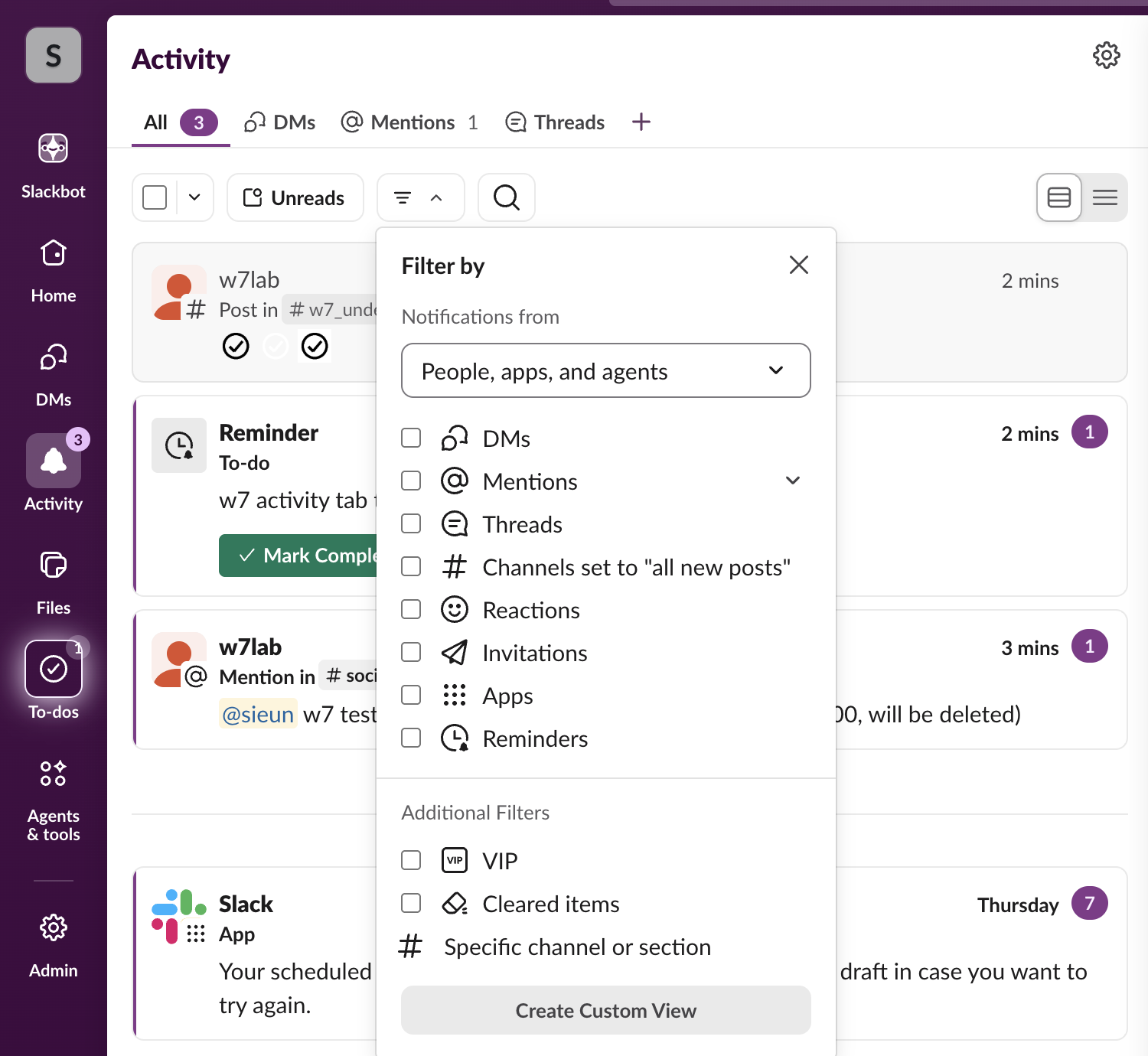
A custom view is the closest thing to a quieter Activity tab. A view with only Mentions and Reminders ticked, for example, drops reactions and channel posts without changing any notification setting.
Never appear "away" on Slack again
Cloud-based. No downloads. Works 24/7 even when your laptop is off.
Can you hide or remove the Activity tab?
No. In Preferences > Navigation the list "Configure these tabs in the navigation bar" has a checkbox for each rail tab. Slackbot, Home and Activity are ticked and greyed out; only DMs, Files, To-dos and Agents & tools can be switched off. We checked the page code too: those three checkboxes are disabled, not only drawn grey.
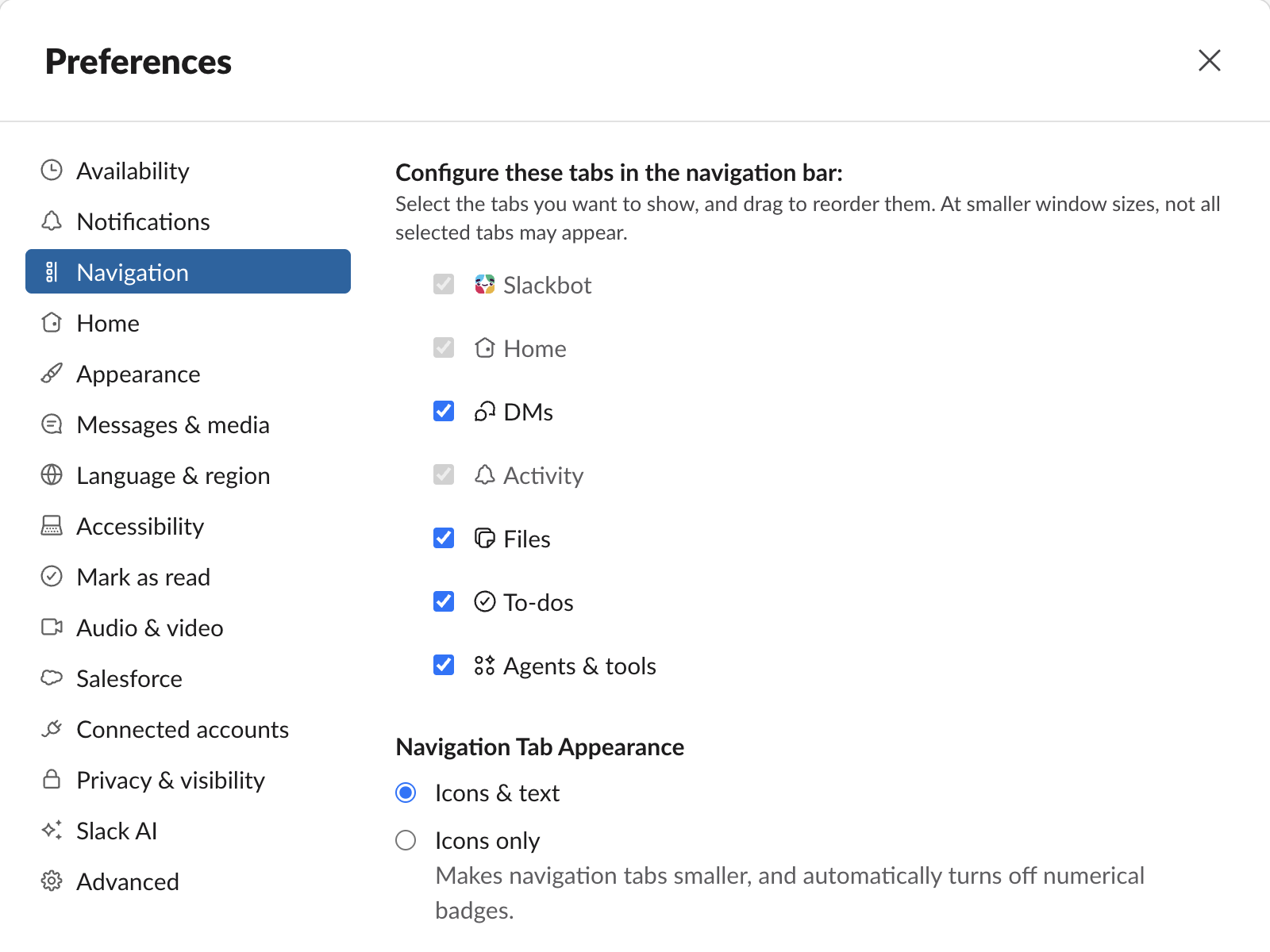
The same page has Navigation Tab Appearance. "Icons only", in Slack's words, "makes navigation tabs smaller, and automatically turns off numerical badges". That is the closest built-in option to hiding the Activity count: the bell stays, the number goes.
Choosing what goes into Activity
The gear at the top right of the Activity tab opens Preferences > Notifications. Near the bottom is a section called What to show in Activity, with this line: "You'll always see mentions, reactions, and thread replies." Three things are optional, and all three were ticked in our account:
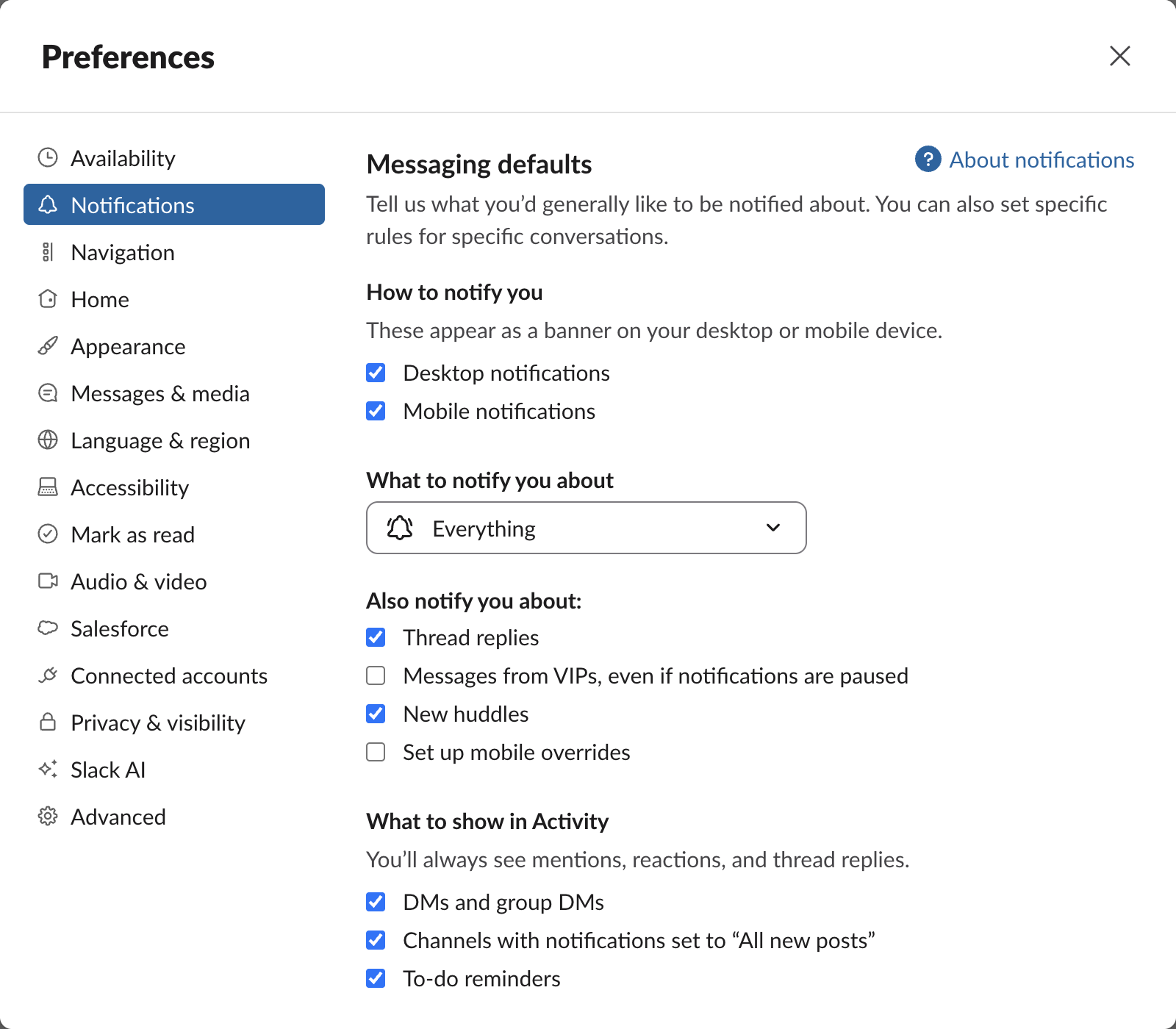
The second checkbox explains our "Post in #w7_underscore" card. Each test channel's bell in the header read "All new posts", so every new post in it went to Activity. To keep a busy channel out of Activity, set that channel to "Just mentions" from the bell in its header, or mute it; how muting works has the details. To read everything unread in one list instead, Slack has a separate All unreads view.
FAQ
Why do I see items from a channel I never get notified about? Check the channel's bell. If it says "All new posts", its posts go to Activity while the "Channels with notifications set to All new posts" box is ticked.
What does Mark Complete do to the reminder card?
The card stays in Activity, greyed out with a tick, and stops counting as unread: our All count went from 5 to 4 and the To-dos badge went away. The reminder itself moved to the completed list (saved.list showed it as completed).
Where do reminders on a single message go? A reminder set from a message's menu (Remind me about this) also fires into Activity; see Slack remind me about this message.
Stop Jiggling Your Mouse.
Join hundreds of remote workers who never worry about their Slack status. Set it up once, stay green forever.
Related Articles
Slack Bot Scopes: The Scope Each API Method Needs, Measured on 44 Methods
We gave a Slack bot one scope, called 44 common Web API methods, and read the needed field of every missing_scope error. Then we added the scopes and called them again. The table shows which scope clears each method.
Slack File Size Limit: 1 GB Is Exactly 1,073,741,824 Bytes, Tested
We uploaded files of 50 MB, exactly 1 GiB and 1 GiB plus one byte to Slack through its upload API. The limit is 1,073,741,824 bytes, and a failed upload can still leave a broken file behind.
Slack Dark Mode: Where the Setting Is, and Which Custom Emoji Disappear
Slack's dark mode is under Preferences > Appearance > Color Mode, with Light, Dark and System. We switched modes in Slack web with three test emoji and measured which ones vanish.