
How to Post One Message to Multiple Slack Channels
Slack's Forward dialog sends a message to one channel at a time; after the first channel it offers no second one. To post the same message to several channels, forward it once per channel or use a short API script. We tested both on October 28, 2026.
Slack has no built-in way to post one message to several channels at once. The Forward message dialog takes one channel per forward: in our test on October 28, 2026, once a channel was picked, the search box found no other channel, even when four channels matched what we typed. So you either forward the message once per channel, or post it with a short script that calls chat.postMessage for each channel. Both are below, with the output we got.
Forward a message to another channel
- Hover over the message and click Forward message (the curved arrow).
- Type the channel name and pick it.
- Add a note if you want, then click Forward.
This is the dialog with one channel picked:
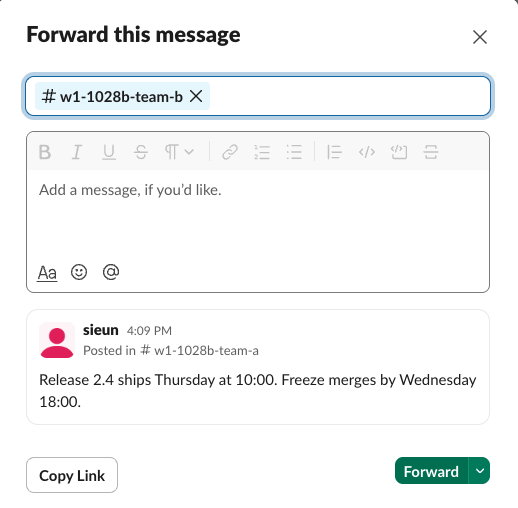
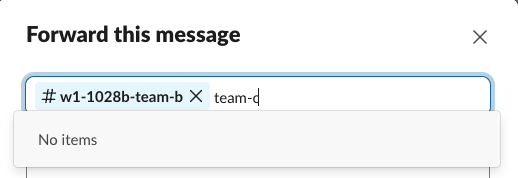
With that channel in the box, we typed team-c, then w1-1028b, which matched four of our test channels. Both times the list said No items:
People work differently. When we started with a person instead of a channel, the list kept offering more people, but no channels:
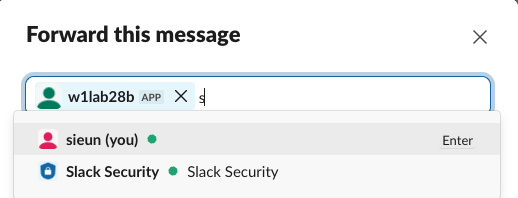
So one forward reaches either one channel or one group of people. To reach three channels, forward three times. Each forward shows "Posted in #channel" with a link back to the original, so replies stay split across channels. If you need to move many messages instead of one, forwarding multiple Slack messages covers what works.
Post to several channels with a script
For a regular announcement, a script is quicker than forwarding. It needs a Slack app with a bot token and the chat:write scope. Slack's docs say a bot needs chat:write.public to post in a public channel it has not joined, and otherwise returns not_in_channel; our bot had joined all three test channels. You need channel IDs, which how to find a Slack channel ID explains.
import os, json, urllib.request, urllib.parse
TOKEN = os.environ["SLACK_BOT_TOKEN"]
CHANNELS = os.environ["CHANNEL_IDS"].split(",")
TEXT = "Release 2.4 ships Thursday at 10:00. Freeze merges by Wednesday 18:00."

def call(method, **params):
    req = urllib.request.Request(
        "https://slack.com/api/" + method,
        data=urllib.parse.urlencode(params).encode(),
        headers={"Authorization": "Bearer " + TOKEN},
    )
    with urllib.request.urlopen(req, timeout=30) as r:
        return json.load(r)

for channel in CHANNELS:
    res = call("chat.postMessage", channel=channel, text=TEXT)
    if res["ok"]:
        link = call("chat.getPermalink", channel=channel, message_ts=res["ts"])
        print(channel, res["ts"], link.get("permalink", "").split("/archives/")[1])
    else:
        print(channel, "error:", res["error"])
We ran it with three test channels and one made-up ID:
$ CHANNEL_IDS=C0CCUBEE249,C0CCUBEAHLH,C0CCS8YQMQS,C0NOTREAL1 python3 post_many.py
C0CCUBEE249 1793171488.209289 C0CCUBEE249/p1793171488209289
C0CCUBEAHLH 1793171488.853109 C0CCUBEAHLH/p1793171488853109
C0CCS8YQMQS 1793171489.480869 C0CCS8YQMQS/p1793171489480869
C0NOTREAL1 error: channel_not_found
Each channel got its own copy of the message, posted by the bot, at almost the same second. The made-up ID failed on its own and did not stop the others. These are three separate messages: a reply or a reaction in one channel does not show in the others, and editing one does not edit the rest.
To run it on a schedule, the same chat.postMessage call works from a CI job; sending a Slack message from GitHub Actions shows that setup.
Never appear "away" on Slack again
Cloud-based. No downloads. Works 24/7 even when your laptop is off.
Which way to use
| Way | Channels per send | Who it posts as | Replies |
|---|---|---|---|
| Forward message | 1 channel, or 1 group of people | You, as "Posted in" with a link | Split per channel |
| Copy link, paste in each channel | 1 per paste | You | Split, but each copy previews the original |
chat.postMessage loop | Any number | Your app's bot | Split, no link between copies |
Slack's own blog suggests the Reacji Channeler app, which copies a message to a set channel when someone adds a chosen emoji reaction. It copies to one channel per emoji, so it suits routing, not a one-time post to many channels. We did not install it for this test.
FAQ
Can I forward one message to several channels at once?
No. In our test the Forward dialog accepted one channel. After the first channel, typing the names of other channels returned No items.
Will people get notified once or several times?
Each copy is a separate message in its own channel, so it counts as unread in every channel the person is in, and a mention in it notifies them once per copy.
Stop Jiggling Your Mouse.
Join hundreds of remote workers who never worry about their Slack status. Set it up once, stay green forever.
Related Articles
Slack Canvas Shortcuts: Keyboard Keys, the / Menu and Dates
Slack canvases have their own keyboard shortcuts: Cmd + Option + 1 to 3 for headings, Cmd + Shift + 7, 8 and 9 for lists and checklists, and / for an insert menu that adds dates and reminders. We pressed every formatting shortcut in a real canvas on October 28, 2026.
How to Copy or Duplicate a Slack Canvas
Slack canvases have no Duplicate button. To copy one, select all, copy, and paste into a new canvas, or copy it by API. We tested both on October 28, 2026: headings and lists came through, but links to sections still pointed at the old canvas.
Slack Canvas Table of Contents: The Built-in Outline and Section Links
Every Slack canvas already has a table of contents: hover the short lines at the left edge and a list of all headings opens. For a contents list inside the canvas, copy a link to each heading and paste them as a list. We tested both on October 28, 2026.