
Zoom Do Not Disturb: How to Turn It On, Schedule It, and What It Blocks
To turn on Do not disturb in Zoom, click your profile picture, point at your status and choose Do not disturb, then a time from 20 minutes to 24 hours, or Custom for a daily schedule. It blocks pop-up notifications for Zoom Team Chat and Zoom Phone calls. Busy, by contrast, mutes nothing. How the two differ, and how to keep a Zoom meeting free of pop-ups.
To turn on Do not disturb in Zoom, click your profile picture at the top right of the Zoom Workplace desktop app, point at your status, and choose Do not disturb. Pick a time from 20 minutes to 24 hours, or Custom to open the settings and set a daily schedule. On a phone, tap your profile picture, tap your status, and tap Do not disturb.
While it is on, Zoom blocks pop-up notifications for Zoom Team Chat messages and Zoom Phone calls, and coworkers see a red circle with a white bar next to your name. Busy looks similar but does not block anything: it is a signal only. Do not disturb does not stop you from joining or hosting meetings.
Other chat apps have their own version. Slack calls it pausing notifications, and it leaves your dot as it is; the dot turns grey after 10 minutes without input in the Slack window. Slack Green keeps that dot green during the working hours you set, from the cloud. Slack's version is in Slack Do Not Disturb.
How to turn on Do not disturb in Zoom
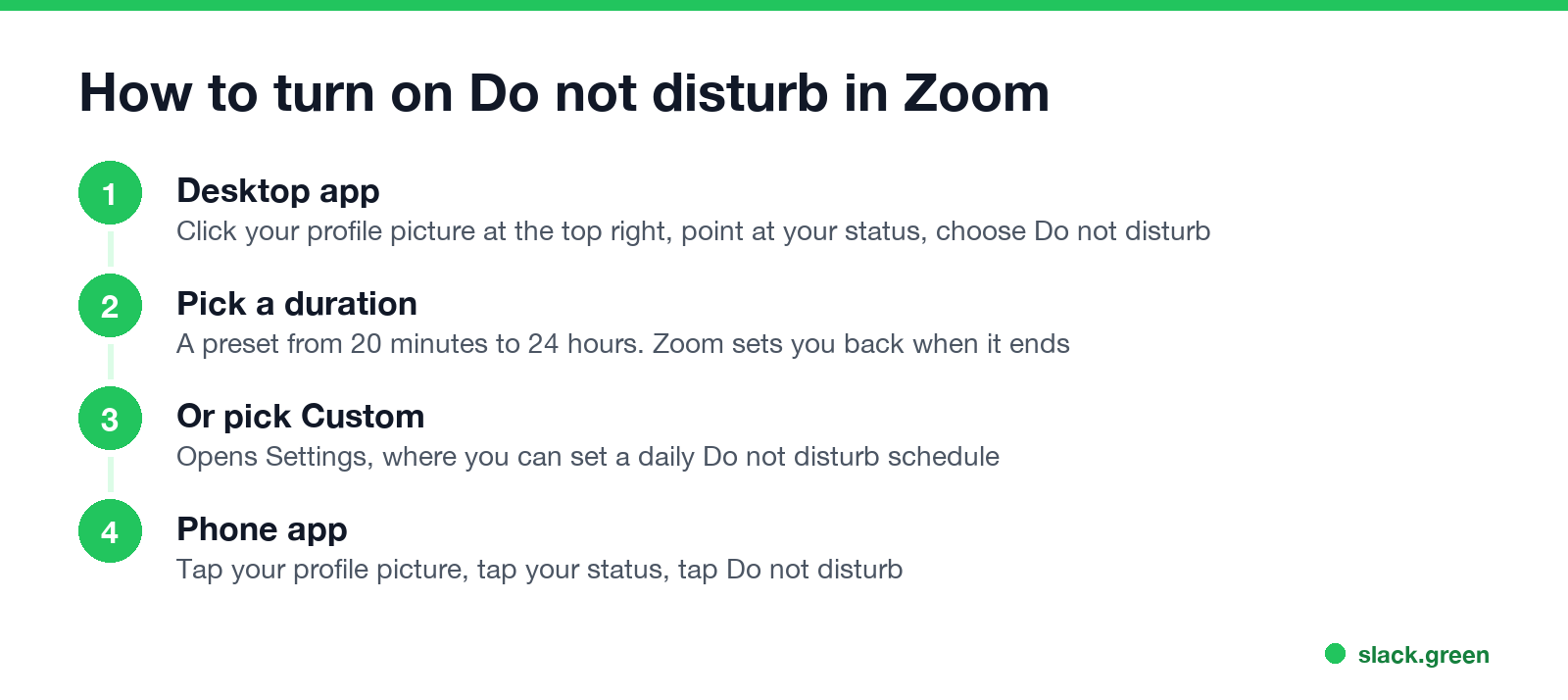
- Desktop app. Click your profile picture at the top right, point at your current status, and choose Do not disturb.
- Pick a duration. Zoom offers presets from 20 minutes to 24 hours. When the time runs out, your status goes back to normal.
- Or pick Custom. This opens Settings at the notification options, where you can set Do not disturb from one time to another every day, for example 18:00 to 09:00.
- Phone app. Tap your profile picture, tap your status, and choose Do not disturb. Your status syncs to every device you are signed in on.
- • Zoom Team Chat pop-ups. New messages arrive and wait in the chat, without a banner or sound.
- • Zoom Phone call pop-ups. Incoming calls do not pop up on your computer. Where they go next depends on your Zoom Phone settings, often voicemail.
- • Nothing outside Zoom. Email, Slack, Teams and your operating system keep notifying you.
To turn it off early, open the same menu and choose Available, or clear Do not disturb.
What Zoom Do not disturb blocks
It does not block people from messaging or calling you, and it does not tell them their message was held. They see the red status and decide whether to wait.
Busy vs Do not disturb on Zoom
Never appear "away" on Slack again
Cloud-based. No downloads. Works 24/7 even when your laptop is off.
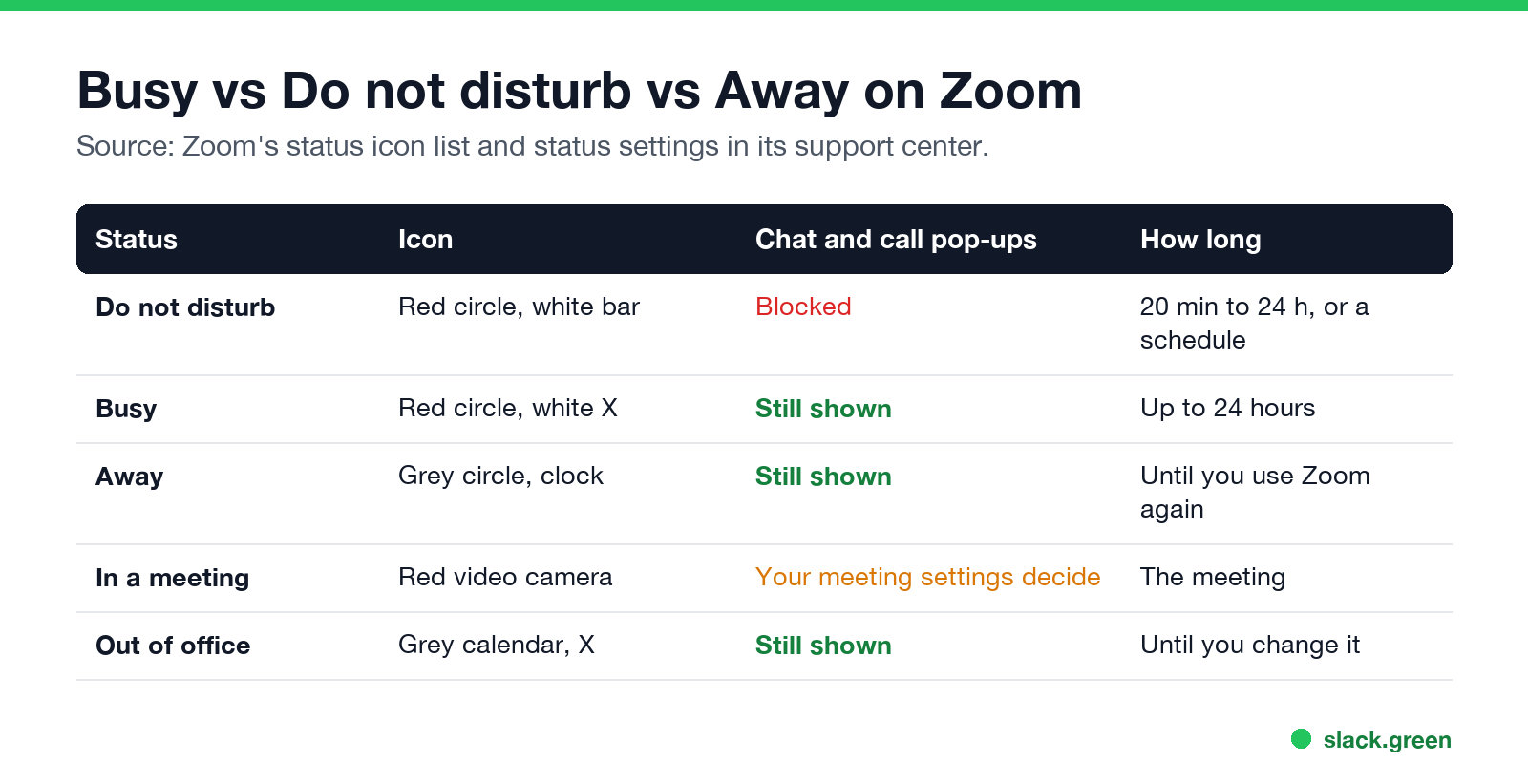
| Status | Icon | Chat and call pop-ups | How long |
|---|---|---|---|
| Do not disturb | Red circle, white bar | Blocked | 20 minutes to 24 hours, or a schedule |
| Busy | Red circle, white X | Still shown | Up to 24 hours, then Zoom clears it |
| Away | Grey circle, clock | Still shown | Until you use Zoom again |
| In a meeting | Red video camera | Your meeting settings decide | The meeting |
| Out of office | Grey calendar with an X | Still shown | Until you change it |
Pick Busy when you want people to hold off but still want to see their messages. Pick Do not disturb when you want no interruptions at all. Every icon is decoded in Zoom status icons meaning, and Away is covered in how to set yourself away on Zoom.
Zoom Do not disturb during a meeting
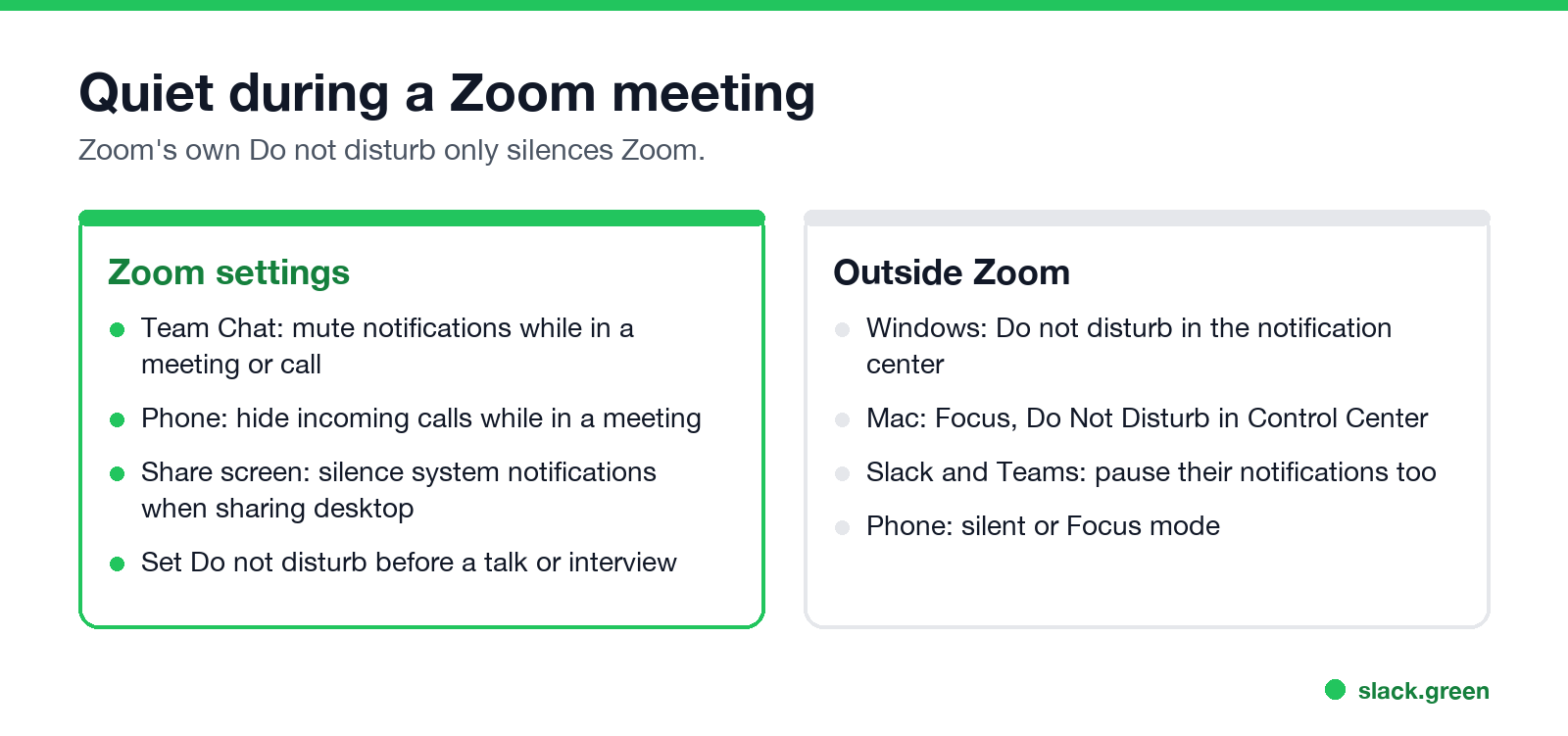
Zoom shows you as In a meeting automatically, and that status does not mute pop-ups by itself. For a talk, an interview or a screen share, set these before you start:
For other apps, turn on your computer's own mode: Do not disturb in the Windows notification center, or Focus in the macOS Control Center. Slack and Teams have their own pause; see Teams Do not disturb for Teams.
Zoom Do not disturb not working
If what you want is the opposite, a status that stays green while you step away, see how to keep your Zoom status active.
Quick answers
Never appear "away" on Slack again
Cloud-based. No downloads. Works 24/7 even when your laptop is off.
Does Do not disturb on Zoom stop meeting invites? You can still join and host meetings. Chat and call pop-ups are the part it blocks.
Can people tell I am on Do not disturb? Yes. They see a red circle with a white bar and the words Do not disturb on your profile.
How long does Zoom Do not disturb last? The time you picked, from 20 minutes to 24 hours, or the daily schedule you set under Custom.
Is there a Do not disturb on the Zoom mobile app? Yes. Tap your profile picture, then your status. It syncs with the desktop app.
Stop Jiggling Your Mouse.
Join hundreds of remote workers who never worry about their Slack status. Set it up once, stay green forever.
Related Articles
Can My Employer See My Browsing If I Use a VPN? It Depends Whose
A personal VPN hides the sites you visit from the office network, but not from monitoring software, a managed browser or IT on a work laptop. The company VPN shows your employer every site it carries. What each setup hides.
Teams Status on Multiple Devices: The Last Device You Used Wins
Signed in to Teams on a computer and a phone? Your status comes from the device you used most recently. That is why a quick look at your phone can turn you Away, and why a phone in your pocket shows Away instead of Offline at night.
Can My Employer Monitor My Personal Computer? Only Through What You Install
Your employer can monitor your personal computer only through something work puts on it: device management, a monitoring agent, the company VPN, or work apps and browser profiles. Each one sees a different slice. How to check which ones you have.