
Teams와 Slack을 동시에 활성 상태로 유지하는 법
Microsoft Teams와 Slack을 나란히 쓰는 회사는 드물지 않습니다. 문제는 두 앱이 서로 다른 규칙으로 "활성"을 판정한다는 것. 한쪽만 초록이고 한쪽은 자리비움이 되는 이유와, 두 점을 함께 초록으로 지키는 구성을 정리했습니다.
회사가 Microsoft Teams와 Slack을 나란히 쓰고 있다면, 전사는 Teams, 특정 팀이나 고객사와는 Slack이라면, 한쪽에서는 초록인데 다른 쪽에서는 자리비움인 상태를 본 적이 있을 겁니다. 버그가 아닙니다. 두 앱은 서로 다른 규칙으로 "활성"을 정하기 때문에, 한 가지 요령으로는 대개 절반만 고쳐집니다.
실제로 뭐가 다른지, 그리고 두 점을 함께 초록으로 유지하는 구성을 정리합니다.
핵심 차이: 각 앱이 보는 것
두 앱을 함께 활성으로 유지하기 번거로운 이유의 전부가 여기 있습니다.
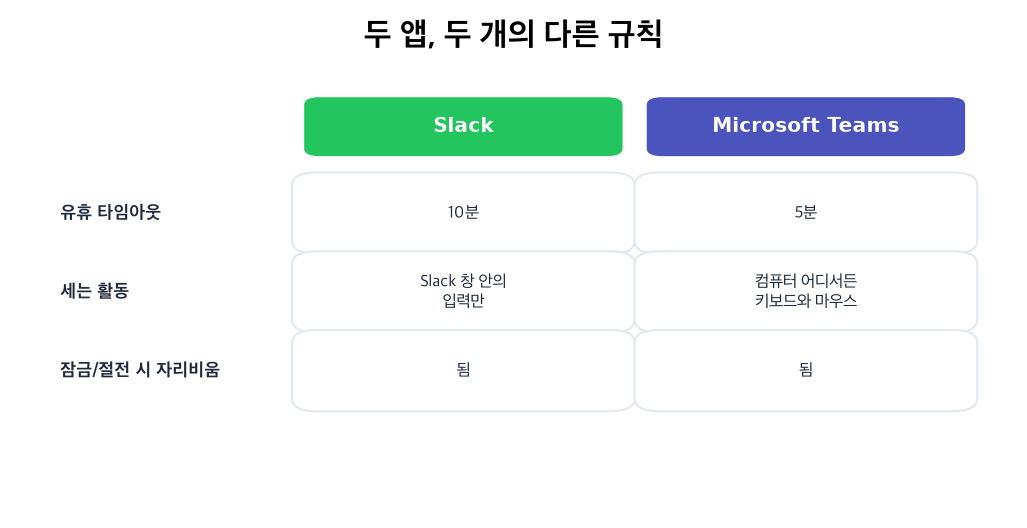
| Slack | Microsoft Teams | |
|---|---|---|
| 유휴 타임아웃 | 10분 | 5분 |
| 세는 활동 | Slack 앱 안 입력만 | 컴퓨터 어디서든 키보드/마우스 |
| 잠금/절전 시 자리비움 | 됨 | 됨 |
| 관리자가 타이머 변경 가능? | 불가 | 불가 |
Slack은 공식 문서대로 Slack 자체 안에서의 조작만 셉니다. 다른 창에서 타이핑하거나 클릭해도 아무 일도 일어나지 않습니다. Microsoft Teams는 반대로 OS 레벨의 키보드·마우스 활동을 읽어서, 어떤 앱에서 일하든 Teams는 초록으로 유지됩니다(5분 기준을 바꾸는 설정을 Microsoft는 제공하지 않습니다).
그래서 에디터에 몰입한 오후는 Teams를 활성으로 유지하면서 Slack을 자리비움 으로 흘려보냅니다. 반대로 정말 키보드에서 손을 떼면, 타이머가 짧은 Teams가 먼저 떨어집니다.
한 가지 요령으로 둘 다 안 되는 이유
- • 마우스 지글러는 OS 레벨에서 커서를 움직입니다. Teams에는 최적. 어떤 움직임이든 셉니다. Slack에는 약합니다. 커서가 마침 Slack 창 위에 있을 때만 통합니다. 지글러 심층 비교는 서버형 접속 상태 도구와 마우스 지글러 비교에.
- • Slack 안을 클릭하고 다니기는 Slack을 초록으로 유지하지만, 그것만 하면 손을 멈춘 순간 더 짧은 Teams 타이머가 먼저 떨어집니다.
- • 화면 잠금은 무엇을 하든 둘 다 떨어뜨립니다.
이 어긋남 때문에 다들 임기응변으로 대책을 겹겹이 쌓게 됩니다. 의도적인 구성으로 바꿔 봅시다.
Slack에서 다시는 '자리 비움'으로 표시되지 마세요
클라우드 기반. 다운로드 불필요. 노트북이 꺼져 있어도 24시간 작동.
두 초록 점을 함께 지키는 구성
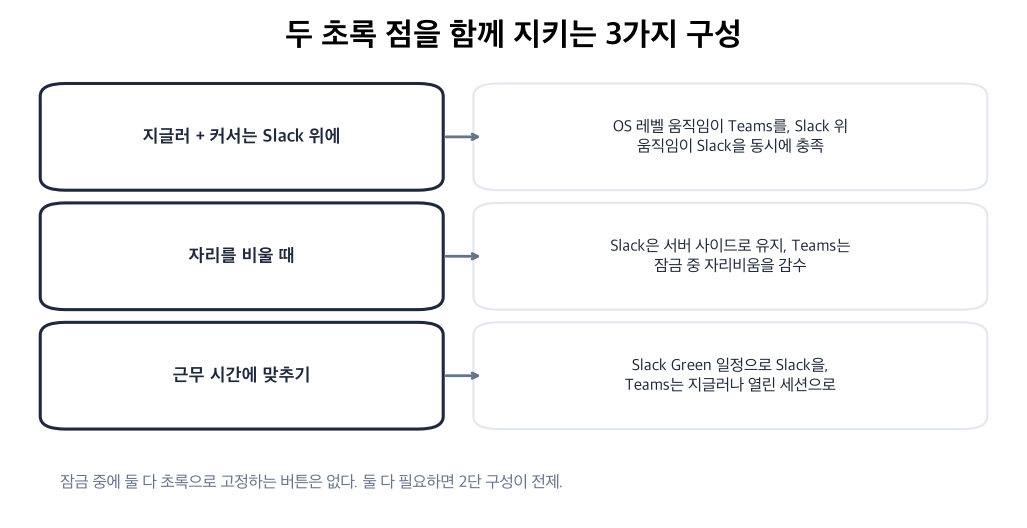
1. 책상 작업 중: 커서를 Slack에 주차
하루 대부분을 기기 앞에서 보낸다면, 지글러(소프트웨어보다 하드웨어가 깔끔합니다)를 돌리고 커서를 Slack 창 위에 둔 채로 두세요. 흔들림이 Teams(OS 레벨 활동)와 Slack(창 위 움직임)을 동시에 충족합니다. 단점은 노트북이 깨어 있고 잠기지 않아야 한다는 것, 그리고 소프트웨어 지글러는 회사 기기 모니터링에 가장 먼저 걸린다는 것입니다.
2. 자리를 비울 때
휴식이나 화면 밖 집중 시간에는, 화면이 잠기는 순간 OS 레벨 요령이 전부 무력해집니다. 여기서 일정 기반 서버 사이드 표시 도구가 제 몫을 합니다. 서버에서 Slack 표시 상태를 갱신하므로 노트북을 닫아도 Slack은 초록입니다. Teams 쪽은 두 번째 기기의 로그인 유지와 조합하거나, 기기가 잠겨 있는 동안은 자리비움을 감수하거나입니다.
3. 상태를 근무 시간에 맞추기
가장 손이 안 가는 방법은 점을 분 단위로 쫓는 걸 그만두고, 실제로 일하는 시간에 맞는 일정을 짜는 것입니다. Slack 쪽은 Slack Green이 그 일을 합니다. Slack 세션을 연결하고 근무 시간을 정하면 앱을 열어 두지 않아도 그동안 Slack 점을 초록으로 유지하고, 시간 밖에는 멈춥니다. 기기에서 아무것도 돌리지 않고 Teams까지 움직여 주는 등가물은 없으므로, Teams 쪽은 여전히 OS 레벨 지글러나 열린 세션에 기대게 됩니다.
정직한 한계
컴퓨터가 잠긴 채로 두 앱을 모두 초록으로 고정하는 버튼은 존재하지 않습니다. Teams 표시 상태는 실제 OS 활동에 꽤 단단히 묶여 있고, 그래서 지글러는 Slack 보다 Teams에 잘 듣고, 서버 사이드 도구는 Teams보다 Slack에 잘 듣습니다. 둘 다 초록이어야 한다면 2단 구성이 전제입니다. 어느 쪽이든 회사 관리 기기에 있다면 먼저 들킬 가능성이 있나를 읽어 보세요.
Slack 쪽만 문제라면 Slack 전체 방법 정리에 모든 선택지와 각각이 무너지는 조건이 있습니다.
Related Articles
Slack Scheduled Message Didn't Send? 5 Cases We Tested
We scheduled five messages for 4:40 PM on 1 October 2026, then archived, left and deleted their channels and deleted a thread parent before the send time. Two sent, three never did, and Slack gave no notice about the three.
Slack Connect와 게스트 계정 비교: 비용, 접근 범위, 고르는 법
게스트는 내 Slack 워크스페이스에 들어오고, 다중 채널 게스트의 비용은 내 회사가 냅니다. Slack Connect는 두 워크스페이스를 연결하고, 각 회사가 자기 인원만큼 냅니다. 비용, 제한, 권한, 무엇을 고를지.
Outlook 상태 색의 의미: 초록, 빨강, 노랑, 회색, 보라
Outlook에서 초록은 대화 가능, 빨강은 다른 용무 중, 모임 중, 방해 금지, 노랑은 자리 비움, 회색은 오프라인이나 상태 알 수 없음, 보라는 부재중입니다. 점은 Outlook이 아니라 Microsoft Teams 상태에서 옵니다. 색을 정하는 것, 회색이 되는 이유, 숨길 수 있는지, 일정 표시 방법 색과의 차이.