
How to Keep Teams and Slack Active at the Same Time
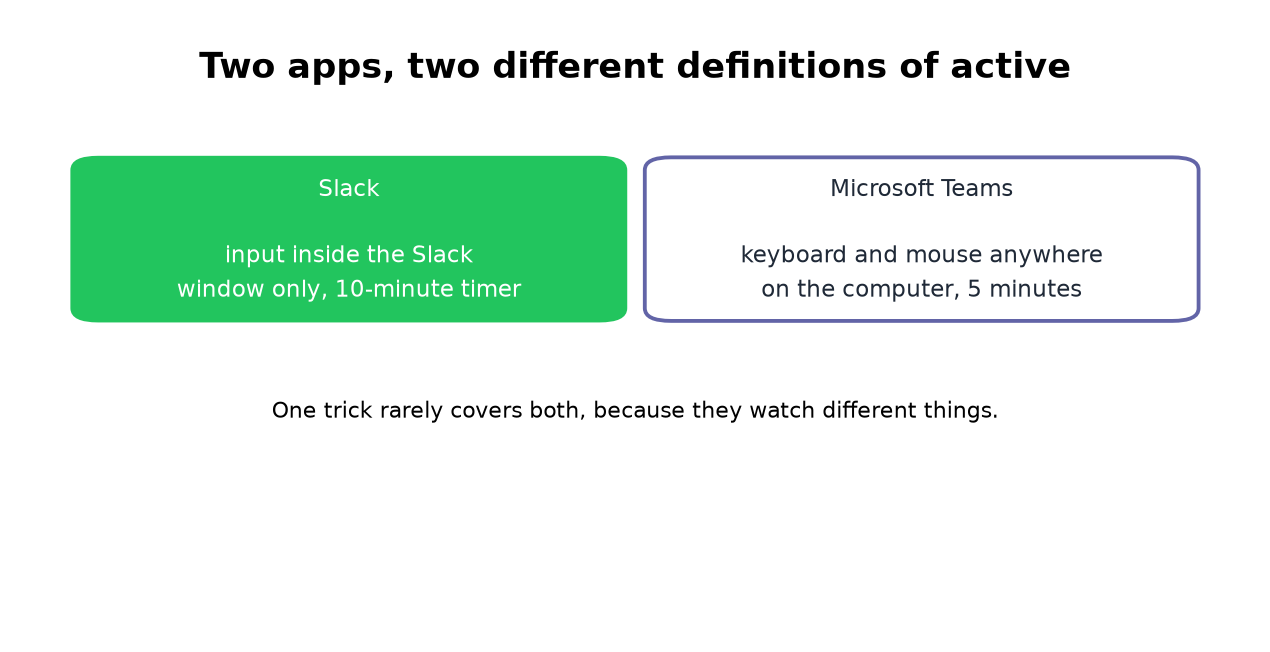
Slack counts input inside its own window on a 10-minute timer. Teams reads keyboard and mouse anywhere, on 5. One trick rarely covers both, and the setups that do are specific.
If your company runs Microsoft Teams and Slack side by side, one for the org, one for a specific team or client, you've probably noticed you can be green in one and away in the other. That's not a bug. The two apps decide "active" using different rules, so a single trick usually only fixes half the problem.
Here's what's actually different, and the setups that keep both dots green.
The key difference: what each app watches
This is the whole reason keeping both active is annoying. The full Teams timings are in how long before Teams shows you as Away. If your team uses Google Chat, see how to keep Google Chat active. If you are still choosing between the two apps, see Slack vs Teams. To connect the two apps for calls, messages and status, see how to connect Slack and Teams.
| Slack | Microsoft Teams | |
|---|---|---|
| Idle timeout | 10 minutes | 5 minutes |
| What counts as activity | Input inside the Slack app only | Keyboard/mouse anywhere on the computer |
| Goes away on lock/sleep | Yes | Yes |
| Admin can change the timer | No | No |
Slack, per its availability docs, only counts interaction inside Slack itself, typing or clicking in another window does nothing. Microsoft Teams is the opposite: it reads OS-level keyboard and mouse activity, so working in _any_ app keeps Teams green (the Teams-only fixes are in how to keep your Teams status Available) (Microsoft doesn't expose a setting to change the 5-minute threshold).
So the same afternoon of heads-down work in your code editor keeps Teams active and lets Slack drift to away. And Teams' timer is shorter, so it trips first if you truly stop touching the keyboard.
Why one trick doesn't cover both
- • A mouse jiggler moves the cursor at the OS level. Great for Teams, any movement counts. Weak for Slack, because the movement only registers if the cursor happens to be sitting over the Slack window. We compared jigglers in depth in a server-side presence tool vs mouse jigglers.
- • Clicking around in Slack keeps you green in Slack but, if that's the only thing you do, Teams' shorter timer can still trip when you pause.
- • Locking your screen drops both, regardless of anything else.
That mismatch is why people end up layering fixes. Let's make it deliberate instead.
Never appear "away" on Slack again
Cloud-based. No downloads. Works 24/7 even when your laptop is off.
Setups that keep both green
1. Desk work, cursor parked on Slack
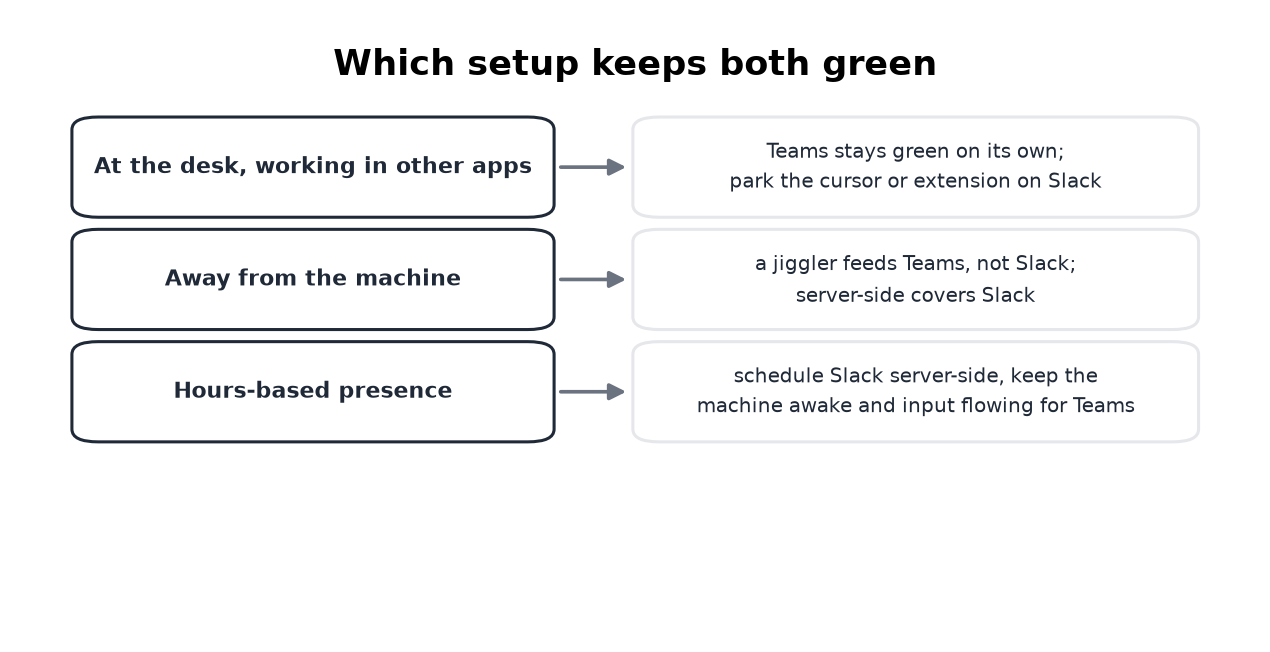
If you're at your machine most of the day, put a mouse jiggler (hardware is cleaner than software) to work and leave the cursor over the Slack window. The jiggling satisfies Teams (OS-level activity) and Slack (movement over its window) at once. Downside: your laptop has to stay awake and unlocked, and software jigglers are the first thing corporate device monitoring flags.
2. Stepping away, both apps
For breaks or off-screen focus time, OS-level tricks stop helping the moment your screen locks. This is where a scheduled, server-side presence tool earns its place, it refreshes your Slack presence from a server, so Slack stays green even with the laptop closed. Pair it with Teams' own "keep me signed in" behavior on a second device, or accept that Teams will show away when your machine is genuinely locked.
3. Match your status to your hours
The least hands-on approach is to stop chasing the dot minute-to-minute and set a schedule that reflects when you actually work. For Slack, Slack Green does this: you connect your Slack session, set your work hours, and it keeps your Slack dot green during them with no app open, then stops outside them. There's no equivalent that also drives Teams without running on your machine, so for Teams you'll still lean on an OS-level jiggler or an open session. Webex works the same way on desktop; see how to keep Webex status active.
Frequently asked questions
Why am I green in Teams but away in Slack? You are working outside Slack. Teams reads OS-level input, Slack reads input in its own window only, so any non-Slack work keeps exactly one of them green.
Does a mouse jiggler keep both active? It keeps Teams active from anywhere on screen, and Slack only with the cursor parked over the Slack window. The jiggler comparison has the detail.
Do keep-awake apps fix either one? They stop the sleep flip in both apps and feed neither timer, as the Caffeine test shows.
Can one tool cover both apps? Not well, because the mechanisms differ. Cover Slack server-side and let ordinary work cover Teams.
The honest limitation
There is no single button that pins both apps green while your computer is locked. Teams presence is tied fairly tightly to real OS activity, which is exactly why a mouse jiggler works better for it than for Slack, and why a server-side tool works better for Slack than for Teams. If keeping both green matters, expect a two-part setup, and read will I get caught first if either app is on a managed work device.
If you only care about the Slack half, the full rundown of Slack methods covers every option and where each one breaks.
Stop Jiggling Your Mouse.
Join hundreds of remote workers who never worry about their Slack status. Set it up once, stay green forever.
Related Articles
Slack API Pagination: next_cursor, the Last Page and invalid_cursor, Tested
Slack paginates list methods with a cursor: pass response_metadata.next_cursor back as cursor until it is empty. We paged 27 real messages on 2 October 2026 and broke the cursor five ways to see which ones fail.
Slack RTM API Deprecated: What rtm.connect Returns for a New App, and the Socket Mode Fix
A Slack app created today cannot use the RTM API. We called rtm.connect and rtm.start with every token a new app gets on 2 October 2026, tried to request the rtm:stream scope, and ran the same bot over Socket Mode.
Slack Bot Icon and Name Per Message: icon_emoji, icon_url and username, Tested
icon_emoji, icon_url and username only work with the chat:write.customize scope, and Slack ignores them silently without it. We tested every case on 2 October 2026, plus webhooks and the app icon upload limits.