
Slack Status Clear After: How to Make a Status Remove Itself
When you set a Slack status, Remove status after (Clear after on mobile) decides when it disappears: don't clear, 30 minutes, 1 hour, 4 hours, today, this week, or a date and time you choose. How to set it on desktop and mobile, schedule ahead, and what clearing does not change.
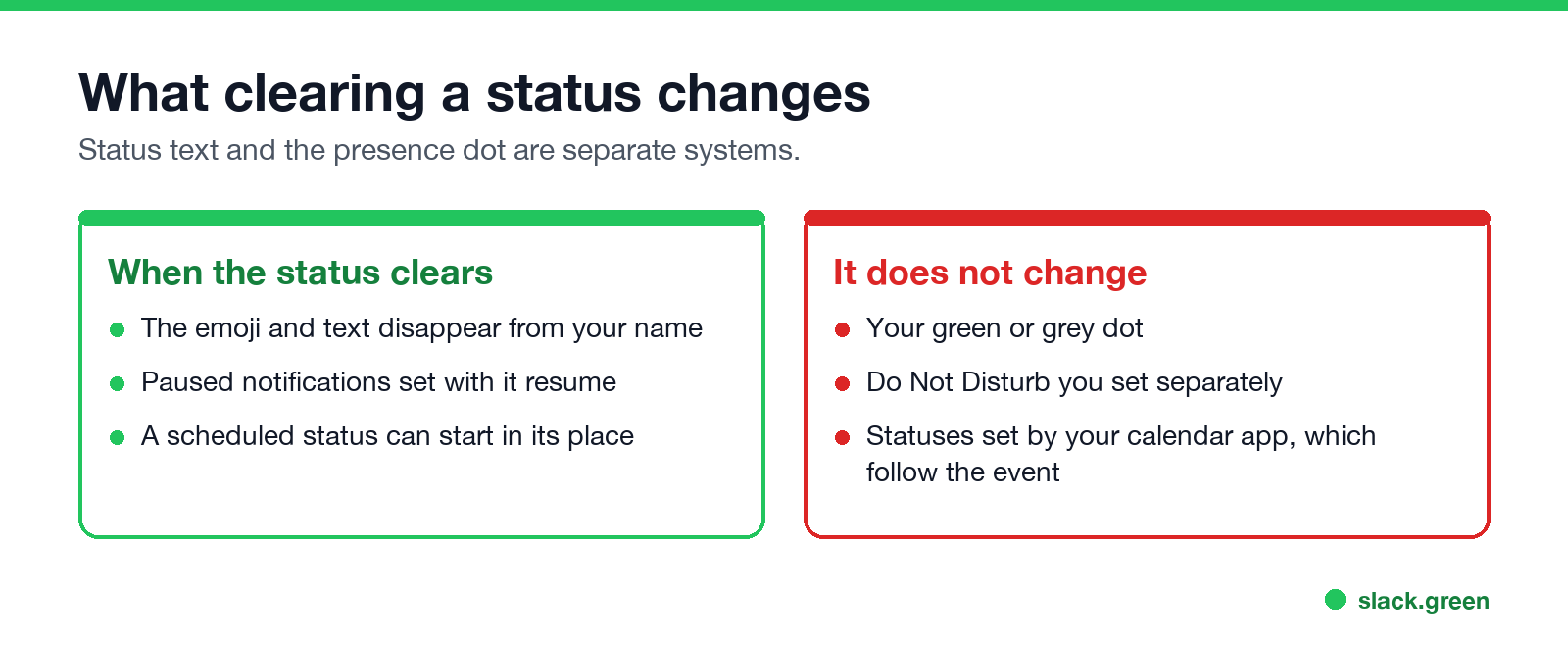
A Slack status clears itself only if you tell it when. When you set a status on desktop, open Remove status after... and pick Don't clear, 30 minutes, 1 hour, 4 hours, Today, This week, or Choose date and time. On mobile the same menu is called Clear after. When the time comes, the emoji and text disappear from your name, and if you checked Pause notifications with the status, notifications resume too. Suggested statuses such as In a meeting come with their own default, which you can change.
Clearing a status never changes your dot. Your presence turns grey 10 minutes after your last input in Slack whether a status is set or not. Slack Green keeps the dot active during the working hours you set, from the cloud, alongside any status.
Slack status clear options
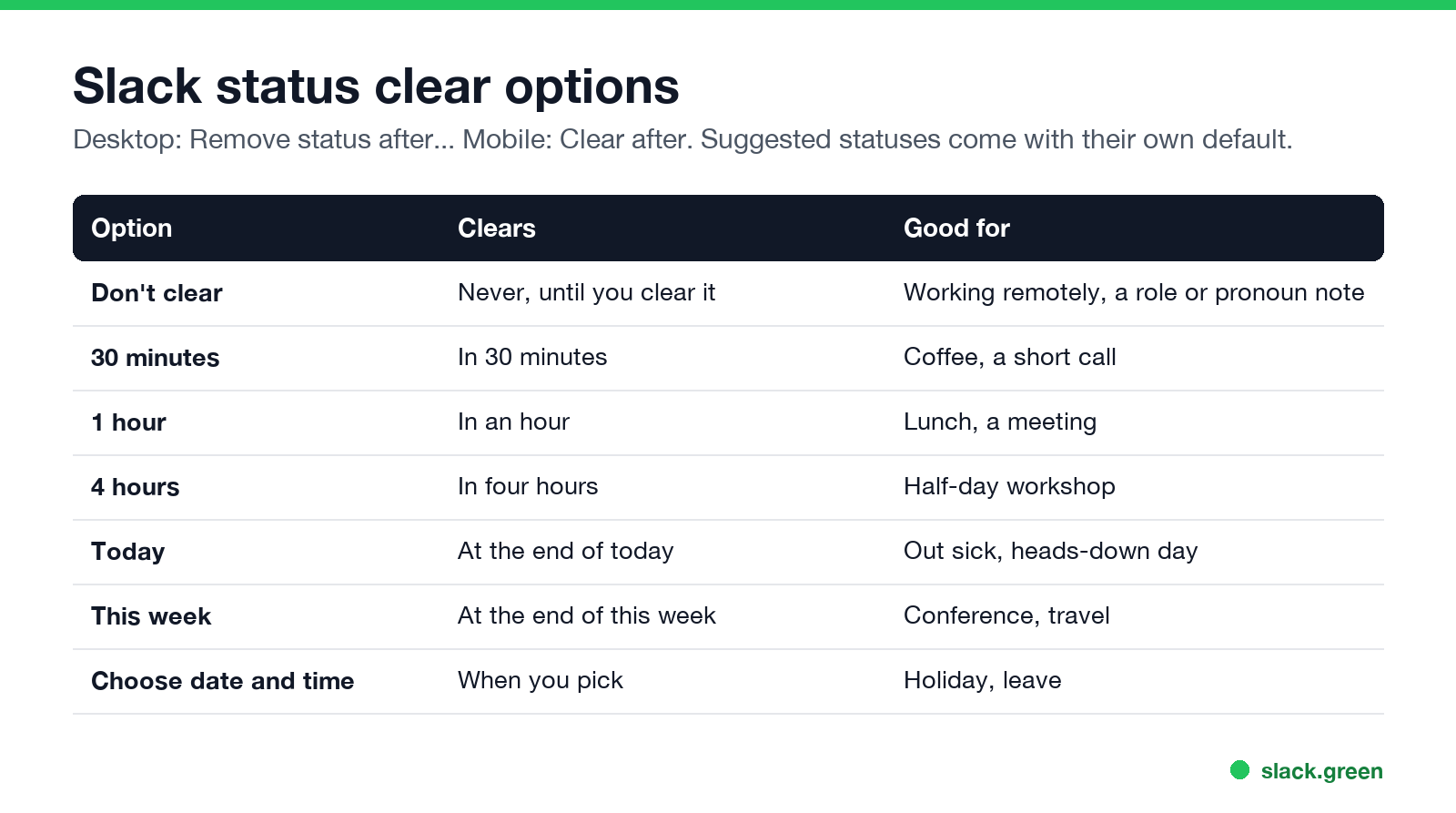
| Option | Clears | Good for |
|---|---|---|
| Don't clear | Never, until you clear it | Working remotely, a standing note |
| 30 minutes | In 30 minutes | Coffee, a short call |
| 1 hour | In an hour | Lunch, a meeting |
| 4 hours | In four hours | A half-day workshop |
| Today | At the end of today | Out sick, a heads-down day |
| This week | At the end of this week | Conference, travel |
| Choose date and time | When you pick | Holiday, leave |
A status that clears after 30 minutes doubles as a visible timer; the other ways to run one are in Slack timer.
How to set a Slack status to clear automatically
Desktop:
- Click your profile picture, then Update your status (or Cmd+Shift+Y / Ctrl+Shift+Y).
- Type the status and pick an emoji, or choose a suggestion.
- Open Remove status after... and choose an option, or Choose date and time for a custom one.
- Optional: check Pause notifications so the quiet ends with the status.
- Click Save.
Mobile: tap your profile picture, tap the status field, set the status, tap Clear after, pick a time, and tap Done.
To change it later, click your current status and edit the clear time, or click Clear status to remove it now. Full steps are in how to change your status on Slack. A worked example for lunch is in Slack lunch status.
Clear after vs schedule a status
Slack에서 다시는 '자리 비움'으로 표시되지 마세요
클라우드 기반. 다운로드 불필요. 노트북이 꺼져 있어도 24시간 작동.
Clear after decides when a status ends. To decide when it starts, schedule it: in Update your status, open Duration and choose Choose a start and end time. Slack lets you queue up to five scheduled statuses. More in how to schedule a Slack status.
What clearing a status changes
Does a Slack status clear automatically?
Only if it has a clear time. A status set to Don't clear stays until you remove it, which is the most common reason people show "On vacation" a week after they are back. If a status disappears when you did not expect it, the cause is usually a clear time or an app replacing it; see Slack keeps clearing my status. If it will not change at all, see Slack status not updating.
Set a status expiration with the API
Slack에서 다시는 '자리 비움'으로 표시되지 마세요
클라우드 기반. 다운로드 불필요. 노트북이 꺼져 있어도 24시간 작동.
In the API a status has a status_expiration field, a Unix timestamp; 0 means it never clears. Set it with users.profile.set and a user token; code is in our Slack presence API guide. A full walkthrough is in set a Slack status with the API.
FAQ
How do I make my Slack status clear automatically?
Pick a time under Remove status after... (desktop) or Clear after (mobile) when you set it.
Can I set a custom clear time on Slack?
Yes. Choose Choose date and time and pick any date and time.
Why did my Slack status disappear?
It reached its clear time, or an app such as a calendar replaced it.
Does clearing my status change my green dot?
No. The dot follows your activity in Slack.
What is the difference between clear after and schedule?
Clear after sets when a status ends. Scheduling sets when it starts and ends.
Related Articles
How to Connect Slack and Microsoft Teams: Calls, Messages and Status
Slack and Teams do not connect natively for chat. You can start Teams calls from Slack with the free Microsoft Teams Calls app, relay messages with a paid bridge such as Mio, and sync your Teams status to Slack with a short script. Every option, what it costs, and the setup steps.
Slack Active on Multiple Devices: Which One Sets Your Status?
When you use Slack on a phone and a computer at once, one active device is enough to keep you green, and a manual away on any device sets you away on all of them. The rule, common cases, and how notifications pick a device.
Slack Huddles vs Zoom: Which to Use for Team Calls
Slack huddles are quick calls inside Slack: 1:1 on the free plan, up to 50 people on paid plans, no recording. Zoom is built for scheduled, recorded and large meetings, with a free plan of 100 people for 40 minutes. Limits, cost, recording and privacy side by side.