
8x8 Status Icons Meaning: Every Color and Symbol
In 8x8 Work, a green check means Available, solid red means Busy, red with a phone means On Call, red with a bar means Do Not Disturb, an amber clock means Away, and a grey X means Offline or Invisible. What each status does to your calls, which ones change by themselves, and the Contact Center agent statuses.
In 8x8 Work, the icon on someone's profile picture shows their presence. A green circle with a check mark means Available. Solid red means Busy, red with a phone means On Call, and red with a white bar means Do Not Disturb. An amber circle with clock hands means Away, and a grey circle with an X means Offline or Invisible. Only Do Not Disturb and Offline stop calls from ringing; in every other status, calls and chat still reach the person.
8x8 Work sets some of these by itself: On Call during a phone call, Busy in a meeting, and Away after a period without input. The table below shows which ones you can set and which ones 8x8 sets.
We build Slack Green, which keeps a Slack status green during your work hours, so we compare how work apps show presence. The same guide for Microsoft Teams is Microsoft Teams status icons meaning.
8x8 Work status icons list
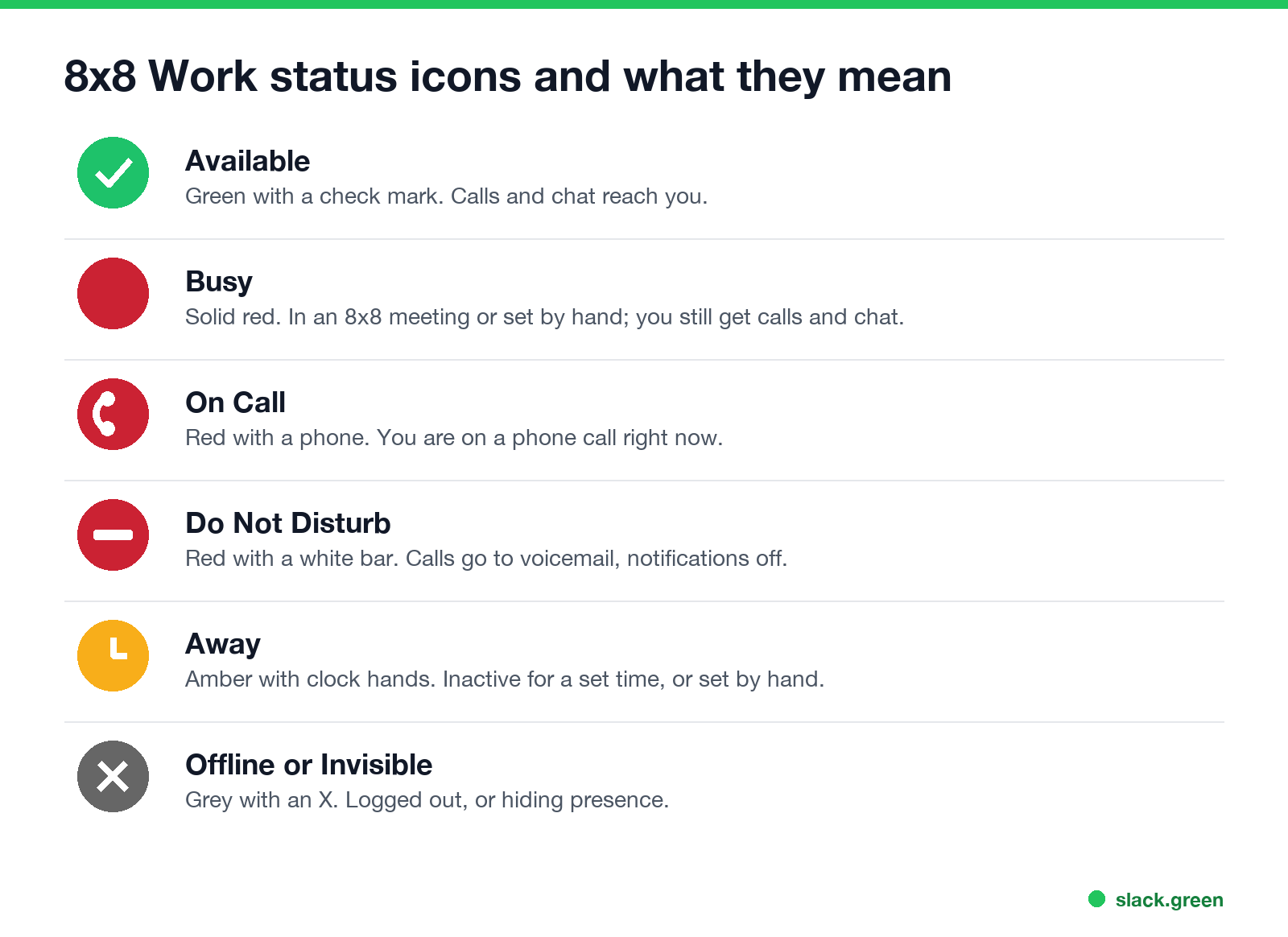
| Icon | Status | What it means |
|---|---|---|
| Green circle, check mark | Available | Free to take calls and chats |
| Solid red circle | Busy | In a meeting or busy; calls and chat still come through |
| Red circle, phone | On Call | On a phone call now; clears when the call ends |
| Red circle, white bar | Do Not Disturb | Calls go to voicemail; desktop notifications are off |
| Amber circle, clock hands | Away | Inactive for the set time, or chose Away |
| Grey circle, X | Offline or Invisible | Logged out, or hiding presence |
The icons come from 8x8's own help pages for 8x8 Work for Desktop. Busy, On Call and Do Not Disturb share the same red, so look at the symbol inside: nothing, a phone, or a bar.
Which statuses change by themselves
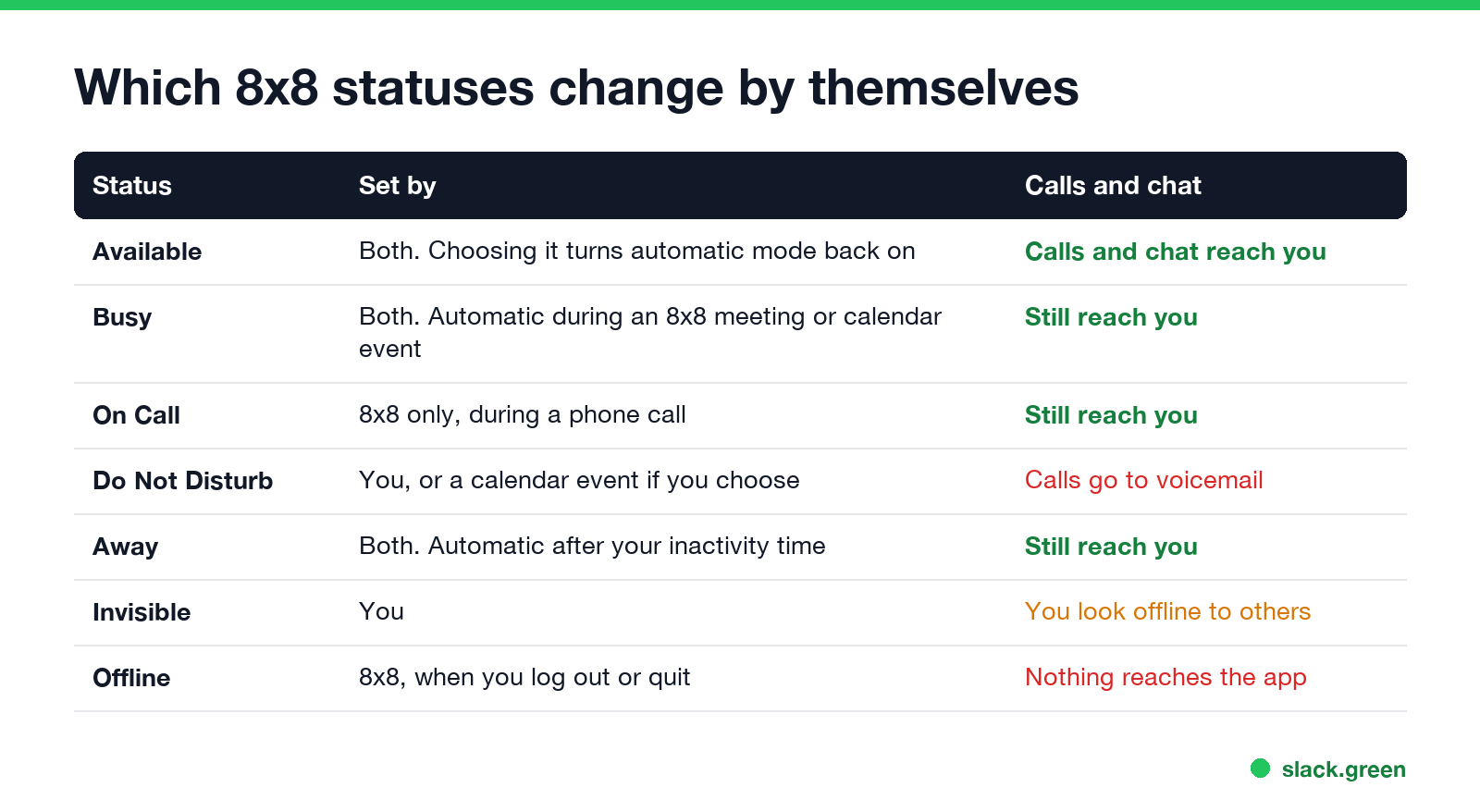
| Status | Set by | Calls and chat |
|---|---|---|
| Available | You or 8x8 | Reach you |
| Busy | You, or 8x8 during a meeting | Reach you |
| On Call | 8x8 only | Reach you |
| Do Not Disturb | You, or a calendar event if you turned that on | Calls go to voicemail |
| Away | You, or 8x8 after your inactivity time | Reach you |
| Invisible | You | You look offline to others |
| Offline | 8x8, when you log out or quit | Nothing reaches the app |
Two rules from 8x8's help explain most confusion:
- • A status you pick by hand stays until you change it, except Available. Choosing Available turns the automatic statuses back on.
- • Automatic statuses do not show over a manual one. If you set Away by hand, 8x8 will not switch you to On Call during a call. Pick Available when you are back.
Why an 8x8 status looks wrong
Never appear "away" on Slack again
Cloud-based. No downloads. Works 24/7 even when your laptop is off.
How to set your status in 8x8 Work
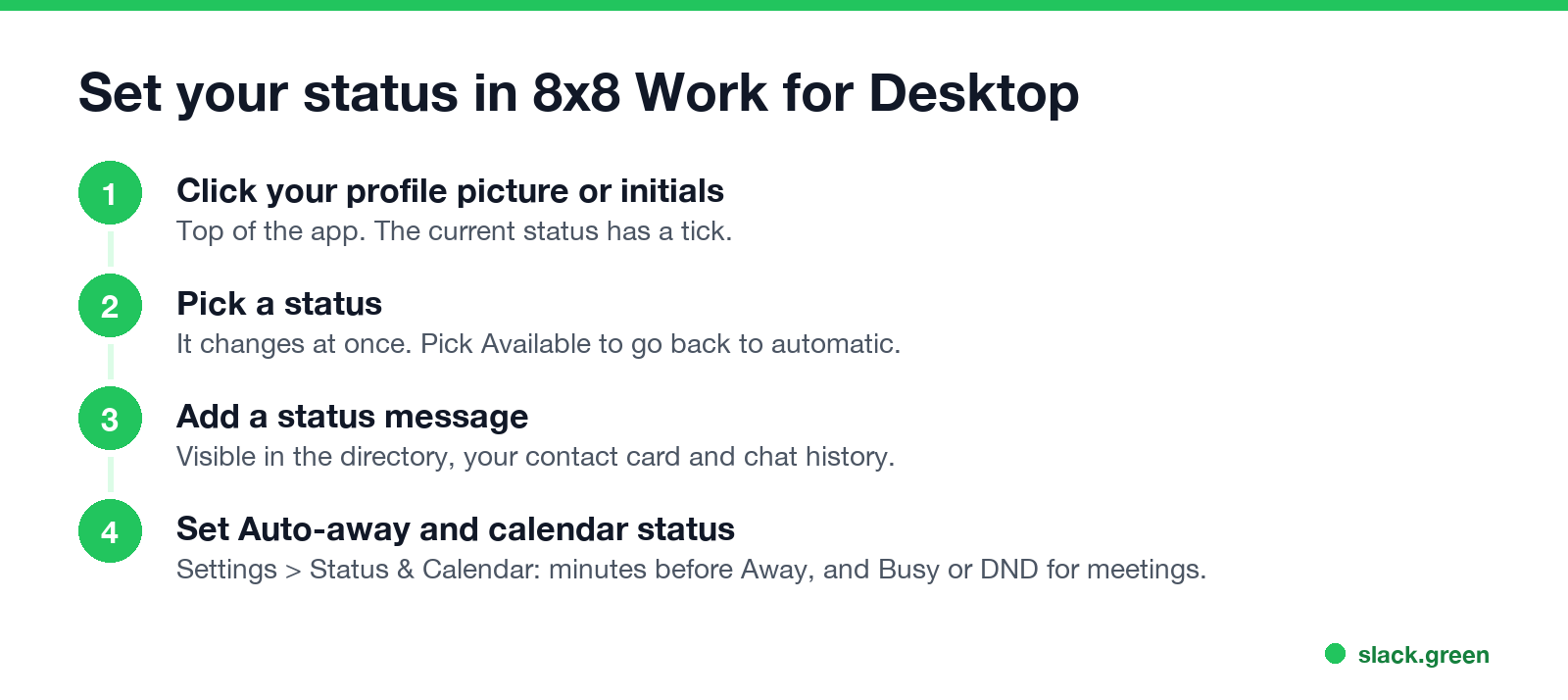
On Windows you can also hover over the 8x8 Work icon in the taskbar and pick a status from the preview. For status message wording, our free status generator has lines that work in any app.
8x8 status codes in Contact Center
"Status codes" often means the agent statuses in 8x8 Contact Center's Agent Workspace, a separate list from 8x8 Work presence:
| Agent status | Meaning |
|---|---|
| Available | Ready for new interactions |
| Busy or In Progress | Handling an interaction; no new ones offered |
| Post-Processing | Wrap-up time after an interaction |
| Working Offline | Logged in, not taking new interactions |
| Take Break | On a break; features disabled |
| Log Out | Signed out; no interactions |
8x8 notes that setting 8x8 Work to Do Not Disturb stops Agent Workspace from receiving calls even when the agent shows Available, and that setting 8x8 Work to Busy does not stop routing. Agents who need a pause should use Working Offline.
8x8 icons next to Teams and Slack
Never appear "away" on Slack again
Cloud-based. No downloads. Works 24/7 even when your laptop is off.
| Meaning | 8x8 Work | Microsoft Teams | Slack |
|---|---|---|---|
| Free | Green check | Green check | Green dot |
| Busy | Red | Red | No busy dot; use a status |
| Do not disturb | Red with bar | Red with bar | Small z on the dot |
| Away | Amber clock | Yellow clock | Hollow or grey dot |
| Offline | Grey X | Grey X | Hollow or grey dot |
Slack goes away after 10 minutes without input in the Slack window. Slack Green keeps the dot green during your working hours. Slack's own icons are in Slack status icons meaning, and Webex's are in Webex status icons meaning.
FAQ
What does the red circle mean in 8x8? Busy if it is plain, On Call with a phone, Do Not Disturb with a white bar.
What does the yellow clock mean in 8x8? Away. The person was inactive for their Auto-away time, or chose Away.
What does the grey X mean in 8x8? Offline, or Invisible if they are hiding their presence.
How do I stop 8x8 from showing me as Away? Set a longer Auto-away time under Settings, Status & Calendar. Being signed in on 8x8 Work for Mobile also stops automatic Away.
Can I hide my 8x8 status? Choose Invisible. You appear offline to others and keep using the app.
Stop Jiggling Your Mouse.
Join hundreds of remote workers who never worry about their Slack status. Set it up once, stay green forever.
Related Articles
Tips for Working Across Time Zones: 10 Habits That Work
Working across time zones works when the team writes things down, keeps a short overlap window for live talk, says the zone with every time, and lets tools deliver messages in each person's working hours. Ten habits, a follow-the-sun handoff note, the Slack settings that help, and a script that shows your team's local times.
Webex Status Stuck in a Meeting? Causes and Fixes
Webex shows In a meeting while a Webex meeting is still open on any of your devices, and In a calendar meeting while an event is on your calendar. Leave the meeting everywhere, check your calendar, or turn off Show when in a calendar meeting. Plus the fixes when Webex status does not show in Outlook.
RingCentral Status Stuck on In a Meeting? Turn Off Calendar Presence
RingCentral usually shows In a meeting when you are not in one because Calendar presence is on: it shows In a meeting for every event on a connected calendar, whether you join or not. How to turn it off, the other four causes (Teams presence sync, a meeting that never ended, another RingCentral app, old events), and what each presence icon means.