
How to Change the Screen Timeout on Windows 11 (Settings and powercfg)
To change the screen timeout on Windows 11, open Settings, System, Power & battery, expand Screen, sleep, & hibernate timeouts, and set Turn my screen off after to the time you want, or Never. The same from a command prompt: powercfg /change monitor-timeout-ac. Why the screen still goes dark on the lock screen after 1 minute, and the other timers that turn it off.
To change the screen timeout on Windows 11, press Win+I to open Settings, go to System, Power & battery, and expand Screen, sleep, & hibernate timeouts (called Screen and sleep on Windows 11 23H2 and older). Set When plugged in, turn my screen off after to the time you want, or Never. Do the same for the battery row on a laptop. No restart is needed.
From a command prompt, powercfg /change monitor-timeout-ac 30 sets 30 minutes when plugged in, and 0 means never. The screen timeout only turns the display off. Sleep and the lock screen are separate settings, which is why a screen set to Never can still go dark: the lock screen has its own 1-minute timer.
A screen that stays on does not keep chat apps active either. Slack counts only input inside its own window and shows you away after 10 minutes without it. Slack Green keeps your Slack status active from the cloud during the working hours you set, with nothing to change on the PC.
Change the screen timeout in Windows 11 Settings
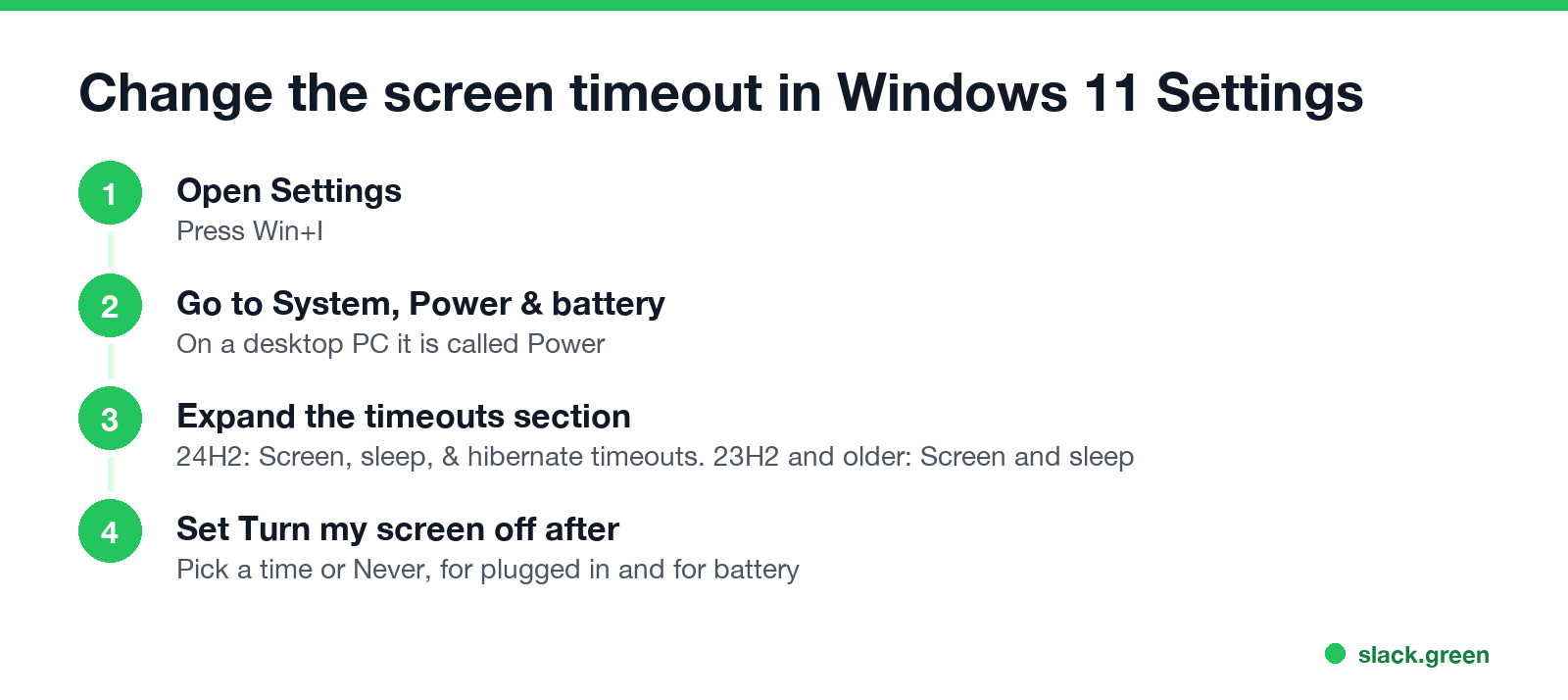
- Press Win+I.
- Select System, then Power & battery. On a desktop PC without a battery it is called Power.
- Expand Screen, sleep, & hibernate timeouts (24H2 and later) or Screen and sleep (23H2 and older).
- Set When plugged in, turn my screen off after to a longer time, or Never.
- On a laptop, also set On battery power, turn my screen off after.
Leave a timeout on battery if you can. The display is one of the largest power users on a laptop.
The old Control Panel still works too: open Control Panel, Power Options, Change plan settings next to your plan, and change Turn off the display. It edits the same setting.
Change the screen timeout with powercfg
powercfg changes the active power plan from Command Prompt or PowerShell. Times are in minutes, and 0 means never:
:: Screen off after 30 minutes plugged in, 10 minutes on battery
powercfg /change monitor-timeout-ac 30
powercfg /change monitor-timeout-dc 10

:: Never turn the screen off when plugged in
powercfg /change monitor-timeout-ac 0
To set a time in seconds, or to check the current value, use the setting's alias, VIDEOIDLE:
:: 90 seconds when plugged in, then apply
powercfg /setacvalueindex SCHEME_CURRENT SUB_VIDEO VIDEOIDLE 90
powercfg /setactive SCHEME_CURRENT

:: Show the current screen timeout, in seconds (AC = plugged in, DC = battery)
powercfg /query SCHEME_CURRENT SUB_VIDEO VIDEOIDLE
These change your own power plan and usually need no admin rights. If a company policy sets the timeout, Windows puts the policy value back.
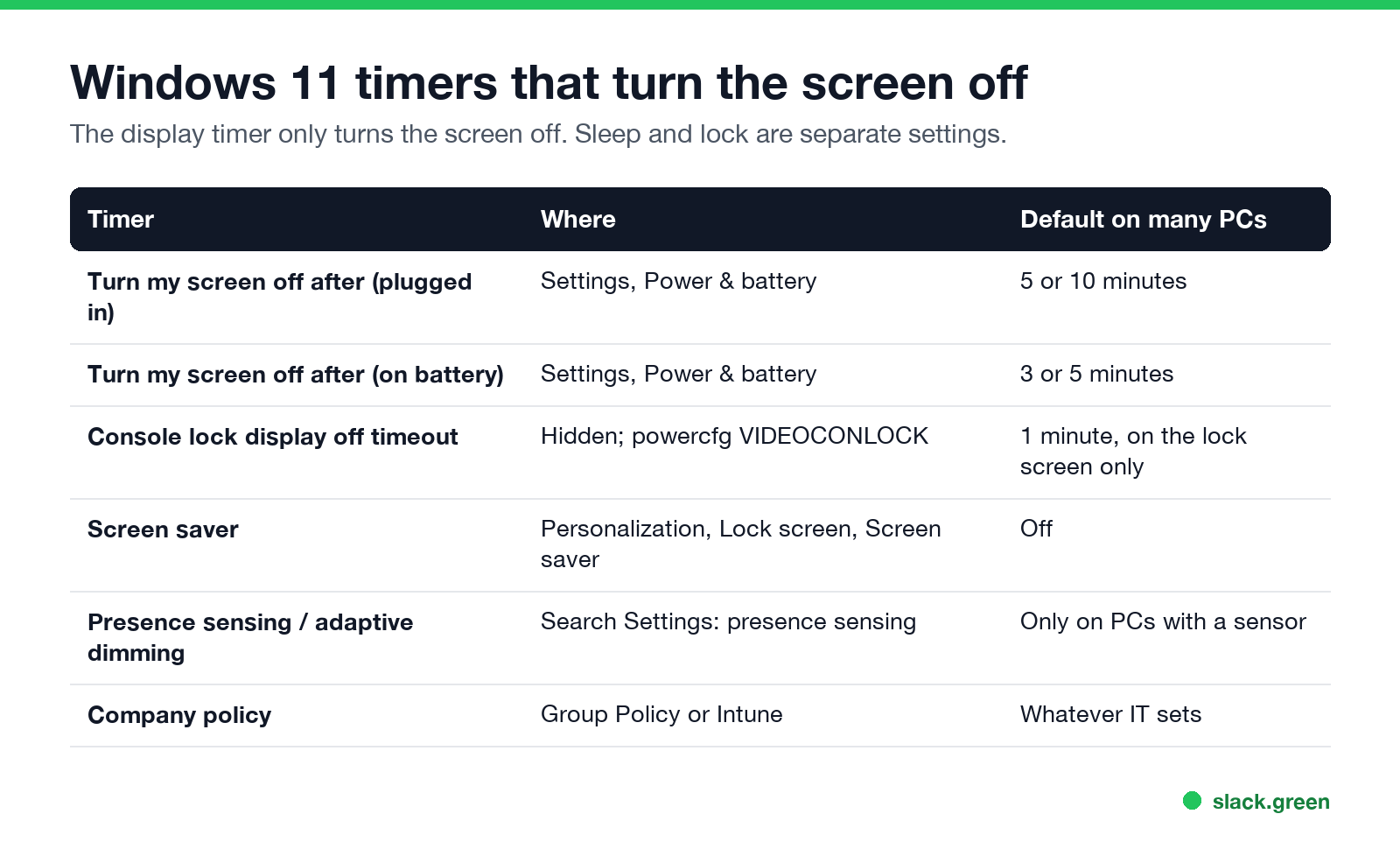
Windows 11 timers that turn the screen off
Never appear "away" on Slack again
Cloud-based. No downloads. Works 24/7 even when your laptop is off.
| Timer | Where | Default on many PCs |
|---|---|---|
| Turn my screen off after (plugged in) | Settings, Power & battery | 5 or 10 minutes |
| Turn my screen off after (on battery) | Settings, Power & battery | 3 or 5 minutes |
| Console lock display off timeout | Hidden; powercfg alias VIDEOCONLOCK | 1 minute, lock screen only |
| Screen saver | Personalization, Lock screen, Screen saver | Off |
| Presence sensing, adaptive dimming | Search Settings for "presence sensing" | Only on PCs with a sensor |
| Company policy | Group Policy or Intune | What IT sets |
Defaults vary by PC maker and by power mode. Check your own values with the powercfg /query command above.
Screen turns off after 1 minute on the lock screen
When the PC is locked, Windows uses a different timer, the console lock display off timeout, which is 1 minute by default. Your normal screen timeout does not apply there. To change it to 10 minutes (600 seconds) when plugged in:
powercfg /setacvalueindex SCHEME_CURRENT SUB_VIDEO VIDEOCONLOCK 600
powercfg /setactive SCHEME_CURRENT
To show the setting in Control Panel's Advanced power settings, under Display, run this once in an admin Command Prompt. It edits the registry value that hides it:
reg add "HKLM\SYSTEM\CurrentControlSet\Control\Power\PowerSettings\7516b95f-f776-4464-8c53-06167f40cc99\8EC4B3A5-6868-48c2-BE75-4F3044BE88A7" /v Attributes /t REG_DWORD /d 2 /fThat is the only registry edit most people need for the screen timeout. The timeout values themselves live in the power plan, and powercfg is the supported way to change them.
Screen still turns off on Windows 11
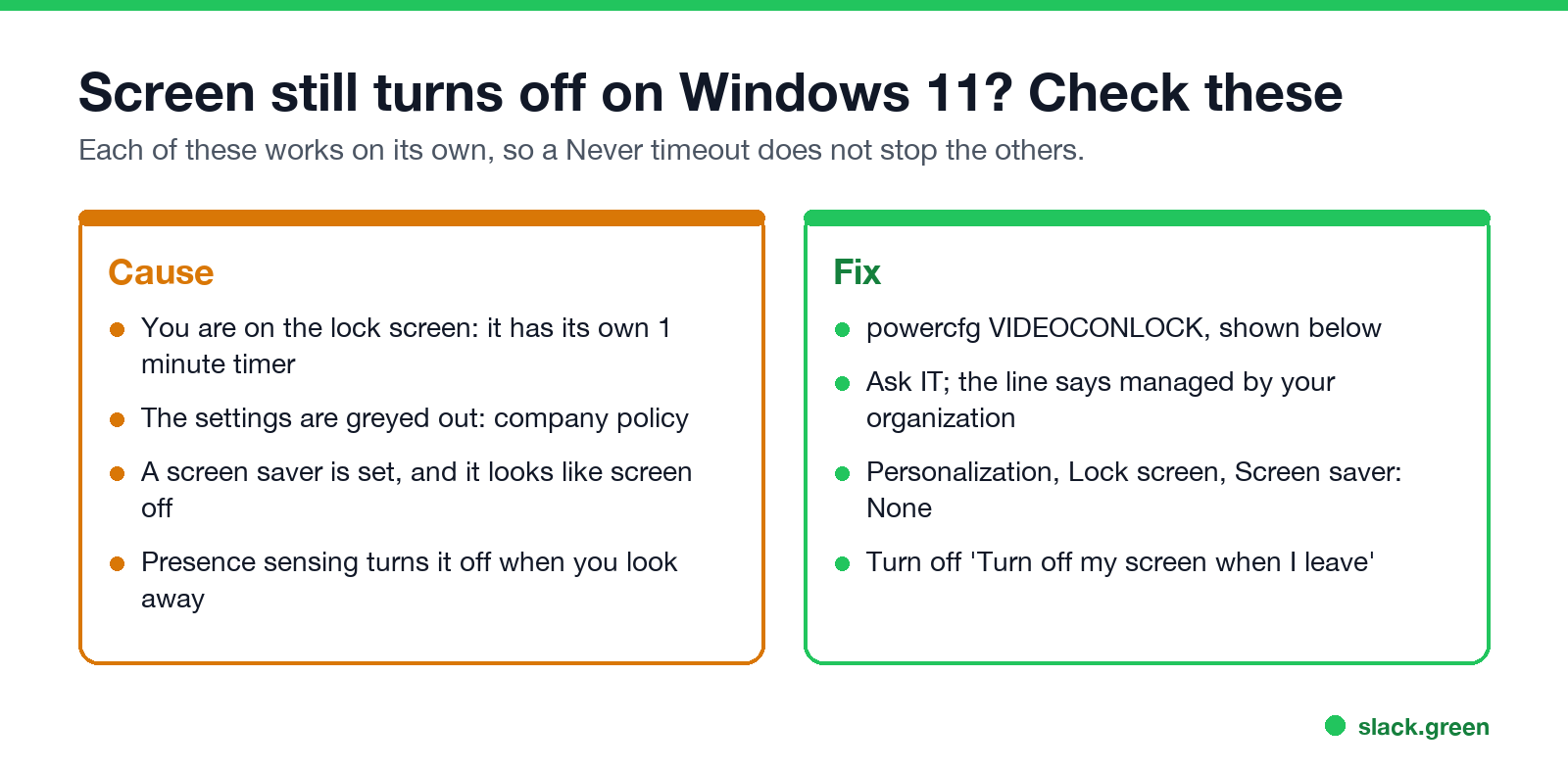
VIDEOCONLOCK above.If the PC also locks or asks for your PIN, that is a different setting; see how to stop Windows 11 from locking itself. If it goes to sleep, see how to stop your computer from sleeping.
Screen timeout, sleep and lock: what each one does
Never appear "away" on Slack again
Cloud-based. No downloads. Works 24/7 even when your laptop is off.
For chat apps, the difference matters. Microsoft Teams reads input anywhere on the PC, so a screen that stays on while nobody touches the keyboard still turns you Away after about 5 minutes. A script that presses a key is covered in PowerShell script to keep Teams active. Slack counts only input inside the Slack window, as covered in keep Slack active on Windows.
Quick answers
How do I turn off the screen timeout on Windows 11 completely? Set both "turn my screen off after" rows to Never, or run powercfg /change monitor-timeout-ac 0 and powercfg /change monitor-timeout-dc 0.
What is the maximum screen timeout in Windows 11 Settings? The menu goes up to 5 hours, then Never. powercfg accepts any number of minutes.
Why can't I change the screen timeout? The options are greyed out when a company policy sets them.
Does a longer screen timeout drain the battery? Yes. The display uses a large share of a laptop's power, so keep a battery timeout if you work unplugged.
Stop Jiggling Your Mouse.
Join hundreds of remote workers who never worry about their Slack status. Set it up once, stay green forever.
Related Articles
Can My Employer See My Browsing If I Use a VPN? It Depends Whose
A personal VPN hides the sites you visit from the office network, but not from monitoring software, a managed browser or IT on a work laptop. The company VPN shows your employer every site it carries. What each setup hides.
Teams Status on Multiple Devices: The Last Device You Used Wins
Signed in to Teams on a computer and a phone? Your status comes from the device you used most recently. That is why a quick look at your phone can turn you Away, and why a phone in your pocket shows Away instead of Offline at night.
Zoom Do Not Disturb: How to Turn It On, Schedule It, and What It Blocks
To turn on Do not disturb in Zoom, click your profile picture, point at your status and choose Do not disturb, then a time from 20 minutes to 24 hours, or Custom for a daily schedule. It blocks pop-up notifications for Zoom Team Chat and Zoom Phone calls. Busy, by contrast, mutes nothing. How the two differ, and how to keep a Zoom meeting free of pop-ups.