
How to Turn Off the Screen Saver on Windows 11 (and Keep It Off)
Open Settings, Personalization, Lock screen, click Screen saver, set it to (None) and click OK. If the options are greyed out or the screen saver keeps coming back, a Group Policy set by IT is the usual cause. How to check it, and the other timers that darken the screen.
To turn off the screen saver on Windows 11, open Settings, Personalization, Lock screen, and click Screen saver under Related settings. In the window that opens, set Screen saver to (None) and click OK. The change is immediate. A shortcut to the same window: press Win+R, type control desk.cpl,,@screensaver and press Enter.
Windows 11 ships with the screen saver off, so if one starts on your PC, someone turned it on: an old profile, a PC maker's app, or a policy from your IT department. If the options are grey, it is a policy, and the fix is below. If the screen goes black with no animation, that is the display-off power timer, a different setting.
A screen that stays on does not keep chat apps active. Microsoft Teams watches input anywhere on the PC, but Slack counts only input inside its own window. Slack Green keeps your Slack status active from our servers during the working hours you set, whatever the screen does.
Turn off the screen saver in Windows 11 Settings
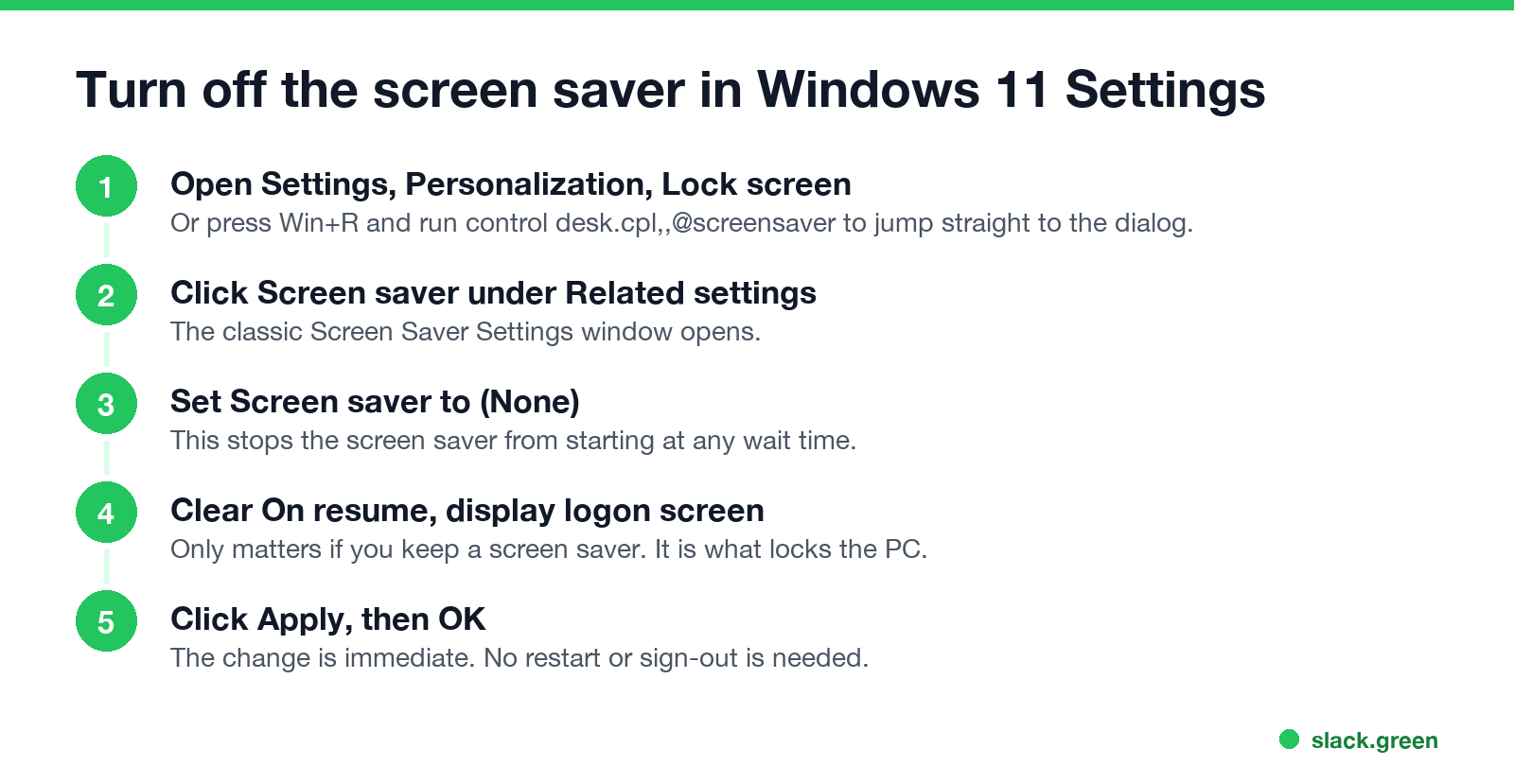
- Right-click the desktop and choose Personalize, or open Settings and select Personalization.
- Select Lock screen.
- Scroll to Related settings and click Screen saver. The classic Screen Saver Settings window opens.
- Open the Screen saver dropdown and choose (None).
- Clear On resume, display logon screen if it is ticked.
- Click Apply, then OK.
You can also type "screen saver" in the Start menu search and pick Turn screen saver on or off. It opens the same window.
If you want to keep a screen saver but stop it from locking the PC, leave the screen saver on and clear On resume, display logon screen only. The screen saver then ends on a mouse move, with no sign-in.
Screen saver keeps turning on in Windows 11
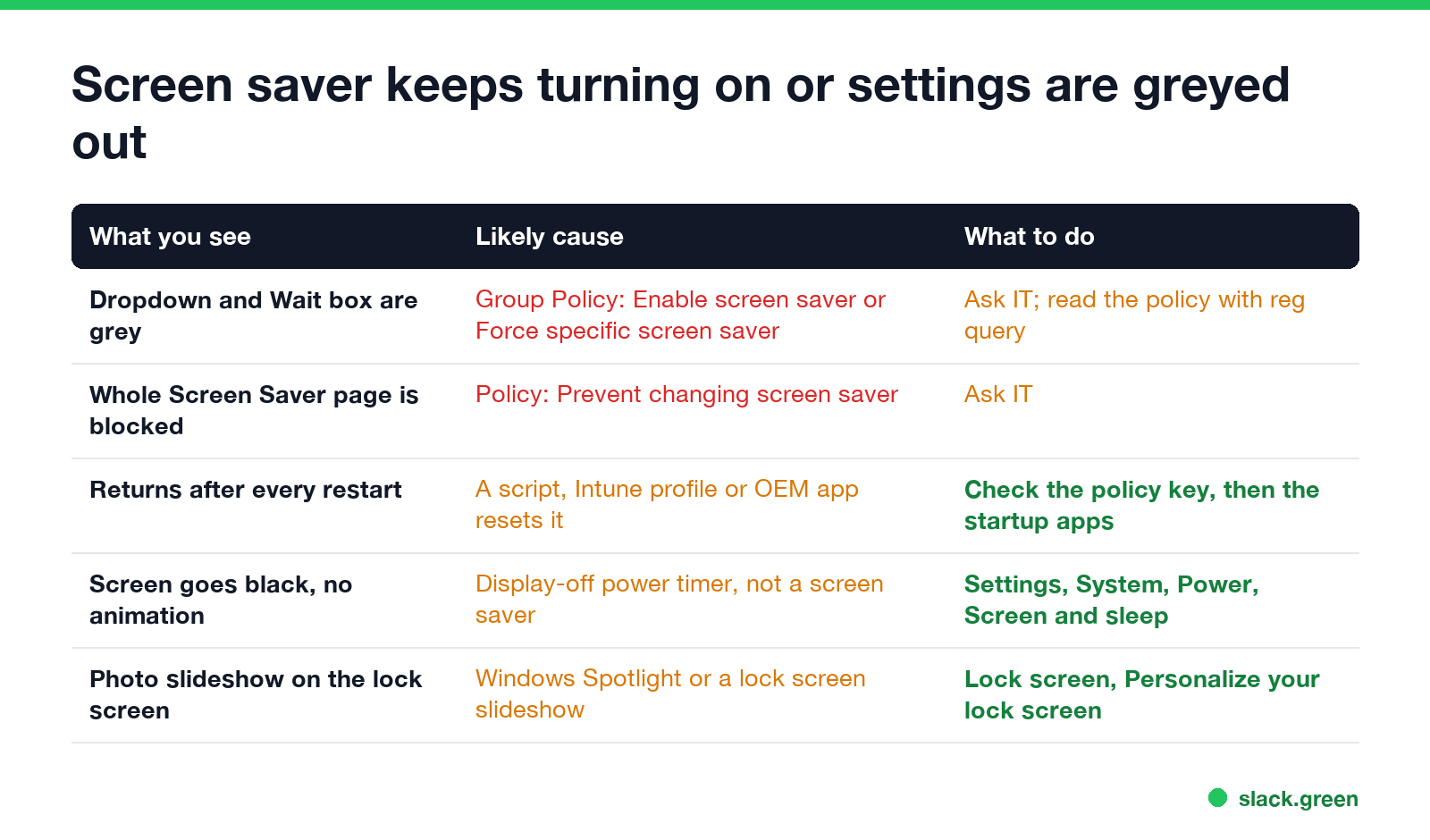
| What you see | Likely cause | What to do |
|---|---|---|
| The dropdown and Wait box are grey | Group Policy: Enable screen saver or Force specific screen saver | Check the policy below; only IT can change it on a work PC |
| The Screen Saver window will not open | Group Policy: Prevent changing screen saver | Same |
| It comes back after every restart | A sign-in script, an Intune profile or a PC maker's app sets it again | Check the policy key, then Startup apps in Settings |
| The screen goes black with no animation | The display-off power timer | Settings, System, Power & battery, Screen and sleep |
| Photos rotate on the lock screen | Windows Spotlight or a lock screen slideshow | Lock screen, Personalize your lock screen |
The last two rows are not screen savers, and (None) does not stop them. The display-off timer and every other timer that darkens a Windows 11 screen are in how to change the screen timeout on Windows 11.
Why the screen saver settings are greyed out
Never appear "away" on Slack again
Cloud-based. No downloads. Works 24/7 even when your laptop is off.
Group Policy has five screen saver settings, under User Configuration, Administrative Templates, Control Panel, Personalization. When one is set, Windows locks the matching control in the Screen Saver window:
| Policy | What it does | Registry value it writes |
|---|---|---|
| Enable screen saver | Turns the screen saver on or off, and locks the dropdown | ScreenSaveActive |
| Screen saver timeout | Sets the Wait time in seconds | ScreenSaveTimeOut |
| Password protect the screen saver | Forces the sign-in on resume | ScreenSaverIsSecure |
| Force specific screen saver | Picks the screen saver file | SCRNSAVE.EXE |
| Prevent changing screen saver | Hides the whole Screen Saver page | NoDispScrSavPage |
You can read them without admin rights. Open Command Prompt and run:
:: Screen saver policies set by Group Policy or Intune
reg query "HKCU\Software\Policies\Microsoft\Windows\Control Panel\Desktop"

:: "Prevent changing screen saver"
reg query "HKCU\Software\Microsoft\Windows\CurrentVersion\Policies\System" /v NoDispScrSavPage
ScreenSaveActive REG_SZ 1 with ScreenSaveTimeOut REG_SZ 900 means a screen saver forced on after 900 seconds, which is 15 minutes. If ScreenSaverIsSecure is 1 as well, it locks the PC. "ERROR: The system was unable to find the specified registry key or value" means no policy is set.
On a work PC this is a security setting, and changing the key yourself does not last: Group Policy writes it back within about 90 minutes, and Intune on its next sync. Why so many companies use 15 minutes, and how to ask IT for an exception, is in computer locks after 15 minutes? check for a group policy.
Turn the screen saver off with Group Policy or the registry
On your own PC, you can set the same switch Windows reads at sign-in.
Windows 11 Pro, Enterprise or Education: press Win+R, run gpedit.msc, go to User Configuration, Administrative Templates, Control Panel, Personalization, open Enable screen saver, choose Disabled and click OK. The screen saver stays off and the dropdown turns grey.
Windows 11 Home has no Group Policy editor. Set the per-user value instead, in Command Prompt:
:: Turn the screen saver off for the signed-in user
reg add "HKCU\Control Panel\Desktop" /v ScreenSaveActive /t REG_SZ /d 0 /f
Sign out and back in for it to apply. To check the current values from PowerShell:
Get-ItemProperty -Path 'HKCU:\Control Panel\Desktop' |
  Select-Object ScreenSaveActive, ScreenSaveTimeOut, ScreenSaverIsSecure, 'SCRNSAVE.EXE'
ScreenSaveActive of 0, or an empty SCRNSAVE.EXE, means no screen saver runs.
The screen still turns off or locks
Turning off the screen saver leaves three other timers in place:
Each one, with the setting that stops it, is in how to stop Windows 11 from locking. If your company also sets Interactive logon: Machine inactivity limit, the PC locks after that time whatever you change. For Mac, see how to turn off the screen saver on a Mac.
A screen that stays on and your chat status
Never appear "away" on Slack again
Cloud-based. No downloads. Works 24/7 even when your laptop is off.
The screen saver has no effect on Slack or Teams presence. Both read input, not the screen:
So a PC with the screen saver off can still show you away, and a PC with a screen saver running can still show you active for a few minutes.
FAQ
Does Windows 11 have a screen saver by default? No. It ships with the screen saver set to (None). The Screen saver link under Lock screen is the only place to turn one on.
What is the difference between the screen saver and screen timeout? The screen saver shows an animation after the Wait time. The screen timeout turns the display off. Both are separate from sleep and from the sign-in timer.
Why does my screen saver come on even though it is set to (None)?
A policy or app sets it again. Run the reg query lines above. If they show values, the setting comes from IT or from software on the PC.
How do I turn off the screen saver on Windows 10?
The same way: Settings, Personalization, Lock screen, Screen saver settings, then (None). The desk.cpl shortcut and the registry values are the same on Windows 10.
Stop Jiggling Your Mouse.
Join hundreds of remote workers who never worry about their Slack status. Set it up once, stay green forever.
Related Articles
Can My Employer See What I Watch on YouTube at Work?
On a work laptop or the office network, your employer can see that you used YouTube, when, and for how long. With HTTPS inspection or monitoring software, they can see which videos, because the video address and the browser tab title both name it. On your own phone on mobile data, they see nothing.
Can My Employer See My iMessages on a Work Mac?
Not through device management or the network: Jamf or Intune cannot read Messages, and iMessage is end-to-end encrypted. But if you sign in to Messages on a work Mac, your texts are stored on that Mac, where monitoring screenshots, backups and admin access can reach them. How to check, and how to take iMessage off the Mac without deleting it from your iPhone.
Can My Boss See My Private Outlook Calendar Events?
Usually not the details. When you mark an Outlook event Private, someone who can read your calendar sees only Private appointment, the time and a lock. The exceptions are delegates you gave Can view private items, the people invited to the event, anyone with full access to your mailbox in new Outlook or the web, and compliance admins. How to check who has which access, and what Private does not hide.