
Microsoft Graph Presence API: Get and Set Teams Status
The Microsoft Graph presence API reads and changes Microsoft Teams status. GET /me/presence returns your availability and activity, POST /communications/getPresencesByUserId returns up to 650 users per call, and setPresence, setUserPreferredPresence and setStatusMessage change what Teams shows. Every endpoint, the permission it needs, request examples, and the timeout rules that trip people up.
The Microsoft Graph presence API is how code reads and changes Microsoft Teams status. GET /me/presence returns your own availability and activity, such as Busy and InAMeeting. GET /users/{id}/presence returns one user, and POST /communications/getPresencesByUserId returns up to 650 users per request. To change status, setUserPreferredPresence sets the status a user would pick by hand, setPresence sets an app's own presence session, and setStatusMessage sets the status message. Reading needs Presence.Read or Presence.Read.All; writing needs Presence.ReadWrite or, as an application, Presence.ReadWrite.All. It works for work or school accounts only, not personal Microsoft accounts.
Everything here comes from the Microsoft Graph v1.0 reference pages and "Manage presence state using the Microsoft Graph API", read on 27 September.
Presence APIs are what we build on. Slack Green keeps a Slack status green during the hours you set, and the Slack side of this page is the Slack presence API and setting a Slack status with the API.
Presence endpoints and permissions
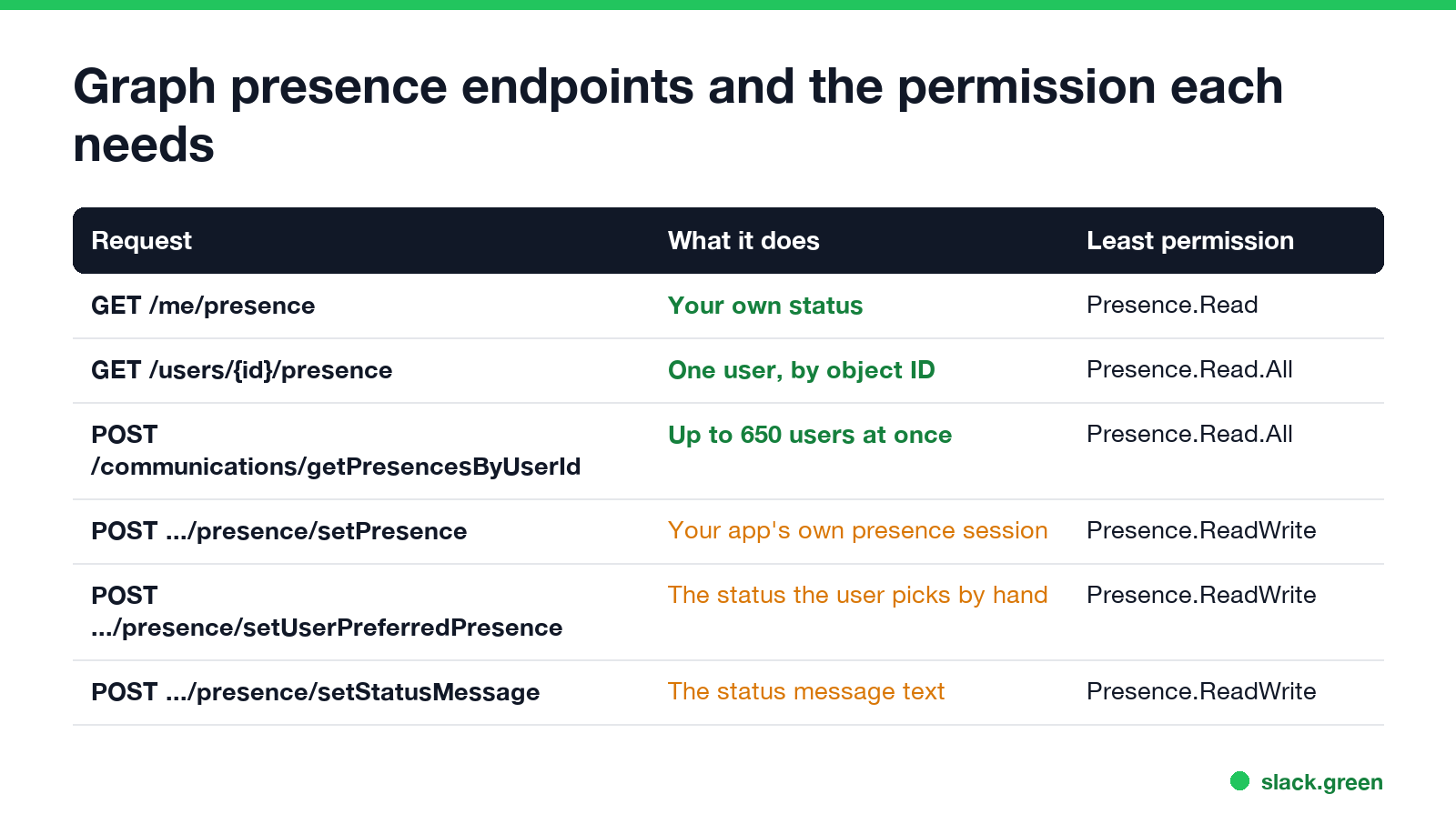
| Request | What it does | Delegated permission | Application permission |
|---|---|---|---|
GET /me/presence | Your own presence | Presence.Read | Not available on /me |
GET /users/{id}/presence | One user's presence, by object ID | Presence.Read.All | Presence.Read.All |
POST /communications/getPresencesByUserId | Up to 650 users per request | Presence.Read.All | Presence.Read.All |
POST /users/{id}/presence/setPresence | Set your app's presence session for the user | Presence.ReadWrite | Presence.ReadWrite.All |
POST /users/{id}/presence/clearPresence | End your app's session | Presence.ReadWrite | Presence.ReadWrite.All |
POST /users/{id}/presence/setUserPreferredPresence | Set the status the user chose | Presence.ReadWrite | Presence.ReadWrite.All |
POST /users/{id}/presence/clearUserPreferredPresence | Clear it, like Reset status in Teams | Presence.ReadWrite | Presence.ReadWrite.All |
POST /users/{id}/presence/setStatusMessage | Set the status message and its expiry | Presence.ReadWrite | Presence.ReadWrite.All |
Two limits from the reference: the read endpoints allow 1,500 requests in 30 seconds per application per tenant, and {id} must be the user's object ID (a GUID), not their email address.
Get presence
GET https://graph.microsoft.com/v1.0/me/presence
Authorization: Bearer {token}
The response:
{
  "id": "fa8bf3dc-eca7-46b7-bad1-db199b62afc3",
  "availability": "Busy",
  "activity": "InAMeeting",
  "statusMessage": null
}
availability is the colour of the dot, and activity is the detail. Teams shows "In a meeting" for Busy plus InAMeeting, and "Presenting" for DoNotDisturb plus Presenting.
The same calls from PowerShell with the Microsoft Graph module:
# PowerShell, Microsoft Graph module (Install-Module Microsoft.Graph)
Connect-MgGraph -Scopes "Presence.Read.All"

# your own status
Invoke-MgGraphRequest -Method GET -Uri "https://graph.microsoft.com/v1.0/me/presence"

# several people at once: object IDs, up to 650 per call
$body = @{ ids = @("fa8bf3dc-eca7-46b7-bad1-db199b62afc3", "66825e03-7ef5-42da-9069-724602c31f6b") }
Invoke-MgGraphRequest -Method POST -Body $body `
  -Uri "https://graph.microsoft.com/v1.0/communications/getPresencesByUserId"
For live updates rather than polling, Graph supports change notifications on the presence resource: subscribe to /communications/presences/{id}, or to several IDs at once, and Graph calls your webhook when the status changes.
How Graph values map to Teams statuses
Never appear "away" on Slack again
Cloud-based. No downloads. Works 24/7 even when your laptop is off.
| Teams shows | availability | activity |
|---|---|---|
| Available | Available | Available |
| Busy | Busy | Busy |
| In a call | Busy | InACall |
| In a meeting | Busy | InAMeeting |
| Do not disturb | DoNotDisturb | DoNotDisturb |
| Presenting | DoNotDisturb | Presenting |
| Away | Away | Away |
| Be right back | BeRightBack | BeRightBack |
| Appear offline | Offline | OffWork |
| Out of office | OutOfOffice |
Set presence: two different methods
setUserPreferredPresence sets the status a user would pick in the Teams menu, and it wins over everything else. The supported pairs are Available, Busy, DoNotDisturb, BeRightBack, Away, and Offline with OffWork (Appear offline). If you leave out expirationDuration, Busy and Do not disturb expire after 1 day and the others after 7 days, the same as in the Teams app.
POST https://graph.microsoft.com/v1.0/users/{user-id}/presence/setUserPreferredPresence
Content-Type: application/json

{
  "availability": "DoNotDisturb",
  "activity": "DoNotDisturb",
  "expirationDuration": "PT8H"
}
It only shows while the user has at least one presence session, meaning a signed-in Teams client or an app session from setPresence. With no session, the user shows Offline whatever you set.
setPresence creates or updates your application's own presence session for the user, next to the sessions from their desktop, web and mobile Teams clients. sessionId must be your app's client ID. Supported pairs: Available/Available, Busy/InACall, Busy/InAConferenceCall, Away/Away, and DoNotDisturb/Presenting. This is how calling and contact-center apps show a user as In a call.
POST https://graph.microsoft.com/v1.0/users/{user-id}/presence/setPresence
Content-Type: application/json

{
  "sessionId": "{your-app-client-id}",
  "availability": "Busy",
  "activity": "InACall",
  "expirationDuration": "PT1H"
}
Neither method can set In a meeting or Out of office. Microsoft says those come from calendar events and automatic replies: to show Out of office, create an event with showAs set to oof or turn on automatic replies through mailboxSettings.
Timeouts, expiration and precedence
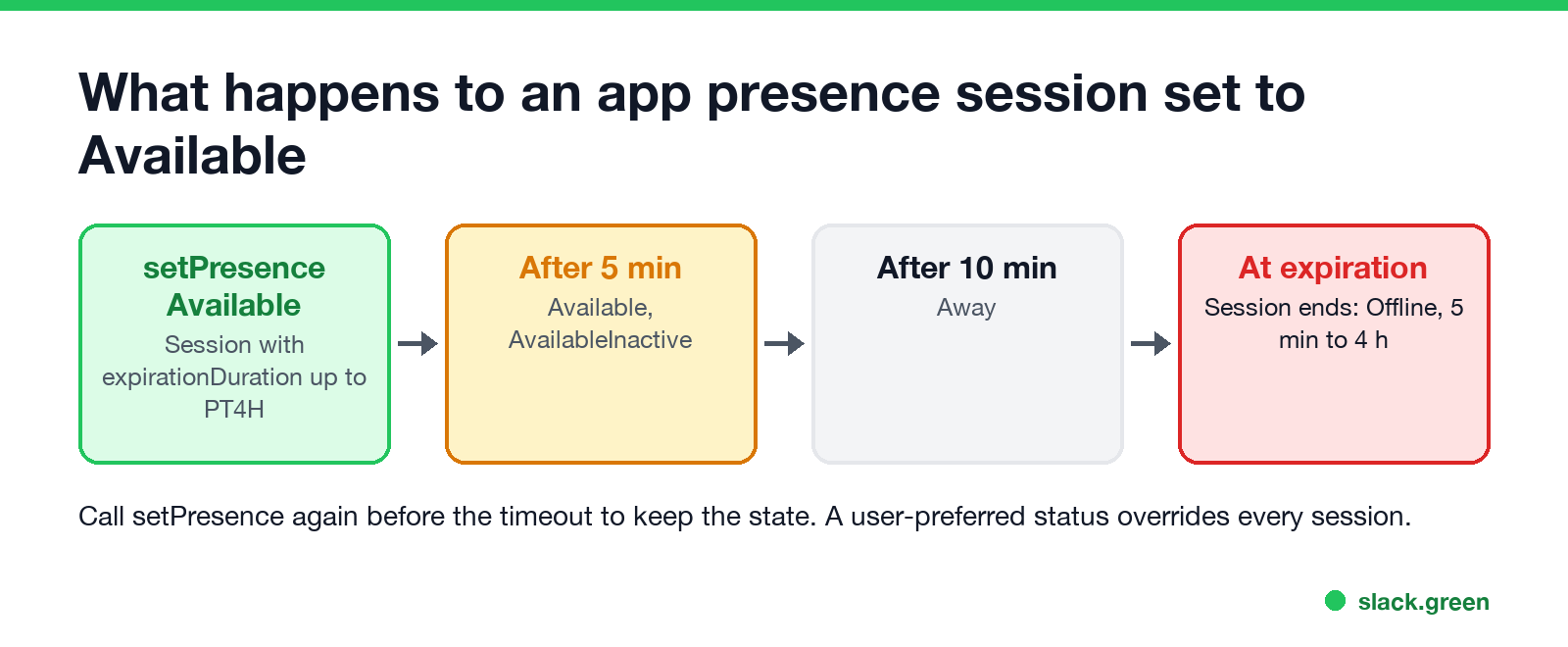
This part causes most "my status reverted" bug reports:
- • Expiration. An app session lasts for
expirationDuration, from 5 minutes to 4 hours (PT5MtoPT4H), default 5 minutes. After that the session ends. - • Timeout. A session set to Available fades if you do not refresh it: to Available with activity
AvailableInactiveafter 5 minutes, then to Away 5 minutes later. CallsetPresenceagain before each timeout to keep it. - • Precedence. A user-preferred status beats every session. Among sessions, DoNotDisturb beats Busy, Busy beats Available, and Available beats Away. So an app cannot show a user as Available while their own Teams client says Busy.
- • Delay. Teams clients poll, so a change made through Graph can take a few minutes to appear in Teams.
The same rules drive the Teams app itself, which is why a manual Busy seems stuck for a day; see Teams status stuck on Busy.
Set a status message
Never appear "away" on Slack again
Cloud-based. No downloads. Works 24/7 even when your laptop is off.
POST https://graph.microsoft.com/v1.0/users/{user-id}/presence/setStatusMessage
Content-Type: application/json

{
  "statusMessage": {
    "message": { "content": "Heads down until 3 PM", "contentType": "text" },
    "expiryDateTime": { "dateTime": "2026-10-01T15:00:00", "timeZone": "Pacific Standard Time" }
  }
}
The message shows in Teams next to the user's name, and it clears at expiryDateTime. Leave the expiry out to keep it until someone changes it. Tips on wording are in how to set an away message in Teams.
Who can see presence set through Graph
Presence set through Graph is the same presence everyone sees in Teams, including people in other organizations if your admin allows external access. Microsoft's presence guide says cross-tenant presence needs trust on both sides: each organization must allow the other's domain under Users > External access in the Teams admin center.
For how Teams calculates status without any API, see how long before Teams shows Away and Microsoft Teams status icons meaning.
FAQ
Can I get Teams presence by email address? Not directly. Look up the user's object ID first, for example with GET /users/{email}?$select=id, then call the presence endpoint with the ID.
Can I set my Teams status to Available forever with the API? No. A user-preferred Available expires after 7 days by default, and app sessions expire after at most 4 hours and fade to Away if not refreshed.
Does the presence API work with personal Microsoft accounts? No. Every presence endpoint lists personal Microsoft accounts as not supported.
How many users can I read at once? 650 object IDs per getPresencesByUserId request.
Stop Jiggling Your Mouse.
Join hundreds of remote workers who never worry about their Slack status. Set it up once, stay green forever.
Related Articles
Does Slack Notify When You View Someone's Profile? No
No. Opening someone's Slack profile, hovering over their name or checking their status sends them nothing, and Slack has no list of who viewed your profile. Admins cannot see profile views either. What does get noticed: typing in a DM, messages, reactions, mentions and huddles. What a profile shows, and what Slack admins can see instead.
Teams: Keep My Current Status When Active Outside of Teams
Keep my current status when I'm active outside of Teams on the web is a Teams web setting under Settings, Notifications and activity, Presence. Turn it on and click Allow, and Teams stops setting you Away while you work in other tabs or apps. It needs Chrome or Edge. What it detects, why it can fail, and what it does not do.
Does Teams Notify When You Leave a Chat? No Alert, but a Line
Teams sends no notification when you leave a group chat, but it adds a line to the chat saying you left, which everyone sees the next time they open it. Muting or hiding the chat leaves no trace. What others see for each option, how to leave, and what happens when you leave a team.