
Mouse Mover vs Mouse Jiggler: What the Names Mean
Most sellers use mouse mover and mouse jiggler for the same thing. When they differ, a mouse mover is a turntable that moves your real mouse, and a jiggler is an app or USB stick that sends fake movement. How to tell which one a product is, what each does to your computer, and what the computer can see.
Mouse mover and mouse jiggler usually name the same thing: anything that makes the pointer move so your computer does not lock and your status does not go idle. When the two names are used for different products, a mouse mover is a physical device that moves your real mouse, most often a small turntable the mouse sits on, while a mouse jiggler is an app or a USB stick that sends movement to the computer without touching the mouse. The difference matters on a work laptop. An app shows up as a running process and a USB jiggler as a new device, while a turntable connects to nothing and leaves only the movement itself.
None of them keeps Slack active on its own. Slack counts input only inside its own window, so the pointer has to move over Slack. Slack Green keeps your Slack status green from a server during the hours you set, with nothing plugged in or installed.
Three kinds of product, two names
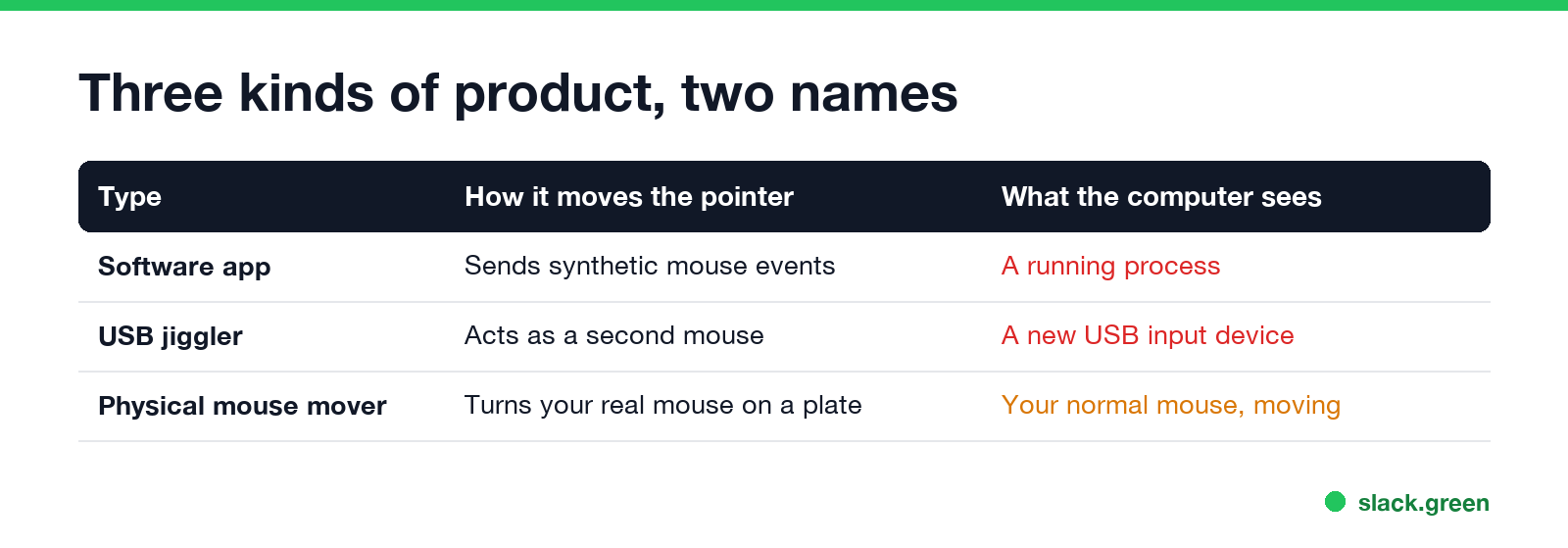
Search "mouse mover" and "mouse jiggler" on Amazon and you get the same products under both names. What sets them apart is how the movement reaches the computer:
| Type | Usually sold as | How it moves the pointer | What the computer sees |
|---|---|---|---|
| Software app | Mouse jiggler, mouse mover app | Sends synthetic mouse events | A running process, input marked as injected on Windows |
| USB plug-in | USB mouse jiggler | Acts as a second mouse and reports small moves | A new USB input device |
| Turntable or pusher | Mouse mover, physical jiggler | Moves your real mouse on a rotating plate or arm | Your normal mouse, moving |
The apps are the Move Mouse app on Windows, Mouse Jiggler by Arkane Systems, Jiggler on a Mac, and many copies of them. The Move Mouse app is the one most often called a "mouse mover". The USB sticks cost $8 to $25 and need no install. The turntables cost $20 to $40, run on a USB power brick or batteries, and work with optical mice only, since a laser or optical sensor has to see the plate turn.
How to tell what a product is
Product titles mix the words, so read the description, not the title:
- • "Plug and play", "driverless", "USB port" and a photo of a thumb-drive shape: a USB jiggler.
- • A round plate, "place your mouse on top", "not connected to the computer", "powered by any USB charger": a physical mouse mover.
- • A download link, Microsoft Store, Mac App Store or GitHub: a software jiggler.
Some turntables come with a USB cable only for power. If the listing says the cable goes into a charger or a power bank, it is still a physical mover. If it says it goes into the computer, check whether it is only drawing power or also shows up as a keyboard or mouse.
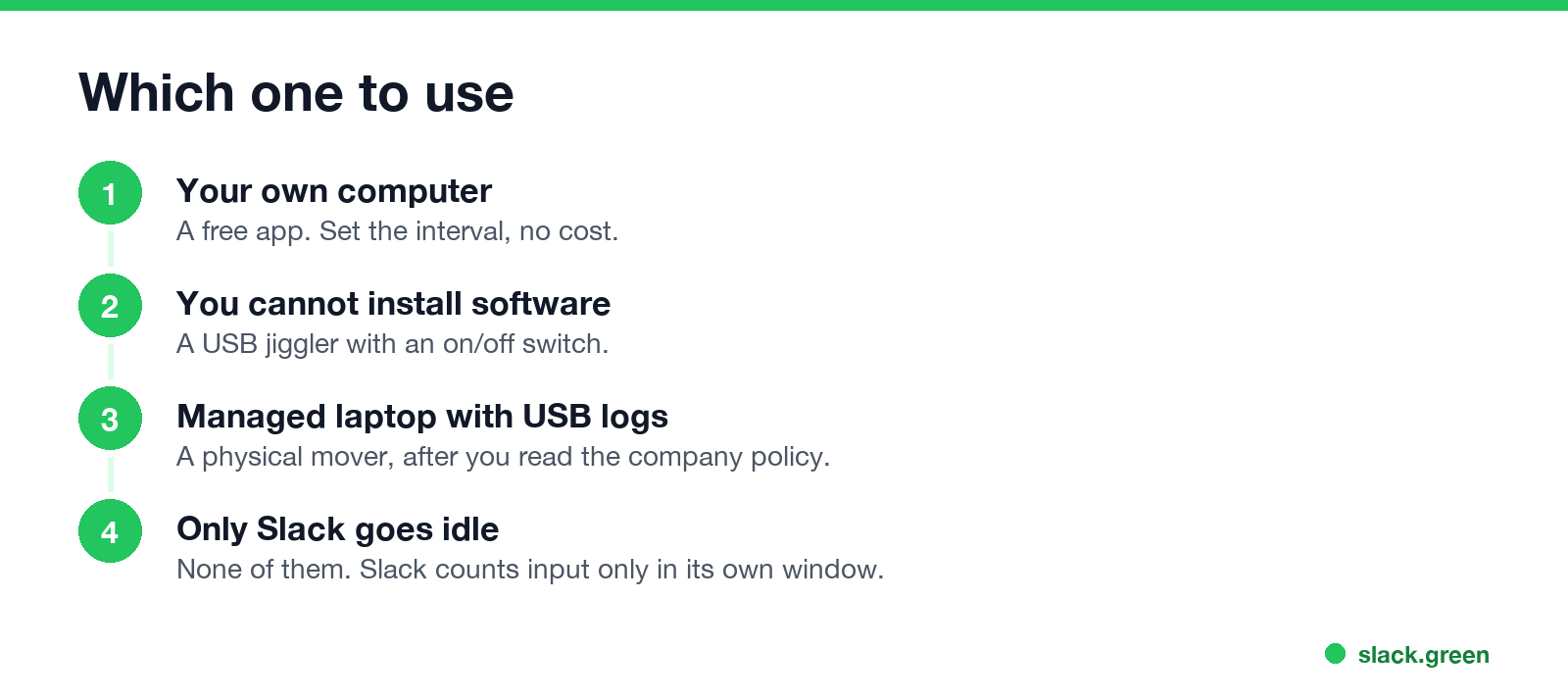
Which one should you use?
Never appear "away" on Slack again
Cloud-based. No downloads. Works 24/7 even when your laptop is off.
For prices, specific models and what each costs, see the best mouse jiggler.
What each type does to detection
A physical mover is often sold as "undetectable". It hides two things the others leave behind: the process and the new device. It cannot hide the pattern. A pointer that moves in the same circle every few seconds for an hour, with no keys pressed, looks the same whatever moved it. Monitoring tools such as Hubstaff flag mouse-only activity with the keyboard near zero, whatever the source. The full list of checks is in can a mouse jiggler be detected.
| Signal | Software app | USB jiggler | Physical mover |
|---|---|---|---|
| Process in Task Manager or Activity Monitor | Yes | No | No |
| New device in USB logs | No | Yes | No |
| Injected-input flag on Windows | Yes | No | No |
| Mouse moves with no typing, on a timer | Yes | Yes | Yes |
| Works when the laptop lid is closed | No | No | No |
What neither does
A mover or a jiggler keeps the computer awake and unlocked, and keeps Microsoft Teams Available while it runs, since Teams watches input anywhere on the computer. It does not:
If the only goal is a computer that stays awake, you need no movement at all. caffeinate on a Mac and PowerToys Awake on Windows do it without moving anything.
FAQ
Never appear "away" on Slack again
Cloud-based. No downloads. Works 24/7 even when your laptop is off.
Is a mouse mover the same as a mouse jiggler? Usually yes, in how sellers use the words. When they differ, a mouse mover moves your real mouse and a jiggler sends fake movement from software or a USB stick.
Do physical mouse movers work with any mouse? They work with optical and laser mice that track on the plate. They do not work with a trackpad or a trackball.
Is a mouse mover app safe? The well-known ones, such as Move Mouse and Mouse Jiggler, are open source or in the official app stores. Avoid installers from download mirrors.
Stop Jiggling Your Mouse.
Join hundreds of remote workers who never worry about their Slack status. Set it up once, stay green forever.
Related Articles
KeepingYouAwake vs Amphetamine: Which Mac Keep-Awake App to Use
KeepingYouAwake is a free, open-source menu bar switch that runs Apple's caffeinate for you. Amphetamine is a free App Store app with triggers, schedules and a closed-lid mode. Pick KeepingYouAwake for one click and Homebrew, Amphetamine for automation. Neither keeps Slack or Teams active.
Computer Locks After 15 Minutes? How to Tell If Group Policy Set It
A work laptop that locks after exactly 15 minutes, with screen settings greyed out, is almost always following a policy from IT: the Windows machine inactivity limit, a forced screen saver, or an Intune device lock. Security baselines and PCI DSS ask for 15 minutes. How to see which policy it is, and what you can and cannot change.
How to Keep a Citrix Session Active: Find Which Timeout Logs You Out
A Citrix session can end from four different timers: Windows locking inside the virtual desktop, the Citrix session idle timer, the Citrix Gateway session time-out, and the StoreFront web page timeout. Only input from your own device into the Citrix window resets them. How to tell which one hit you and what keeps each one quiet.