
Slack Canvas Shortcuts: Keyboard Keys, the / Menu and Dates
Slack canvases have their own keyboard shortcuts: Cmd + Option + 1 to 3 for headings, Cmd + Shift + 7, 8 and 9 for lists and checklists, and / for an insert menu that adds dates and reminders. We pressed every formatting shortcut in a real canvas on October 28, 2026.
Slack canvases have their own set of keyboard shortcuts, separate from the ones for messages. Press Cmd + / (Ctrl + / on Windows) while a canvas is open and Slack's shortcut panel shows them under Canvas Editing. The ones you will use most: Cmd + Option + 1, 2 or 3 for headings, Cmd + Shift + 7, 8 or 9 for numbered lists, bullets and checklists, and / at the start of a line for an insert menu with dates, reminders, images and more. We pressed 13 formatting shortcuts in a canvas in the Slack web app on a Mac on October 28, 2026, and all 13 worked.
Every formatting shortcut we tested
We typed a sample line, selected it, pressed the shortcut, and checked the result on screen and in the page code:
| Shortcut (Mac) | What it did in our canvas |
|---|---|
| Cmd + B | Bold |
| Cmd + I | Italic |
| Cmd + U | Underline |
| Cmd + Shift + X | Strikethrough |
| Cmd + Shift + C | Inline code (red monospace) |
| Cmd + Option + 1 | Big heading |
| Cmd + Option + 2 | Medium heading |
| Cmd + Option + 3 | Small heading |
| Cmd + Shift + > (the period key) | Block quote |
| Cmd + Option + Shift + C | Code block |
| Cmd + Shift + 9 | Checklist item |
| Cmd + Shift + 8 | Bulleted list |
| Cmd + Shift + 7 | Numbered list |
| Ctrl + Option + Q | Copies a link to the current section |
This is the canvas after the test, with one line per shortcut:
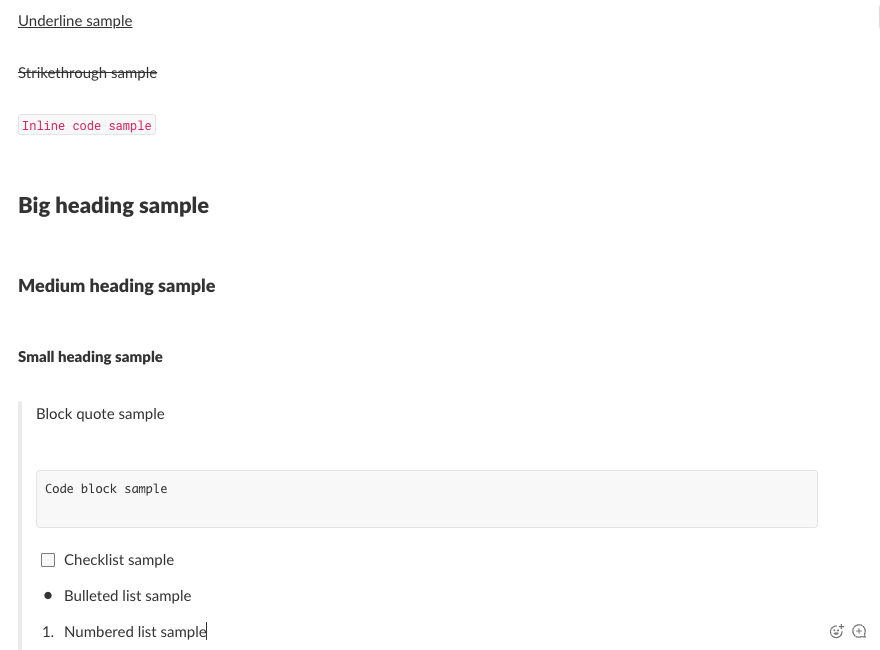
On Windows and Linux, Slack's shortcut panel uses Ctrl in place of Cmd and Alt in place of Option. We tested on a Mac only.
We selected the whole sample line before each shortcut. One thing did not go as planned: after the block quote, pressing Enter twice and Cmd + Option + 0 (Paragraph style in the panel) did not take us out of the quote, so our code block landed inside it. Check where the cursor is before you add the next block.
The shortcut panel
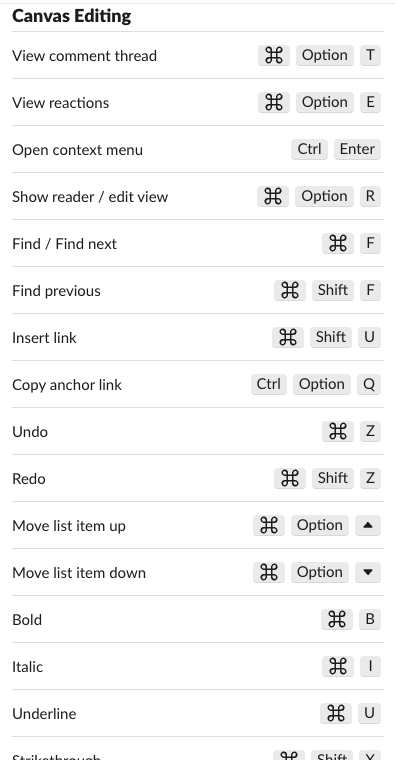
Cmd + / opens the panel on the right. The Canvas Editing part starts with comments, reactions and search:
Further down are the formatting styles from our table:
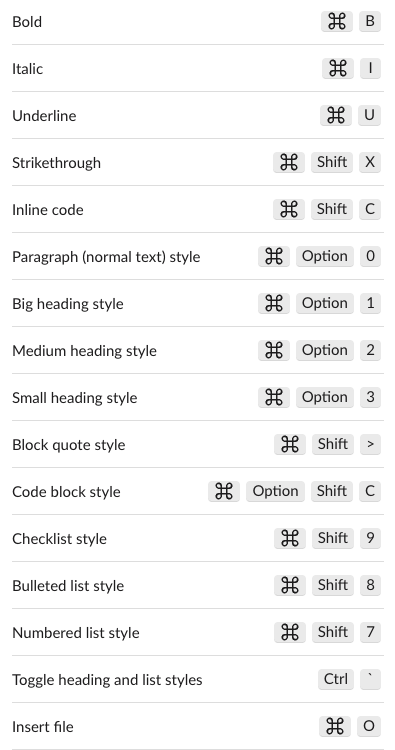
Two of these are easy to miss. Cmd + Shift + U inserts a link, which matters because typing [text](url) in a canvas does not make a link. Ctrl + Option + Q copies a link to the section the cursor is in; in our test it showed "Link copied to clipboard" and the link ended in ?focus_section_id=. Those section links are how you build a table of contents in a Slack canvas.
The / insert menu
Type / at the start of an empty line and a menu opens. Ours listed these groups:
| Group | Items |
|---|---|
| Basics | Canvas, Check list, Big heading, Medium heading, Small heading, Paragraph, Bulleted list, Ordered list, Blockquote, Code, Date, Reminder |
| Media | Record video clip, Record audio clip, Image, File |
| Slack | Profile, Channel |
| Layout | Code block, and more further down the list |
Keep typing to filter it. /date left one item, Date.
Never appear "away" on Slack again
Cloud-based. No downloads. Works 24/7 even when your laptop is off.
Insert a date in a canvas
- On an empty line, type
/dateand press Enter. - A calendar opens with today marked. Pick a day.
- Optional: set Remind me… if you want a reminder about that date. We left it empty.
- Click Save.
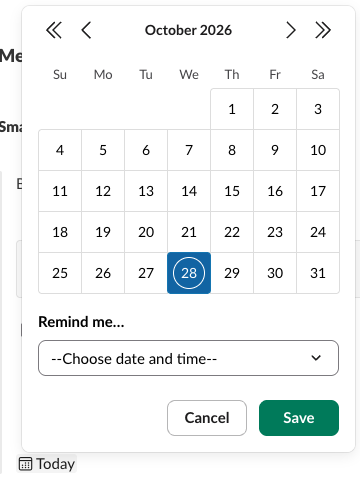
Before we picked a day, the chip read Today. We chose October 30, two days ahead, and the canvas showed a date chip that read Friday, under the formatted lines from the shortcut test:
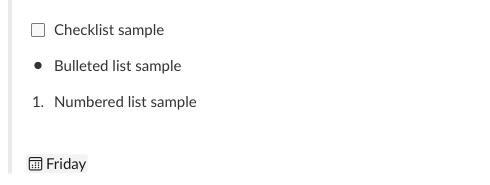
The chip showed a weekday name for a date in the same week, not the full date.
Markdown you can type instead
You do not need the shortcuts for most styles. Typing #, ## or ### and a space makes headings, - a bullet, [] a checkbox and three backticks a code block. Slack canvas formatting lists every markdown trigger we tested and the ones that stay as plain text. The general Slack shortcuts for messages and navigation are in Slack keyboard shortcuts.
FAQ
Is there a shortcut to create a new canvas?
Slack's help page on keyboard shortcuts lists Cmd + Shift + N (Ctrl + Shift + N on Windows) to create a new canvas. We did not press it, because on the Free plan a standalone canvas showed a Pro badge.
Stop Jiggling Your Mouse.
Join hundreds of remote workers who never worry about their Slack status. Set it up once, stay green forever.
Related Articles
How to Copy or Duplicate a Slack Canvas
Slack canvases have no Duplicate button. To copy one, select all, copy, and paste into a new canvas, or copy it by API. We tested both on October 28, 2026: headings and lists came through, but links to sections still pointed at the old canvas.
Slack Canvas Table of Contents: The Built-in Outline and Section Links
Every Slack canvas already has a table of contents: hover the short lines at the left edge and a list of all headings opens. For a contents list inside the canvas, copy a link to each heading and paste them as a list. We tested both on October 28, 2026.
Does Slack Collapse Long Messages? When Show More Appears
Slack shows a normal message in full, however long it is: a 40-line message and a 3,900-character message both showed with no Show more link in our October 28, 2026 test. Show more appears only on legacy attachments from apps, at 6 lines or about 700 characters.