
Slack Channel Notification Settings: What Each Option Did in a Test
Each Slack channel has its own notification setting under the bell icon: All new posts, Just mentions, or Mute and hide. We set three channels one way each and had a bot post into all of them.
To change notifications for one Slack channel, open the channel and click the bell icon at the top right, next to the search icon. You get three choices: All new posts, Just mentions and Mute and hide. The choice applies to that channel only and overrides your global setting. On 22 October 2026 we set three test channels to one option each and had a bot post the same messages into all three. Mentions reached us in every channel, even the muted one.
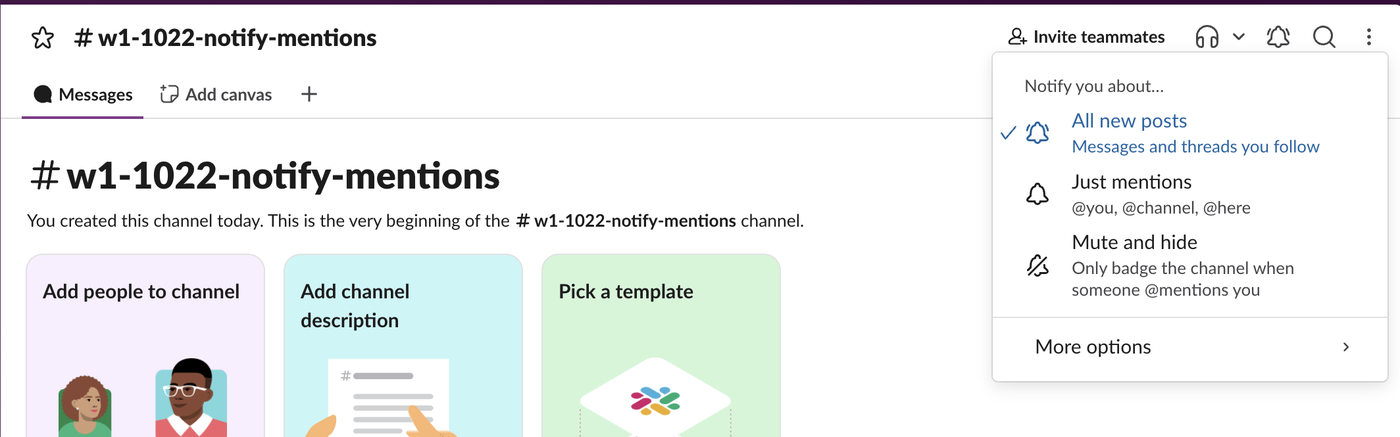
The three options
| Option | What Slack's menu says | What we saw |
|---|---|---|
| All new posts | Messages and threads you follow | Bold channel name, mention badge, mention in Activity |
| Just mentions | @you, @channel, @here | Bold channel name, mention badge, mention in Activity |
| Mute and hide | Only badge the channel when someone @mentions you | Grey name with a muted icon, mention badge, mention in Activity |
The fourth entry, More options, holds a temporary mute, a link to your default preferences and Advanced settings. Advanced settings is where Follow every thread lives, which is the fix when you want replies in threads you never posted in. The thread notifications guide covers that case.
The test: three channels, the same six messages
We made three public channels in our test workspace (Free plan, Slack web app): one on All new posts, one on Just mentions and one on Mute and hide. Our account's global setting was All new messages, so the channel on Just mentions was overriding it. A test bot then posted the same three messages into each channel twice: two plain lines and one line that @mentioned us.
When we read our preferences back through the API, the per-channel choice was stored per channel and covered desktop and mobile together. Just mentions was saved as desktop: mentions_dms and mobile: mentions_dms. Mute and hide was saved as muted: true. The global setting did not change.
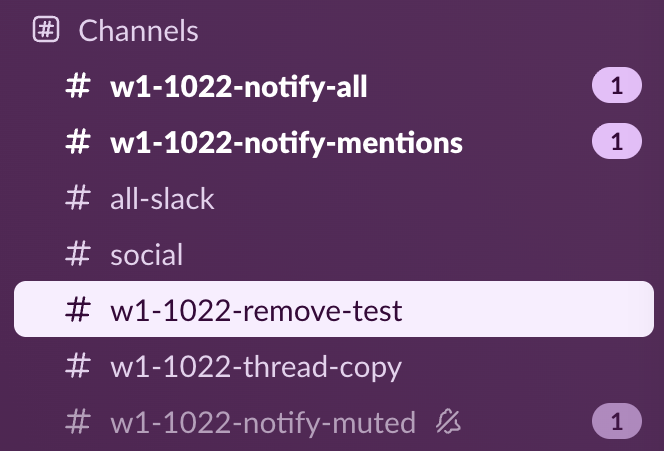
The sidebar badge counted mentions, not messages, in all three channels: 1 each after the second round, although each channel had 3 new messages. The muted channel still got its badge, which matches the menu's wording.
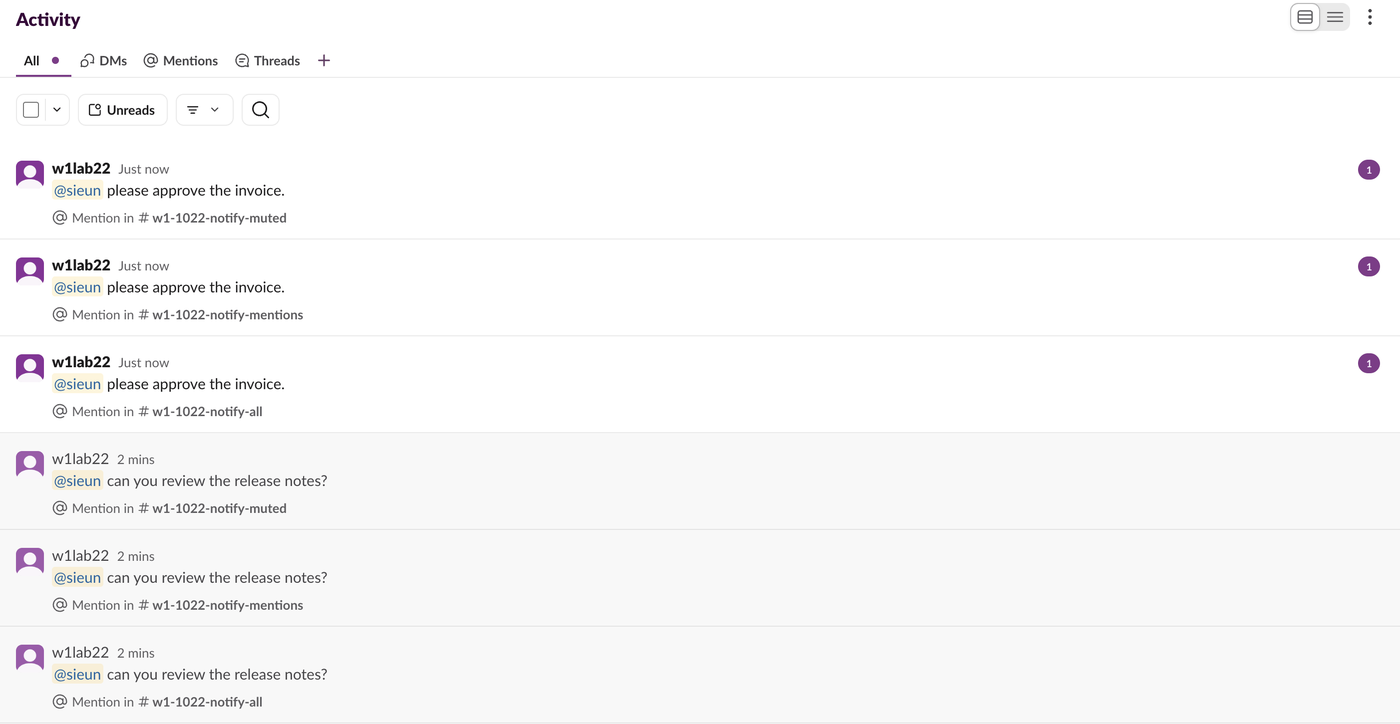
The Activity tab listed all six @mentions, including the two from the muted channel. None of the plain messages went to Activity in any channel, All new posts included. That option changes what can make a desktop or phone alert; it does not put every channel message into Activity. We did not time desktop pop-ups, because the browser had not been given notification permission (see the next section).
Get notified for every message in a channel
- Open the channel.
- Click the bell icon at the top right.
- Pick All new posts.
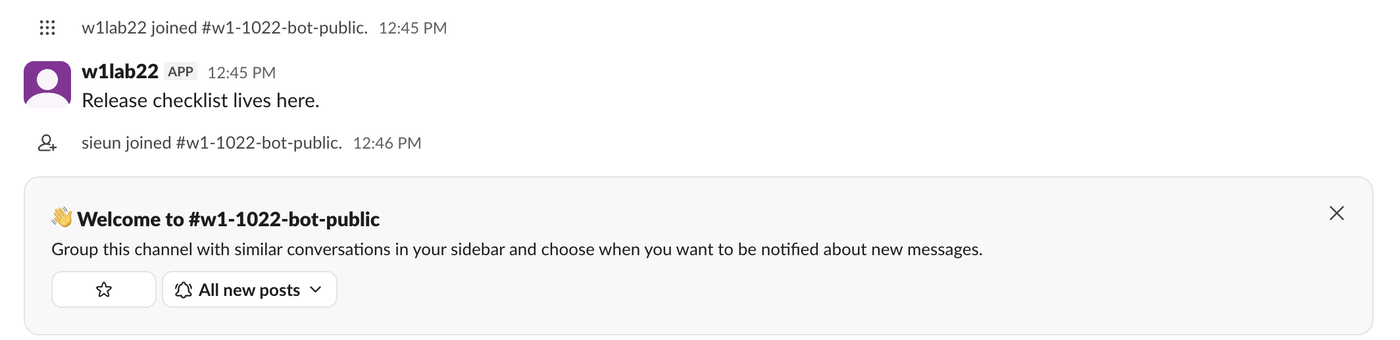
If you join a channel later, its welcome card shows the same choice. When we joined a new channel, the card's bell was already set to All new posts, copied from our global setting.
Never appear "away" on Slack again
Cloud-based. No downloads. Works 24/7 even when your laptop is off.
Turn channel notifications off
Pick Just mentions to stop alerts for normal posts but still hear when someone needs you. Pick Mute and hide to make the channel grey and quiet. As the test shows, neither one blocks a direct @mention of you. To stop those as well, you need Do Not Disturb, which pauses everything for a time; see Slack Do Not Disturb. To mute without hiding the channel from your sidebar, see mute a channel without hiding it.
When channel notifications do not arrive
Check these in order. Each one is a setting we saw in the test workspace:
For the full checklist across desktop and phone, see Slack notifications not working. For words that should alert you in any channel, use keyword notifications.
FAQ
Does a per-channel setting apply to the phone app too?
The menu choice saved the same value for desktop and mobile in our test, so one click covers both. To make your phone behave differently from your computer, see Slack mobile overrides.
Will a muted channel still show a badge?
Yes, when someone @mentions you. In our test the muted channel showed a badge of 1 after a mention and the mention also went to Activity.
Stop Jiggling Your Mouse.
Join hundreds of remote workers who never worry about their Slack status. Set it up once, stay green forever.
Related Articles
Slack: Download All Files From a Channel (Script and Test)
Slack has no download-all button for a channel. We uploaded 8 files, checked what the Files tab and search show, and ran a files.list script that saved all 8, after it first found only 4.
How to Remove Someone From a Slack Channel (3 Ways, Tested)
Use /remove @name in the channel, the channel details window, or conversations.kick. We tried all three, checked what the removed member could still do, and what the channel saw.
How to Remove an App From Slack, and What Stays Behind
Remove an app from one channel with /remove or channel details, or uninstall it from the workspace in Manage apps. We did both with a test app and checked its tokens, messages and files afterwards.