
Slack Dark Mode: Where the Setting Is, and Which Custom Emoji Disappear
Slack's dark mode is under Preferences > Appearance > Color Mode, with Light, Dark and System. We switched modes in Slack web with three test emoji and measured which ones vanish.
To turn on dark mode in Slack, click your profile picture, open Preferences, choose Appearance, and pick Dark under Color Mode. System follows your computer's light or dark setting, and Light keeps Slack light all the time. The change applies at once, with no reload. On 7 October 2026 we switched between the modes in Slack for web with three test emoji in a message, to see what dark mode does to custom emoji. One in three became hard to see in each mode.
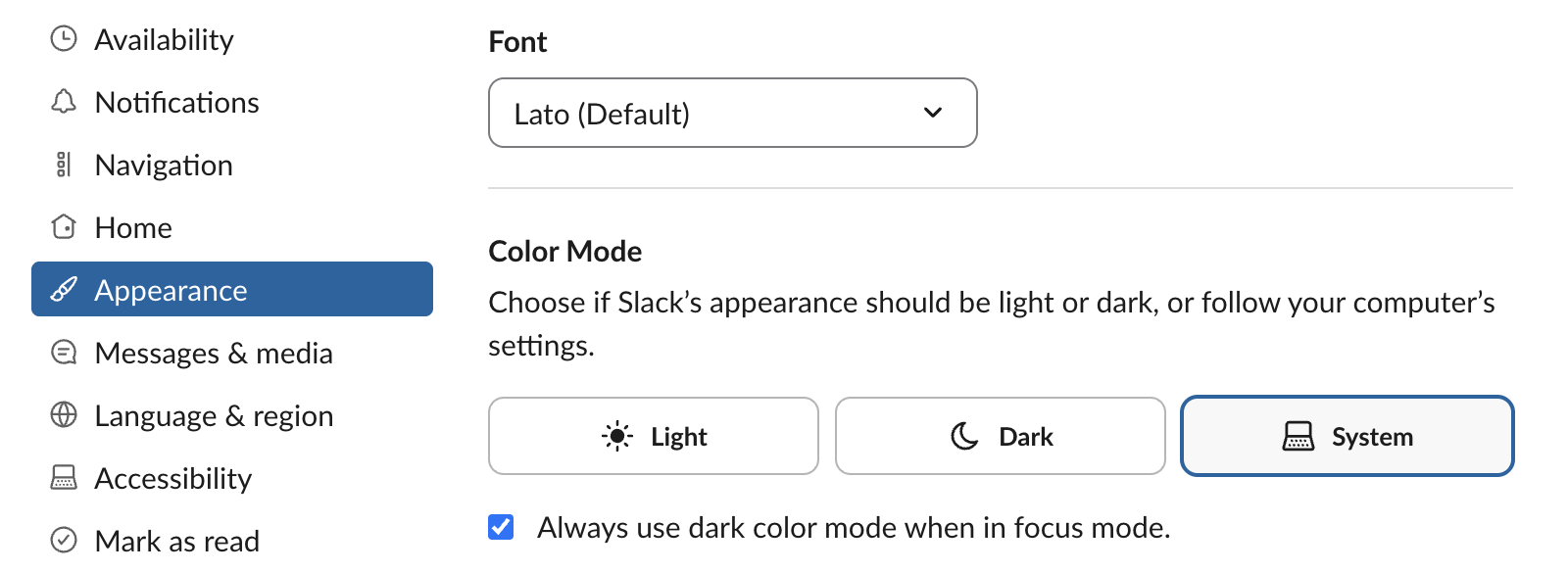
The setting, step by step
- Click your profile picture in the bottom-left corner of Slack.
- Click Preferences.
- Open Appearance.
- Under Color Mode, click Light, Dark or System.
- •
:w7-dm-black:a black outline on a transparent background - •
:w7-dm-white:a white outline on a transparent background - •
:w7-dm-solid:a black outline on a solid white square
The same Appearance page holds the Slack themes. A theme colours the sidebar and accents, and the colour mode sets the message area: they are two separate choices, and any theme works in either mode. Our Slack themes test covers the theme side.
Below the three buttons is a checkbox, "Always use dark color mode when in focus mode". It was ticked in our account. As the label says, focus mode then switches Slack to dark even if you picked Light.
There is also a shortcut: type /darkmode in any message box and pick Toggle dark mode from the Shortcuts list.
Which custom emoji disappear in dark mode
We made three 128 x 128 PNG emoji of the same check mark and uploaded them to the workspace:
A test bot posted all three in one message, next to Slack's own ✅, and we took the same screenshot in Light and in Dark.
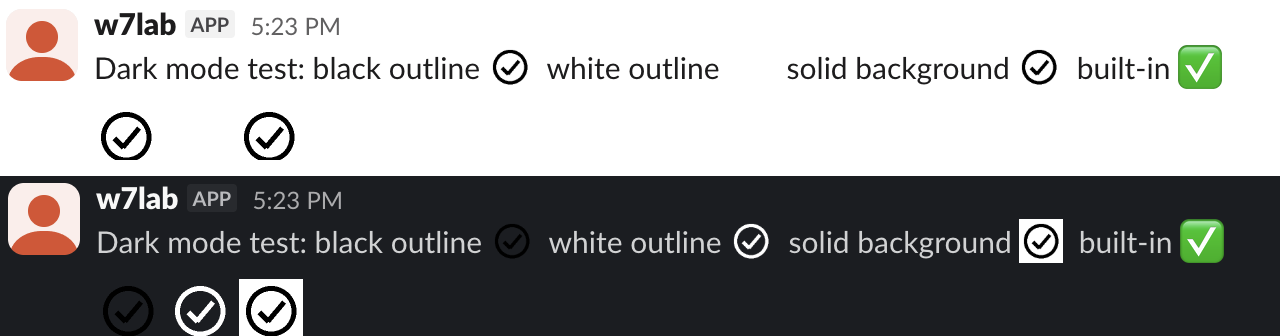
| Emoji | Light mode | Dark mode |
|---|---|---|
| Black outline, transparent | Clear | Almost invisible |
| White outline, transparent | Invisible, an empty gap | Clear |
| Black outline on a white square | Fine, the square blends in | Visible, but as a bright white tile |
| Slack's built-in ✅ | Clear | Clear |
The numbers behind it: we sampled the message background in our screenshots. Light mode was pure white (255, 255, 255); dark mode was (27, 29, 33). Using the WCAG contrast formula, black on Slack's dark background is 1.24:1 and white on the light background is 1.0:1. WCAG asks for at least 3:1 for icons and other graphics, so each of the two transparent emoji fails in one mode.
The safe design is a transparent emoji with two tones: a dark shape with a light outline, or the other way round. That keeps it readable on both backgrounds without the white tile. The Slack emoji maker has an outline option in its text tab, and making an emoji background transparent shows how to clear a solid square.
Never appear "away" on Slack again
Cloud-based. No downloads. Works 24/7 even when your laptop is off.
Light, Dark and System, and where the choice is saved
System was selected in our account before the test, and the Mac was in light mode, so Slack showed light. After we clicked Dark, the message area changed at once, with no reload.
We read the account's server-side preferences (users.prefs.get) before and after switching to Dark and to Light. Nothing about the colour mode changed there; the only differences were the recent-items lists. The mode was written to the browser's local storage instead (a "mode":"light" entry in Slack's local config after we picked Light). So in Slack for web the choice belongs to that browser, not to your account. Another browser, or the desktop app, keeps its own setting until you change it there. We did not test the desktop app in this run.
FAQ
Is there a keyboard shortcut for dark mode?
In Slack for web, /darkmode in the message box offers Toggle dark mode.
Can I use dark mode for the sidebar only? The sidebar colour comes from the theme, not the colour mode. Pick a dark theme in the same Appearance page and keep Color Mode on Light.
Does dark mode change how my emoji look to other people? No. Each person sees your emoji on their own background. An emoji that looks fine to you in light mode can vanish for a teammate who uses dark mode.
Stop Jiggling Your Mouse.
Join hundreds of remote workers who never worry about their Slack status. Set it up once, stay green forever.
Related Articles
Slack Bot Scopes: The Scope Each API Method Needs, Measured on 44 Methods
We gave a Slack bot one scope, called 44 common Web API methods, and read the needed field of every missing_scope error. Then we added the scopes and called them again. The table shows which scope clears each method.
Slack File Size Limit: 1 GB Is Exactly 1,073,741,824 Bytes, Tested
We uploaded files of 50 MB, exactly 1 GiB and 1 GiB plus one byte to Slack through its upload API. The limit is 1,073,741,824 bytes, and a failed upload can still leave a broken file behind.
Slack Activity Tab: What Lands There, the Filters, and Why You Cannot Hide It
The Activity tab collects mentions, reactions, thread replies, reminders and DMs in one feed. We sent a mention and a /remind to a test account and opened every Activity setting in Slack web.