
Teams: Keep My Current Status When Active Outside of Teams
Keep my current status when I'm active outside of Teams on the web is a Teams web setting under Settings, Notifications and activity, Presence. Turn it on and click Allow, and Teams stops setting you Away while you work in other tabs or apps. It needs Chrome or Edge. What it detects, why it can fail, and what it does not do.
"Keep my current status when I'm active outside of Teams on the web" is a setting in Teams on the web. It stops Teams from setting you Away while you work in other browser tabs or other apps. To turn it on, open Teams in Chrome or Edge, click Settings and more (...) next to your profile picture, then Settings, Notifications and activity, Presence, and turn on the toggle. When the browser asks whether Teams can know when you are using your device, click Allow.
It is off by default, each person turns it on for themselves, and it only works in browsers with the Idle Detection API: Chrome 94 or newer and Edge 114 or newer. The Teams desktop app does not need it, because the app already sees activity anywhere on the computer.
If your team also uses Slack in the browser, Slack has no such setting: it counts only input inside the Slack window and sets you away after 10 minutes without it. Slack Green keeps your Slack status active from our servers during the hours you set.
Turn on the setting in Teams on the web
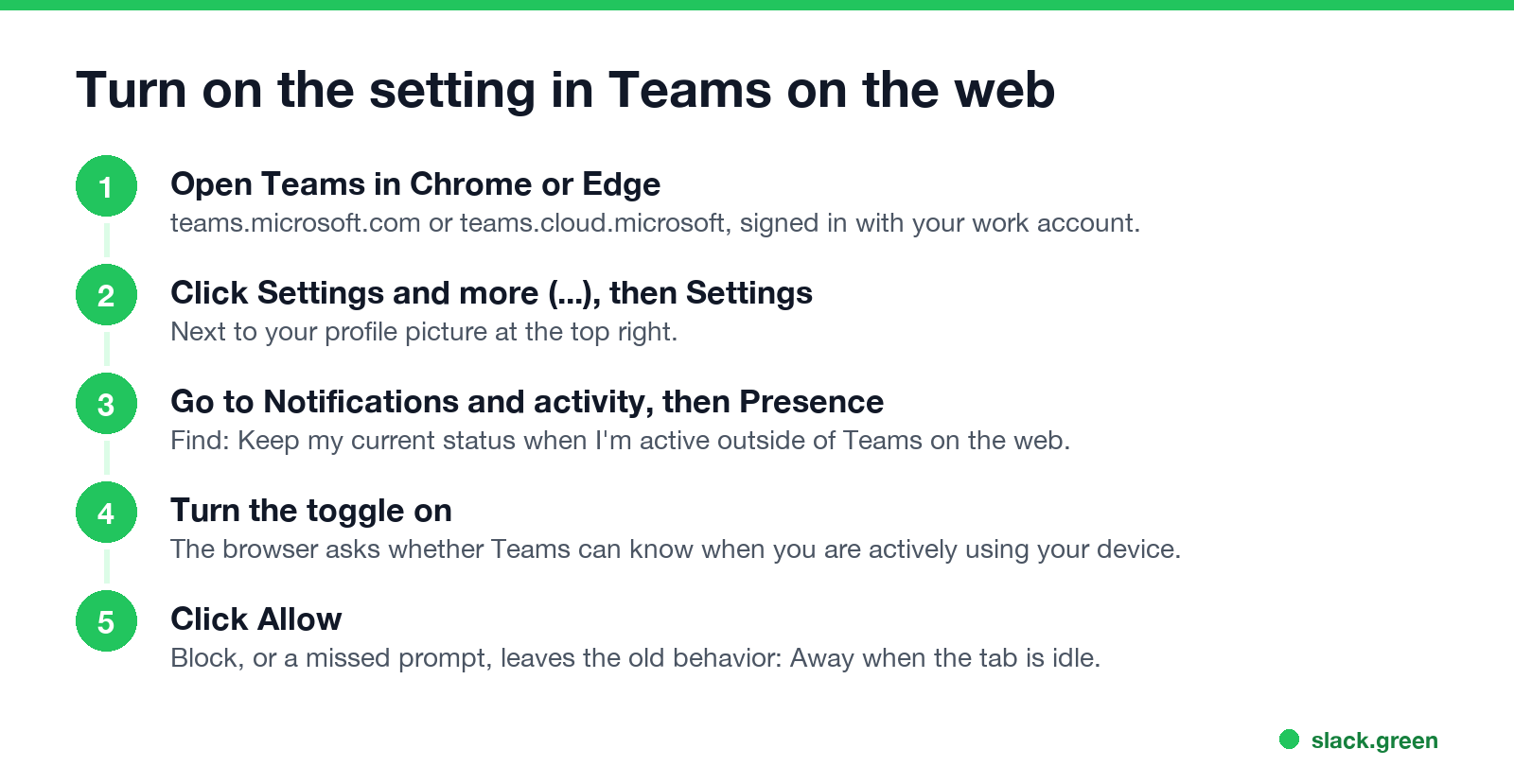
- Open Teams in Chrome or Edge and sign in.
- Click Settings and more (...) next to your profile picture, then Settings.
- Select Notifications and activity, and scroll to Presence.
- Turn on Keep my current status when I'm active outside of Teams on the web.
- The browser shows a prompt asking whether Teams can know when you are actively using the device. Click Allow.
Microsoft's support page on Teams status puts it this way: with the setting on, "your coworkers will see the right status, even if you're not working in Teams." If you click Block, "Teams won't detect activity outside the app, and your status may change to 'Away' even if you're working elsewhere."
Why Teams on the web shows you Away in another tab
A web page cannot see what you do outside its own tab. Without this setting, Teams on the web only knows about clicks and typing inside the Teams tab, so after a few minutes in email, a document or another app, it decides you are idle and sets you Away. The desktop app has no such problem: it reads keyboard and mouse input across the whole computer, and sets you Away after about 5 minutes with none. The timers are in how long before Teams shows Away.
The setting closes that gap with the browser's Idle Detection API. The browser tells Teams one thing, active or idle, based on keyboard and mouse input, the screen saver and screen lock across the device. Teams gets no details: no keystrokes, no screen content and no list of the sites you visit.
The setting does not work? Check these
Never appear "away" on Slack again
Cloud-based. No downloads. Works 24/7 even when your laptop is off.
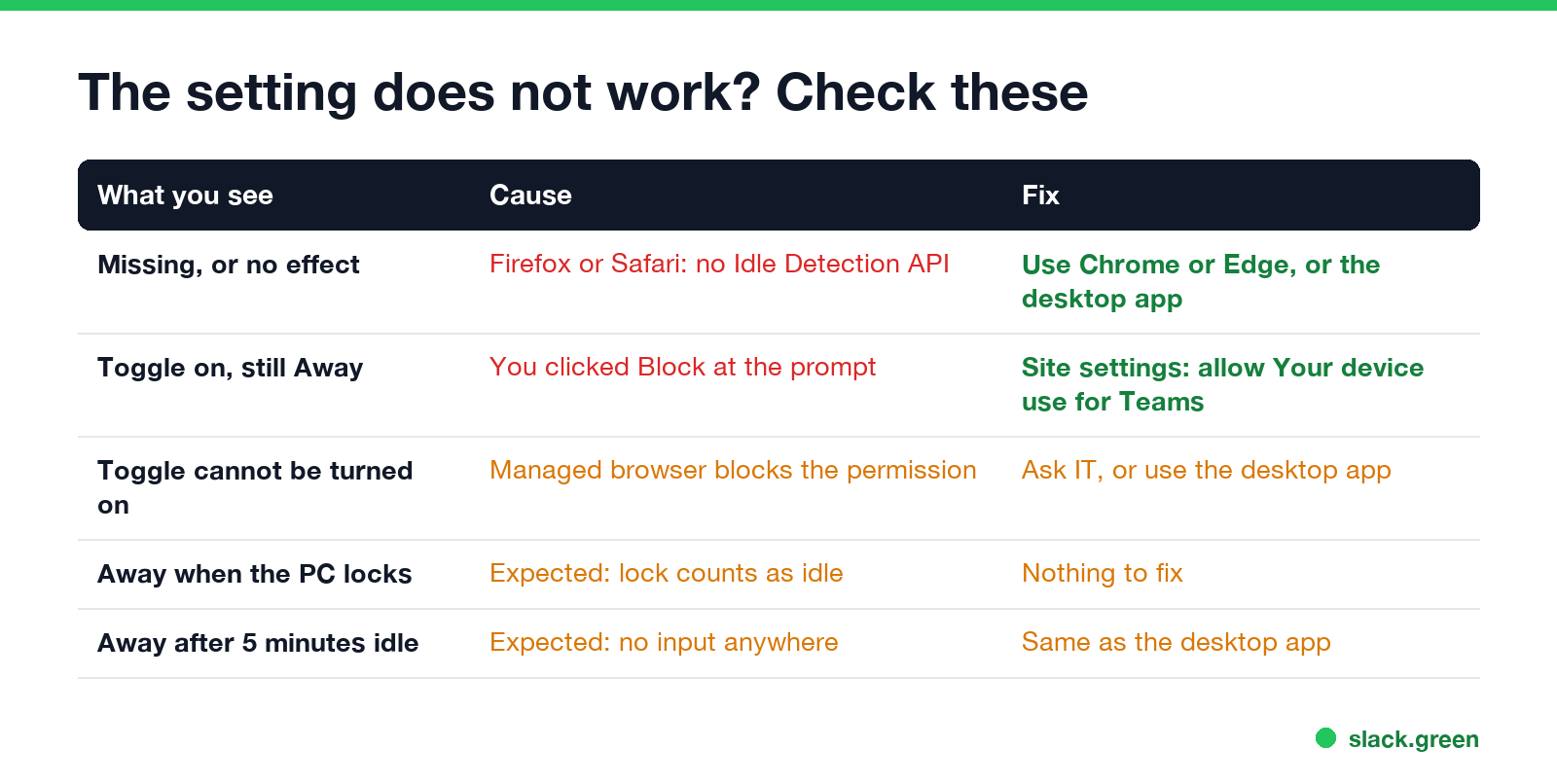
| What you see | Cause | Fix |
|---|---|---|
| The toggle is missing or has no effect | Firefox and Safari do not support the Idle Detection API | Use Chrome or Edge, or the Teams desktop app |
| The toggle is on, you still go Away | You clicked Block at the prompt, or closed it | Allow the permission in the browser's site settings (below) |
| The permission cannot be allowed | Your company's browser policy blocks it | Ask IT, or use the desktop app |
| Away when your computer locks | Expected: a lock counts as idle | Nothing to fix |
| Away after about 5 minutes without input | Expected: no input anywhere on the device | Same as the desktop app |
To undo a Block in Chrome, click the icon left of the address bar on the Teams tab, open Site settings, and set Your device use to Allow. You can also open this page and remove Teams from the blocked list:
chrome://settings/content/idleDetectionEdge has the same permission in the site settings for the Teams tab. Reload Teams after changing it. If your status still sticks on Away, the other causes, from a status you set yourself to the phone app, are in Teams status stuck on Away.
What this setting does not do
FAQ
Where is "keep my current status" in Teams? Teams on the web: Settings, Notifications and activity, Presence. It is not in the desktop app, which does not need it.
Is the setting on by default? No. Each person turns it on and allows the browser permission.
Does it let Teams see my other tabs? No. Teams learns only whether you are active or idle, not which tab or app you use.
Does Teams show Away when minimized? The desktop app does not, as long as you use the computer. See does Teams show Away when minimized.
Stop Jiggling Your Mouse.
Join hundreds of remote workers who never worry about their Slack status. Set it up once, stay green forever.
Related Articles
Can My Employer See What I Watch on YouTube at Work?
On a work laptop or the office network, your employer can see that you used YouTube, when, and for how long. With HTTPS inspection or monitoring software, they can see which videos, because the video address and the browser tab title both name it. On your own phone on mobile data, they see nothing.
Can My Employer See My iMessages on a Work Mac?
Not through device management or the network: Jamf or Intune cannot read Messages, and iMessage is end-to-end encrypted. But if you sign in to Messages on a work Mac, your texts are stored on that Mac, where monitoring screenshots, backups and admin access can reach them. How to check, and how to take iMessage off the Mac without deleting it from your iPhone.
Can My Boss See My Private Outlook Calendar Events?
Usually not the details. When you mark an Outlook event Private, someone who can read your calendar sees only Private appointment, the time and a lock. The exceptions are delegates you gave Can view private items, the people invited to the event, anyone with full access to your mailbox in new Outlook or the web, and compliance admins. How to check who has which access, and what Private does not hide.