
Teams Status Not Showing in Outlook? Fix It in This Order
Classic Outlook for Windows shows Teams status only while Teams runs on the same PC and is registered as the chat app. Check that first, then the Outlook option, the registry value and the contact's address.
If your Teams status is not showing in Outlook, the cause is almost always on your own PC, in classic Outlook for Windows. Classic Outlook does not fetch presence from the cloud. It asks the Teams app running on the same computer, and only if Teams is registered as your chat app. So check, in this order: Teams is installed, running and signed in; Register Teams as the chat app for Microsoft 365 is on in Teams settings; Display online status next to name is on in Outlook; and the registry names Teams as the default IM app. New Outlook and Outlook on the web get presence from the cloud and rarely have this fault.
The six checks, the registry fix, and the cases Microsoft lists as known issues are below. The colors themselves are covered in Outlook status colors meaning. If you came here because your status in Slack is the one that goes grey too early, Slack Green keeps your Slack presence active from a server during the hours you set.
How Outlook gets your Teams status
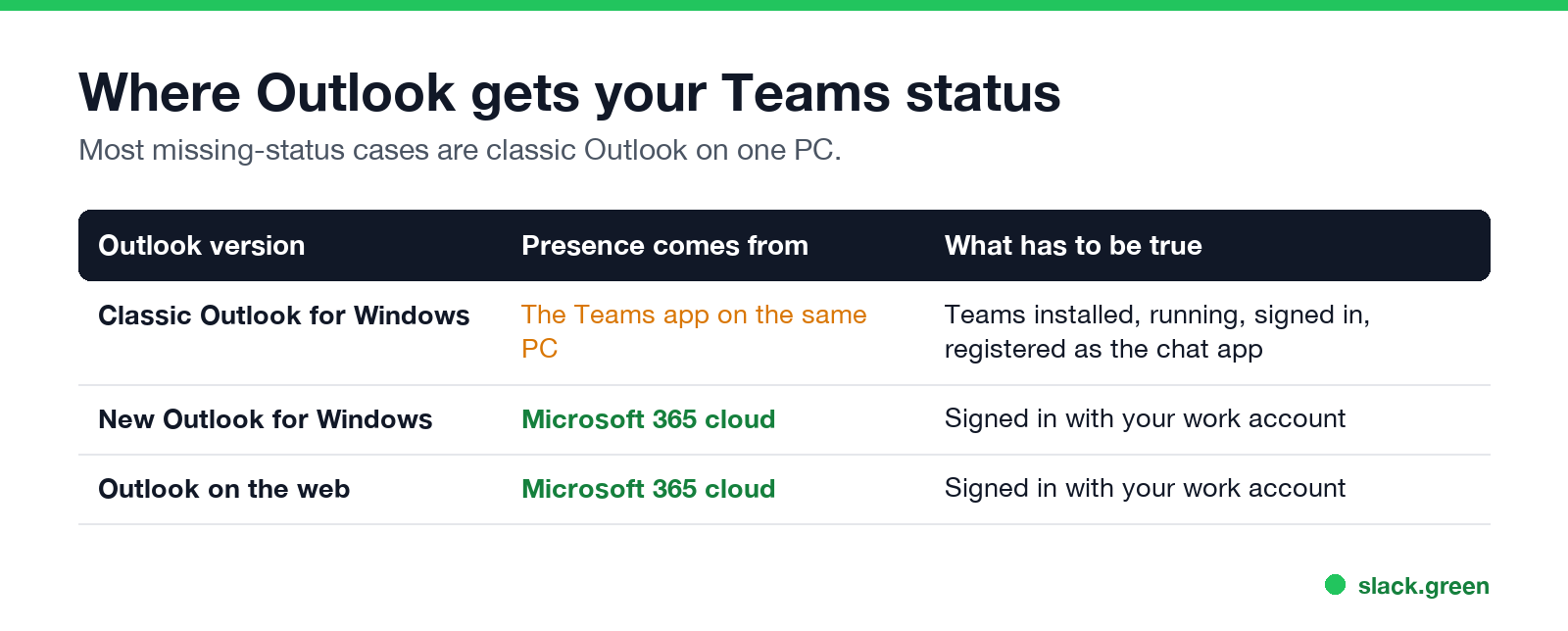
| Outlook version | Where presence comes from | What has to be true |
|---|---|---|
| Classic Outlook for Windows | The Teams app on the same PC | Teams installed, running, signed in, registered as the chat app |
| New Outlook for Windows | Microsoft 365 in the cloud | You are signed in with your work account |
| Outlook on the web | Microsoft 365 in the cloud | You are signed in with your work account |
Microsoft's troubleshooting article says it plainly: "The presence feature in Outlook requires Microsoft Teams to be installed, running and configured to display presence." That line is about classic Outlook. A Microsoft Q&A thread from March 2026 shows the split well: presence was missing in classic Outlook on one PC, and it showed normally when the same user opened new Outlook.
The presence documentation adds one admin condition. Outlook asks Teams for presence only if your account's upgrade mode is TeamsOnly. Otherwise it asks Skype for Business, which most companies retired years ago.
Fix Teams status not showing in classic Outlook
Check each step, then restart Outlook and look again.
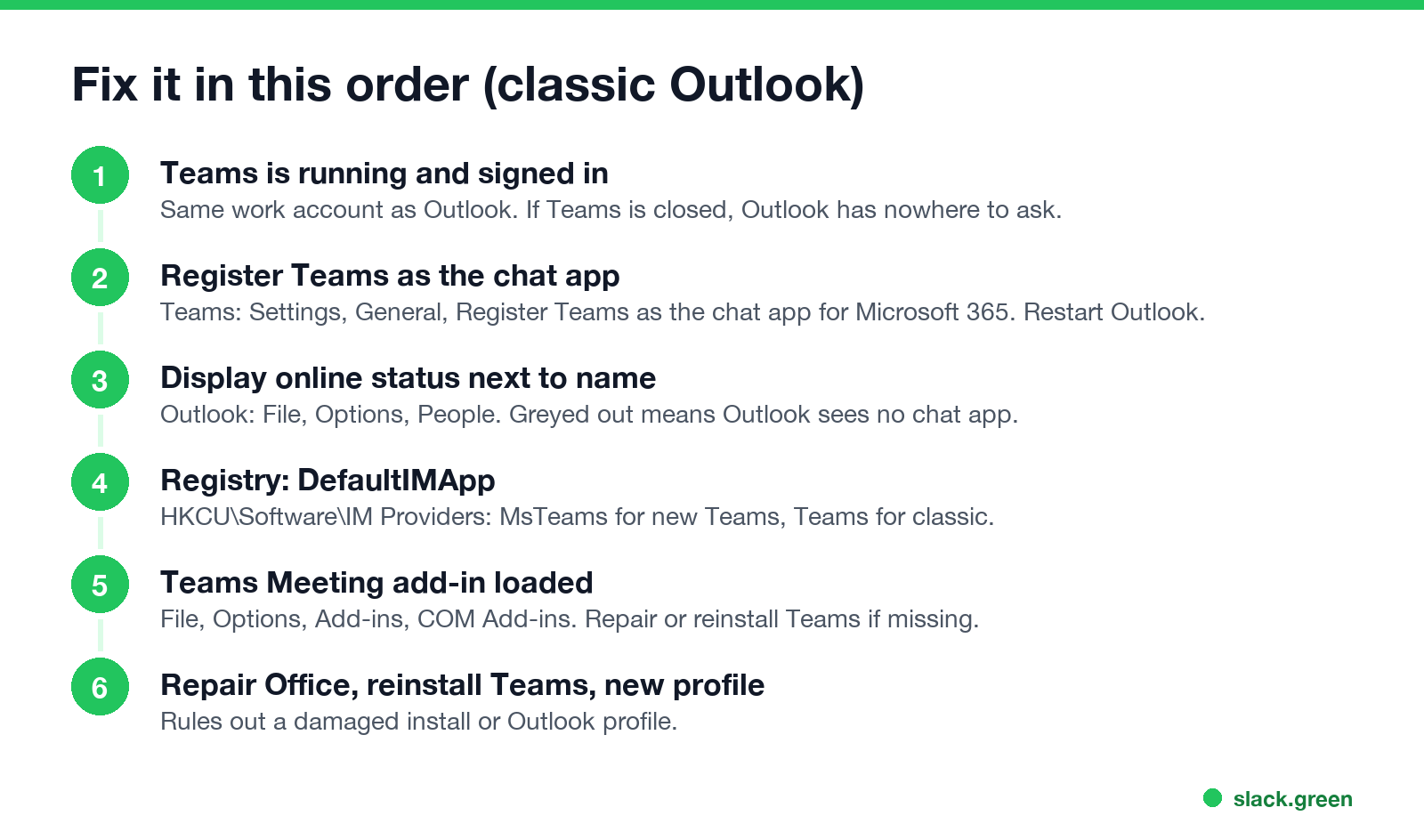
1. Teams is running and signed in. Open Teams and sign in with the same work account as Outlook. If Teams is closed, classic Outlook has nowhere to ask.
2. Teams is registered as the chat app. In Teams, open Settings and more (the three dots), Settings, General, and turn on Register Teams as the chat app for Microsoft 365. There is no save button. Close and reopen Outlook and the other Office apps.
3. Outlook shows online status. In Outlook, go to File, Options, People, and under Online status and photographs turn on Display online status next to name. Select OK and restart Outlook.
If that box is greyed out, Outlook does not see a chat app at all. A fix posted on the Microsoft Tech Community forum: in the registry, set DefaultIMApp to Lync, open Outlook and tick the box, then set the value back to your Teams value (step 4) and restart Teams and Outlook.
4. The registry names Teams as the default IM app. Microsoft's article gives the key HKEY_CURRENT_USER\Software\IM Providers, value DefaultIMApp. The data is MsTeams for new Teams and Teams for classic Teams. You can check and set it from PowerShell without admin rights:
# List the chat apps registered on this PC (look for MsTeams)
Get-ChildItem 'HKCU:\Software\IM Providers' | Select-Object PSChildName

# See which one Outlook uses for presence
Get-ItemProperty 'HKCU:\Software\IM Providers' -Name DefaultIMApp

# Point Outlook at new Teams, then restart Teams and Outlook
Set-ItemProperty 'HKCU:\Software\IM Providers' -Name DefaultIMApp -Value 'MsTeams'
If MsTeams is not in the list, step 2 did not take effect. Toggle the setting off and on again in Teams, or reinstall Teams.
5. The Teams add-in is loaded. In Outlook, go to File, Options, Add-ins, choose COM Add-ins next to Manage, and select Go. Make sure Microsoft Teams Meeting Add-in for Microsoft Office is ticked. If it is missing, repair or reinstall Teams so it registers the add-in again. Microsoft has a separate article on the Teams Meeting add-in going missing after the move to new Teams.
6. Repair or reinstall. Quit Teams and Outlook, repair Office from Settings, Apps, then reinstall Teams if the status still does not show. A new Outlook profile, from Control Panel, Mail, Show Profiles, rules out a damaged profile.
Status missing for only one person
Never appear "away" on Slack again
Cloud-based. No downloads. Works 24/7 even when your laptop is off.
If you see everyone's status except one contact's, the fault is with that contact's account, not your PC. Microsoft's article asks you to check that their email address and their Teams sign-in address are the same. If they differ, the contact fixes the address, then signs out of Teams and back in. Their IT team may need to do the fix.
Outlook and Teams status not syncing
Presence can show in Outlook and still be wrong. The usual reasons:
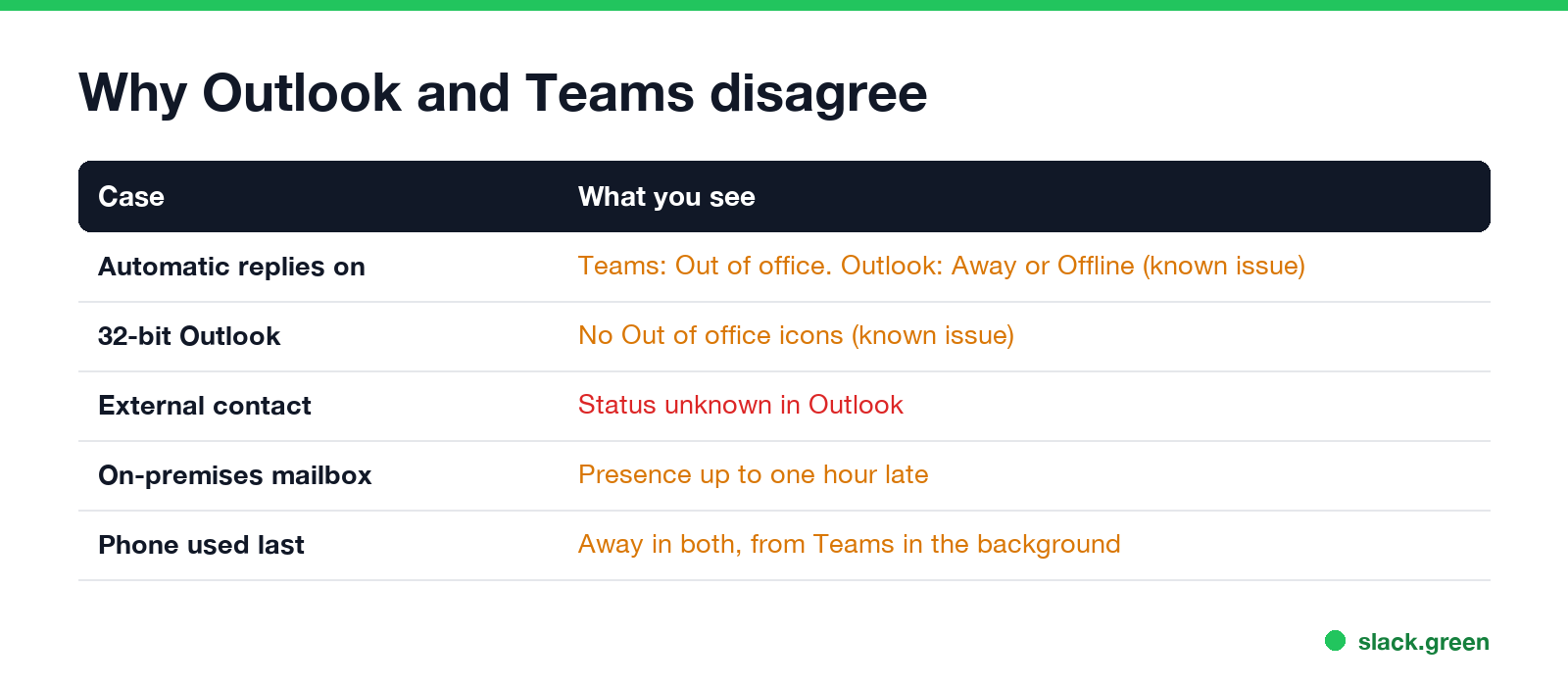
- • Out of office. Microsoft lists a known issue: with automatic replies on, others can see you as Away or Offline in Outlook while Teams shows Out of office, the purple arrow explained in what does the purple arrow mean on Teams.
- • 32-bit Outlook. Another known issue: the 32-bit version of Outlook does not show the Out of office icons.
- • External contacts. Outlook shows Status unknown for people in other organizations, even when Teams shows their status.
- • On-premises mailboxes. If your mailbox is on an Exchange server in your company, Microsoft expects presence delays of up to one hour.
- • Two devices. Teams shows the status of the device you used last. If that is your phone with Teams in the background, Outlook shows Away too; see Teams status stuck on Away.
- • Sign out of new Outlook and back in with your work account.
- • Check the same person in Teams. If Teams shows them as Status unknown too, the fault is on their side or they are external.
- • Ask IT whether presence is limited for your account. Admins can switch on privacy mode, which hides presence from other organizations, as described in how to appear offline on Teams.
New Outlook: Teams status not showing
New Outlook for Windows and Outlook on the web do not need the Teams app on your PC. If presence is missing there:
When to hand it to IT
Never appear "away" on Slack again
Cloud-based. No downloads. Works 24/7 even when your laptop is off.
Microsoft's article tells admins to open a support request in the Teams admin center with the sign-in addresses of both people, desktop and web logs from both, and the output of the Microsoft Support and Recovery Assistant. The classic Teams troubleshooter in the Get Help app is not available for new Teams.
Your Outlook status follows your Teams status, so staying green in Outlook is a Teams question; see how to keep your Outlook status green.
FAQ
Why is my Teams status not showing in Outlook? In classic Outlook for Windows, Teams must be running and registered as the chat app, and Display online status next to name must be on in Outlook, File, Options, People.
How do I show Teams status in classic Outlook? In Teams, Settings, General, turn on Register Teams as the chat app for Microsoft 365. Then restart Outlook and turn on Display online status next to name.
Why does Outlook show Status unknown? Usually the contact is external, their email and Teams sign-in addresses differ, or Teams is not running on your PC.
Does new Outlook need Teams installed to show status? No. New Outlook and Outlook on the web get presence from the cloud.
Why does Outlook show Away when Teams shows Out of office? That is a known issue Microsoft lists for automatic replies. Teams shows the purple arrow; Outlook can show Away or Offline.
What is the DefaultIMApp registry value for new Teams? MsTeams, under HKEY_CURRENT_USER\Software\IM Providers. Classic Teams used Teams.
Stop Jiggling Your Mouse.
Join hundreds of remote workers who never worry about their Slack status. Set it up once, stay green forever.
Related Articles
Teams Status on Multiple Devices: The Last Device You Used Wins
Signed in to Teams on a computer and a phone? Your status comes from the device you used most recently. That is why a quick look at your phone can turn you Away, and why a phone in your pocket shows Away instead of Offline at night.
Auto Clicker vs Mouse Jiggler: Which Keeps You Active, and the Risks
A mouse jiggler moves the pointer; an auto clicker clicks wherever the pointer sits. Both keep Teams and the screen awake, but an auto clicker can click the wrong thing, and fixed-interval clicks are exactly what monitoring tools flag.
Teams Quiet Hours: Set Them on Mobile, Plus Desktop Options
Teams quiet hours is a phone setting: profile picture, Notifications, Block during quiet hours. It mutes Teams on your phone at set hours or on set days, and nobody else can tell. The desktop app has no quiet hours; here is what to use instead.