
Wireless Mouse With a Jiggler: How the Built-in Mode Works
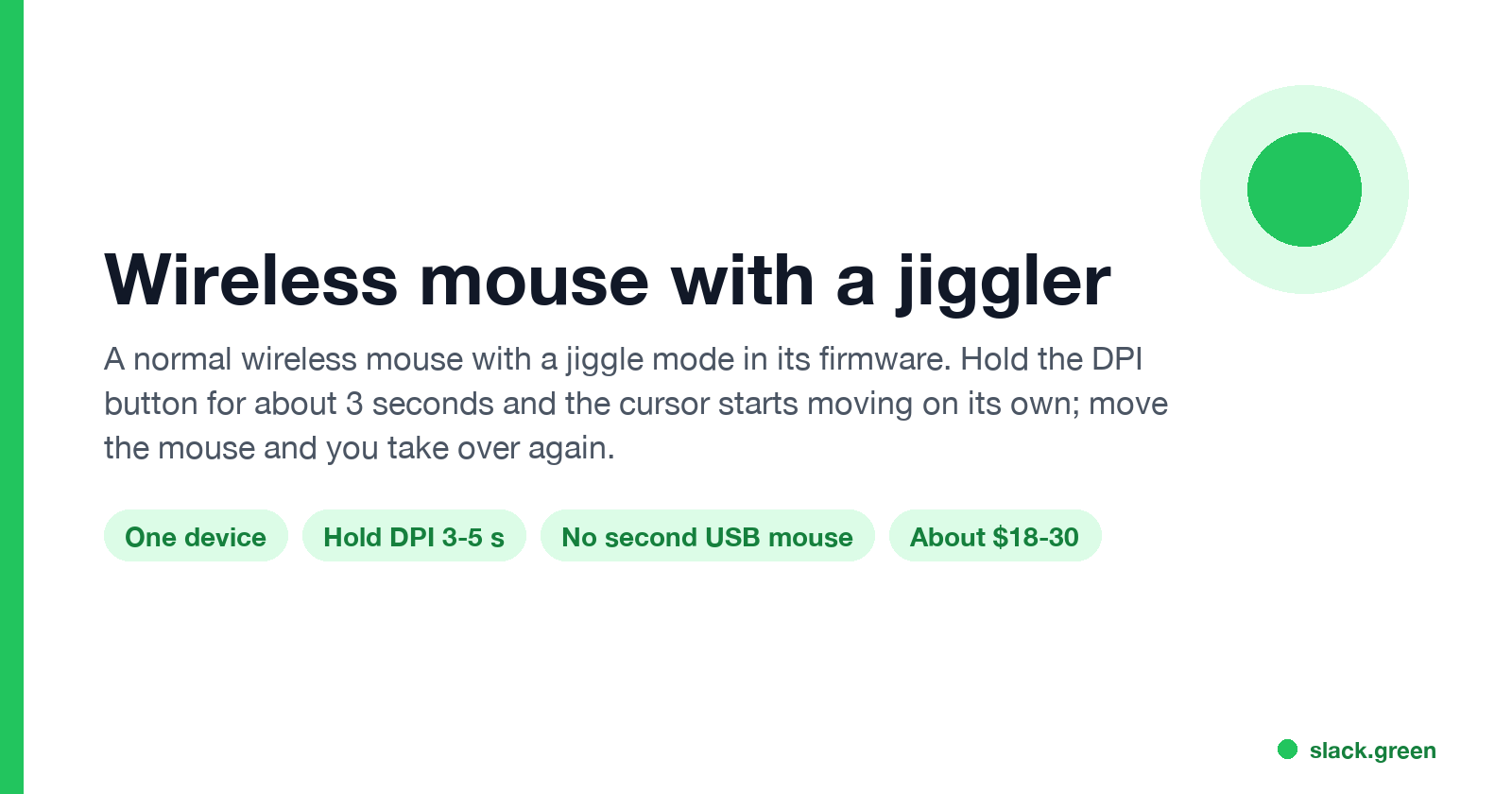
A wireless mouse with a jiggler is a normal mouse with a jiggle mode in its firmware: hold the DPI button for about 3 seconds and the cursor moves on its own. Two models in the top results, how they compare with a USB dongle and a mechanical mover, and what they do for Teams and Slack.
A wireless mouse with a jiggler is an ordinary wireless mouse with a jiggle mode built into its firmware. You use it as your normal mouse. When you step away, you hold a button, usually the DPI button, for about 3 seconds, and the mouse starts sending small cursor movements by itself. Move it or click and you have control again. Because it is your only mouse, the computer sees no second device, unlike a USB jiggler dongle.
If you want to test the idea before buying anything, our free online mouse jiggler runs in a browser tab.
Wireless mice with a built-in jiggler
The top shopping results on 28 September were two brands. The details below are from each seller's product page.
| Model | How to turn jiggle on | Power | Connection | Price seen |
|---|---|---|---|---|
| TECKNET Classic Jiggler Mouse MS002 | Hold the DPI button 3 to 5 seconds | 800 mAh battery, up to 90 days per charge (seller's figure) | 2.4 GHz USB-A receiver, USB-C adapter in the box | $17.99 on sale, $29.99 list, on tecknet.com |
| PEIOUS Wireless Mouse Jiggler | Hold the DPI button 3 seconds | Rechargeable | 2.4 GHz USB receiver | Varies by color; sold on Amazon and Newegg |
Both sellers describe the same behavior. TECKNET's page says the jiggler mode "keeps the computer active by moving the cursor". PEIOUS's Newegg listing says the movements are random, you take control as soon as you move the mouse, and it goes back to jiggler mode after 5 seconds without use.
Both listings call the movement "undetectable". Read that as a sales word; the next sections explain what a jiggler mouse hides and what it does not.
Jiggler mouse vs USB dongle vs mechanical mover
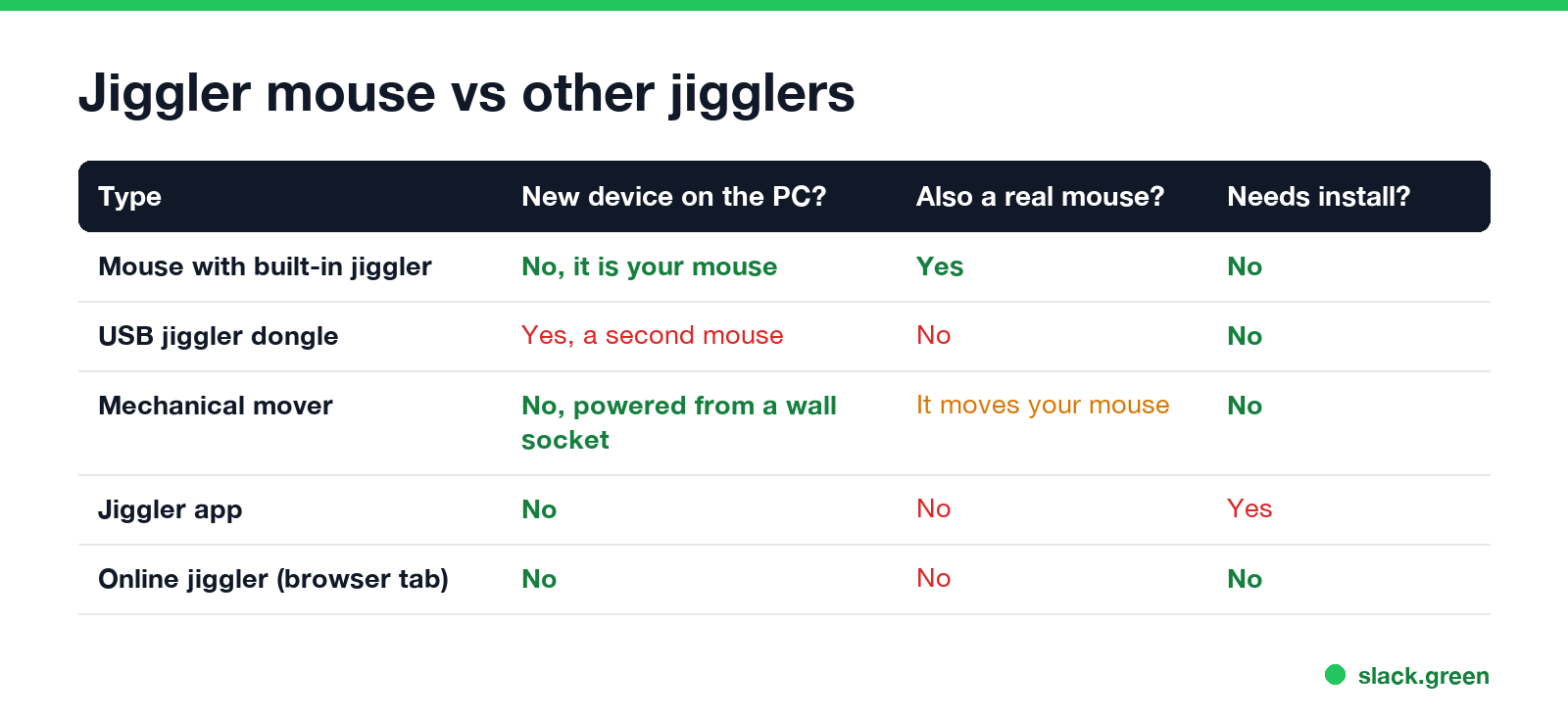
| Type | New device on the computer? | Works as your mouse? | Install? |
|---|---|---|---|
| Mouse with a built-in jiggler | No, it is your mouse | Yes | No |
| USB jiggler dongle | Yes, a second mouse | No | No |
| Mechanical mover | No, it runs from a wall socket | It moves your real mouse | No |
| Jiggler app | No | No | Yes |
| Online jiggler | No | No | No, a browser tab |
A jiggler mouse fits people with one free USB port, or who carry a laptop and do not want a separate dongle. It still plugs in a wireless receiver, which is a device like any other mouse receiver. What it avoids is the extra "mouse" that appears the moment you plug in a dongle. Our best mouse jiggler guide covers the dongles and movers; a mouse mover vs mouse jiggler page explains the difference between the two words.
How to use the jiggle mode
- Plug the receiver into the computer and switch the mouse on.
- Use it as a normal mouse.
- Before you step away, hold the DPI button for about 3 seconds.
- Leave the cursor where you want it. If Slack is what you care about, that is over the Slack window (see below).
- When you come back, move the mouse. Hold the DPI button again to turn the mode off.
Keep the mouse charged. A battery that dies overnight also ends the jiggling, and the computer goes to sleep on its normal timer. Settings that stop sleep without any hardware are in keep computer awake while downloading.
Never appear "away" on Slack again
Cloud-based. No downloads. Works 24/7 even when your laptop is off.
What a jiggler mouse does for Teams and Slack
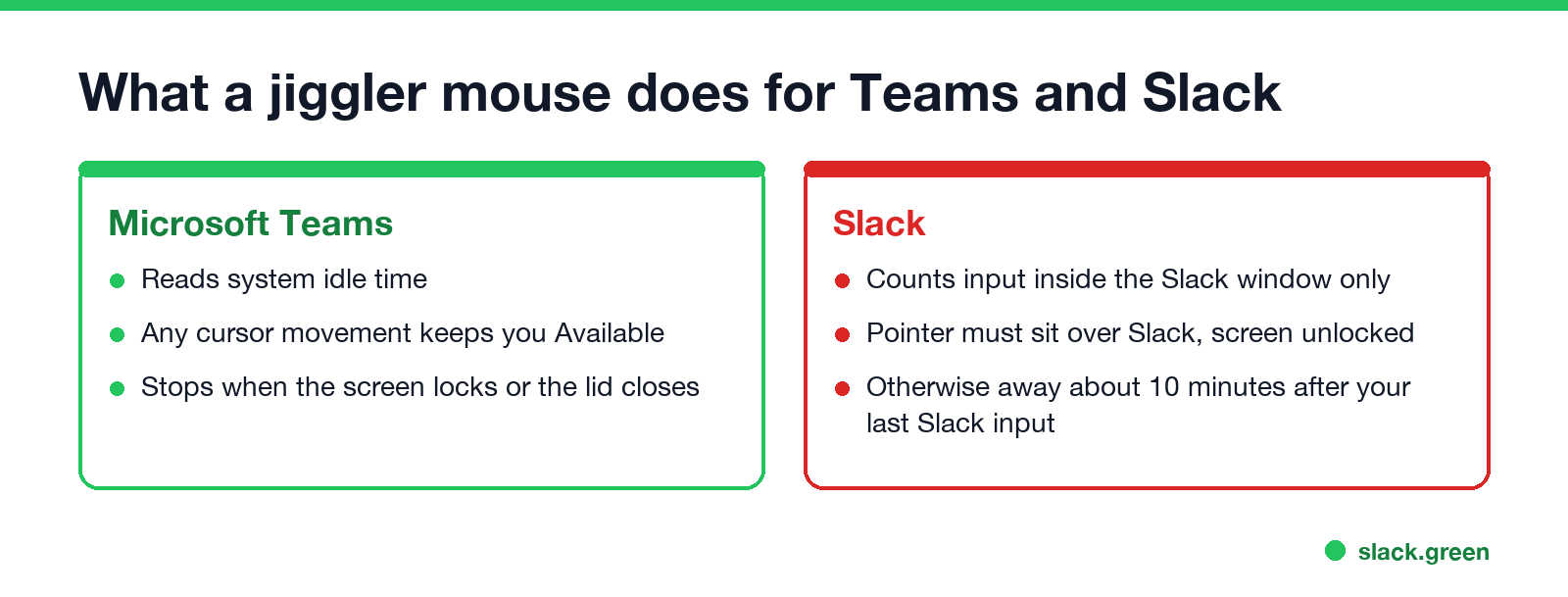
Microsoft Teams reads the system idle time, so any cursor movement keeps you Available. Details are in does a mouse jiggler work for Teams.
Slack counts only input inside its own window. It sets you away about 10 minutes after your last input in Slack. A jiggler mouse keeps Slack active only if the pointer sits over the Slack window and the screen stays unlocked. Leave the pointer over your email and the computer stays awake while your Slack dot turns grey. The rule is in does Slack track mouse movement.
Both apps set you away when the screen locks or the laptop lid closes; see does a mouse jiggler work when the computer is locked.
Can a jiggler mouse be detected?
Whether it is allowed at work is a policy question, not a hardware one; see are mouse jigglers legal and can a mouse jiggler be detected.
FAQ
Is there a Bluetooth mouse with a jiggler?
The models in the top results on 28 September used a 2.4 GHz USB receiver. Check the listing for Bluetooth before you buy if your laptop has no free USB port.
How do I turn on the jiggler on a jiggler mouse?
On TECKNET and PEIOUS models, hold the DPI button for about 3 seconds. Hold it again to turn it off.
Does a mouse with a jiggler keep my computer awake?
Yes, while the mode is on and the battery lasts. It moves the cursor, so the computer does not count you idle.
Does a jiggler mouse keep my Slack dot green?
Only with the pointer over the Slack window and the screen unlocked. Slack ignores input in other windows.
Stop Jiggling Your Mouse.
Join hundreds of remote workers who never worry about their Slack status. Set it up once, stay green forever.
Related Articles
Webex Status Ideas: 35 Custom Statuses Under 75 Characters
35 Webex status ideas you can paste into Set a status: funny ones, meetings, focus time, lunch, out of office and time zones, each under Webex's 75-character limit. How to set a custom status, save five for reuse, and make it clear on its own.
How to Use Slack Block Kit Builder: Templates, Preview, Payload
Slack's Block Kit Builder at app.slack.com/block-kit-builder lets you pick a template, add blocks, preview the message on Desktop or Mobile, and copy the JSON payload for a webhook or chat.postMessage. A walk through the current builder, a working deploy message, and the steps to send it.
Does Sapience Track Mouse Movement? What It Records and Flags
Sapience records that you used the mouse and keyboard, with a timestamp, and which app, website and window title were in front. It does not record keystrokes, clicks or screenshots. What that means for idle time, meetings, private time and mouse jigglers, from Sapience's own help center.